Tachyon Guides
 Tachyon Studio
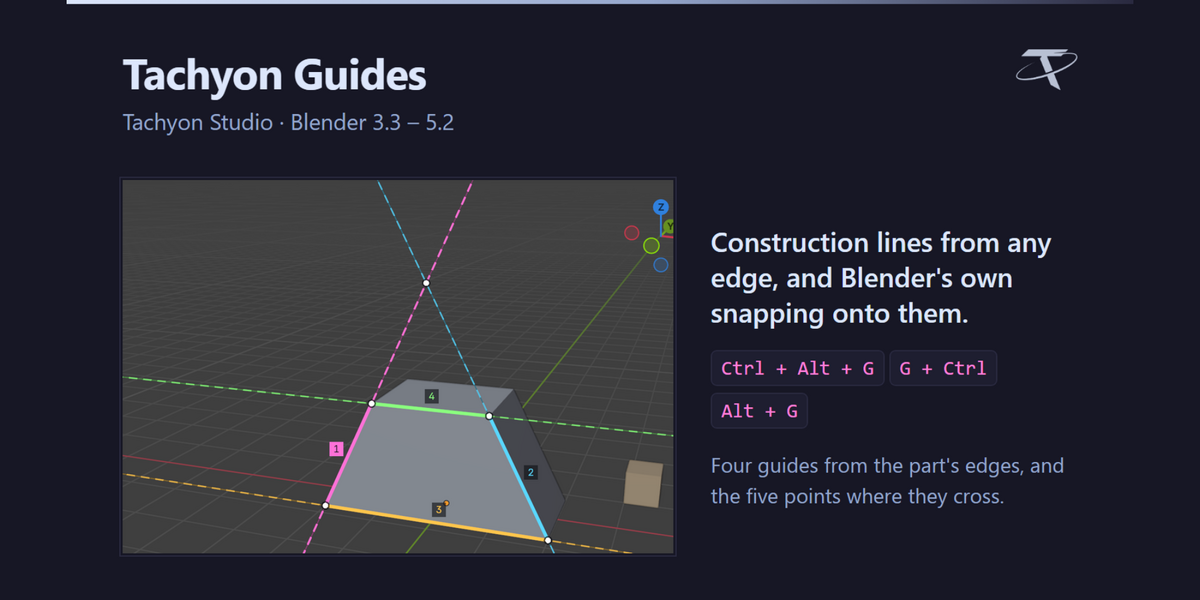
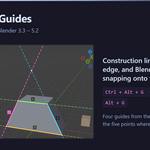
It gives Blender the guides you know from CAD software: construction lines that aren't part of the model, which you snap to. Select an edge and press Ctrl + Alt + G: an endless guide runs along it. Make as many as you like; where two cross there is a dot. Then move with G and hold Ctrl, and Blender's own snapping slides your selection along the guides and lands it exactly on the crossings.
3.3 through 5.2, from one package. It installs as a modern extension on 4.2 and newer, and as a classic add-on on 3.3 – 4.1.
Yes. There is no native code and nothing platform-specific in it.
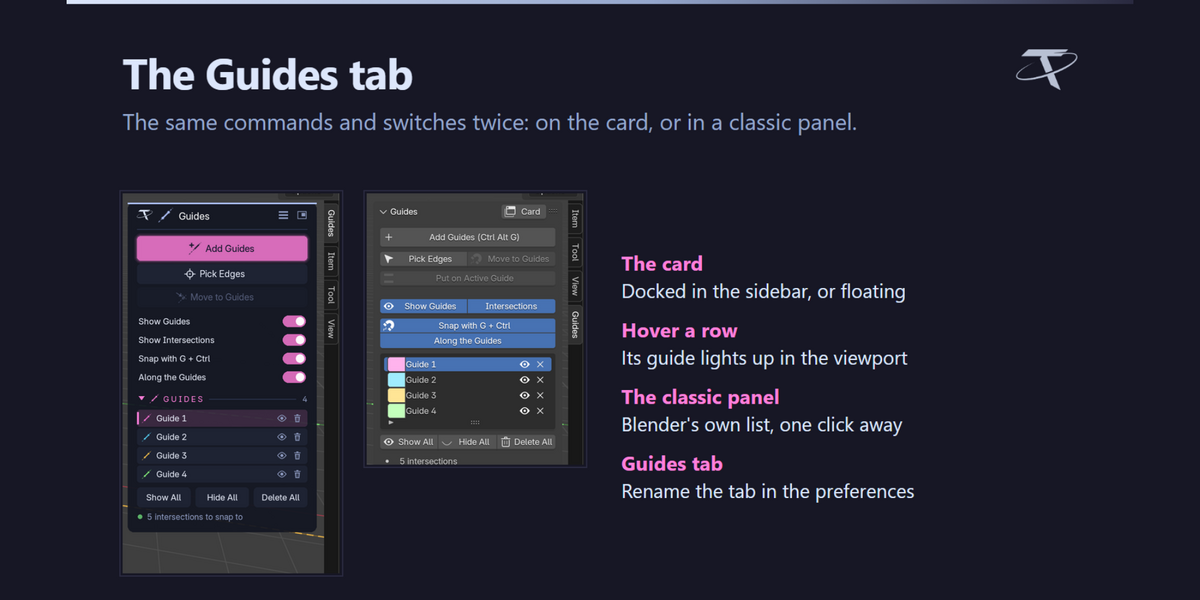
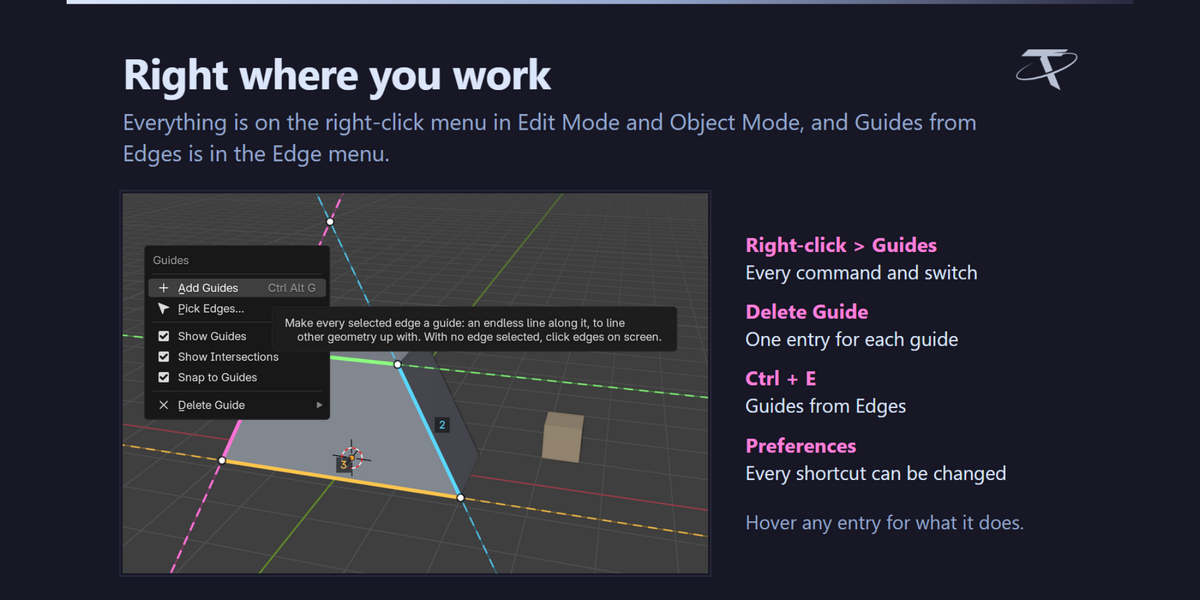
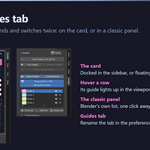
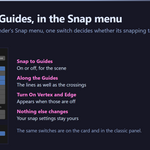
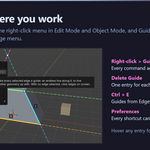
The 3D Viewport sidebar — press N — then the Guides tab. Everything is also on the right-click menu, in Edit Mode and Object Mode, Guides from Edges is in the Edge menu (Ctrl + E), and the snapping switch is at the foot of Blender's Snap menu, under Tachyon Guides.
Tachyon Guides, so it sits beside the other Tachyon Studio tools.
Select one or more edges in Edit Mode and press Ctrl + Alt + G. Each selected edge becomes a guide. With nothing selected, or in Object Mode, the same key lets you click edges on screen instead, on any visible mesh.
Usually because the edge already lies along a guide: an edge on the same line doesn't make a second one. That guide is shown again, made active and lit up for a moment instead, and a message names it. In Face select mode, a selected face's own edges don't count either; switch to Edge select mode, or click the edges with Pick.
Yes. Pick works on every visible mesh, whether or not it's in Edit Mode, and with several objects in Edit Mode the selected edges of all of them are used.
No, on purpose. A guide stays where it was drawn, like a construction line in CAD, so you can move the mesh onto it.
Yes, with the file. They belong to the scene, so each scene has its own.
No limit on how many guides you have. One press takes at most 64 selected edges, so a whole loop selected by accident doesn't fill the view with lines; select fewer, or click them with Pick.
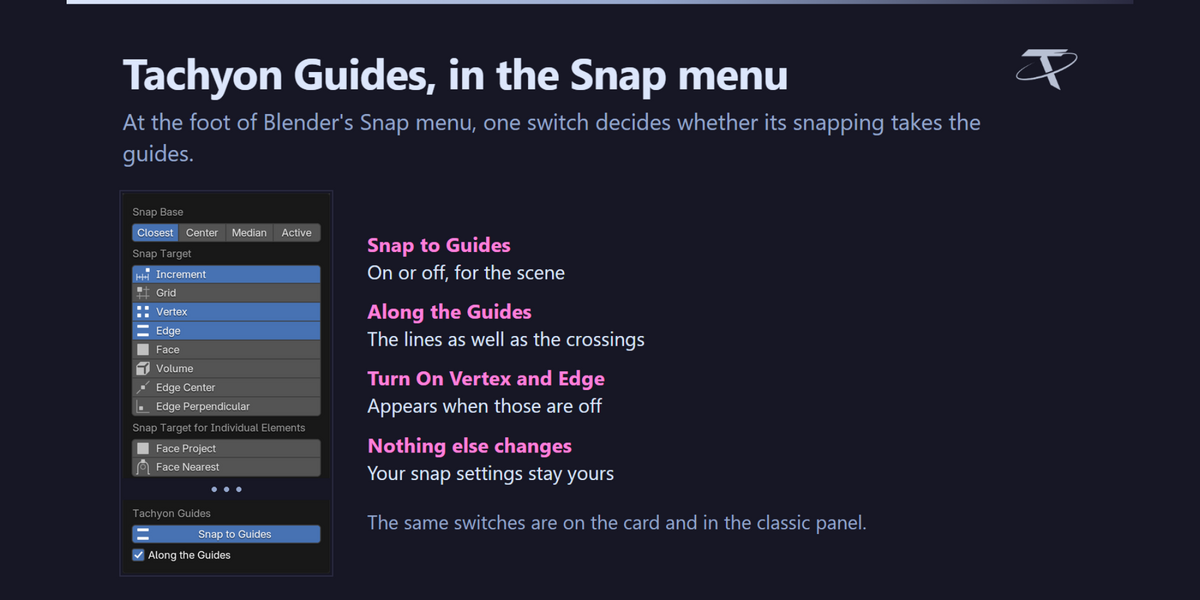
Press G to move, then hold Ctrl, as with any snapping in Blender. Vertex snapping lands on the points where guides cross, and Edge snapping slides along a guide. Both have to be ticked in Blender's Snap menu; if they aren't, the Guides tab shows a button that turns them on.
Yes. Whole objects snap to the guides in Object Mode exactly like vertices do in Edit Mode, with whichever Snap Base you use.
The stand-in that Blender's snapping lands on. Blender only snaps to real geometry and its snap targets can't be added to, so the add-on keeps a mesh in step with your guides: a point where guides cross and lines along them. It can't be selected or rendered, it's rebuilt whenever a guide changes, and it goes away when there's nothing to snap to, when you turn snapping to guides off, or when the add-on is turned off.
- Vertex and Edge are ticked in Blender's Snap menu (the Guides tab offers to turn them on).
- Snap to Guides is on: at the foot of the Snap menu, or Snap with G + Ctrl in the Guides tab.
- Exclude Non-Selectable is off, and, in Edit Mode, Include Non-Edited is on. The Guides tab warns about both.
- The guides are shown: hidden guides aren't snapped to.
- You're not in Local View, which leaves the stand-in out.
It has a magnet: the selection lands on a crossing as soon as the pointer is within 30 pixels of it, and a faint ring shows that reach. It can also move by the selection's centre (C) or a point you click (B), move one vertex alone (V), or lay the whole selection onto a guide (P).
Yes: Crossing Magnet in the add-on's preferences, in pixels.
From its row in the Guides tab (the bin on the card, the X in the classic panel), from right-click ▸ Guides ▸ Delete Guide, or press X over it while picking. Delete All removes every guide, after asking.
In Edit Mode, Blender's undo holds only the mesh, so it can't take a guide away; delete it instead. In Object Mode, Ctrl + Z undoes guides like anything else.
The eye on each row hides that guide, Show Guides hides them all, and H toggles them while picking. Hidden guides aren't snapped to.
Yes, in the classic panel's list: double-click the name, or click the colour swatch.
The guide whose row is under the pointer, in the viewport, so you can see which one a click or a delete will take.
Yes: Remove from Vertex Group in Edit Mode and Remove from Collection in Object Mode. Both stay in their menus, and the add-on's shortcut can be changed in the preferences. Alt + G isn't used by Blender in Edit Mode.
Every one of them, in Preferences ▸ Add-ons ▸ Tachyon Guides ▸ Shortcuts.
Press Ctrl + Shift + Alt + D, or use the switch at the top right of the classic panel.
 Included
Includes 12 months of
- Support from Tachyon Studio
- Product updates
Extend this product’s Support Period +12 months: 50% of product price
Have questions before purchasing?
Login to message
| Blender Extension Compatible | Yes |
| Published | about 4 hours ago |
| Blender Version | 3.3 - 5.2 |
| Extension Type | Add-on |
| License | GPL |
Discover more products like this
snap snapping construction lines addon alignment cad intersection edit mode modeling guides precision hard surface