 POWERBLOW




- Supported Blender versions: 4.2, 4.5, 5.0, 5.1, 5.2 (Older versions are not guaranteed to work.)
- Operating System: Windows 10 / 11 (64bit)
- CPU: x86_64(Intel / AMD)
- ARM64 Windows (e.g. Snapdragon)
- macOS (Intel and Apple Silicon M1/M2/M3)
- Linux

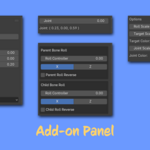
View - Toggles the add-on on and off.
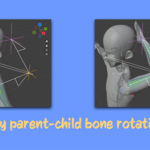
ROTATE - Executes the rotation of the bone.
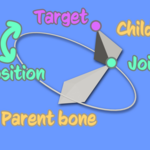
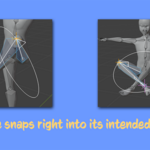
Target - Adjusts the position of the "Target". The rotation will align the tail of the child bone to this position.
Target Bone Snap - Snaps the target to the child bone's tail.
Parent / Child - Displays the name of the selected parent and child bones.
Rotation Limit - Select whether to apply the bone constraint’s rotation limits. For more details, refer to the "About Rotation Limit" section.

Joint - Adjusts the position of the "Joint"( 0 - 360 ). The rotation aligns the tail of the parent bone (the head of the child bone) to this position.

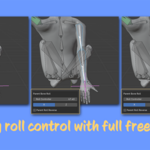
Roll Controller - Adjusts the roll of each parent and child bone (from -180 to 180). For more details, see the "About Roll" section.
X / Z ( Axis ) - Select the axis along which you want to adjust the bone roll. The axis is in the bone’s local space.
Roll Reverse - When checked, the roll is reversed in the negative direction of the axis.

Roll Scale - Adjusts the size of the displayed "Roll".
Target Scale - Adjusts the size of the displayed "Target".
Target Color - Adjusts the color of the displayed "Target".
Joint Scale - Adjusts the size of the displayed "Joint".
Joint Color - Adjusts the color of the displayed "Joint".
Target Ring Color - Adjusts the color of the displayed "Target Ring".
Target Ring Alpha - Adjusts the alpha of the displayed "Target Ring".

- Select the target armature.
- Switch to POSE mode.
- In the Sidebar, open the TakeItPosy tab and enable the View checkbox.
- In the 3D View, select two bones in a parent–child relationship.

- Adjust the Target position in the add-on panel.

- Adjust the Joint (0-360) in the add-on panel.

- Adjust the each Roll Controller (-180 to 180) in the add-on panel.

- Click the ROTATE button in the add-on panel.

Check the orientation of the local axes of the bone you want to align.

Select the axis ( X / Z ) that matches this orientation.
If it is in the negative direction, check Reverse.
Then, simply adjust using the Roll Controller.
Bones that do not have a Limit Rotation constraint will be ignored, so you don't need to worry about them.
Of course, if the Limit Rotation constraint is turned off, it will not be checked.
If multiple Limit Rotation constraints are applied, all of them will be checked.

NOTES
- Only constraints set in Local Space are supported. Limit Rotation constraints set to other spaces will be ignored and will not work.
- Influence is also ignored. Even if the influence value is 0, it is still treated as an active limitation.
- If both Min and Max are set to 0 on the same axis, the bone will be almost unable to rotate.
We recommend allowing a reasonable margin such as Min: –10 / Max: 10.
(If one axis is completely locked, the rotation becomes limited to a plane.)

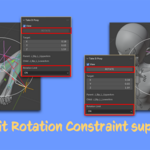
There are three types of Rotation Limit:
- ON – Follows the Limit Rotation constraint.
-
ON and no order – Follows only the numerical axis limits of the Limit Rotation constraint, but ignores the rotation order.
In this mode, the rotation is computed after internally rewriting the order of the Limit Rotation constraint. -
OFF – Ignores the Limit Rotation constraint.
In this mode, the rotation is computed after internally disabling the Limit Rotation constraint.

When Rotation Limit is set to ON or ON and no order, the virtual line of the bone will turn red if the rotation hits a limit.
In this state, the ROTATE button will also be disabled.
If the bone can rotate within the allowed range, the virtual line will be shown in white.
Once the values are adjusted so that the bone can rotate, the ROTATE button becomes available.
When using Rotation Limit, it may be possible to rotate by adjusting the roll.
As a basic workflow, it is recommended to operate with the roll set to 0, and then adjust the roll at the end.
Even if rotation is not possible when the roll is 0, adjusting the roll may allow rotation.
- Roll Scale – Adjusts the displayed size of the Roll indicator
- Target Scale – Adjusts the displayed size of the Target indicator
- Target Color – Adjusts the displayed color of the Target indicator
- Joint Scale – Adjusts the displayed size of the Joint indicator
- Joint Color – Adjusts the displayed color of the Joint indicator
- Target Ring Color – Adjusts the displayed color of the Target Ring indicator
- Target Ring Alpha – Adjusts the displayed alpha of the Target Ring indicator

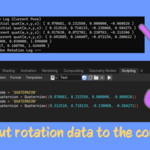
- 1st line: Parent bone name – Rotation value from Rest Pose, Quaternion (w, x, y, z)
- 2nd line: Child bone name – Rotation value from Rest Pose, Quaternion (w, x, y, z)
- 3rd line: Parent bone name – Rotation value from the current Pose, Quaternion (w, x, y, z)
- 4th line: Child bone name – Rotation value from the current Pose, Quaternion (w, x, y, z)
- 5th line: Target location in Global space (x, y, z)
- 6th line: Joint location in Global space (x, y, z)

The add-on simply rotates bones without any special processing, so it should work with most FK rigs.
It might not work properly with very unique or heavily customized rigs.
- This feature only rotates two bones at a time.
-
It does not function as an IK system to fix bones at specific positions.
Results always follow the movements of the armature and its parent bones. - The add-on operates using local rotation of bones.
- Only the selected two bones (parent and child) are supported.
- Armature scale must be 1.0. All bones from the selected bones up to the root must also have a scale of 1.0.
- Rotation limits may have an error of approximately ±3°, and in some cases, the limit may be slightly exceeded (simplified checking is applied).
- If the dependency graph modifies bone rotation (keyframes, IK, copy rotation, etc.), the add-on may not rotate bones correctly.
-
Rotation does not align:
Target and Joint positions are in global space. If the armature, root bone, or parent bones are moved, positions may shift. Rotate again using the updated positions or set Target and Joint positions relative to the bones before rotating. -
Rotation does not align:
If the bone’s virtual line is misaligned, it may be affected by the dependency graph. This happens if keyframes, IK, or constraints are influencing the bones. Try disabling them and rotate again. -
Joint circle appears incorrect:
Check the armature scale and the scale of all bones from the root to the selected bones. Any scale other than 1.0 is not supported. -
Cannot rotate due to rotation limits:
If both Min and Max are set to 0 on the same axis, the bone will be almost unable to rotate. We recommend allowing a reasonable margin, e.g., Min: –10 / Max: 10. -
Rotation limits do not work:
Only local bone space is supported. Rotation limits set in other spaces are ignored. -
macOS / Linux:
I only use Windows, so I cannot provide support or guarantee correct behavior on macOS or Linux. Please understand😅
Please check this page for the latest support information.
- Support info: POWERBLOW Support
Have questions about this product?
Login to message
| Published | 10 months ago |
| Blender Version | 4.2 - 5.2 |
| Extension Type | N/A |
| Render Engine Used | Arnold, Blender-Internal, Blender-Game-Engine, Cycles, Eevee, Freestyle, Luxrender, Mental-Ray, Octane, Vray, Yafaray |
| License | Mit |
Discover more products like this
bone addon pose quaternion rotation pose tool animation blender rig control rigging