Text Optimizer
 Raelin Assets



Quick Start
-
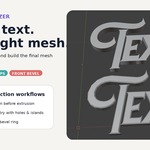
Select the original editable Text object.
The active object must be a Blender Font object, not the optimized Mesh. -
Set the final geometry:
- Text Thickness
- Text Bevel Width
- Text Contour Quality
- optionally Remove Back Faces
-
Click Create Optimized Text.
A separate mesh named_Optimizedwill be created. -
Continue editing the original Text whenever needed.
You can change the text, font, spacing, alignment, Geometry Offset, Text on Curve, or transform. - Select the original Text again and click Update Optimized Preview to rebuild the existing optimized mesh.
-
Use the
_OptimizedMesh for export or assign it manually to another system such as a Geometry Nodes Object input.
The original Text remains editable throughout the workflow, while preview updates reuse the same optimized Object and Mesh datablock so manual references stay connected.
Controls
Text Thickness
Sets the true total depth of the generated mesh. Until manually changed, it follows the source Text Extrude × 2 and stays centered on the source plane.
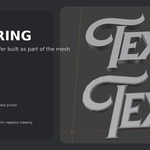
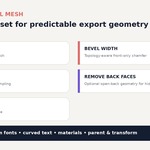
Text Bevel Width
Creates a topology-aware front-only chamfer. The rear edge remains square. Set the value to 0 for the lightest direct prism.
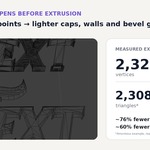
Text Contour Quality
Controls adaptive curve sampling before mesh construction.
- 0–20 — aggressive game-ready reduction
- 21–45 — balanced range for many signs and props
- 46–70 — closer silhouette matching
- 71–100 — fine sampling for close views
Bevel Segments
Fixed at 1 by design for a lightweight controlled chamfer.
Remove Back Faces
Omits the rear cap while preserving the front, bevel, and side walls. This produces intentionally open geometry and should only be used when the rear surface will not be visible.
Create / Update
Creates the optimized output once and then rebuilds that same Object and Mesh in place.
Geometry Offset
Positive and negative Blender Text Geometry Offset are evaluated before optimization. The resulting silhouette, holes, overlapping letters, and front bevel are rebuilt together.
There is no duplicate Offset control in the add-on — set Geometry > Offset directly on the original Text object and create or update the optimized mesh normally.
Overlapping Letters
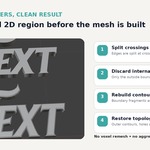
Intersecting glyphs are resolved as a filled 2D region before extrusion or bevel generation. Internal overlap edges are discarded while outer contours, holes, compound contours, and disconnected islands are reconstructed.
The optimizer does not rely on voxel remeshing, aggressive Decimate, or a mesh Boolean cleanup pass.
Installation
- Open Preferences.
- Go to Add-ons / Extensions.
- Choose Install from Disk.
-
Select
Raelin_Text_Optimizer_v1_2_1_Extension.zip. - Enable Raelin Text Optimizer.
- In the 3D View, press N and open the Raelin Text tab.
Compatibility
Validated in Blender 4.5.4 LTS and Blender 5.2.1 LTS.
Tested with built-in and custom fonts, positive and negative Geometry Offset, curved text, multiple independent Text objects, overlapping glyphs, open-back meshes.
Have questions about this product?
Login to message
| Blender Extension Compatible | Yes |
| Published | about 2 months ago |
| Blender Version | 4.5 - 5.2 |
| Extension Type | Add-on |
| Render Engine Used | Cycles |
| License | GPL |
Discover more products like this
mesh optimization modeling typography font geometry nodes low poly optimization game ready bevel 3D text realtime text