Texture Audit - Find Missing & Hidden Textures
 Salman Naseem



Texture Audit — How to Use
1. Open the panel
In the 3D Viewport, press N to open the sidebar, then click the Texture Audit tab.
2. Scan your file
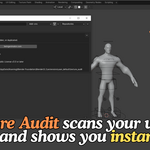
Click Rescan Textures. This reads every material, world shader, the compositor, and Geometry Nodes in the file and builds the texture list. Nothing changes in your file when you scan, it only reads.
3. Check the summary line
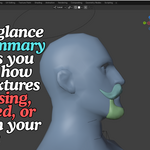
Right under the button, a line shows N missing · N orphaned · N hidden (or "No issues found"). This is your at-a-glance file health check.
4. Browse textures
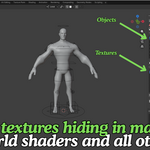
The top list shows every texture with its usage count and resolution. Click a row to see who uses it in the list below, object, material, and node type.
Use the sort dropdown next to "Textures in file" to reorder by Name, Usage Count, Resolution, or Missing First.
5. Select a hidden object
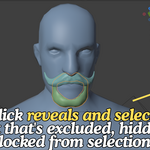
If an object using the selected texture is hidden, excluded, or locked, its row shows a status icon. Select that row, then click Select Object. It reveals the object (unhides it, un-excludes its collection, clears any selection lock) and frames it in the viewport.
6. Fix a missing texture
If a texture is flagged missing (red warning icon), select it and click Relink Texture. Blender's file browser opens, pick the correct file, and it relinks automatically.
7. Clean up orphaned textures
Open the Orphan Textures section at the bottom. It lists images with no real users. Click Purge Selected to delete one, or Purge All to clear them all at once (a confirmation prompt appears first). Images kept with a Fake User are skipped automatically.
8. Export a report
Click Export Report to Text to write a full plain-text usage report into a new Text datablock, viewable in Blender's Text Editor, ready to copy or save.
That's it, no configuration, no preferences to set up. Scan, review, fix.
1. What does Texture Audit actually do?
It scans your Blender file and lists every texture along with everywhere it is used: materials, world shaders, the compositor, and Geometry Nodes. It also flags missing, orphaned, and duplicate textures.
2. Does it modify my file automatically when I scan?
No. Scanning only reads data and never changes anything. The only actions that modify your file are ones you explicitly trigger: Select Object (reveal), Relink Texture, and Purge.
3. Is purging orphaned textures safe?
Yes. Before deleting anything, Texture Audit re-checks the image's real user count live, so an image that started being used again since your last scan will not be removed. Images kept alive with a Fake User are skipped by default during bulk purges, and library-linked images are never touched.
4. Can I undo a purge or relink?
Yes. These operators support Blender's standard undo (Ctrl+Z), same as any other Blender action.
5. Does it detect textures used in Geometry Nodes?
Yes, including the Image Texture node inside Geometry Nodes modifiers and nested node groups.
6. Does it detect textures used in the compositor?
Yes, the scene's compositing node tree is scanned for Image nodes, including nested node groups.
7. What does "hidden" mean in the summary line?
It counts distinct objects in the file that are currently excluded from the View Layer, hidden, disabled in viewports, or locked from selection, the same conditions the Select Object button can reveal.
8. What happens when I click Select Object on a hidden item?
It un-excludes the object's collection in the View Layer, unhides it, clears its selection lock, selects it, and frames it in the viewport, then tells you exactly what it changed.
9. Does it work on objects that are hidden for a reason (like alternate outfit variants)?
Yes. It is common in modular asset packs to keep alternate variants excluded on purpose. Select Object reveals them on demand without you needing to manually manage collection visibility.
10. How does duplicate detection work?
It compares the actual absolute file path behind each image datablock, not just the name, so it catches the same source file imported twice under different names.
11. Does it slow down large scenes?
Scanning reads through your file's data once per click of Rescan Textures. It is not a background process and does not run automatically, so it will not affect your normal viewport performance.
12. What Blender versions does it support?
It targets Blender 4.2 and newer, distributed as a proper Blender Extension.
13. Does it work on Windows, macOS, and Linux?
Yes, it is pure Python using only Blender's own API, with no platform-specific code.
14. Does it need an internet connection?
No. It only reads and writes local file paths and Blender data. Its one declared permission is for checking and relinking texture file paths on disk.
15. Does it work with both Eevee and Cycles?
Yes. It reads the node graph itself, which is shared across render engines, not render-engine-specific settings.
16. Will it find textures in linked or appended libraries?
It scans objects, materials, and node trees present in the current file. Images linked from another library are correctly recognized as not removable or relinkable from this file, and are skipped by purge and relink operations to avoid breaking the source library.
17. Can it fix a missing texture automatically?
It flags the missing texture and gives you a one-click Relink Texture button that opens Blender's file browser so you can point it at the correct file. It does not guess a replacement automatically, since a wrong automatic guess could be worse than no guess.
18. Does it support UDIM texture sets?
It scans and reports on whatever image datablock a node references, including images that are part of a UDIM tile set. It does not currently group or manage UDIM tiles as a single unit.
19. What license is it released under?
GNU GPL v3.0 or later, matching Blender's own extension requirements.
20. Who is this addon for?
Lookdev and lighting artists, texture artists managing many assets, riggers and character artists working with modular packs, freelancers preparing files for delivery, and pipeline TDs who need a fast way to audit a file's texture health.
Have questions about this product?
Login to message
| Blender Extension Compatible | Yes |
| Published | 2 months ago |
| Blender Version | 3.2 - 5.2 |
| Extension Type | Add-on |
| Render Engine Used | Cycles, Eevee |
| License | GPL |

Discover more products like this
find which material uses a texture texture tracker texture audit