Texture Downscaler
 active clay

How to Use It & Where to Find It
Where to find it:
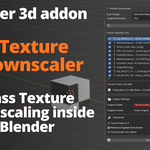
Once installed, open the N-Panel in the 3D Viewport (press N) and look for the "Active Clay" tab. Everything lives there.
Workflow:
- Select the objects you want to optimize (or choose a broader scope like "All Scene Objects")
- Pick your target resolution — 4K, 2K, 1K, 512, or 256
- Hit Scan Textures — you'll see every texture that's found, its current size, and what it'll shrink to
- Uncheck anything you want to leave alone
- Set your output folder and format
- Click Downscale & Replace — done
The whole thing takes about 30 seconds for most scenes. You can even see the projected MB savings before you touch anything, so there's no guessing.
Have questions about this product?
Login to message
| Blender Extension Compatible | Yes |
| Published | 5 months ago |
| Blender Version | 4.2 - 5.2 |
| Extension Type | Add-on |
| Render Engine Used | Cycles |
| License | GPL |
Discover more products like this
Workflow performance textures texture downscaler resize Batch processing vram materials automation memory saving utility optimization