Texture Extractor
 Tyler Dobson
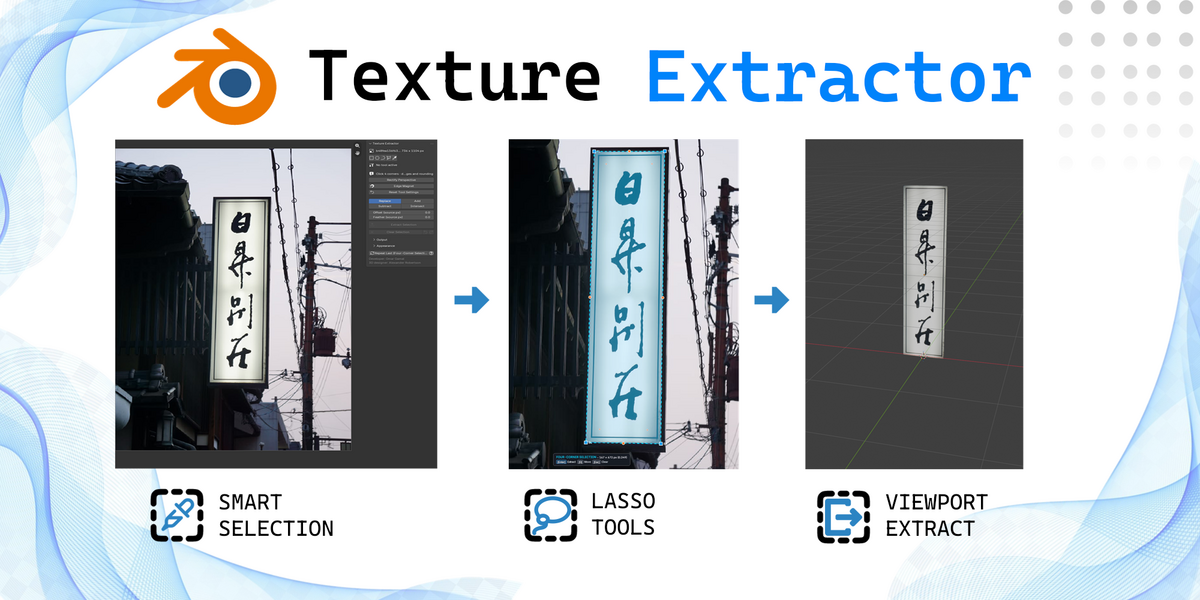
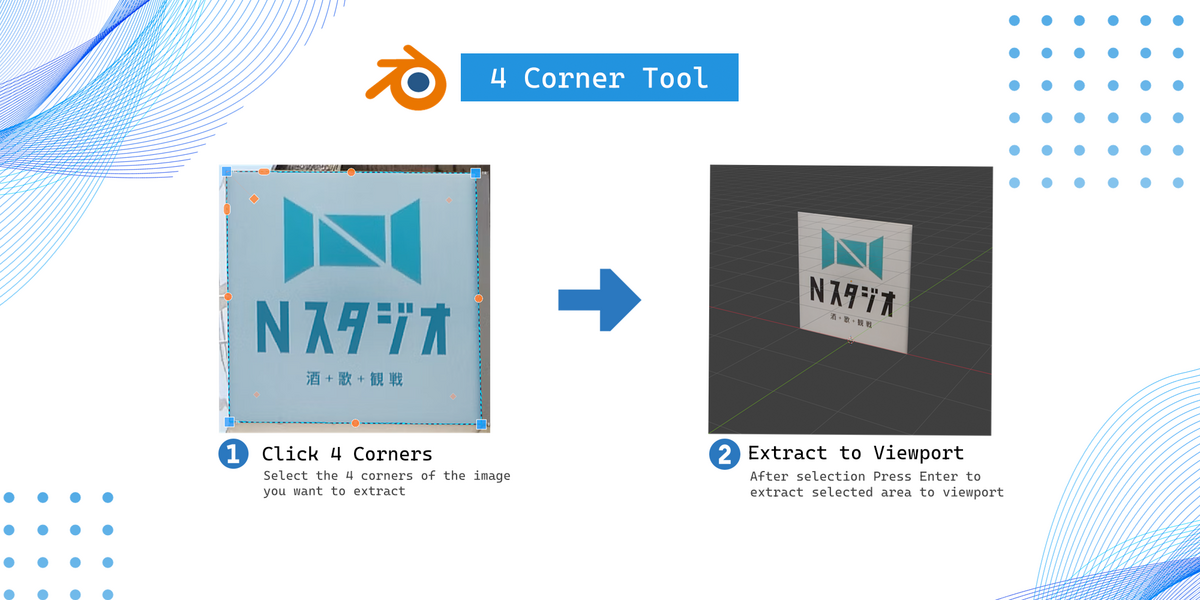
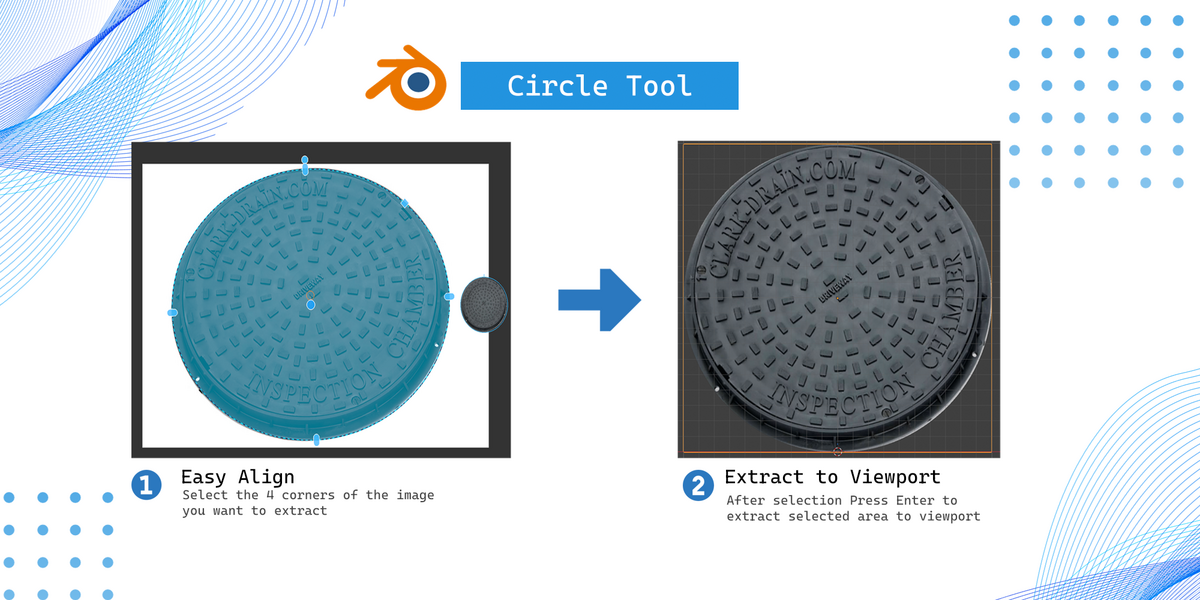
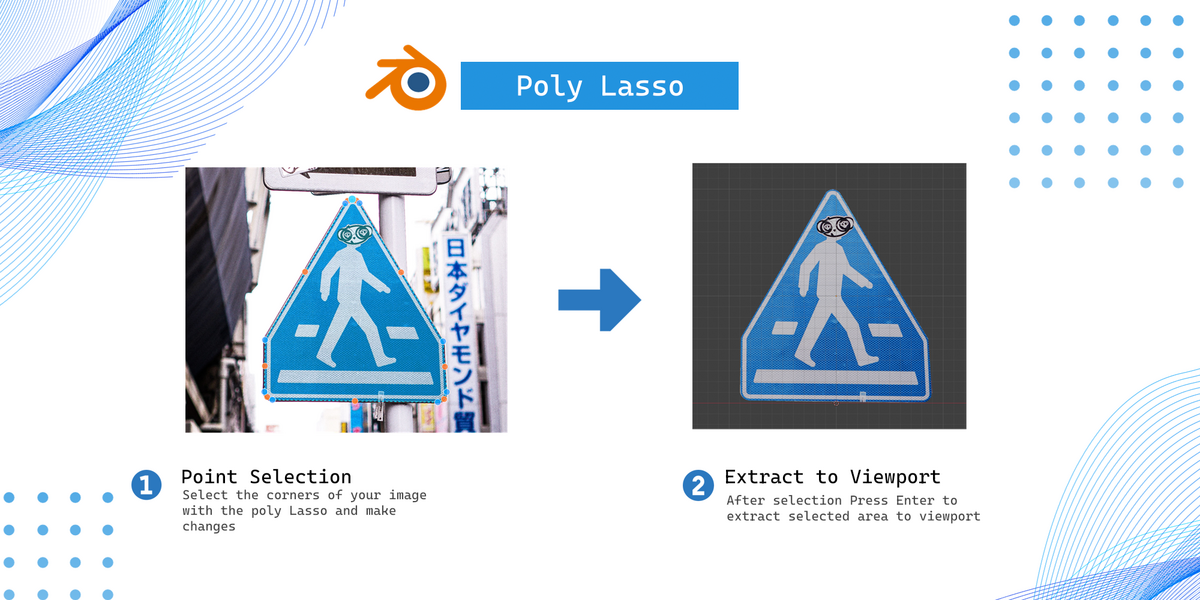
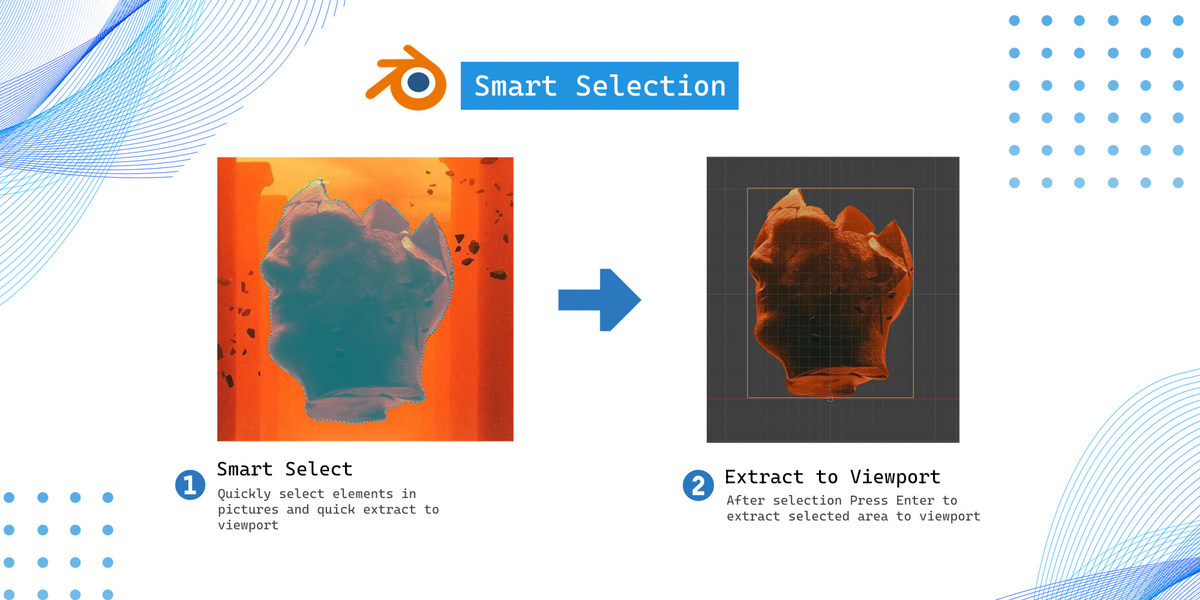
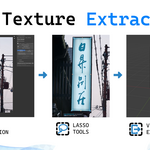
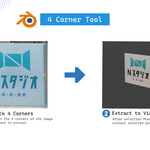
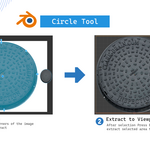
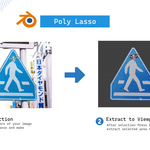
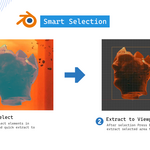
Texture Extractor is an addon that allows you to extract textures from images directly within Blender. Select the areas you need, extract them for use in your 3D scenes, and optionally export them as PNG files to a folder of your choice.
Getting Started
Open your source image in Blender's Image Editor.
Open the Texture Extractor panel.
Choose a selection tool and select the texture you want to extract.
Refine the selection if necessary.
Pack the extracted image into your
.blendfile or export it as a PNG.
Selection Tools
Four-Corner Selection
Select textures by defining four corners. Additional controls let you adjust the shape and round the corners, making it useful for signs, labels and perspective-shaped surfaces.
Circle / Oval Cutout
Extract circular or oval textures by positioning a selection over the object and adjusting its radius. Ideal for circular signs, labels and similar objects.
Lasso
Create freeform selections by drawing around an object or use polygonal mode to build a selection from straight lines between points.
Smart Select
Uses machine learning to detect contrast between objects in an image. Adjust the contrast threshold to suit different images and help isolate the desired texture.
Refining Selections
Edge Magnet: Helps selection points snap to detected image edges.
Offset: Expands or contracts the selection boundary.
Feather: Provides additional control over selection edges.
Selection Modes: Replace, Add, Subtract and Intersect allow you to manage selections.
Reset Geometry: Resets selection geometry.
Exporting Textures
Pack in .blend
Packs the extracted image into your Blender project so it remains available when the project is reopened or moved.
Have questions about this product?
Login to message
| Blender Extension Compatible | Yes |
| Published | 38 minutes ago |
| Blender Version | 4.5 - 5.2 |
| Extension Type | Add-on |
| Render Engine Used | Cycles, Eevee |
| License | GPL |
Discover more products like this
3DStockImages texture ripper #360Image 2d-3d extract image 2d-blender extractor