Texture Maps Generator - PBR Maps From One Image
 blenderustad


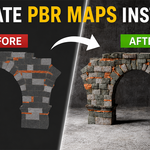
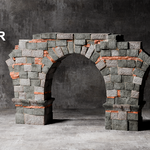
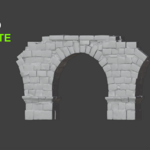
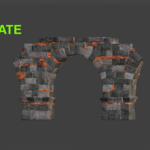
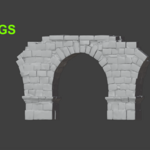
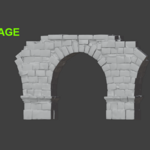
How to Use
Step 1 — Install Download the ZIP. In Blender go to Edit > Preferences > Add-ons > Install From Disk. Select the ZIP and enable Texture Maps Generator.
Step 2 — Open the Panel In the 3D Viewport press N to open the sidebar. Click the Maps tab.
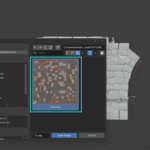
Step 3 — Load Your Texture Under Source Texture click Open and select your base color image.
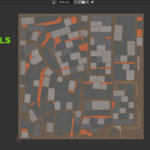
Step 4 — Choose Your Maps Enable any combination of Normal, Roughness, Height, Displacement, Ambient Occlusion, or Emission.
Step 5 — Adjust Settings Each enabled map shows its own controls. Tweak strength, contrast, and radius to match your material type.
Step 6 — Generate Enable Apply to Active Object if you want the material built automatically. Click Generate Maps.
Done. Your maps are packed into the .blend file and the material is wired and assigned.
Have questions about this product?
Login to message
| Blender Extension Compatible | Yes |
| Sales | 10+ |
| Published | 4 months ago |
| Blender Version | 3.0 - 5.2 |
| Extension Type | Add-on |
| Render Engine Used | Blender-Internal, Blender-Game-Engine, Cycles, Eevee |
| License | GPL |

Discover more products like this
Blender Displacement Map Generator PBR Maps Without Substance Painter Generate Normal Roughness AO Map Blender Texture Map Addon Normal Map From Image Blender Automatic Material Node Setup One Click PBR Material Blender PBR Texture Maps Generator Blender PBR Material Automation