Texture Map Generator
 RenderCraftStudio
Texture Map Generator Documentation
Overview
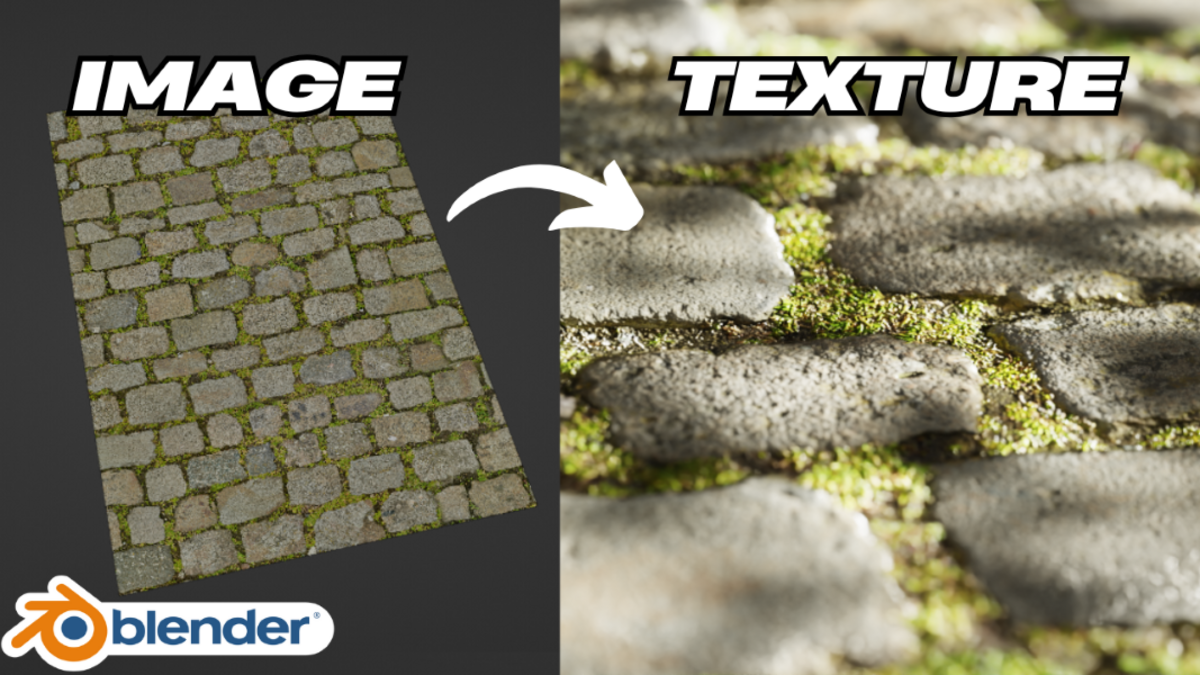
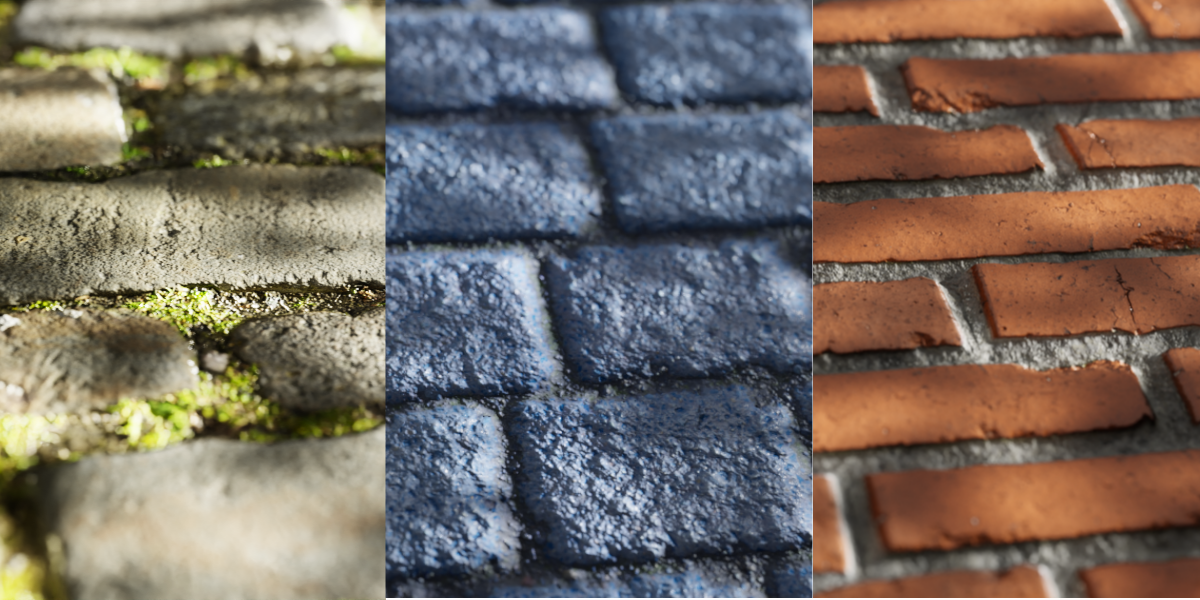
The Texture Map Generator is a powerful Blender add-on that leverages AI technology to create high-quality texture maps directly within Blender. This tool streamlines your texturing workflow by generating professional-grade maps with just a few clicks.
Key Features
- Comprehensive support for essential map types:
- Displacement Maps: Create detailed surface height information
- Normal Maps: Generate accurate surface detail without extra geometry
- Ambient Occlusion Maps: Add realistic shadowing and depth
- Roughness Maps: Control surface micro-detail and reflection
- Metallic Maps: Define material properties for PBR workflows
- - Intuitive user interface integrated seamlessly into Blender's UI
- - Smart file organization with automatic categorization
- - Efficient batch processing for multiple textures
Installation
- Download the latest release zip file
- Open Blender and navigate to Edit > Preferences > Add-ons
- Click "Install" and select the downloaded zip file
- Enable the addon by checking the checkbox
- Click "Install Dependencies" in the addon preferences
- Wait for the installation to complete
- Restart Blender
Quick Start Guide
- Import your base texture using the Plus (+) button
- Select which maps you want to generate
- Click "Generate Maps"
- Access your generated maps in the Generated Maps Panel
Detailed Usage Guide
Image Import Panel
The Image Import Panel is your starting point for texture map generation:
- Use the Plus (+) button to import base textures (supports PNG, JPG, TIFF formats)
- Remove unwanted images with the Minus (-) button
- "Set Image as Active" button ensures you're working on the right texture
- "Display Selected Image" opens the texture in Blender's Image Editor for inspection
- Supports drag-and-drop functionality for quick image import
- Maintains a history of recently used textures
Generate Maps Panel
This is where the magic happens:
- Intuitive checkboxes for selecting map types to generate
- Real-time progress tracking with detailed status updates
- Smart queue system for multiple map generation
- Cancel option available at any time during generation
Generated Maps Panel
Efficiently manage your created maps:
- Thumbnail previews of all generated maps
- Real-time comparison with source texture
- Automatic backup system
- Integration with Blender's node editor
- Batch export functionality for multiple maps
Batch Processing
Maximize your workflow efficiency:
- Process unlimited textures simultaneously
- Smart queue management with priority settings
- Progress tracking for each item
- Automatic error recovery
- Custom batch presets
- Export templates for consistent naming
File Organization
Generated maps are automatically saved in:
Documents/
└── TextureMapGen/
└── [Image_Name]/
├── displacement_map.png
├── normal_map.png
├── ao_map.png
├── roughness_map.png
└── metallic_map.png
Best Practices
- Use high-resolution source textures (minimum 2K recommended)
- Save your work regularly using Blender's native save system
- Consider memory usage when batch processing large textures
- Regularly check the generated maps in your renderer of choice
Credits and Acknowledgments
- Developed by RenderCraft Studio
- Special thanks to the Blender Community
Note: This documentation is regularly updated.
Have questions about this product?
Login to message
| Sales | 20+ |
| Dev Fund Contributor | |
| Published | over 1 year ago |
| Blender Version | 4.3, 4.2, 4.1, 4.0, 3.6, 3.5, 3.4, 3.3, 3.2, 3.1, 3.0, 2.93 |
| Extension Type | N/A |
| License | GPL |
Discover more products like this
3D material library 4k bump map 3D texture maps all-new addon generator 16k textures