TexturePilot
 MgameDev

TexturePilot Documentation
Installation
- Download
TexturePilot-1.0.0.zip. - Open Blender.
- Go to Edit → Preferences → Extensions.
- Choose Install from Disk.
- Select the TexturePilot ZIP.
- Enable TexturePilot.
TexturePilot appears in the Blender sidebar.
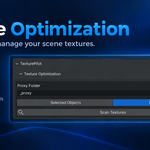
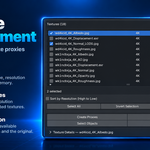
Texture Optimization
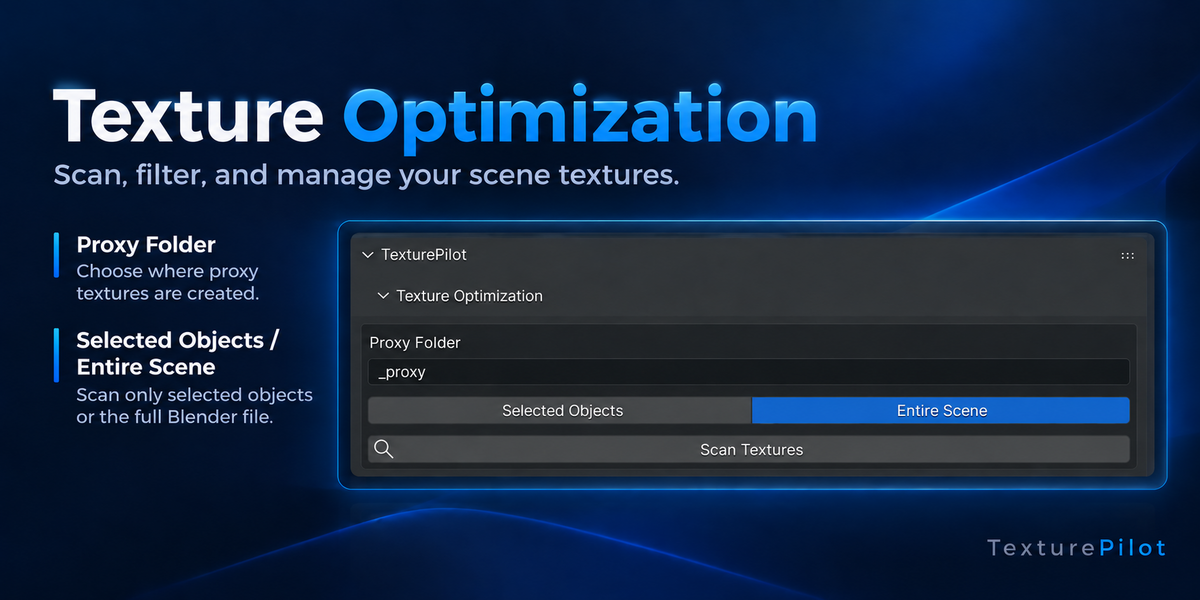
TexturePilot can scan textures from:
Selected Objects
Scans textures used by the currently selected objects.
Entire Scene
Scans textures used across the whole Blender file.
Click Scan Textures to build the texture list.
Proxy Subfolder
Proxy textures are created next to the original textures inside a subfolder.
The default folder name is:
_proxy
You can change this name before creating proxies.
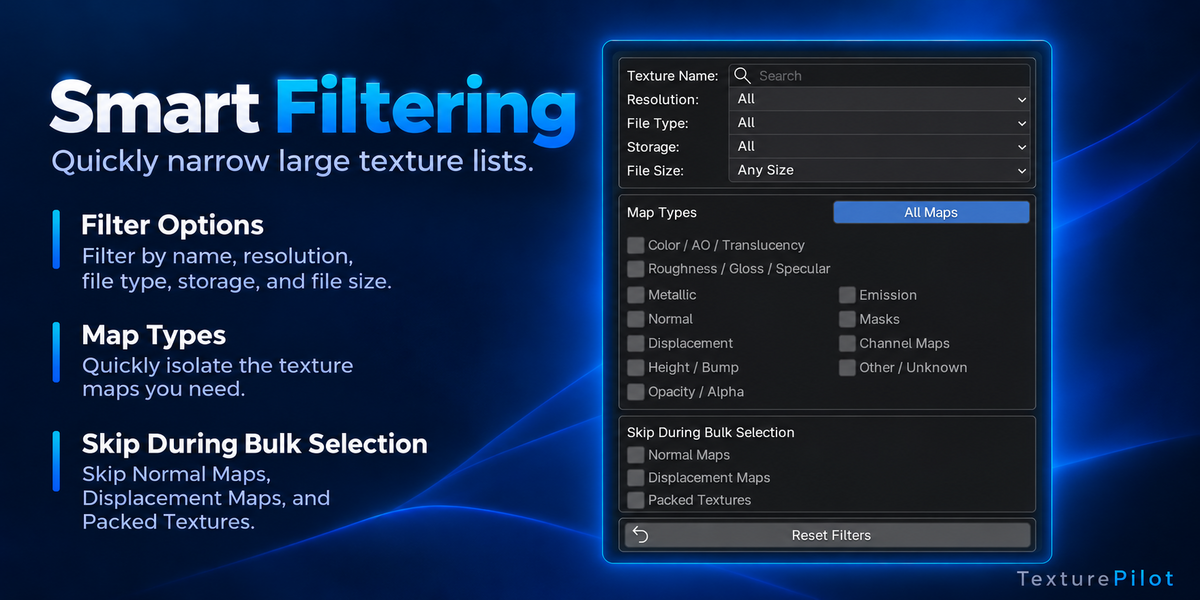
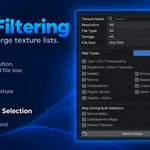
Filtering
Use Filters to narrow the texture list by:
- Texture Name
- Resolution
- File Type
- Storage Type
- File Size
- Map Type
You can also exclude Normal Maps, Displacement Maps and Packed Textures from bulk selection.
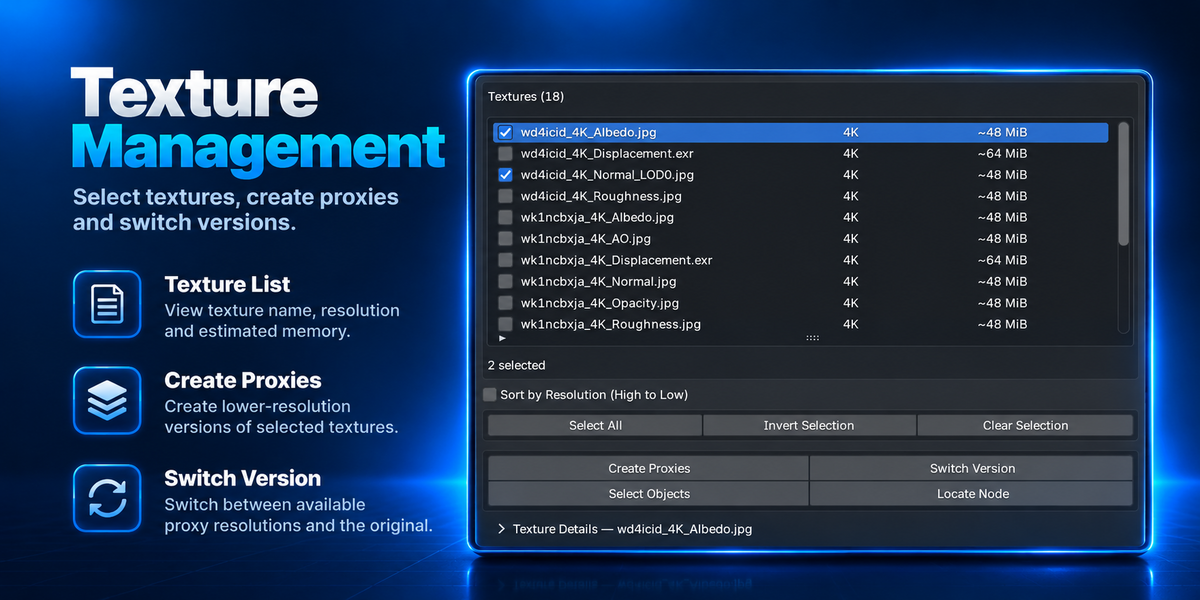
Creating Proxies
Select the textures you want to optimize and click:
Create Proxies
Creates lower-resolution versions of the selected textures without changing the currently used texture.
Create & Apply
Creates the proxy and immediately applies it in Blender.
Textures smaller than the selected target resolution are not upscaled.
Switching Texture Versions
Use Switch Version to switch between available proxy resolutions and the original texture.
Your original texture files remain available.
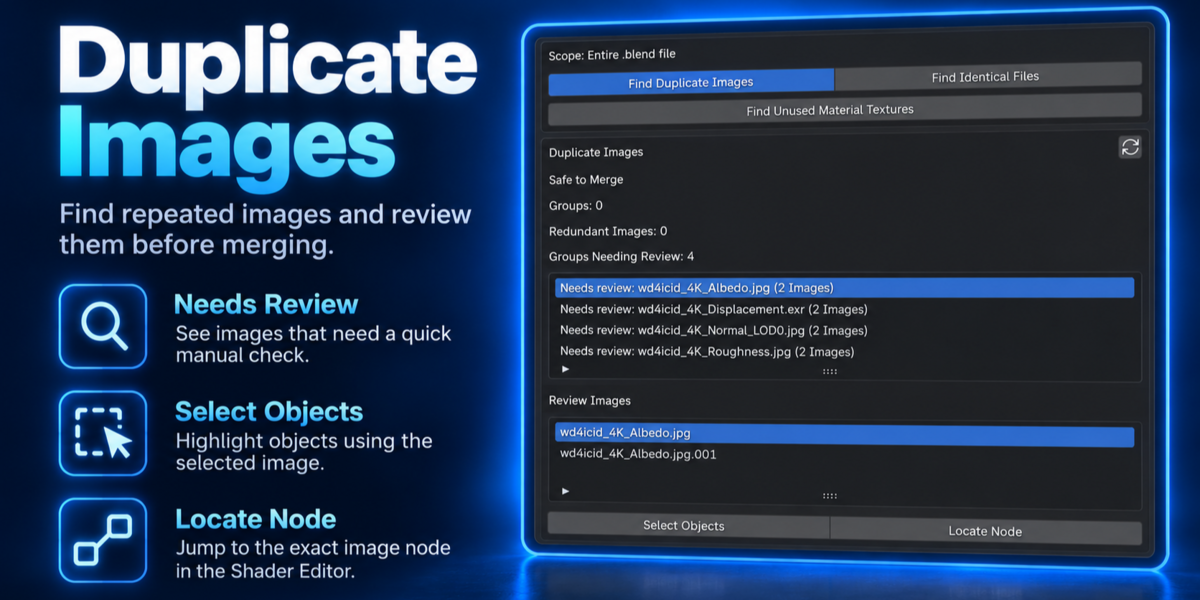
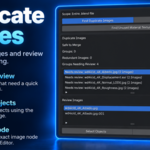
Duplicate Images
Find Duplicate Images finds cases where the same image has been loaded into Blender more than once.
Choose the image you want to keep and merge the unnecessary copies.
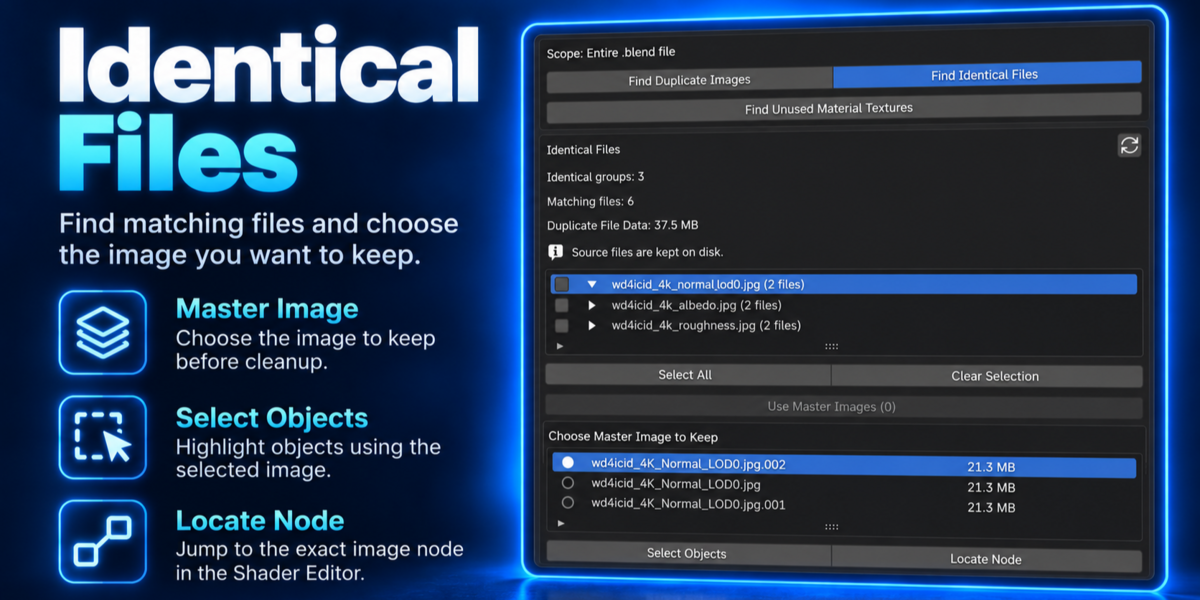
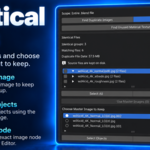
Identical Files
Find Identical Files finds different texture files that contain matching image data.
Choose the Master Image you want Blender to keep.
Source texture files on disk are not deleted.
Unused Material Textures
Find Unused Material Textures looks for Image Texture nodes that are no longer contributing to the material.
Review the results and remove only the nodes you want.
Select Objects
Use Select Objects to find objects using the currently selected texture.
Locate Node
Use Locate Node to jump directly to the Image Texture node in the Shader Editor.
This also works with nested and shared node groups where supported.
Packed Images
TexturePilot supports packed Blender Images.
You can create proxy versions, switch versions and use Pack After Applying when required.
UDIM Textures
TexturePilot supports both regular and sparse UDIM texture sets.
UDIM tiles are handled together as one texture set during proxy creation and switching.
Safety
TexturePilot is designed to keep the original data protected.
- Original texture files are preserved.
- Smaller textures are not automatically upscaled.
- Color Space and Alpha settings are checked during cleanup.
- Cleanup tools support Blender Undo / Redo.
- Uncertain cleanup cases are shown for review instead of being removed automatically.
Compatibility
Blender 4.5 – 5.2
 Included
Includes 12 months of
- Support from MgameDev
- Product updates
Extend this product’s Support Period +12 months: 50% of product price
Have questions before purchasing?
Login to message
| Blender Extension Compatible | Yes |
| Published | 3 days ago |
| Blender Version | 4.5 - 5.2 |
| Extension Type | Add-on |
| Render Engine Used | Cycles, Eevee |
| License | GPL |

Discover more products like this
materials unused textures shader editor duplicate images texture cleanup texture memory udim packed textures performance texture proxy texture optimization