The Asset Library3
 topchannel1on1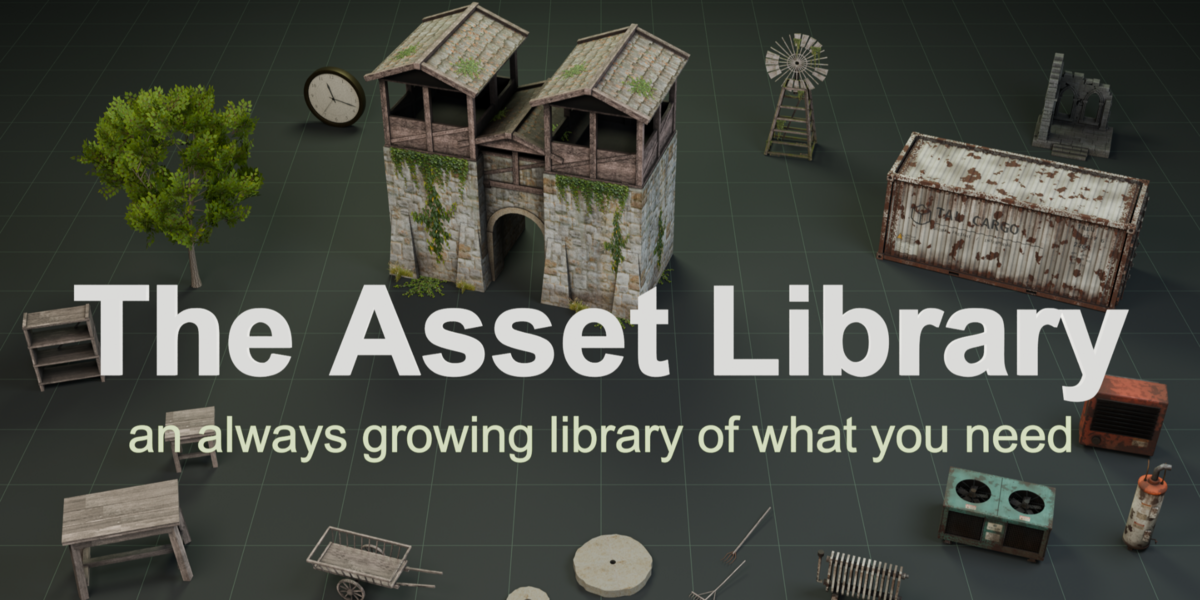
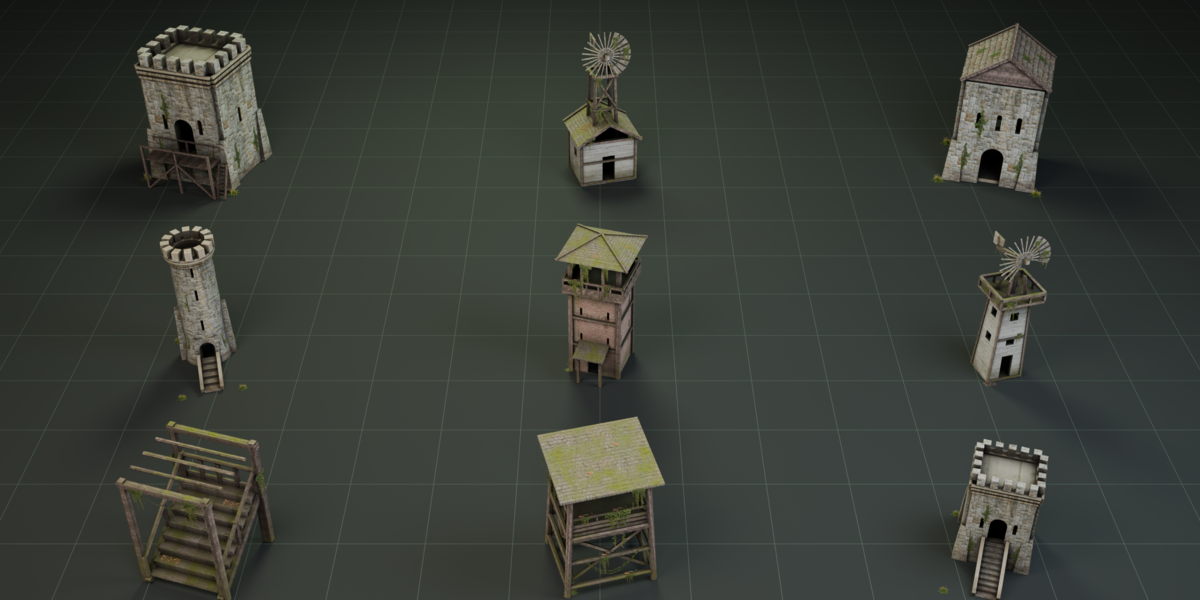
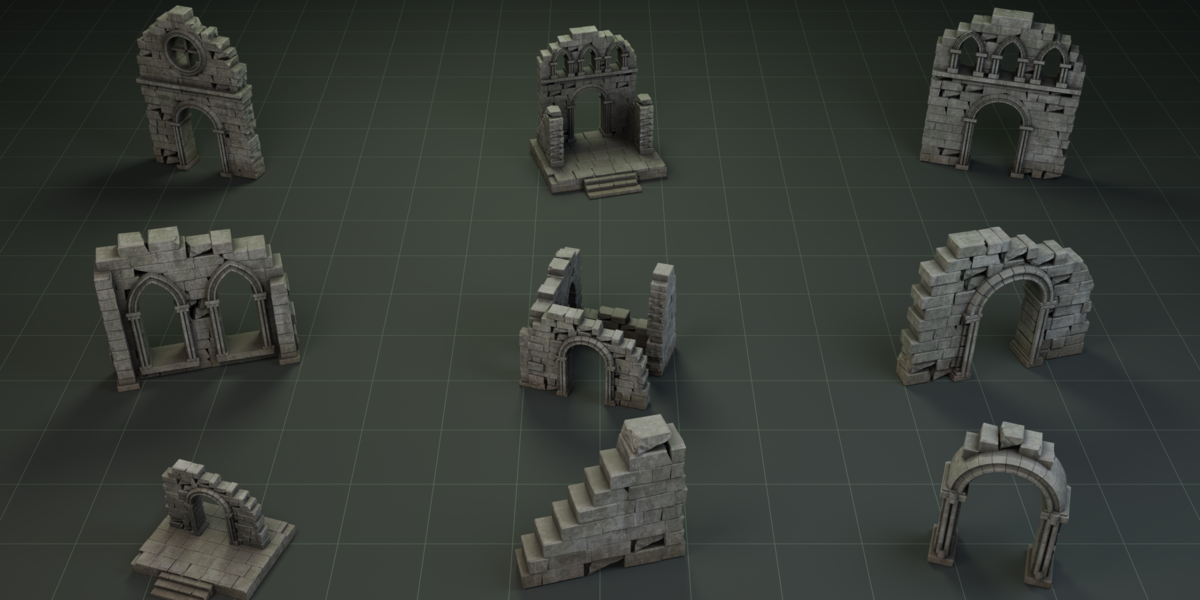
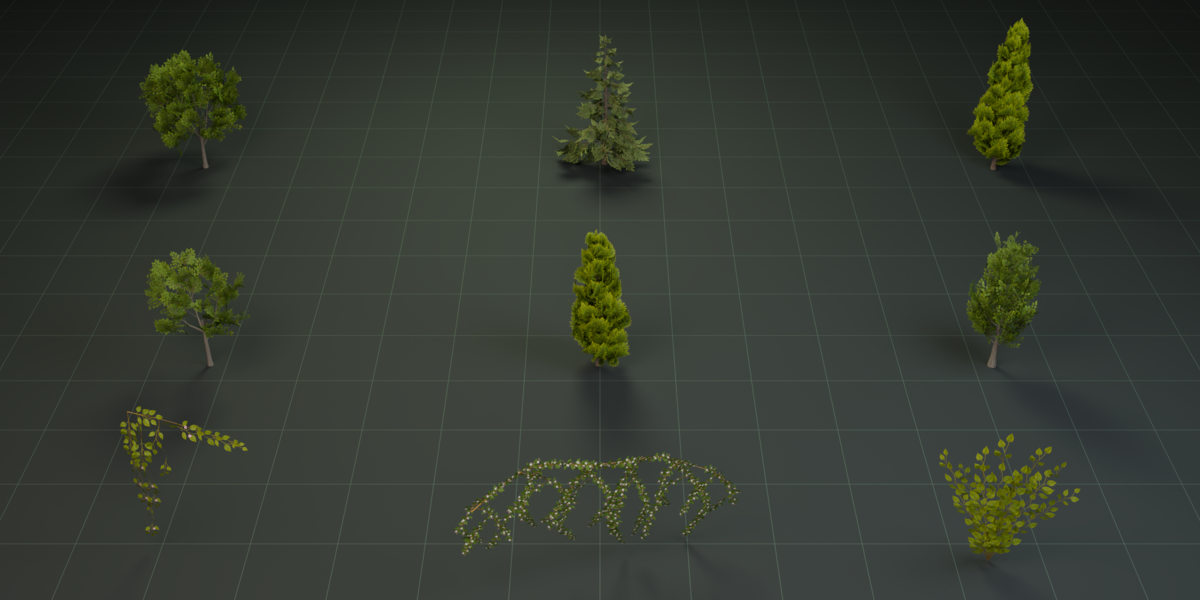
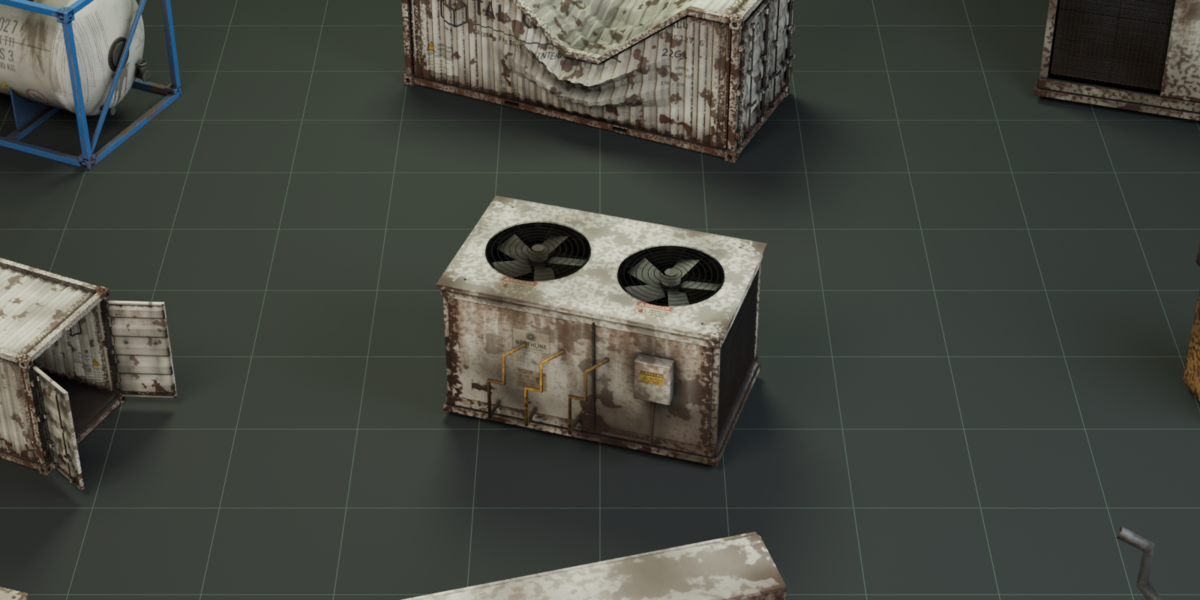
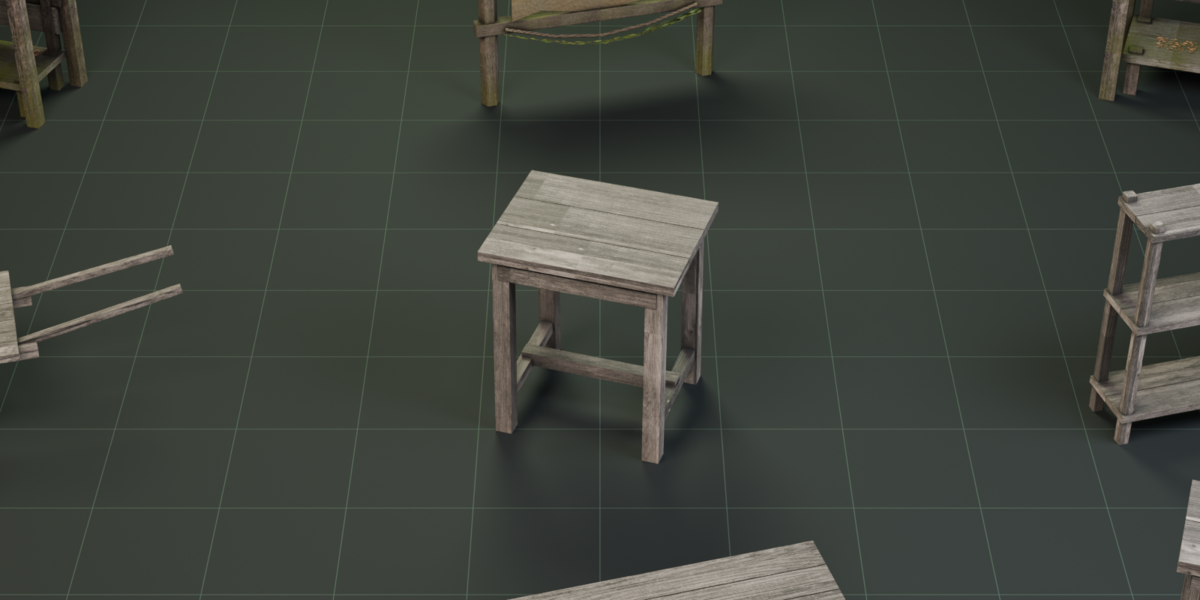
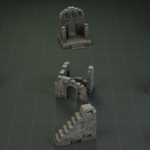
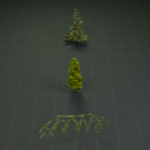
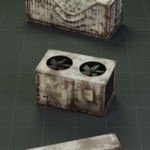
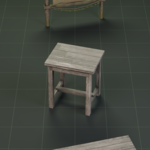
Open Blender’s 3D Viewport sidebar with N, select Asset Library 2, and click Open Asset Library. Search for an asset or browse by category and subcategory. Click Add to place the selected model at the 3D cursor, then move, rotate, or scale it as needed. Its textures are packed into the asset.
To paint multiple assets onto a surface, click the settings gear, open the Brush tab, and choose Choose Brush Assets. Enable the models you want, adjust the brush settings, and click Start Painting. Drag over scene surfaces to scatter them, press Enter to finish, or Esc to cancel. Select the finished scatter to adjust its spread, density, scale, scale variation, and random rotation.
Select a supported asset to reveal its customization controls. Shipping containers offer paint color, roughness, and variant options, while supported medieval buildings include an overgrowth toggle. To add new or revised assets, open Settings → General → Install Update ZIP and select a library update package. The browser refreshes automatically, so you can use the updated assets without downloading the entire library again.
Discover more products like this
Have questions about this product?
Login to message
| Published | 1 day ago |
| Blender Version | 5.0 - 5.2 |
| Extension Type | N/A |
| Render Engine Used | Cycles, Eevee |
| License | GPL |
