5 in 1 - Work Faster Nodes
 aPOP
aPOP


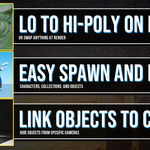
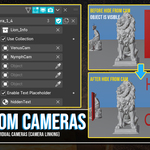
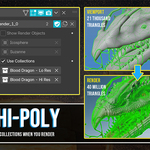
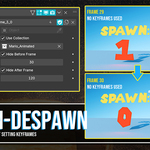
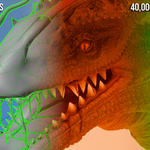
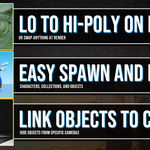
A full tutorial for all nodegroups is included in the file that comes with purchase!
Using the "Swap on Render" Nodegroup:
Add a new object, it can be anything such as a cube. On this object, add a Geometry Nodes Modifier (Modifiers Tab, little green wrench)
In the Geometry Nodes modifier, click the dropdown on the left and choose the aPOP_start_or_end_frame node group.
Choose your Viewport and Render Objects or Collections. The viewport is the 3D workspace in blender.
If you are using a collection check the box "Use Collections" - You can now "uncheck" the collections within your outliner (disable the collections) this tells Blender to only render your geometry node object (the Cube/Object you placed this geometry node setup on). If you do not uncheck the collections they will render on top of your object, causing black shadow artifacts!
Make sure your objects within the collection are enabled for rendering (the camera icon next to them should be white)
How to make a low poly version of anything easily:
Duplicate your object so you don't lose your Hi Poly.
Add a 'Decimate' modifier.
I like to use the "Ratio" method, set to a very small value (such as 0.1.) Make it as low poly as you want, you can go extreme to make your viewport super fast and lag free.
"Apply" the modifier by hovering over it with the mouse and pressing Ctrl+A, or click the dropdown arrow next to the modifier and choose "Apply".
You now have a low poly version! In my node group, set this object or collection as your Viewport Object/Collection. If you are using a collection check the box "Use Collections"
Have questions about this product?
Login to message
| Published | over 1 year ago |
| Blender Version | 4.4 |
| Render Engine Used | Arnold, Blender-Internal, Blender-Game-Engine, Cycles, Eevee, Freestyle, Luxrender, Mental-Ray, Octane, Vray, Yafaray |
| License | Royalty Free |