Theme Lab
 Dark3d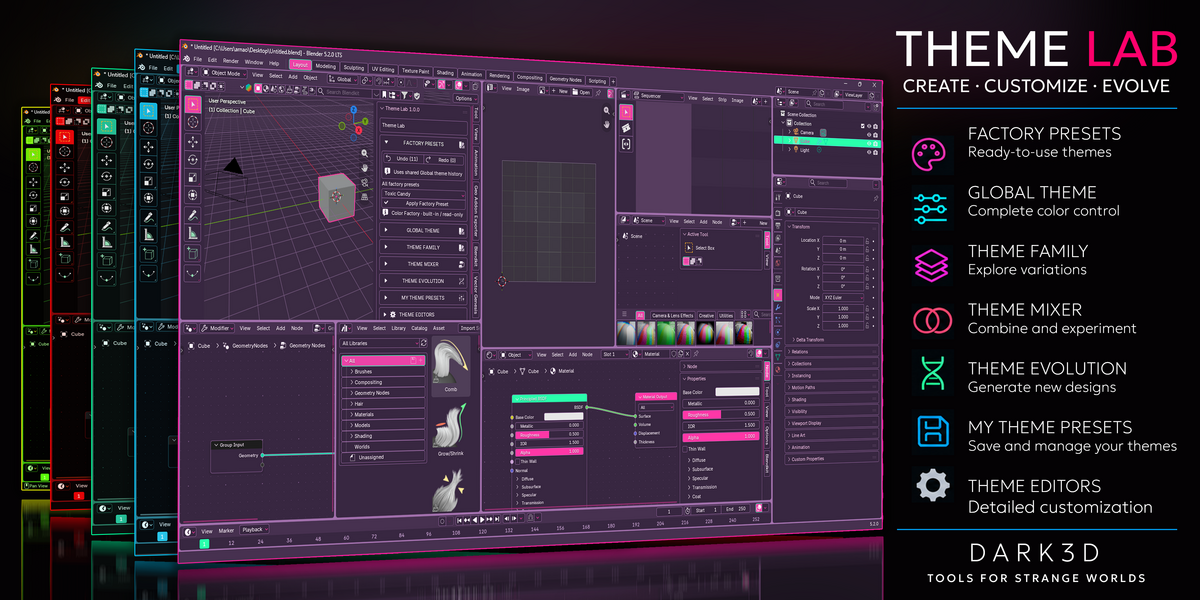
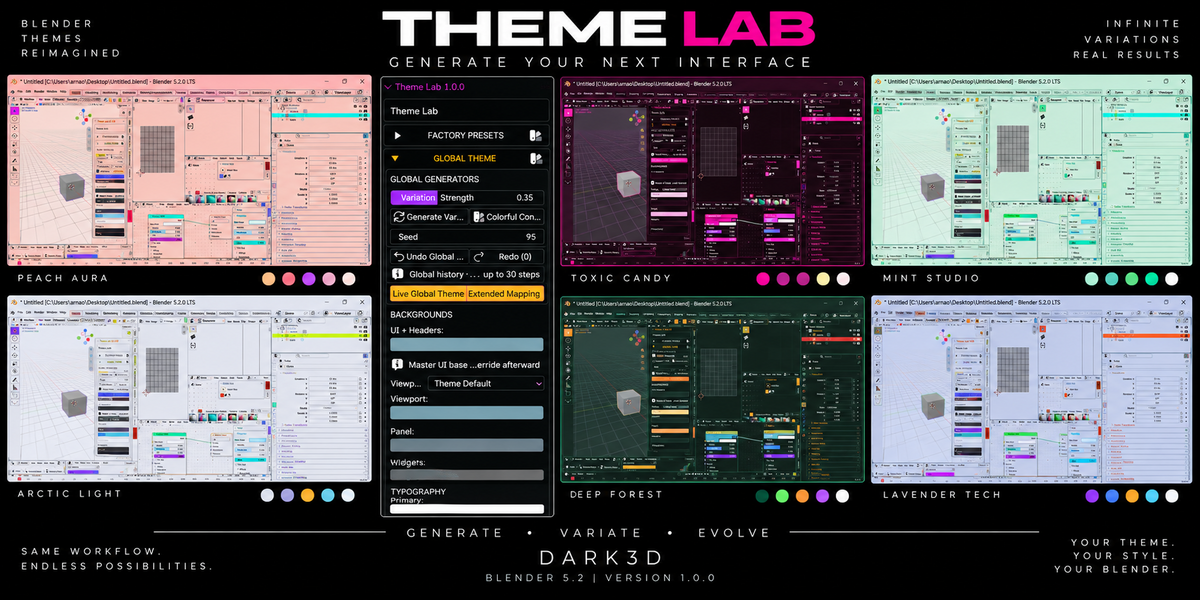
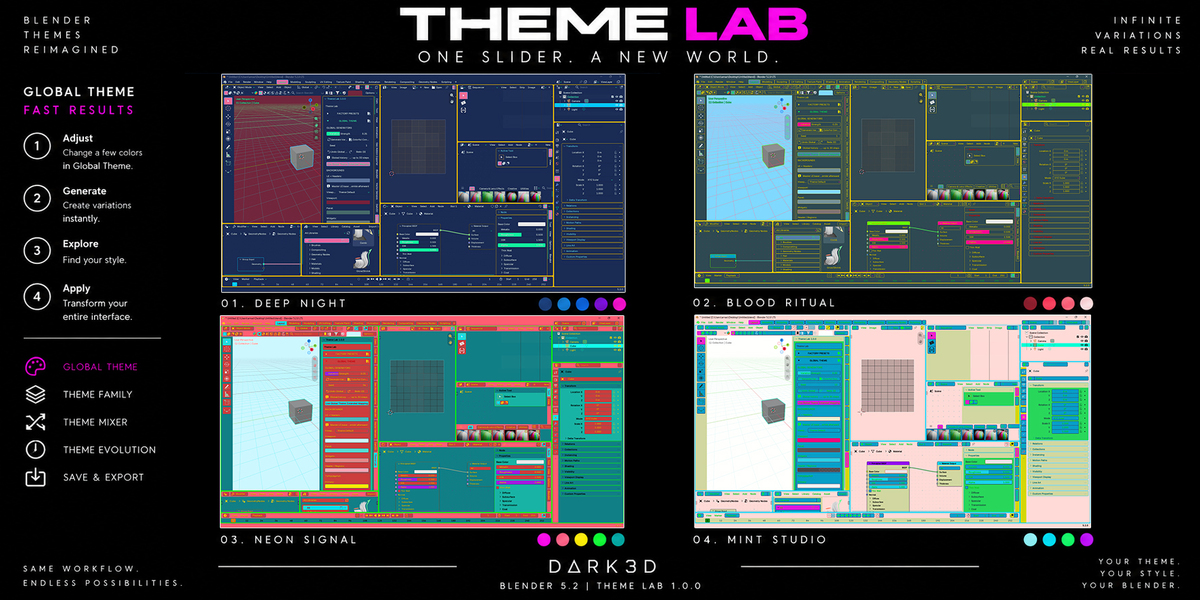
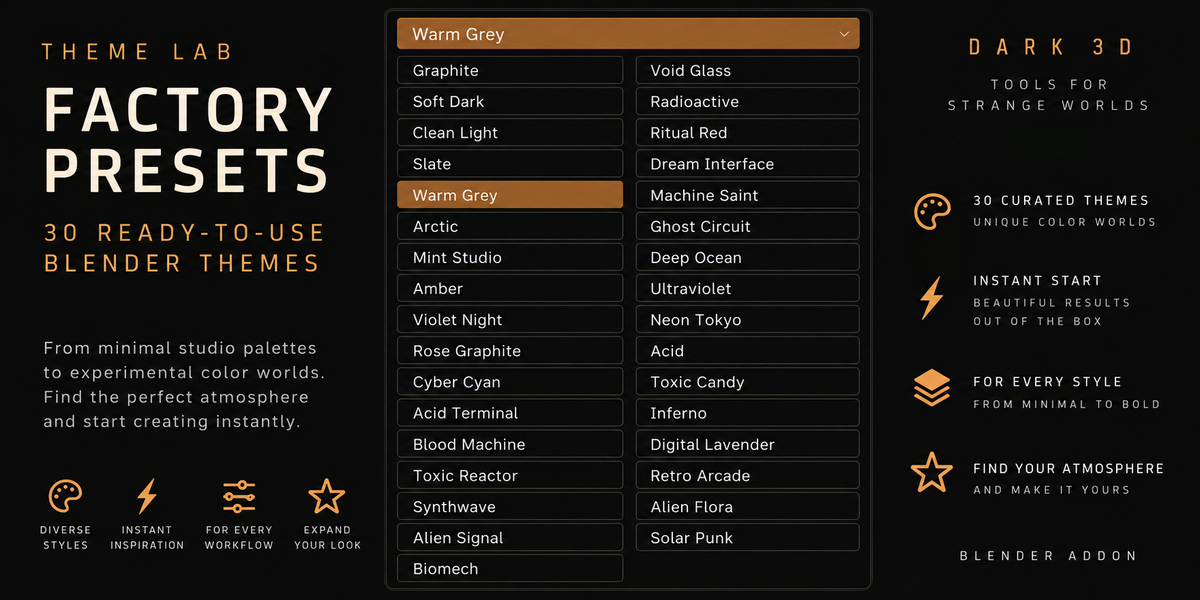
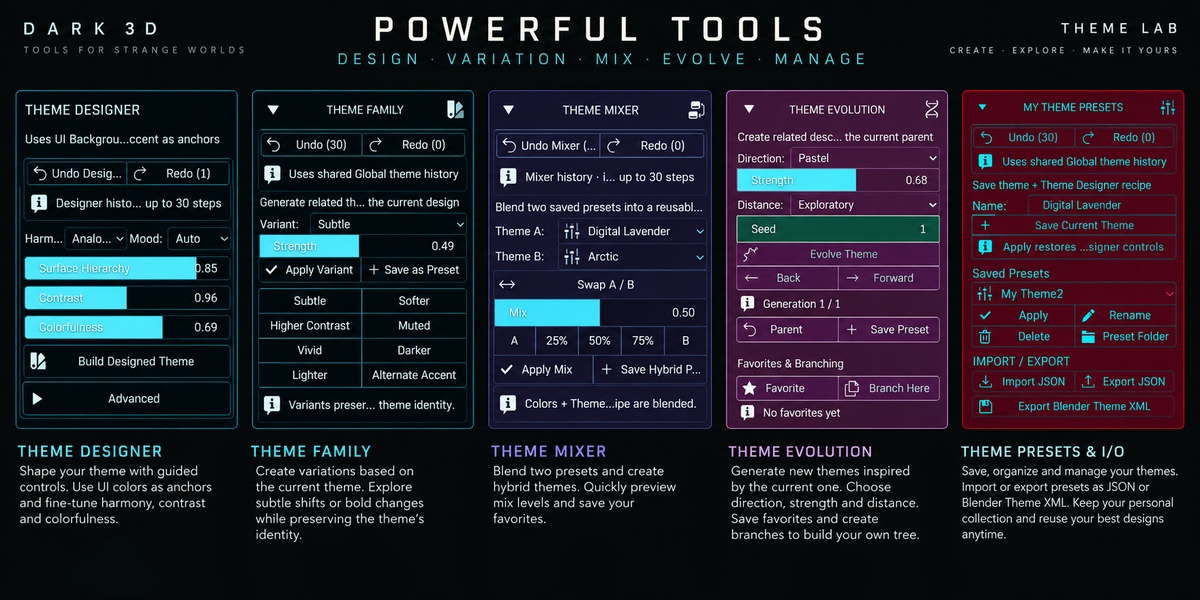
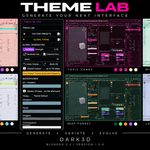
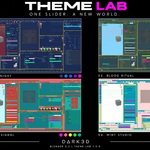
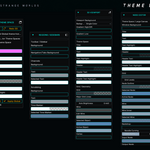
Theme Lab — User Documentation
Version 1.0.0 | Blender 5.2
1. Installation
- Download the Theme Lab ZIP file from Superhive.
- Open Blender 5.2.
- Navigate to Edit → Preferences → Add-ons.
- Click the dropdown menu in the upper-right corner and select Install from Disk.
- Select the downloaded Theme Lab ZIP file.
- Enable Theme Lab if it is not enabled automatically.
Important: Install the ZIP directly. You do not need to extract the addon files manually.
2. Getting Started
After enabling Theme Lab, open its interface in Blender.
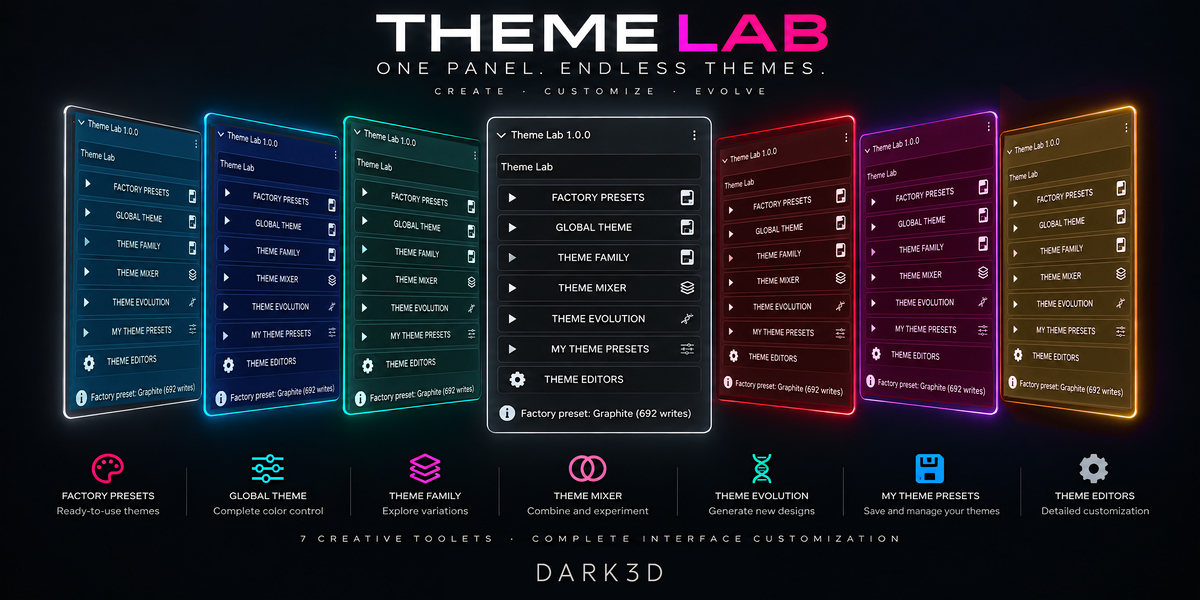
The addon provides several expandable sections for generating, customizing, and managing interface themes.
On a fresh installation, the sections are collapsed by default. Expand the section you want to use.
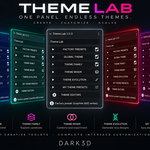
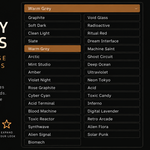
3. Factory Presets
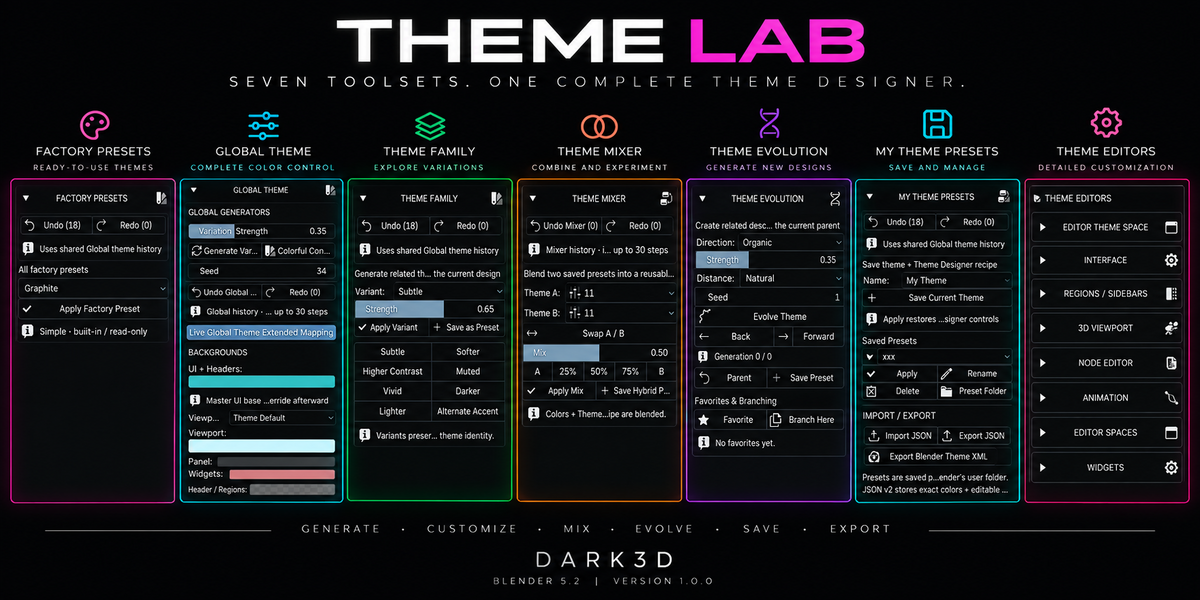
Factory Presets provides ready-made Blender interface themes.
Select a preset to explore different visual styles and use it as a starting point for your own customization.
You can continue editing a factory preset after applying it.
4. Global Theme
Global Theme provides broad color controls for Blender's interface.
Use these settings to adjust the overall appearance of your workspace, including backgrounds, headers, text, highlights, and other interface elements.
For more precise customization, use the dedicated editors described below.
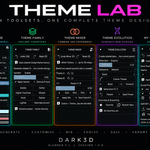
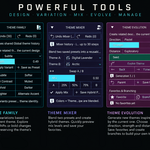
5. Theme Family, Mixer & Evolution
Theme Family: Explore coordinated color variations.
Theme Mixer: Experiment with combinations of theme characteristics.
Theme Evolution: Generate variations of your current design to explore new visual directions.
These tools are intended to make theme creation more experimental and less dependent on manually editing individual color properties.
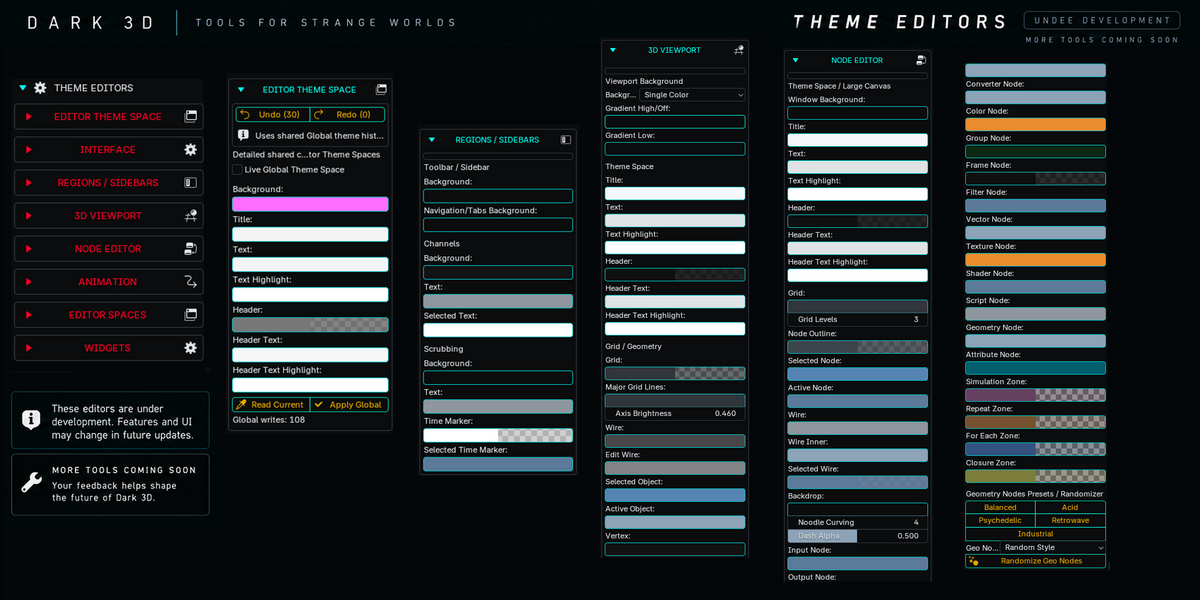
6. Theme Editors
Expand Theme Editors to access more detailed customization options.
Available editing areas include:
- Editor Theme Space
- Interface
- Regions and Sidebars
- 3D Viewport
- Node Editor
- Animation
- Editor Spaces
- Widgets
These controls allow you to refine specific parts of Blender's interface independently.
7. Saving Custom Presets
Use My Theme Presets to manage your personal theme collection.
After creating a theme, save it as a custom preset so you can return to it later.
You can use factory presets as starting points or create your own designs through Theme Lab's generation and editing tools.
8. Exporting Themes
Theme Lab supports exporting Blender themes for use outside the addon.
Use the available export controls to save your theme. Theme Lab also provides JSON preset import/export functionality.
9. Compatibility
Supported Blender version: 5.2
Theme Lab customizes Blender's user interface and does not depend on a particular render engine.
Compatibility with other Blender versions is not officially confirmed for this release.
10. License & Support
Theme Lab is distributed under the GNU General Public License version 3 (GPL-3.0).
The addon source code and license information are included in the download package.
For installation problems, bugs, or compatibility questions, contact the developer through the Superhive product page.
Developer: Mystagogy Studio
Version: 1.0.0
Tools for Strange Worlds.
Have questions about this product?
Login to message
| Blender Extension Compatible | Yes |
| Published | 3 days ago |
| Blender Version | 5.2 |
| Extension Type | Add-on |
| Render Engine Used | Cycles, Eevee |
| License | GPL |