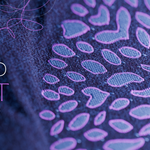
Thread Craft - Procedural Embroidery On Fabric
 KennyPhases




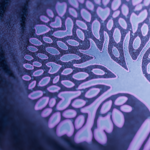

Thread Craft Documentation
Requirements
- Blender 5.2 or newer
- No additional add-ons required
Quick Start
- Open Thread Craft.blend in Blender.
- Select the Thread Craft object and load your logo in the Modifiers tab.
- Enable Preview Image to position, rotate, and scale your logo.
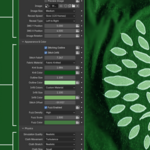
- Adjust the physics settings to control the simulation.
- Bake the simulation in the Physics tab.
- Hide the preview image and play back the animation.
- Customize the stitch appearance, including thread color, scale, and stitch falloff.
- Render your final image or animation.
Image Recommendations
Thread Craft works with most image formats, but for the best results we recommend:
- PNG images with alpha transparency
- High-resolution artwork (2048×2048 or larger)
- Clean, high-contrast logos
Standard JPG and PNG images are also supported, though lower-quality or complex images may produce less defined stitching.
Notes
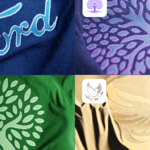
- Higher-quality images generally produce cleaner embroidery.
- Higher simulation settings produce more detailed results but increase bake times.
- If you need to adjust the simulation after baking, simply delete the existing bake and rebake the simulation.
- Every logo is unique, so experimenting with the settings will help you achieve the best possible results.
Need Help?
A full video tutorial is included with your purchase to guide you through the complete workflow. If you have any questions or run into an issue, feel free to leave a comment or reach out through the marketplace where you purchased Thread Craft.
-
$25
Thread Craft
-
$39
Thread Craft, Procedural Fuzz
-
$49
Thread Craft, Procedural Fuzz, Soft Fur Bundle
Have questions about this product?
Login to message
| Sales | 10+ |
| Published | about 2 months ago |
| Blender Version | 5.2 |
| Render Engine Used | Cycles |
| License | Royalty Free |
Discover more products like this
cloth fabric embroidered logo motion graphics textile geometry nodes logo mockup procedural branding embroidery blender blender 5.2