Time Machine
 phamduyson




Time machine - Documentation
Requires Blender 4.2 LTS or newer.
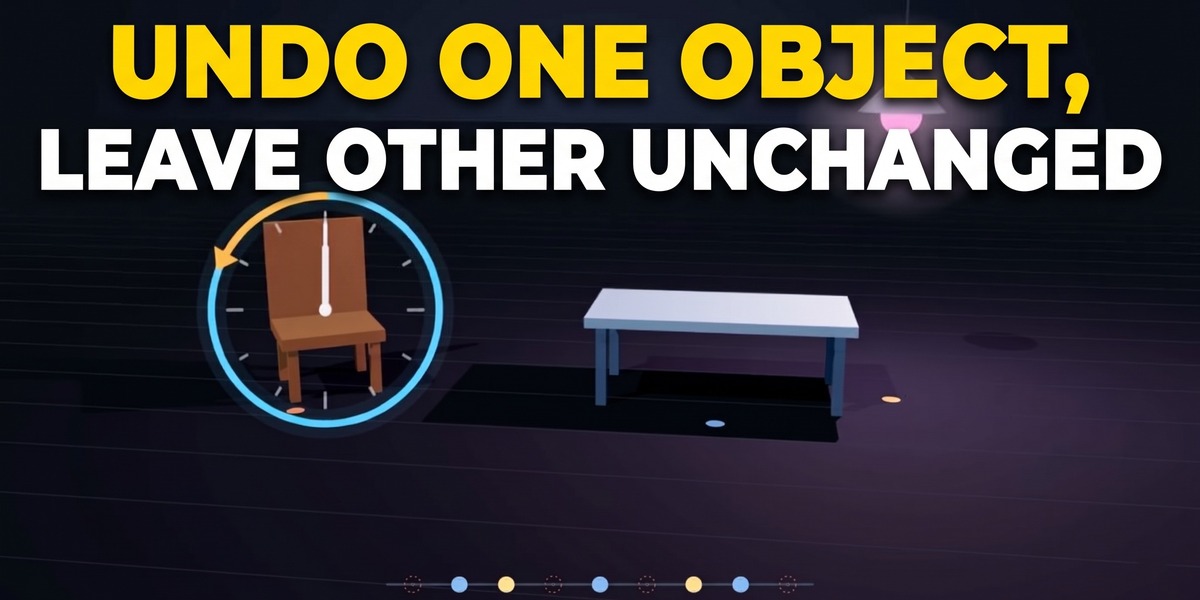
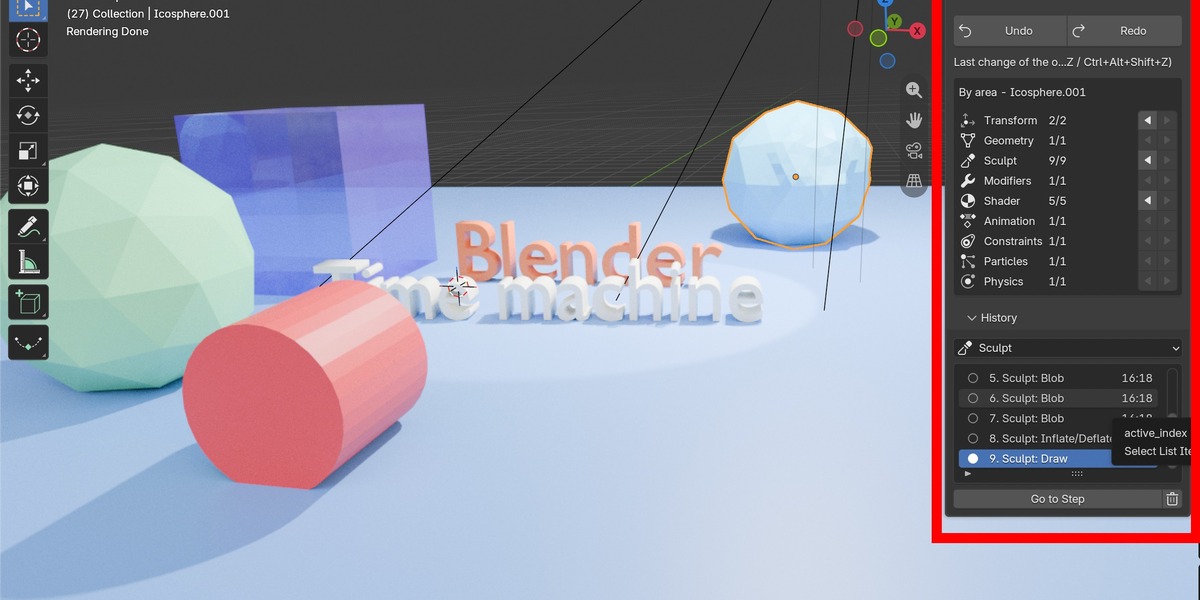
Every object gets its own undo history, split by area
1. Installation
Option A - Drag and drop (Superhive customers)
1. Open Blender.
2. Drag the downloaded `Timemachine_1.0.0.zip` from your Superhive orders page (or from your computer) into the Blender window.
3. Confirm the installation. The add-on is enabled automatically.
Option B - Install from disk
1. Download `Timemachine_1.0.0.zip`. (Do not unzip it.)
2. In Blender go to "Edit > Preferences > Get Extensions".
3. Click the "down-arrow menu (⌄)", in the top-right corner and choose "Install from Disk..."
4. Select the zip file and click "Install from Disk".
5. Check that **Time machine** is ticked in **Edit > Preferences > Add-ons**.
2. Using the add-on
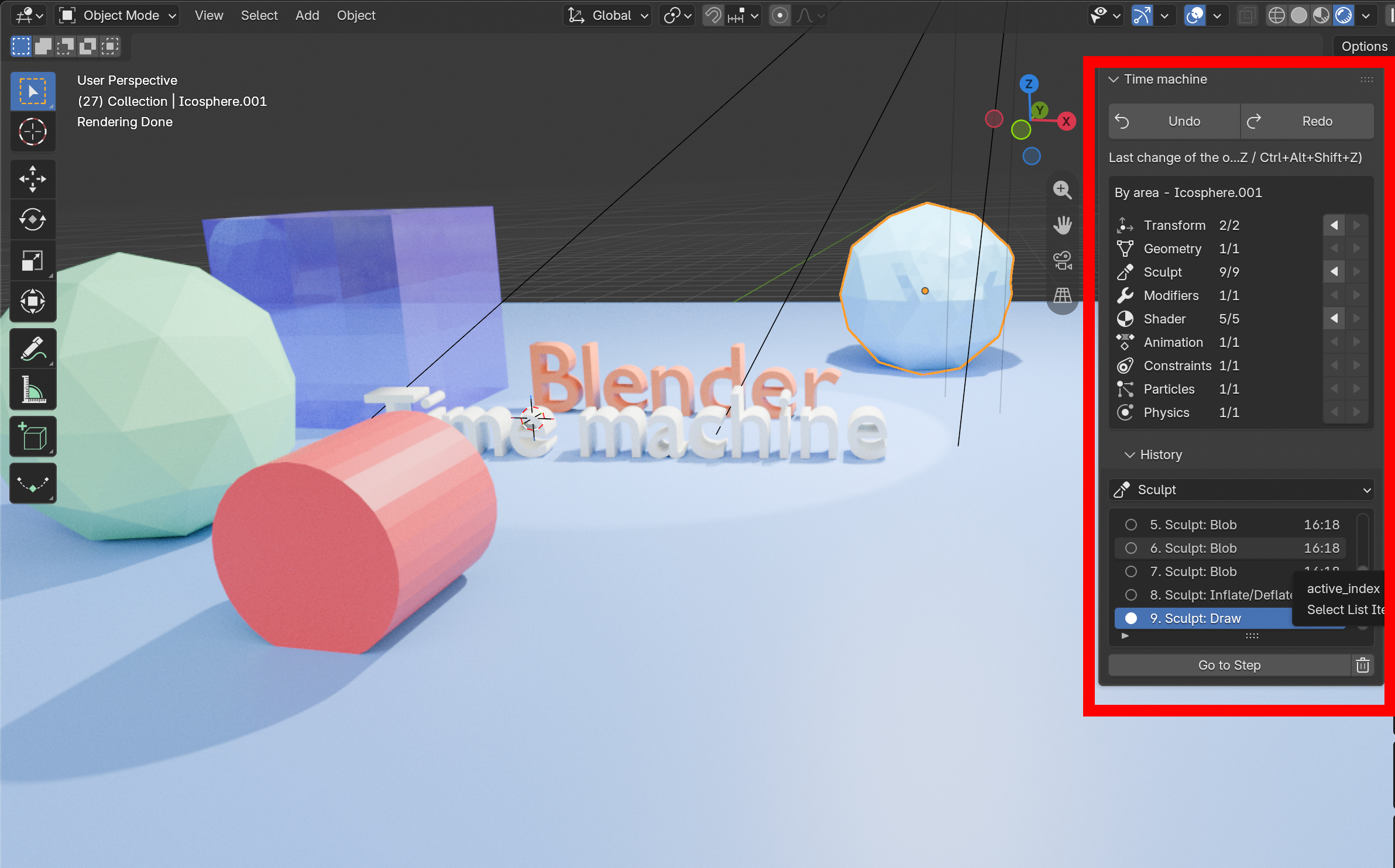
Two ways to undo
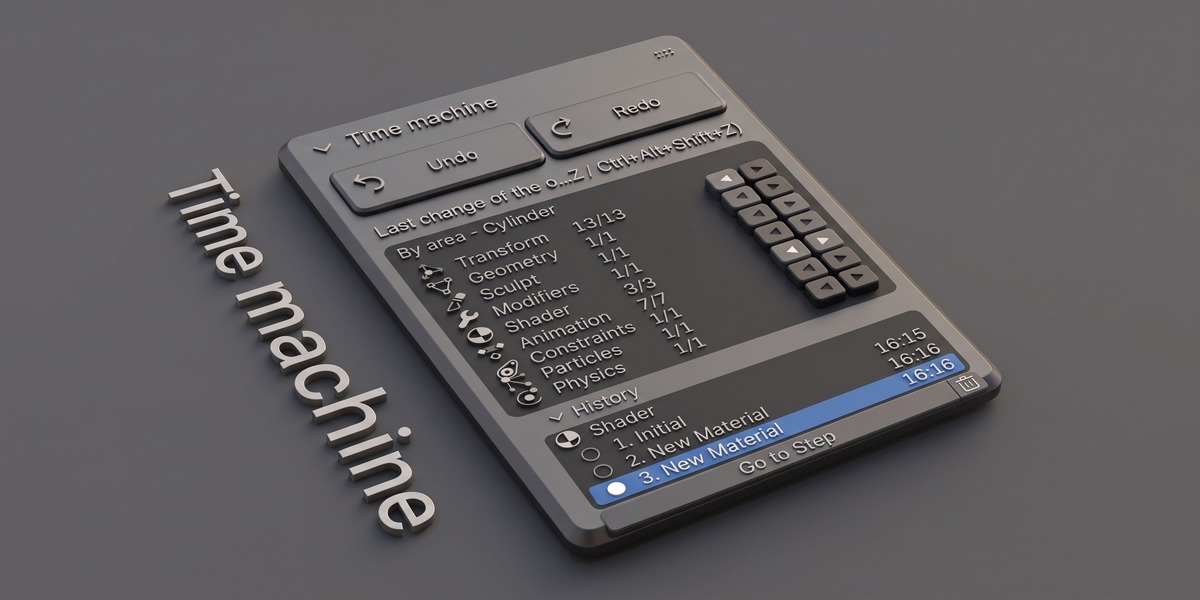
A. Last change of the object - `Ctrl+Alt+Z` / `Ctrl+Alt+Shift+Z`(or the big **Undo / Redo** buttons)
- Undo steps back the most recent change of the selected object, in whichever track it happened.
- Redo re-applies the change you undid most recently.
B. One specific area - the ◀ ▶ buttons of each track
- Each row of the **By area** box (Transform, Geometry, Sculpt, Modifiers,
Shader, Animation, Constraints, Particles, Physics, Object Data) has its own **◀ Undo** and **▶ Redo** buttons and shows the position in that track, e.g. `3/5`.
- Hover a button to see exactly which change it will undo or redo.
- A button is greyed out when there is nothing to undo or redo in that track.
Both work in **Object Mode, Edit Mode and Sculpt Mode** (if you undo while editing or sculpting, your current work is recorded first and you stay in that mode). With several objects selected, each one steps back through its own history.
Shortcuts (3D Viewport)
| `Ctrl+Alt+Z` | **Object Undo** - most recent change of the selected object(s) |
| `Ctrl+Alt+Shift+Z` | **Object Redo** |
| `Ctrl+Alt+Shift+H` | **Geometry Timeline** - browse mesh steps with a ghost preview |
4. Good to know
- **Shared materials and particle settings.** A material (or particle settings block) used by several objects is one datablock in Blender. Undoing a Shader or Particles step restores that datablock, so every object using it shows the restored version. Material *slot assignments* are per object.
- **Sculpt and Geometry.** Both change the shape of the mesh, so they work together:
- Undoing a **Sculpt** step brings back the sculpted shape, mask and face sets of that time and **keeps everything else** (UVs, materials, edits made in Edit Mode), as long as the topology is unchanged.
- If the topology changed since (Dyntopo, Remesh, Subdivide...) or the object uses Multires or shape keys, the whole mesh of that step is restored; the message says "whole mesh restored".
- Undoing a **Geometry** step brings back the whole mesh of that step, including the sculpted shape it had at that time.
- Each stroke becomes a step once you pause for a moment (0.3 s); quick strokes in a row are grouped into one step.
- With **Dyntopo** or **Multires**, Blender only writes the sculpt into the mesh when you leave Sculpt Mode, so the whole session becomes one step at that moment.
- **Particle and physics modifiers belong to their own tracks.** Undoing the Modifiers track never removes or resets a particle system, cloth, soft body, collision, fluid or dynamic paint modifier.
- **Simulation caches are not part of the history.** Undoing a Physics step restores the settings; the simulation is recomputed (or must be re-baked).
- **Blender's own Ctrl+Z still works.** Every Object Undo is also one normal undo step, so `Ctrl+Z` right after it brings the change back.
- **Ctrl+Alt+Z** normally opens Blender's *Undo History* menu. Inside the 3D Viewport the add-on uses this key; *Undo History* is still in the **Edit** menu, or remap the add-on's keys.
- **After undoing, a new change in the same track removes that track's redo steps**, exactly like normal undo. Other tracks keep theirs.
- **History is saved inside the .blend file.** Each Geometry step stores a copy of the mesh; the other tracks store small text descriptions. For very heavy meshes, lower *Steps per Track* or turn off the Geometry track.
- The history only contains changes made **while the add-on is enabled**.
6. Support
Send questions and bug reports through superhive chat box or email direct me at [email protected]
Have questions about this product?
Login to message
| Blender Extension Compatible | Yes |
| Published | about 11 hours ago |
| Blender Version | 5.3 |
| Extension Type | Add-on |
| Render Engine Used | Cycles, Eevee |
| License | GPL |