 Toss
Toss







Timelapse_X_User_Guide
Timelapse X is a professional Blender add-on for recording timelapse videos directly inside Blender. It supports
window and camera-based capture, idle detection, shading lock, interval presets, pause/resume, and MP4
export via VSE + FFmpeg.
Installation
1. Open Blender.
2. Go to Edit > Preferences > Add-ons.
3. Click 'Install?' and select the 'timelapse_x_legacy_en_1.2.7_Toss.zip' file.
4. Enable the add-on by checking the box.
5. Access the panel in View3D > Sidebar (press N) > Timelapse X tab
Features Overview :
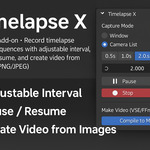
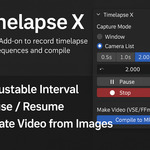
- Capture Modes: Blender Window or Camera List (multi-camera supported).
- Idle Detection: Only capture when scene changes.
- Lock Shading: Consistent viewport appearance.
- Interval Control: Live update, presets (0.5s, 1.0s, 2.0s).
- Pause / Resume: Temporarily stop without resetting.
- Compile to MP4: Export image sequence to video using VSE + FFmpeg.
- Output Options: PNG/JPEG, zero-padded filenames, customizable MP4 folder.
How to Use
1. Choose Capture Mode: 'Blender Window' or 'Camera List'.
2. Set Interval (seconds) or use presets.
3. (Optional) Add cameras to the list if using Camera List mode.
4. Click 'Start Recording'.
5. Use 'Pause' and 'Resume' as needed.
6. Click 'Stop Recording' to end.
7. To create a video, click 'Compile to MP4' or 'Save As?' and select the image folder.
8. The video will be saved in the specified location.
Troubleshooting
- If 'Window capture failed', ensure Blender is in foreground and not minimized.
- If MP4 is not saved correctly, check the output path and ensure FFmpeg is available.
- For multi-monitor setups, ensure the correct window is active.
- Use 'Reload Scripts' if changes are not reflected after updating the add-on.
* Note: don't forget to take a few seconds to rate this product, your support will allow me to continue working .
Thanks in advance for your help and happy blending!
+ Hope you like it! Thank you!
Have questions about this product?
Login to message