Timeline Marker Manager
 Elisha Bednarsky


Documentation
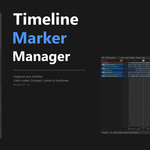
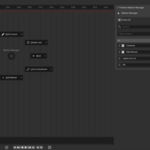
Timeline Marker Manager is a Blender add-on that completely transforms the way you work with timeline markers. Instead of nameless white lines in the Dopesheet, you get a comprehensive organizational system with colors, Collections, notes, and keyframe linking.
Installation
- Download the ZIP file
- Open Blender → Edit → Preferences → Add-ons → Install
- Select the ZIP file and install it
- Check the box next to “Timeline Marker Manager”
- In the Dopesheet Editor, press the N key → Tab Markers
Compatible with Blender 4.5, 4.6+, and 5.x on Windows, macOS, and Linux.
Quick Start
Press Shift+M in the Dopesheet or 3D Viewport to open the Pie menu. From there, you can set markers, navigate and synchronize without opening the panel.
Alternatively: Press M as usual, then assign the marker to a group and set a color for it in the N-Panel under markers.
Collections
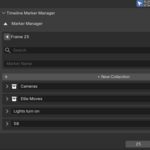
Markers can be organized into Collections, just like objects in the Outliner.
Collections can be hidden individually by clicking the eye icon in the timeline without deleting any markers.
Marker Colors
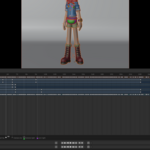
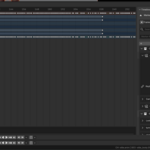
A color bar appears below each marker, and the marker is drawn directly onto the Dopesheet timeline. Five colors are available.
Keyframe-Linking
Link a marker to a keyframe on an object. When you move the keyframe in the Dope Sheet, the marker follows automatically. The link works in one direction only—the keyframe moves the marker, not the other way around. This allows you to continue adjusting markers manually without accidentally moving keyframes.
To set up the link: Select the object, make sure the keyframe and marker are on the same frame, then click “Link to Keyframe” in the N panel.
 Included
Includes 12 months of
- Support from Elisha Bednarsky
- Product updates
Extend this product’s Support Period +12 months: 25% of product price
Have questions before purchasing?
Login to message
| Blender Extension Compatible | Yes |
| Published | about 2 months ago |
| Blender Version | 4.5 - 5.2 |
| Extension Type | Add-on |
| Render Engine Used | Cycles, Eevee |
| License | GPL |

Discover more products like this
animation timeline addon #BlenderDopesheet #GraphEditor dopesheet Dopesheet animation plugin marker