 NicoHartl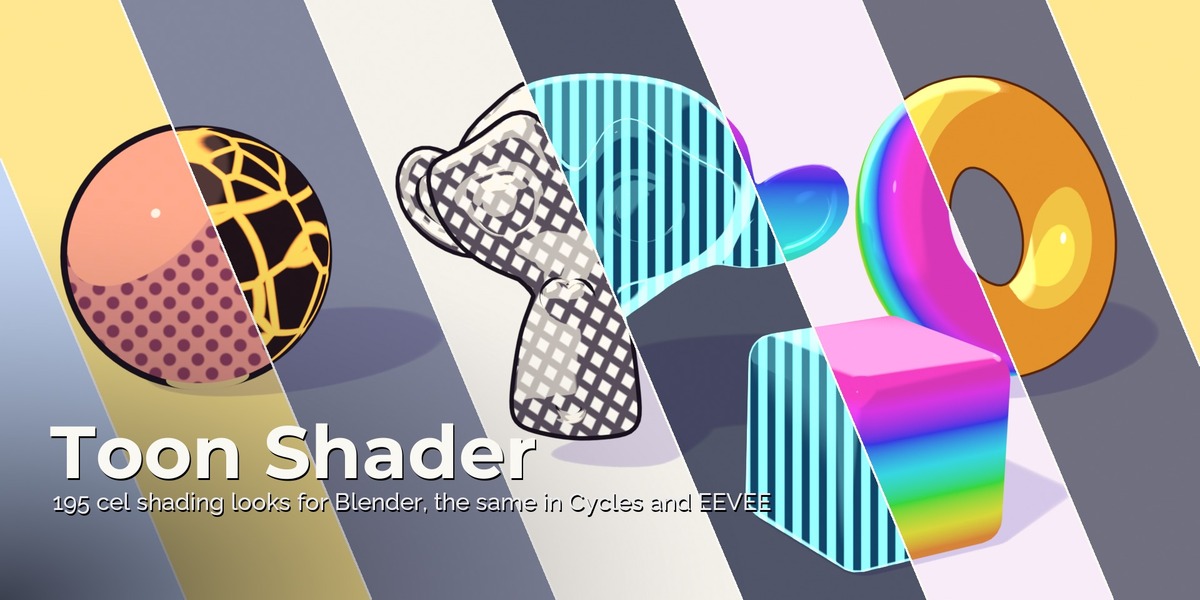
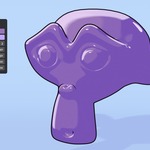
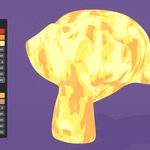
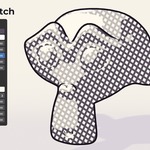
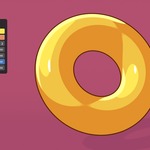


Toon Shader
Version 1.0.0 for Blender 4.5 LTS to 5.2 LTS, Cycles and EEVEE.
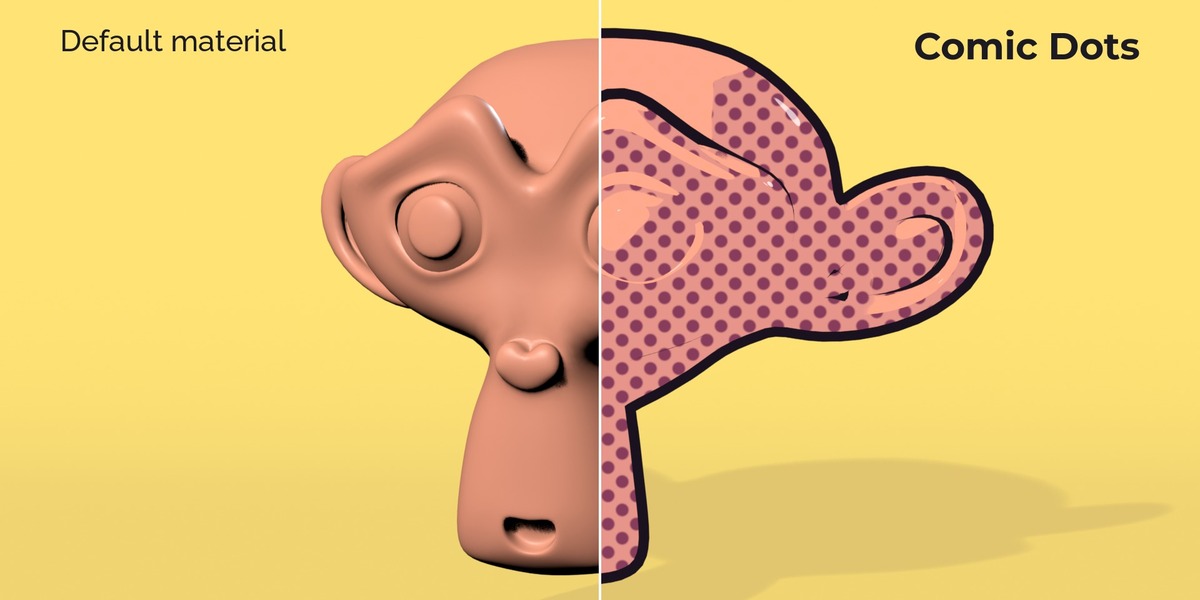
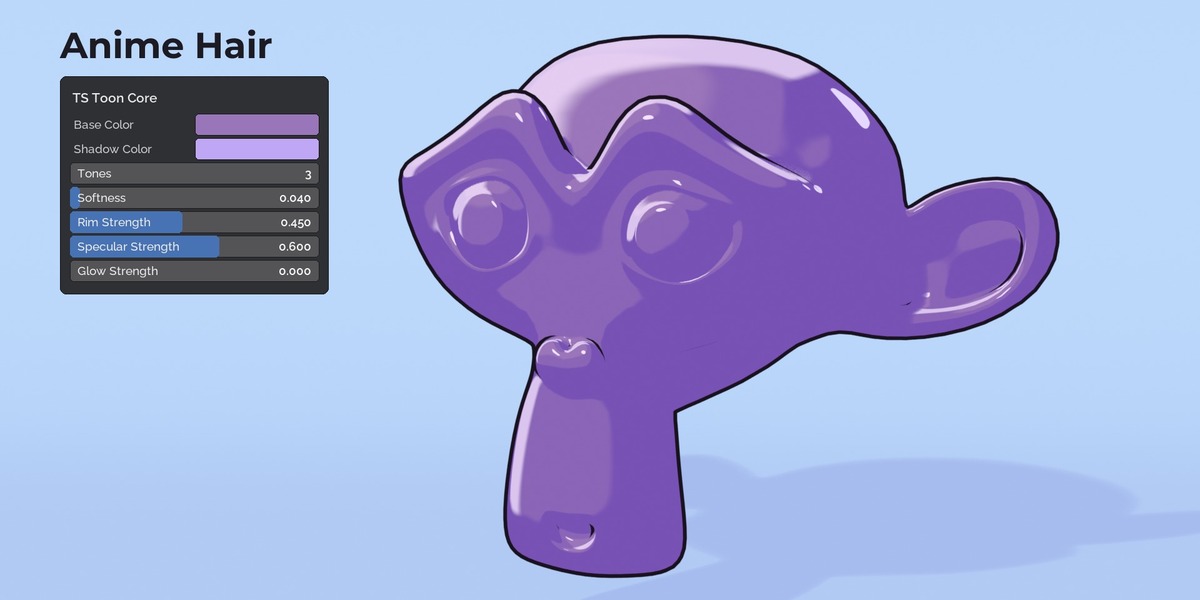
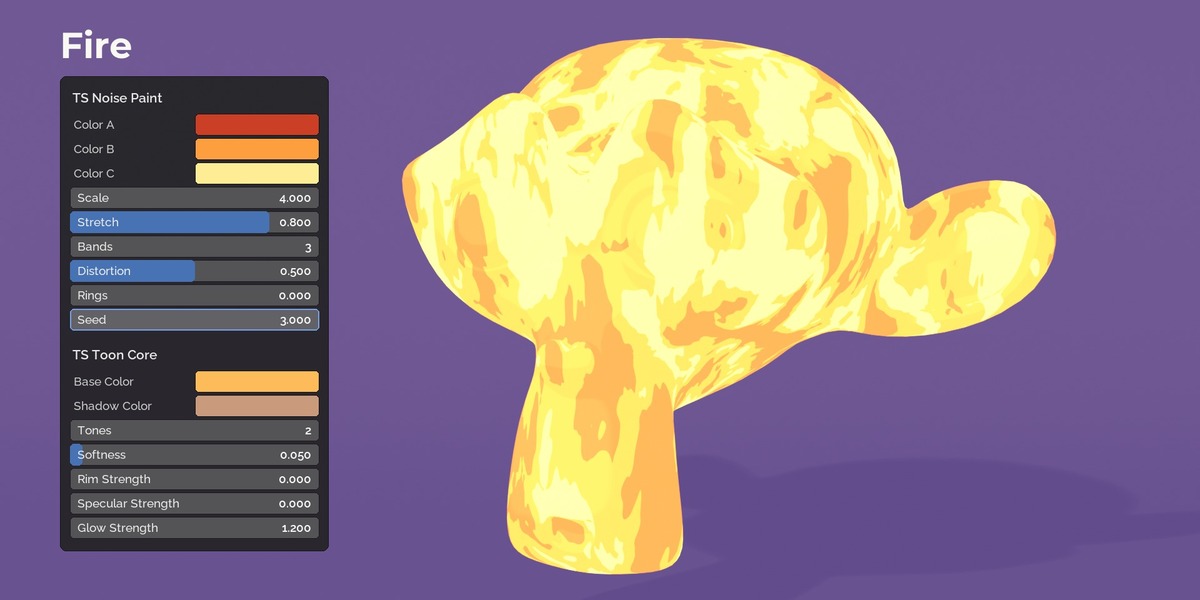
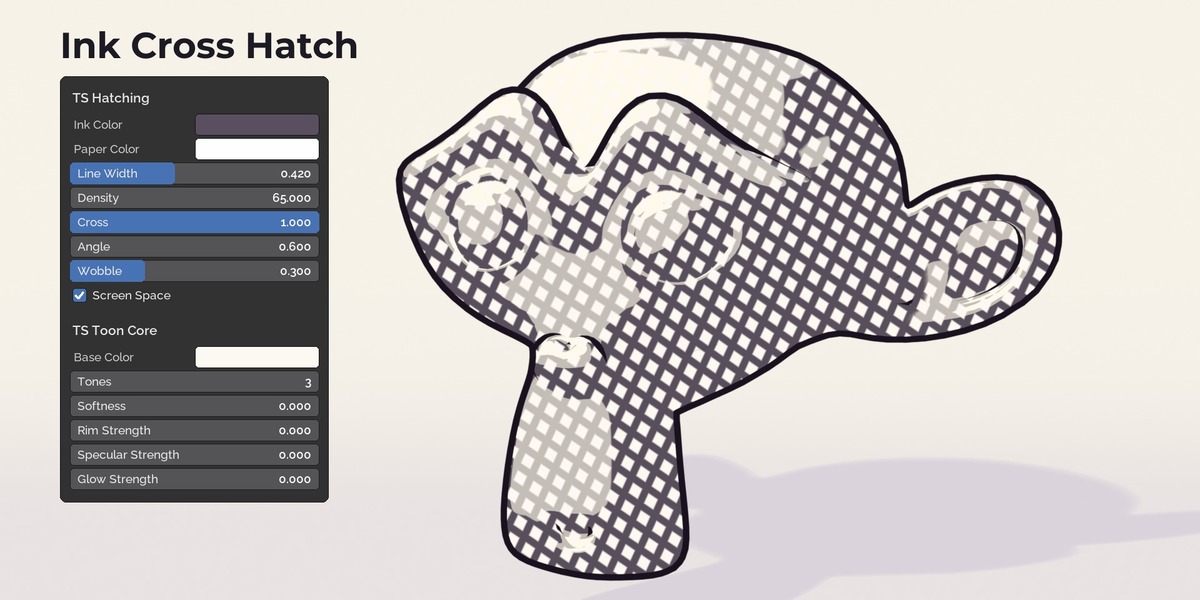
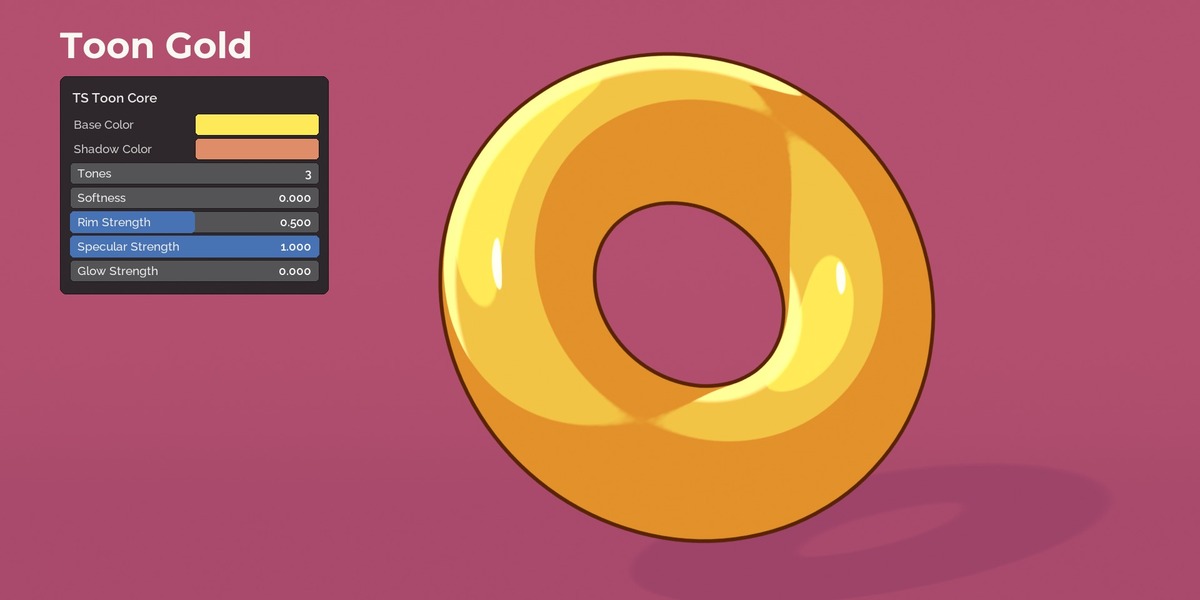
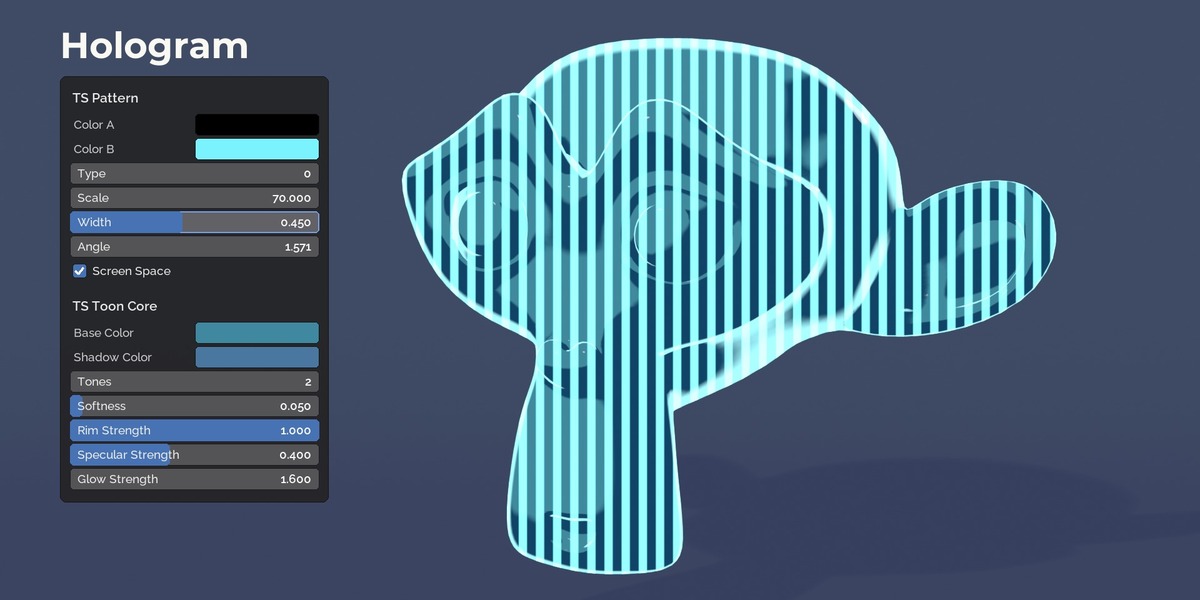
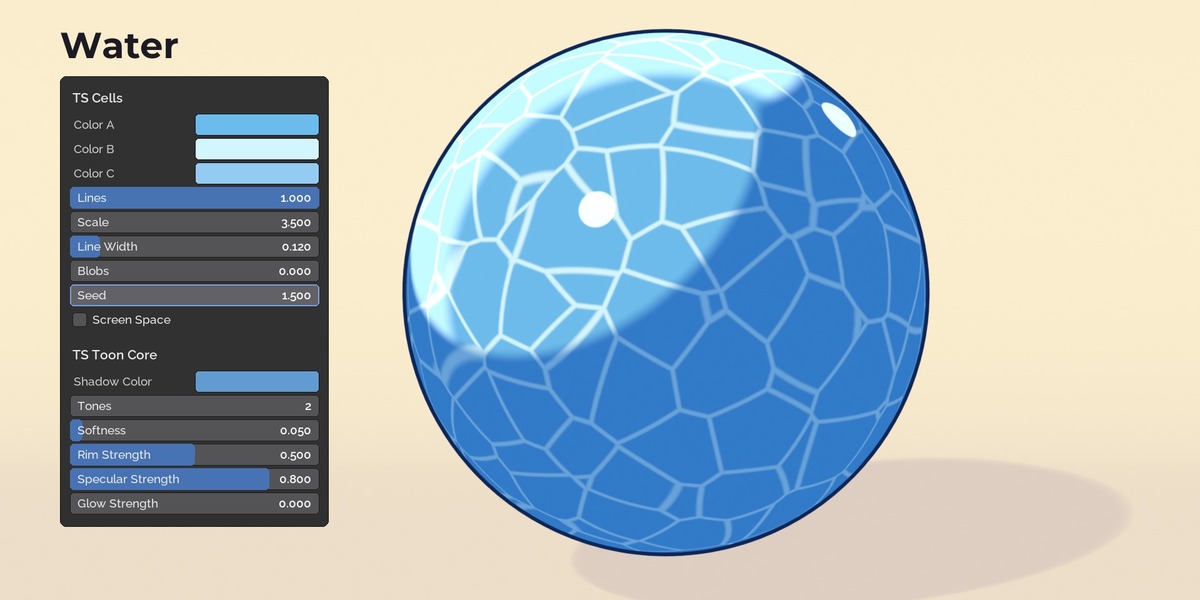
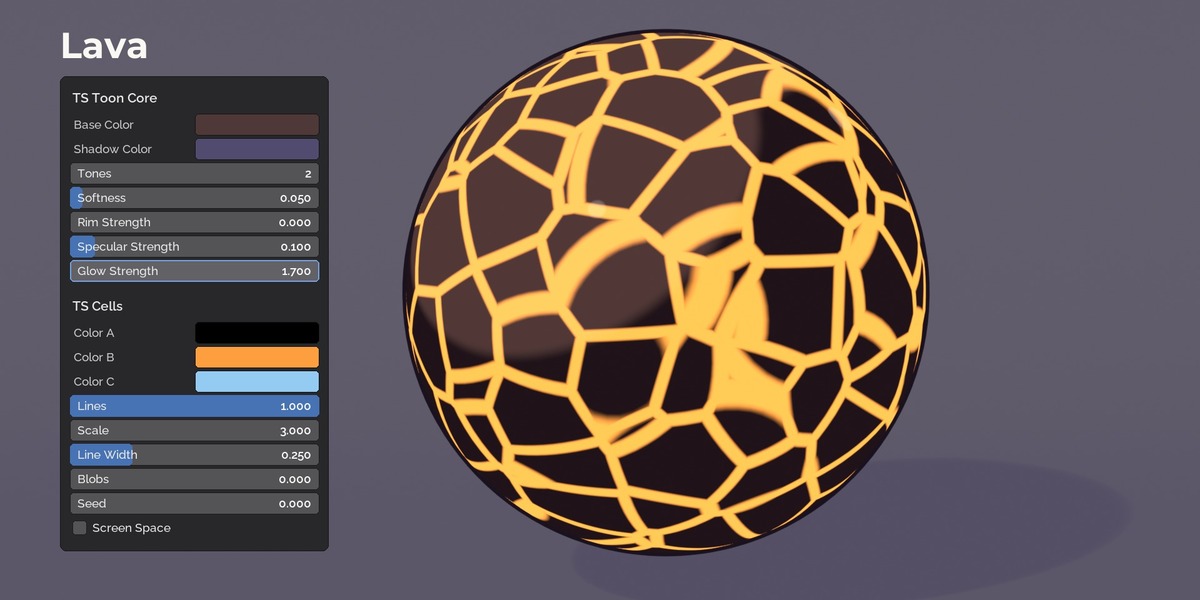
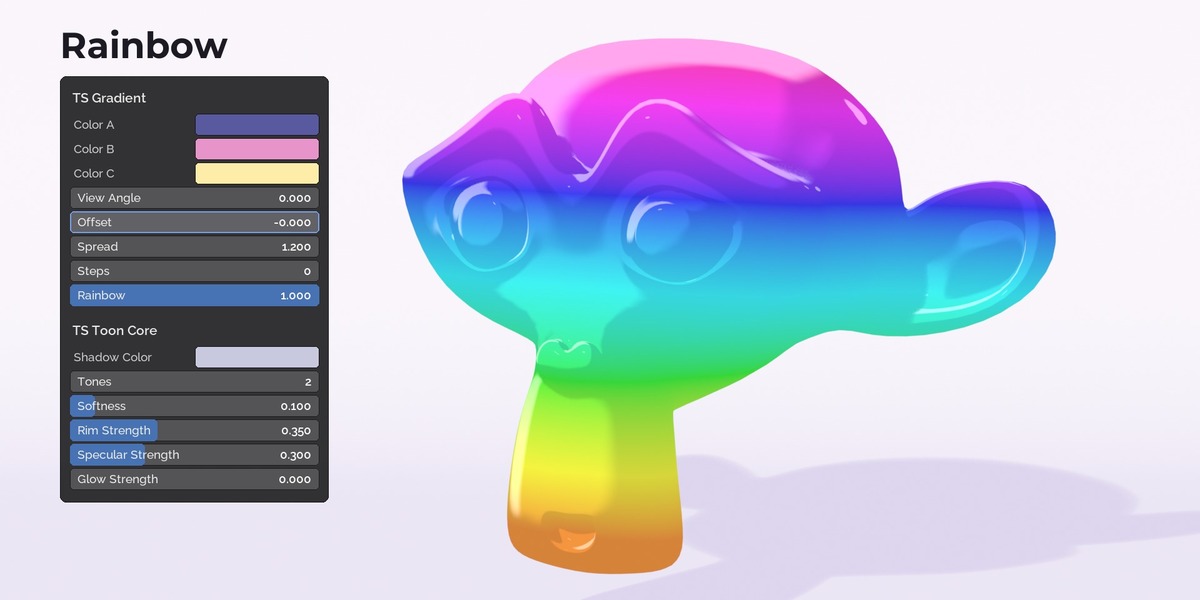
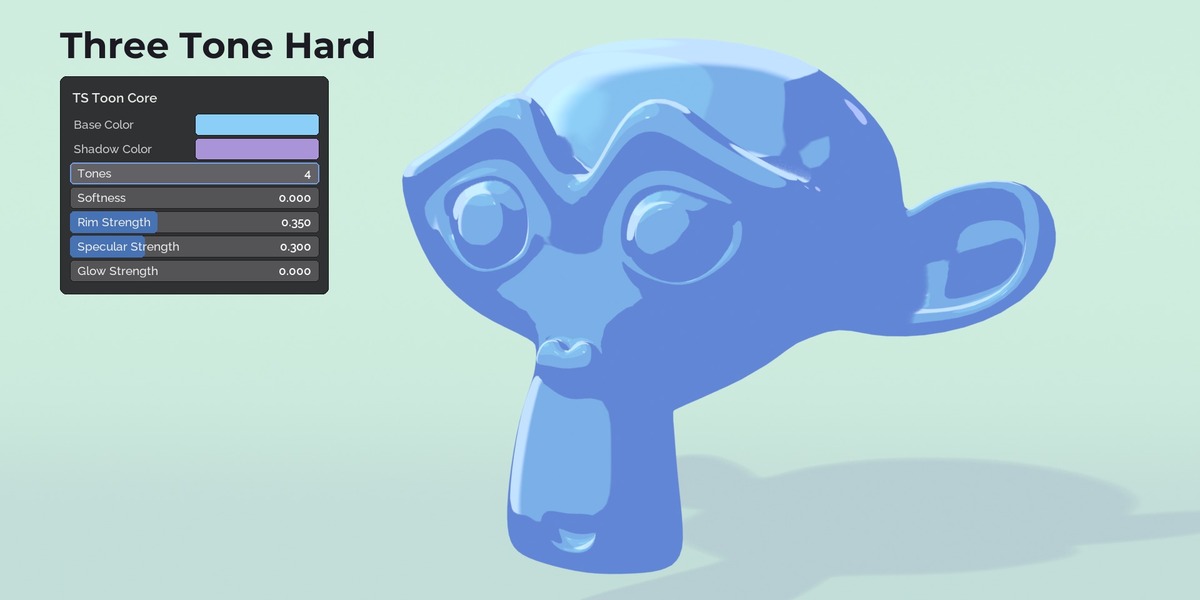
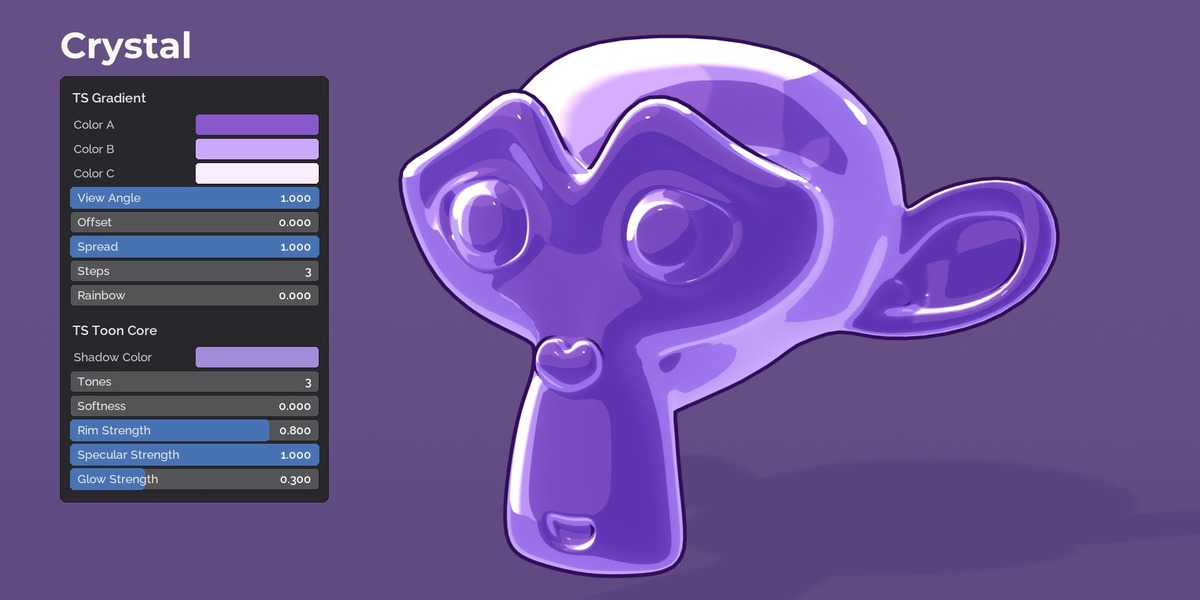
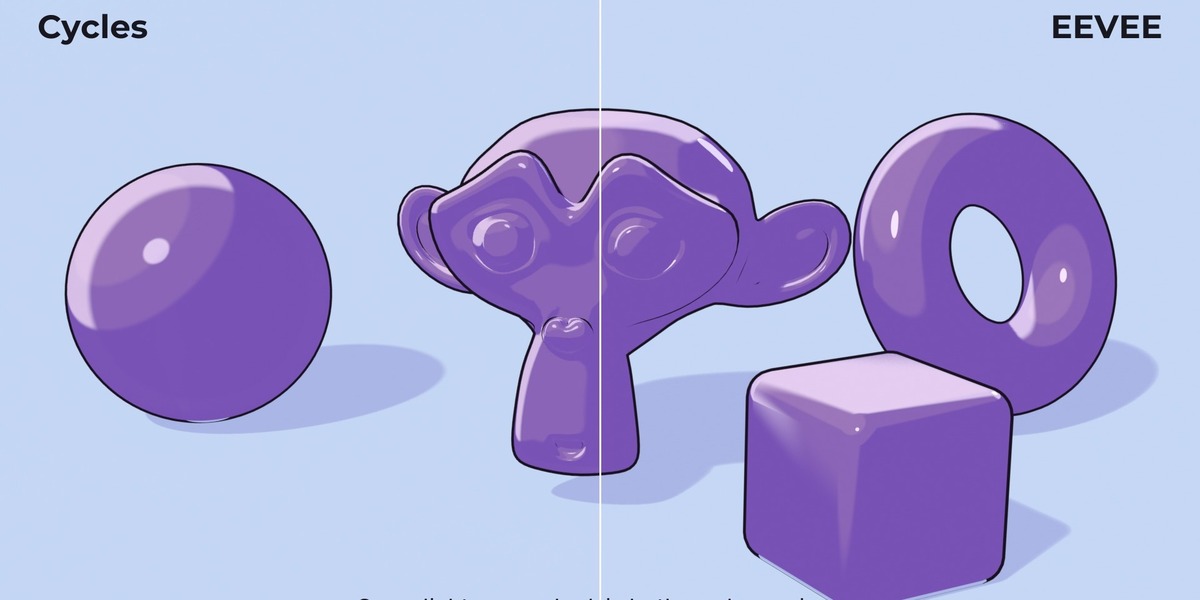
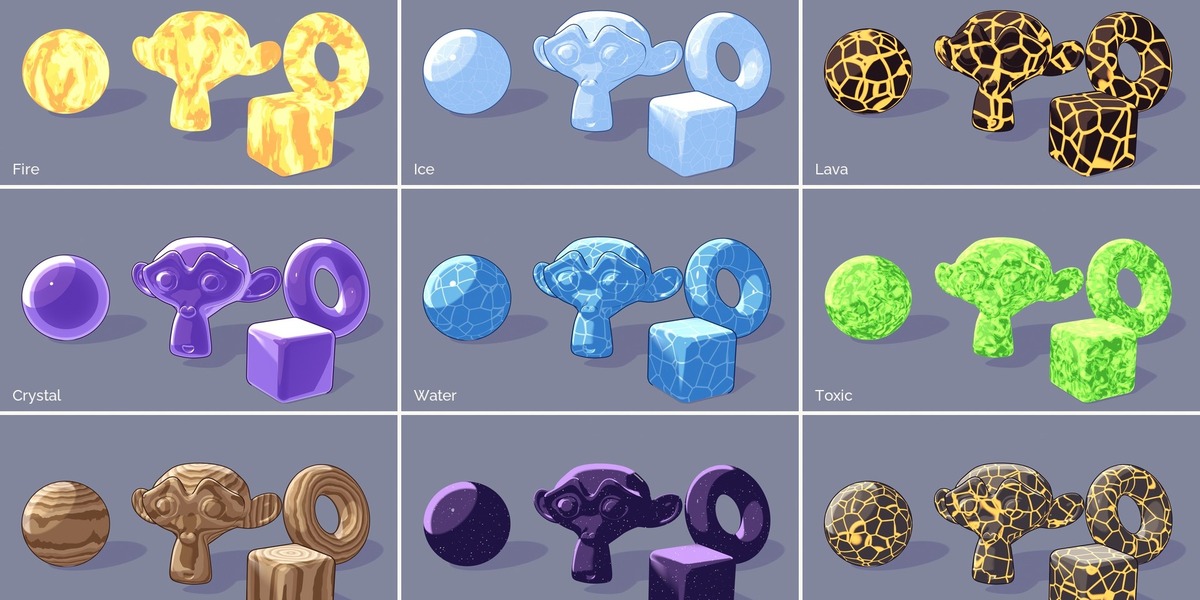
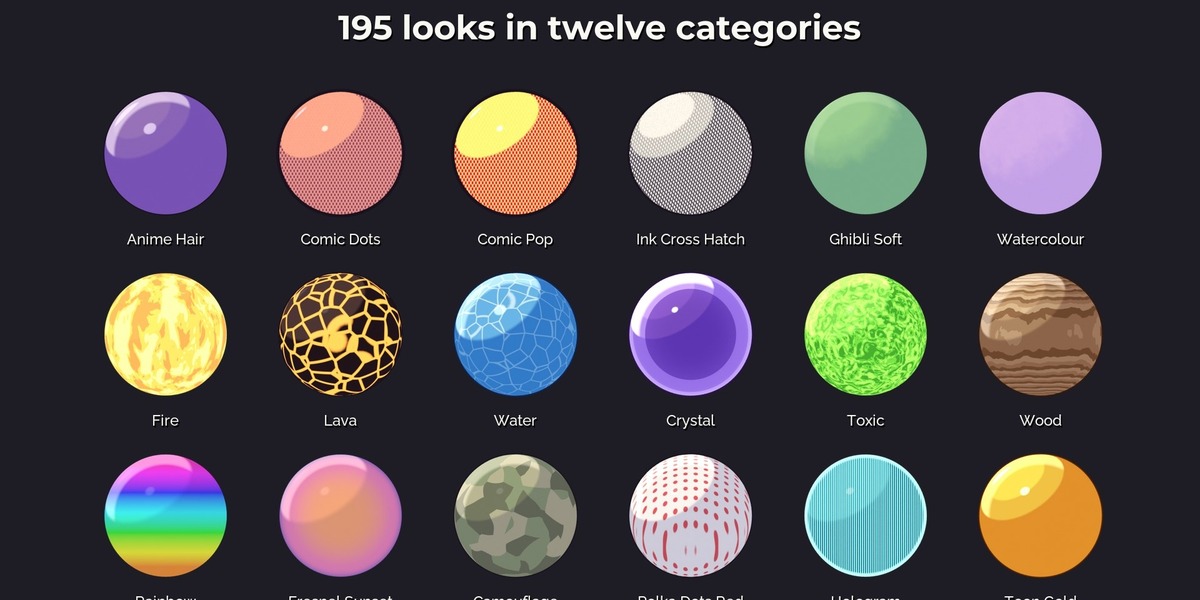
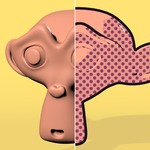
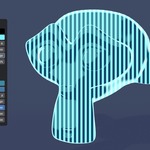
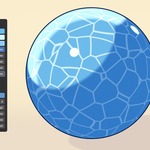
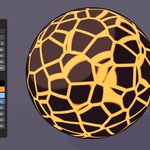
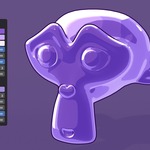
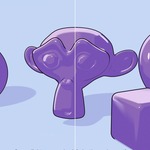
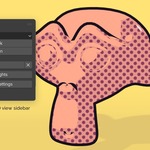
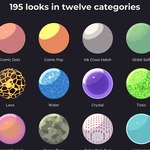
Cel shading driven by your real lights: hard or soft bands, tinted shadows, rim light, toon highlights, outlines, halftone, hatching, dither, gradients, patterns and glowing elemental looks. It looks the same in Cycles and in EEVEE, so you can work in EEVEE and render the final in Cycles without the look changing. 195 ready looks in twelve categories: Essentials, Anime, Comic, Ink and Pencil, Painterly, Gradients, Patterns, Elemental, Metals, Tech, Game Stylized, Special.
What is in the package
| Folder | Content |
|---|---|
| Addon |
toon_shader_nh-1.0.0.zip, the Blender extension. It contains the look library |
| Library |
ToonShader.blend with the node groups and all 195 looks as assets, plus blender_assets.cats.txt
|
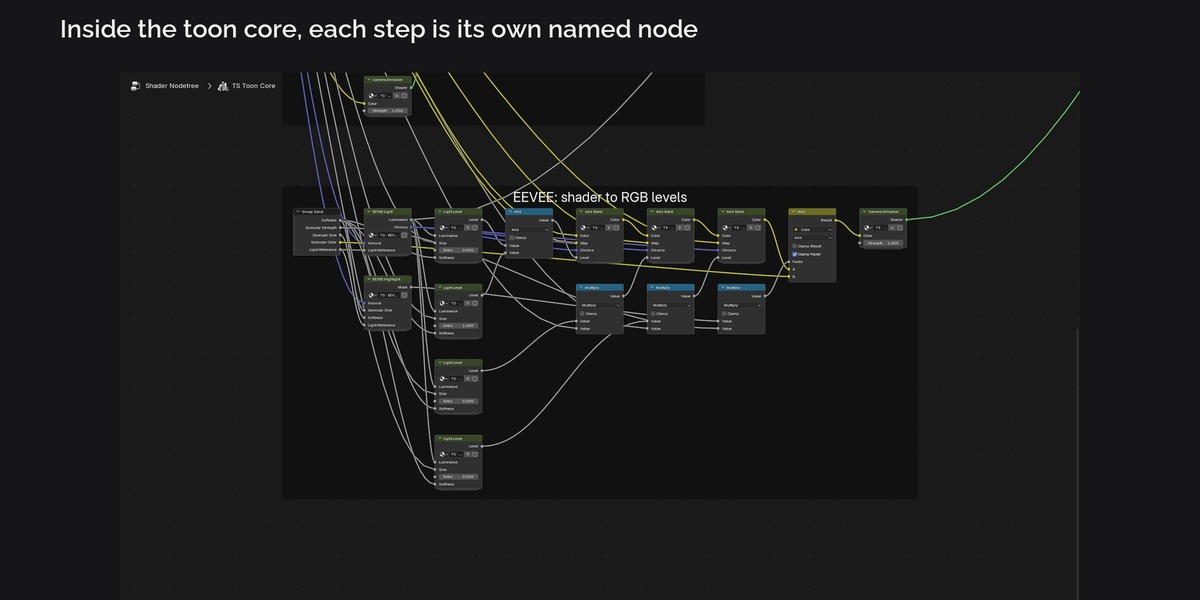
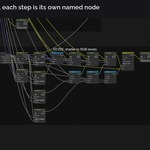
| Inside the groups | Labelled frames per step; the math sits in small sub groups named TS · ... (for example TS · Cycles Toon Band, TS · Light Level). They are not assets, Blender adds them with the main groups |
| README.pdf | this document |
Installation
Edit > Preferences > Get Extensions > arrow menu at the top right > Install from Disk, pick toon_shader_nh-1.0.0.zip. The add-on adds the asset library "Toon Shader" and a "Toon" tab in the 3D Viewport sidebar (N) and in the Shader Editor sidebar.
Without the add-on you can still use the library: Preferences > File Paths > Asset Libraries > Add, pick the Library folder, then drag looks from the Asset Browser. In Cycles you then have to set the scene property toon_engine to 1 yourself (the add-on does this automatically, see "Cycles and EEVEE").
Quick start
- Select your objects.
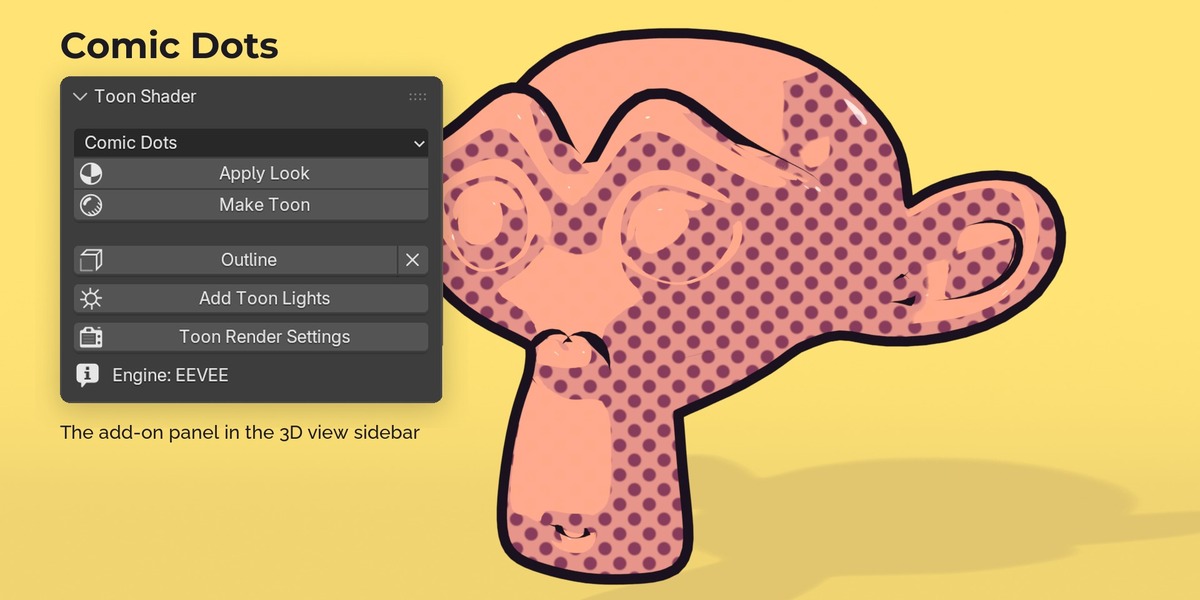
- Toon tab > pick a look > Apply Look. Every material of the selection becomes a toon material. Image textures, colour nodes, normal maps and alpha cut-outs (leaf and hair cards) are kept.
- Add Toon Lights adds a key and a rim sun at the strength the looks are tuned for.
- Toon Render Settings sets the Standard view transform, turns off screen space GI in EEVEE and makes the world visible to the camera only (the toon light comes from your lamps).
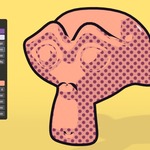
- Outline adds an inverted hull outline (Solidify modifier with flipped normals); the X removes it. Make Toon converts materials without changing their settings.
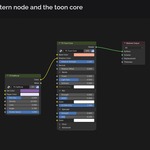
The toon core (TS Toon Core)
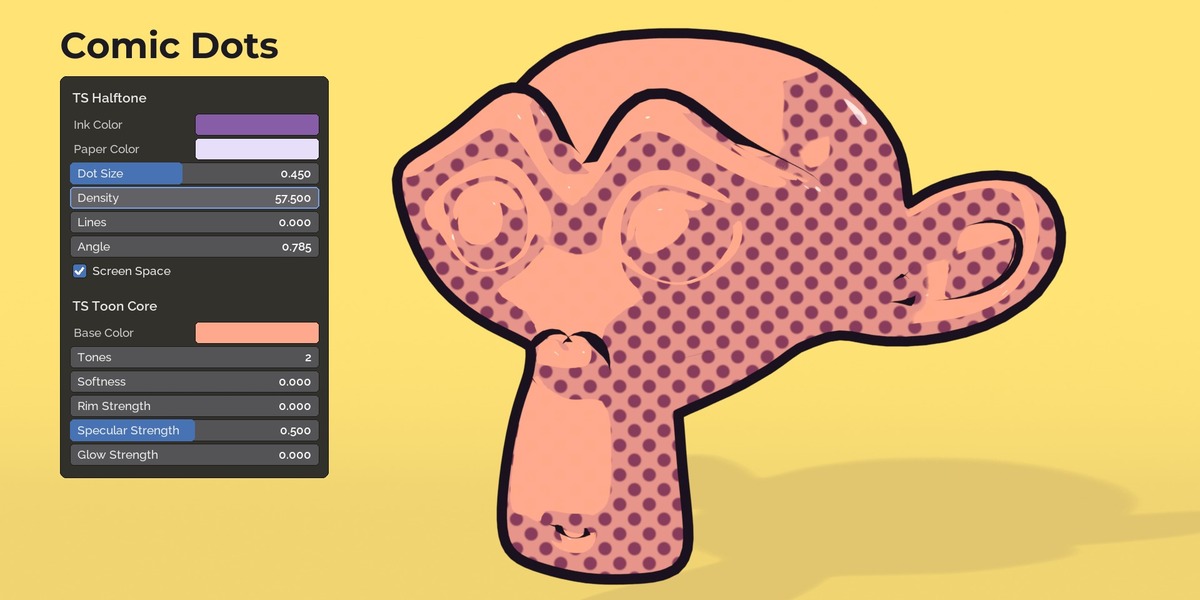
| Input | What it does |
|---|---|
| Base Color | Lit colour; your texture goes here |
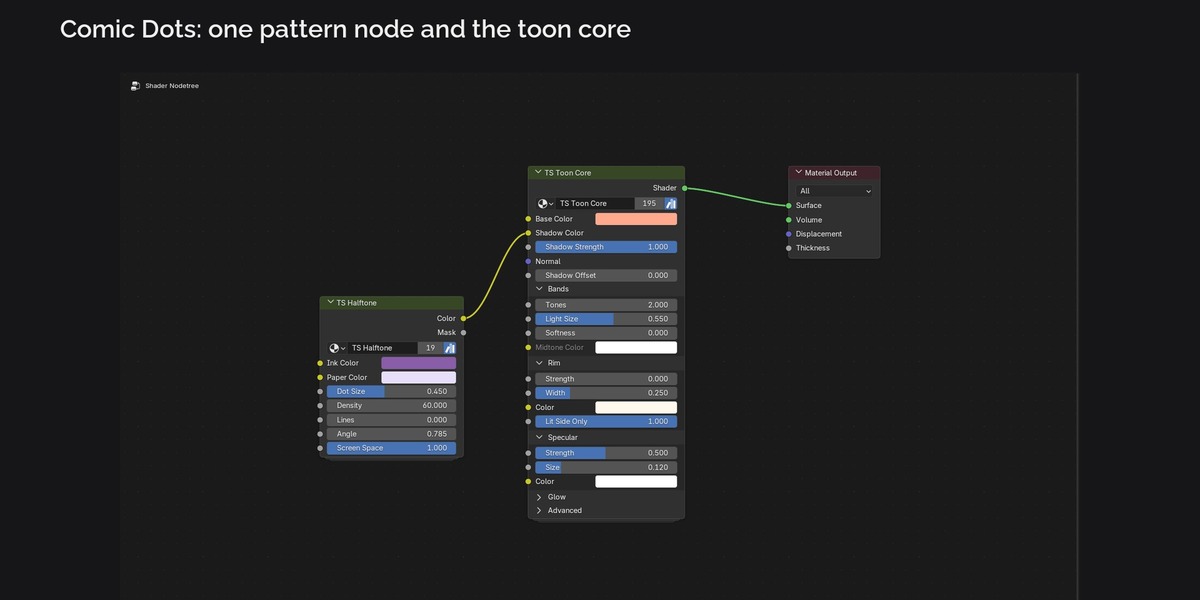
| Shadow Color, Shadow Strength | Colour multiplied into the shadow side and how strong it is. Plug a pattern (TS Halftone, TS Hatching) into Shadow Color for printed or inked shadows |
| Normal | Normal map or custom normals (optional) |
| Shadow Offset | Grows (+) or shrinks (-) the shadow. Plug a painted map, vertex colour or TS Brush Edge here to place shadows by hand |
| Tones | 2, 3 or 4 tones from shadow to light |
| Light Size | How far the lit area wraps around the form |
| Softness | Hard cel edge (0) to a soft gradient (1) |
| Midtone Color | Tint of the middle tones (3 and 4 tones) |
| Rim Strength, Rim Width, Rim Color, Rim Lit Side Only | Light rim along the silhouette |
| Specular Strength, Size, Color | Hard toon highlight |
| Glow Color, Glow Strength | Self glow on top (fire, lava, neon, energy); identical in both engines |
| Light Reference | Sun strength that gives exactly the Base Color (default 3.14) |
| Ambient | Lifts the shadow side without changing the bands |
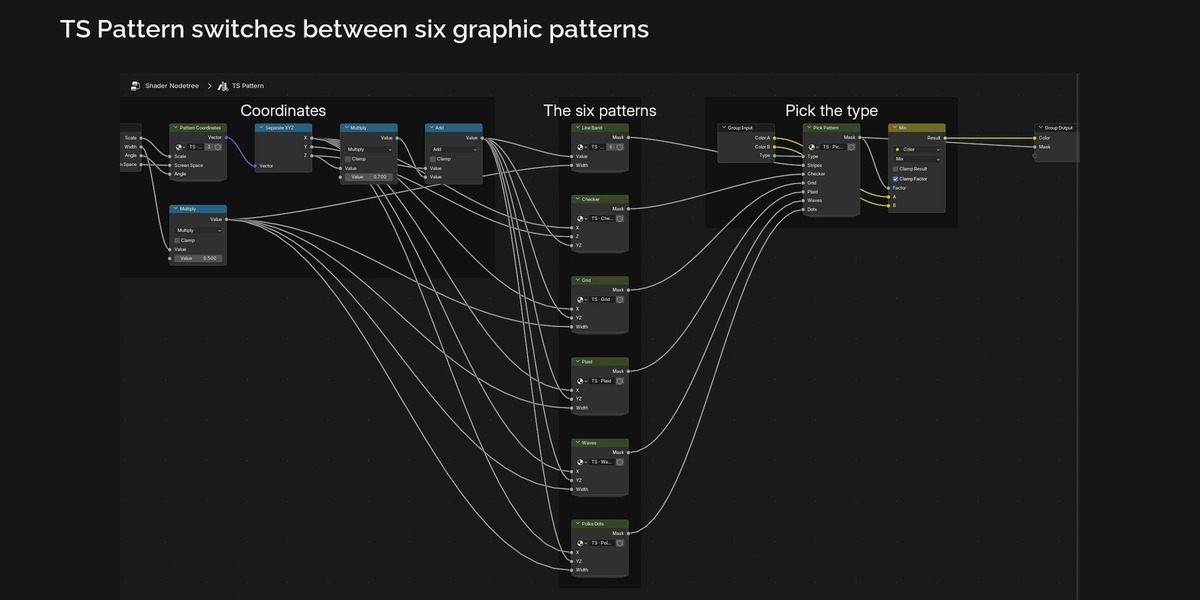
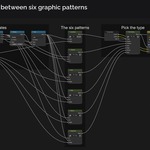
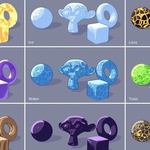
Pattern groups: TS Halftone (dots or lines, screen or object space), TS Hatching (single or cross hatching, hand drawn wobble), TS Brush Edge (painterly noise for Shadow Offset), TS Dither (ordered dither or random stipple), TS Gradient (by view angle or height, banded, rainbow), TS Pattern (stripes, checker, grid, plaid, waves, polka dots), TS Cells (crackle and caustic lines, terrazzo, camouflage), TS Noise Paint (fire, wood rings, sand, clouds, crayon).
Looks with a pattern in Base Color (Patterns, Gradients, Elemental and some Metals and Tech looks) replace the colour of the material they are applied to; all other looks keep your colours and textures.
Cycles and EEVEE
The core contains two paths. Cycles uses Blender's Toon BSDF, normalised so a band has exactly your colour. EEVEE uses Shader to RGB with the same thresholds. The add-on switches between them through the scene property toon_engine whenever you change the render engine. Every look is rendered in both engines as a test; the measured difference is listed in the store text.
To keep both engines identical:
- Keep key lights near the reference strength (sun 3.14, or point and spot lights that give a similar brightness). Much weaker extra lights add a soft lift in Cycles but no band in EEVEE. Add Toon Lights creates the right ones.
- Use Toon Render Settings (no screen space GI in EEVEE, world not lighting the scene).
- Big flat floors look best with Rim Strength 0 (at grazing angles the rim would cover the floor).
Credits and licence
Designed by Nico Hartl with Claude (AI assistant). Every node group and look is defined in code, art directed and checked by a 3D artist. No textures, scans or third party node setups are included.
Node groups, looks and .blend files: royalty free for personal and commercial projects, you may not resell or redistribute them as they are. Add-on code: GPL-3.0-or-later. Details in LICENSE.txt.
Have questions about this product?
Login to message
Includes Blender Assets
204 drag-and-drop assets for Blender’s Asset Browser.
Browse included assets| Published | about 3 hours ago |
| Blender Version | 4.5 - 5.2 |
| Render Engine Used | Cycles, Eevee |
| License | GPL |