 ByteBard


True Pixel Art Generator 5: User Guide
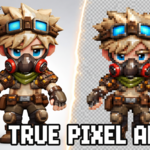
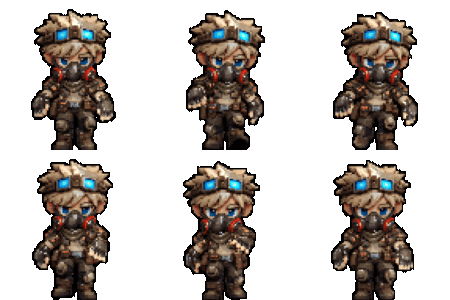
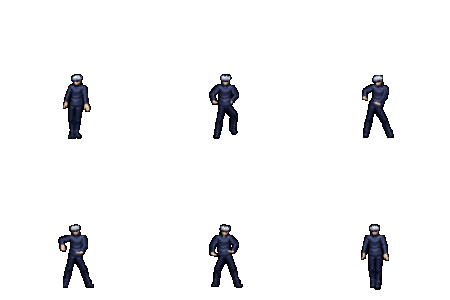
True Pixel Art Generator 5 is a Blender 5+ sprite exporter that turns 3D models into fixed-size pixel-art sprites. It is designed around accurate preview and export output rather than changing the source model, materials, or mesh data.
Installation
- Download the
true_pixel_art_generator.zip. - In Blender, go to Edit > Preferences > Add-ons.
- Click Install... and select the zip file.
- Enable the addon by checking the box.
- Press N in the 3D Viewport to open the sidebar and select the Pixel Art 5 tab.
Quick Start
- Open the
True Pixel Art 5panel in the 3D View sidebar. - Set
Target Modelwith the eyedropper or object field. - Choose a sprite size such as
32 x 32,64 x 64, or128 x 128. - Choose a
Camera View, lighting preset, resolver settings, and outline size. - Click
Open Live PrevieworRender Pixel Preview. - Use
Export Pixel Spritewhen the preview looks right.
How Preview Works
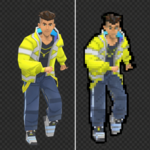
This Blender 5 version is different from the earlier Blender 4 style addon. It does not permanently pixelate the real 3D mesh in the viewport. Instead, it renders the target through the same sprite pipeline used for export, then displays that result in preview tools.
- Docked Preview: opens a Blender Image Editor area with the current output preview.
- Viewport Preview Card: optional in-scene image plane for comparison or screenshots.
- Export Output: the final PNG, sequence, GIF, or sprite sheet saved to disk.
The exported sprite and preview images come from the same pixel-art render pipeline, so the preview is a better reference for final output than a material-only viewport shader.
Sprite Sheet Animation
For animation exports:
-
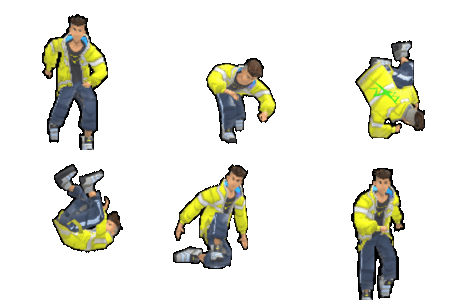
Sprite Sheet uses
Sheet Framesas an exact number of sampled frames or cells. -
PNG Sequence and GIF use
Frame Stepas every Nth frame.
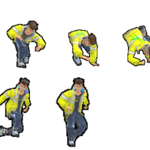
Example: a timeline from frame 1 to 10 with Sheet Frames = 4 samples frames 1, 4, 7, 10.
Troubleshooting
No pixelation in the raw viewport
- Click
Open Live PrevieworRender Pixel Previewto generate the first preview image. - The real mesh is not modified. The final pixel-art result is generated through preview and export.
- Use the docked preview or exported image as the source of truth.
No outline
- Enable
Final Outline. - Increase
Outline Pixels. - Check the docked preview or exported image, not only the raw shaded mesh.
Export error about PNG and FFMPEG
- Version 0.1.11 and newer handle Blender scenes set to video output mode.
- The addon temporarily switches its internal renders to image/PNG output and restores your scene settings afterward.
Sprite sheet has the wrong number of frames
- Use
Sheet Framesfor sprite sheets. - Use
Frame Steponly for PNG sequences or GIF exports.
Notes for Blender 4 Addon Users
The Blender 5 addon is a major rebuild. The older approach made the viewport appear pixelated more directly, but it did not match export behavior reliably at small sizes.
This version prioritizes game-ready sprite output: camera fitting, lighting, downsampling, color reduction, dithering, alpha cleanup, final outline, sprite sheets, and live output preview.
Have questions about this product?
Login to message
| Blender Extension Compatible | Yes |
| Sales | 20+ |
| Published | 7 months ago |
| Blender Version | 4.0 - 5.0 |
| Extension Type | Add-on |
| Render Engine Used | Eevee |
| License | GPL |