 XXV




TrueWire Documentation
Installation
Drag the .zip file into the Blender window (Blender 4.2 or newer). The panel appears in the 3D Viewport sidebar (press N) under the TrueWire tab.
Quick Start
- Select one or more mesh objects.
- Click Enable TrueWire.
- Adjust thickness and colors, or click a preset for a quick look.
- Click Disable TrueWire to restore your original materials exactly as they were.
Note: First-time wireframe calculations for large or high-density quad meshes may take a second to appear. Your Blender instance may freeze until it’s finished.
Main Options
- Apply To: Selected objects, all mesh objects, or only the objects in a chosen collection (sub-collections included).
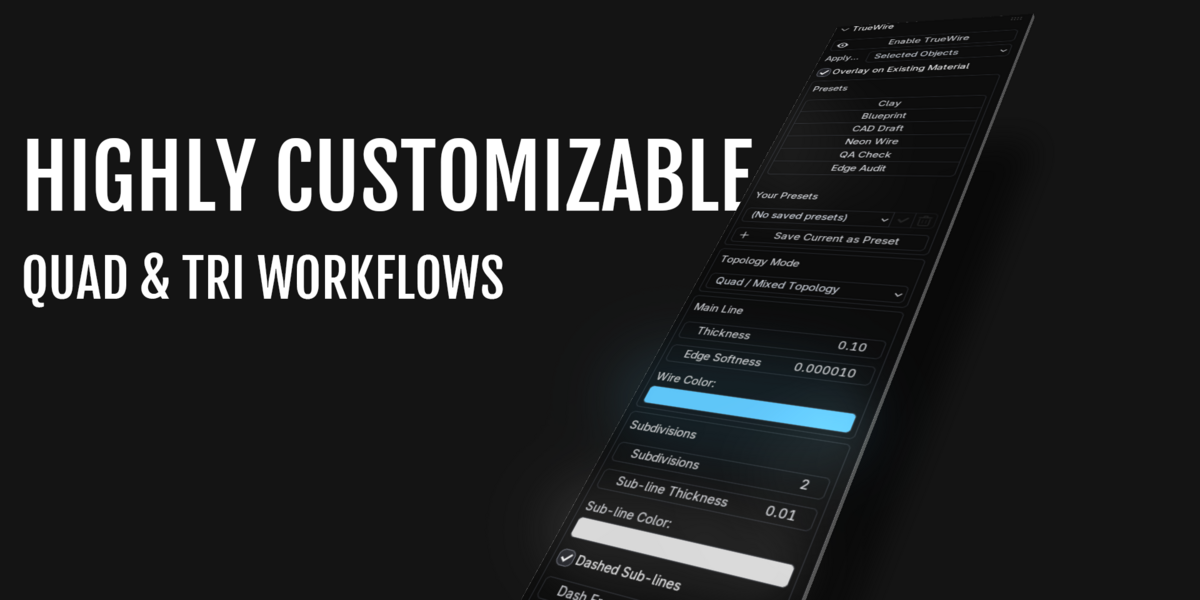
- Overlay on Existing Material: Draws the wireframe on top of each object’s current material and textures, instead of replacing it with a clean clay look.
-
Topology Mode:
- Quad / Mixed Topology shows real quad edges with no triangulation diagonals.
- Fully Triangulated is for meshes that are already triangulated, such as game-ready assets. It also has a Pixel-Perfect Line option.
- Thickness, Softness, Wire Color: Control the main line.
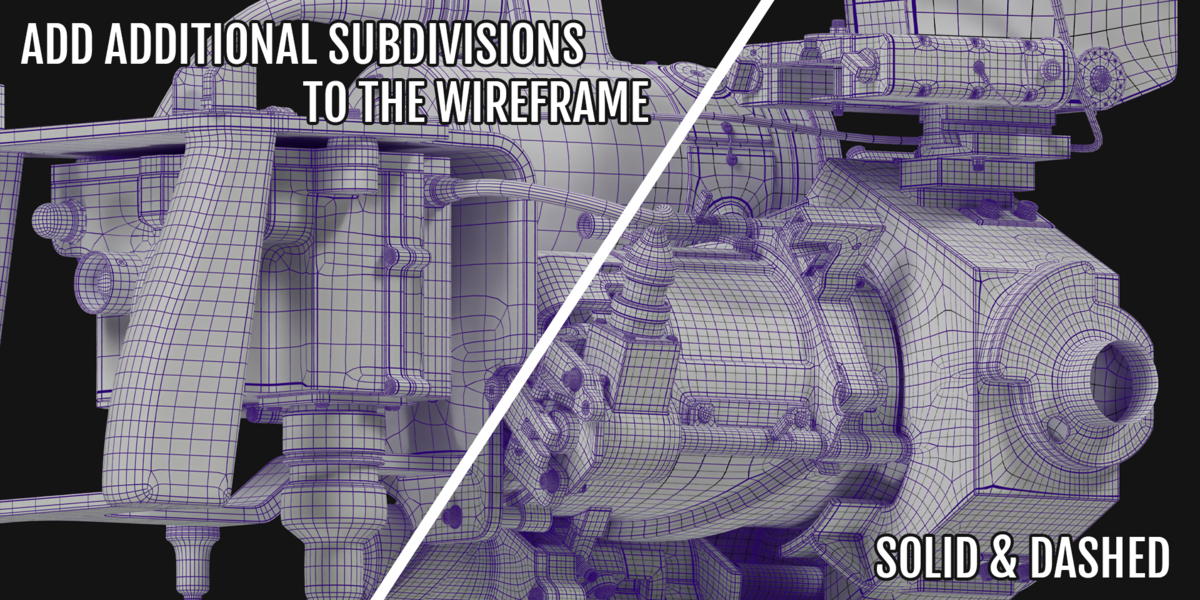
- Subdivisions (Quad mode): Adds extra grid lines inside each quad, with their own thickness, color and optional dashing.
- Topology QA (Quad mode): Highlights triangles and n-gons in warning colors.
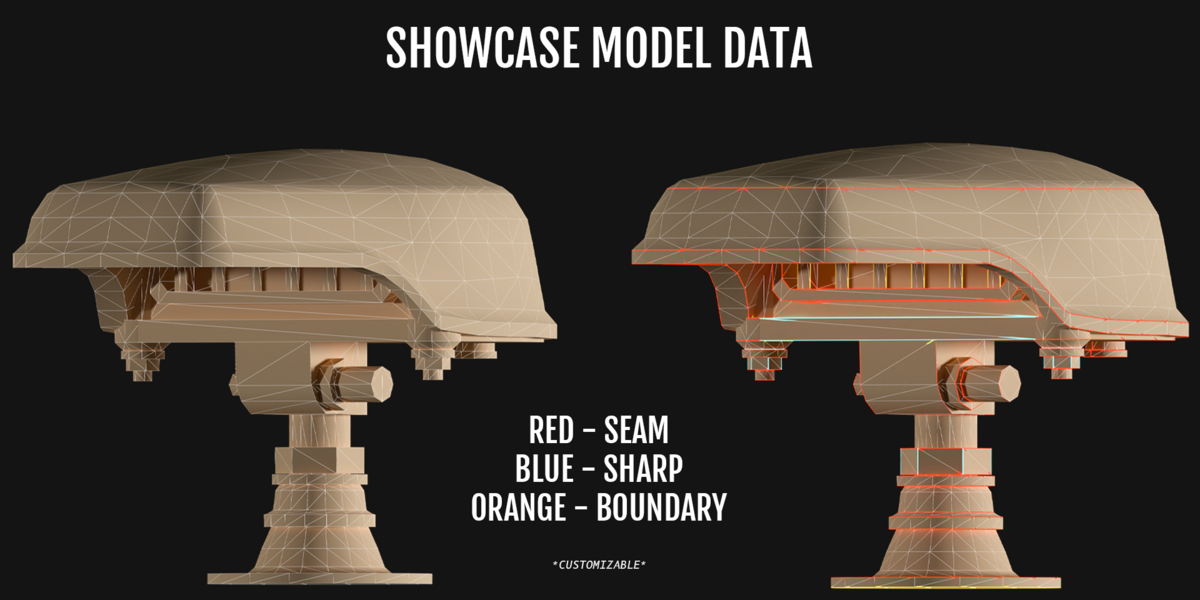
- Edge Type Coloring: Colors UV seams, sharp edges and boundary edges, each with its own color and thickness. In Fully Triangulated mode this is a work in progress.
Presets
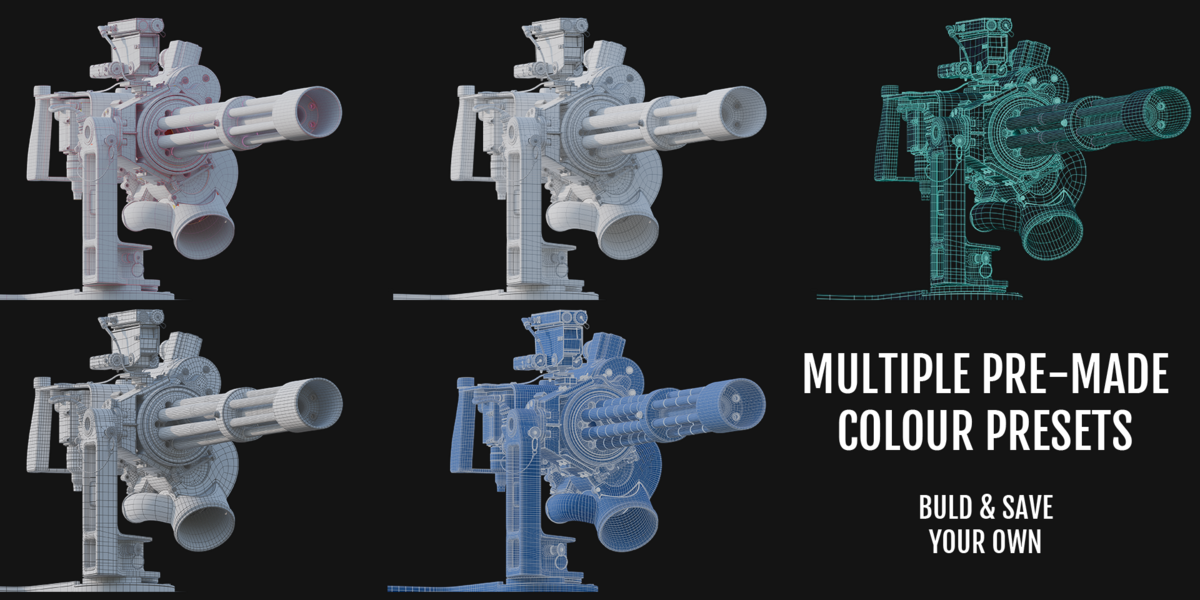
Six built-in looks are included: Clay, Blueprint, CAD Draft, Neon Wire, QA Check and Edge Audit. Use Save Current as Preset to store your own. They’re saved on disk, so they’re available in every project.
Maintenance Buttons
- Re-bake Wire Data: Run this after editing topology, or after moving or scaling an object.
- Remove From All Objects: Restores the original materials everywhere TrueWire is active.
Have questions about this product?
Login to message
| Blender Extension Compatible | Yes |
| Published | about 16 hours ago |
| Blender Version | 4.2 - 5.3 |
| Extension Type | Add-on |
| Render Engine Used | Cycles, Eevee |
| License | GPL |