Turnmaker Pro|Independent 3-Axis Turntable For Objects & Cameras.
 Hugu's Works


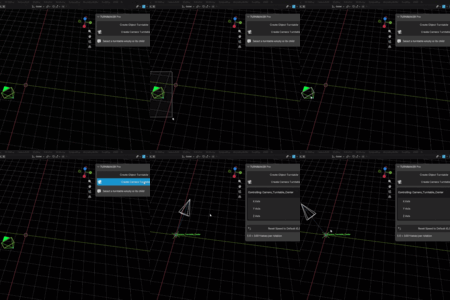
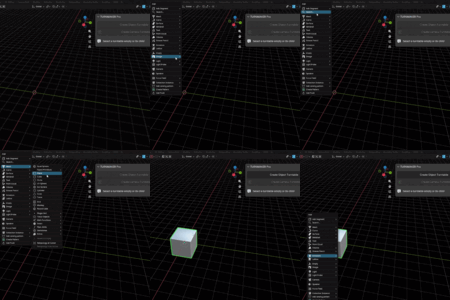
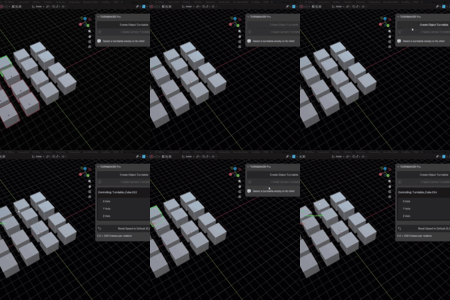
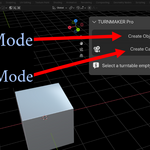
TURNMAKER Pro | Independent XYZ Turntable for Objects and Cameras - Documentation (English)
1. Product Overview
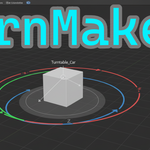
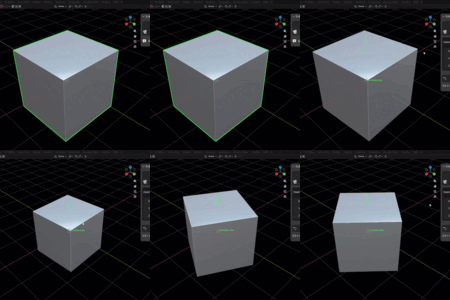
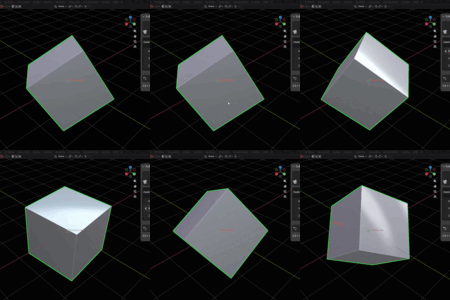
TURNMAKER Pro is a Blender add-on that simplifies the creation of independent XYZ-axis turntable animations for objects and cameras. Unlike Blender's default "Turntable" feature, this add-on allows you to control the rotation speed of each axis (X, Y, Z) individually, creating smooth, loopable animations without the need for manual keyframing.
This tool is perfect for product presentations, showcasing 3D models for portfolios, or creating complex camera paths, drastically reducing the effort required for animation setup.
Key Features:
Object Turntable Creation: Instantly creates an independent XYZ-axis turntable rig centered on the selected object(s).
Camera Turntable Creation: Creates a camera orbit (turntable) around the 3D Cursor, ensuring the camera always points at the center using a "Track To" constraint.
Independent Speed Control: Adjust the rotation speed for each axis (X, Y, Z) in real-time using numerical input.
Automatic Looping: Built entirely on drivers, it provides a perfectly looping animation based on the frame rate without complex keyframe setups.
2. Installation
Keep the downloaded file turnmaker_pro.zip compressed (do not extract it).
Open Blender and navigate to Edit > Preferences.
Go to the Add-ons tab.
Click the Install... button at the top.
Select the turnmaker_pro.zip file and click Install Add-on.
Search for Object: TURNMAKER Pro in the add-on list, and check the box to enable it.
3. How to Use
The TURNMAKER Pro panel is located in the 3D Viewport's sidebar (press N to show/hide) under the "TURNMAKER" tab.
3.1. Creating an Object Turntable
Select the object(s) you wish to rotate in the 3D Viewport (multiple selections are supported).
In the "TURNMAKER Pro" panel, click the Create Object Turntable button.
An Empty (Single Arrow display) named Turntable_[Object Name] will be created at the center of the selected object, and the object will be parented to this Empty.
3.2. Creating a Camera Turntable
Move the 3D Cursor to the desired center of the camera's rotation.
Click the Create Camera Turntable button.
An Empty (Plain Axes display) named Camera_Turntable_Center will be created at the 3D Cursor's location.
The scene camera will be parented to this Empty, and a "Track To" constraint will be added to ensure the camera always looks at the Empty (the 3D Cursor position).
3.3. Adjusting Speed (Main Operation)
Once a turntable is created, you can adjust its motion in real-time.
Select the created Turntable Empty (e.g., Turntable_Cube or Camera_Turntable_Center).
The "TURNMAKER Pro" panel will display the speed settings for the selected Empty.
Adjust the following properties:
| Setting | Description | Notes |
| X Axis | Controls the rotation speed around the X-axis. | Creates a nodding/pitching motion. |
| Y Axis | Controls the rotation speed around the Y-axis. | Creates a rolling/rocking motion. |
| Z Axis | Controls the rotation speed around the Z-axis. | The typical horizontal rotation (turntable). |
-
Speed Unit: As indicated at the bottom of the panel, 1.0 = 100 frames per rotation.
Example: A speed of 1.0 means the object will complete one full rotation every 100 frames during animation playback.
A speed of 2.0 means two rotations per 100 frames.
A negative speed like -1.0 will reverse the rotation direction.
Use the Reset Speed to Default (0,0,1) button to quickly revert the speeds to the initial setting (X,Y: 0.0, Z: 1.0).
4. Troubleshooting & FAQ
Q: The object is not rotating even after setting the speed.
A: Ensure that the Blender Timeline is playing. TURNMAKER Pro uses drivers that calculate rotation based on the current frame number.
Verify that the turntable Empty (Turntable_... or Camera_Turntable_Center) is the Active Object when adjusting the speed settings in the panel.
Q: I created a camera turntable, but the camera is pointing in a weird direction.
A: If the camera already has other constraints, they might be conflicting. Check the camera's constraints tab to ensure the Track To constraint is correctly targeting the Camera_Turntable_Center Empty.
Q: I need to move the turntable Empty.
A: Moving, rotating, or scaling the turntable Empty (Turntable_...) will affect its child object(s) (the rotating object or camera). If you wish to relocate the center of rotation, move the Empty itself.
Q: Can I rotate multiple objects with the same turntable?
A: Yes. While selecting multiple objects and creating a turntable will create a separate Empty for each object, you can manually parent multiple objects to a single turntable Empty if you wish them all to rotate in sync.
5. License and Support
License: This add-on is provided under the terms of the GNU General Public License (GPL) Version 3. Please refer to the license.txt file included with the product for full details.
Support: For bug reports or inquiries, please contact us via [the support form on the Superhive Market product page / or the specified contact method].
Have questions about this product?
Login to message
| Sales | 10+ |
| Published | 10 months ago |
| Blender Version | 4.0 - 5.0 |
| Extension Type | N/A |
| License | GPL |
Discover more products like this
rotation Workflow XYZ ScriptedDriver LoopingAnimation loop animation utility SpeedControl turntable turnaround