 ZibadMend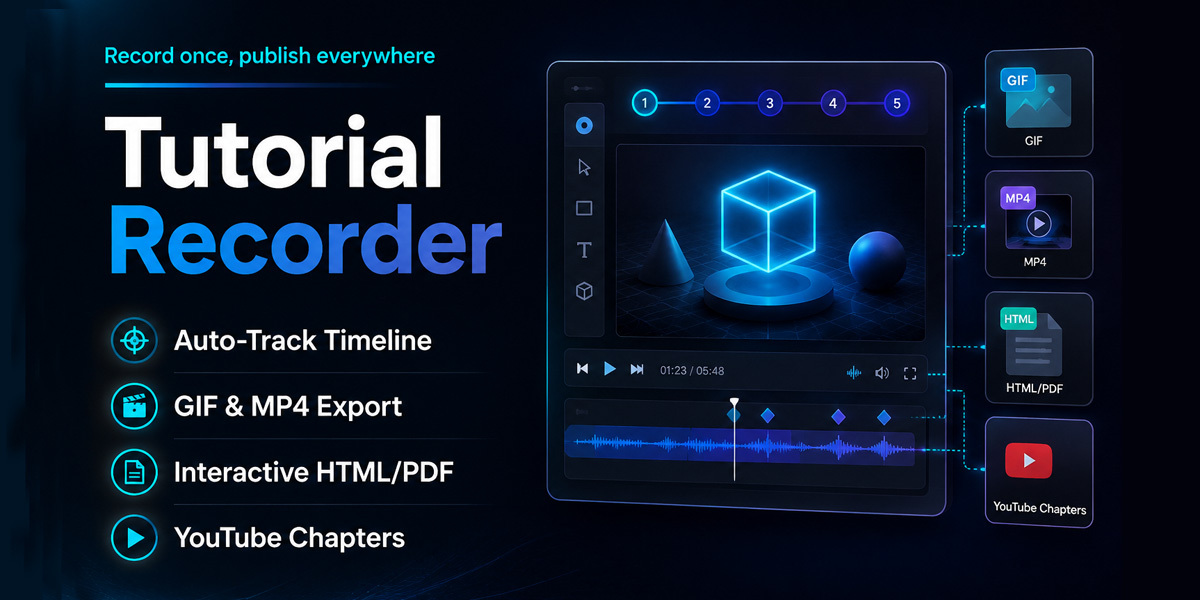
🎥 Tutorial Recorder

Tutorial Recorder bridges the gap between recording a video and creating written documentation. It is an intelligent workspace that automatically tracks your workflow, extracts exact tool values, and generates highly optimized GIFs, MP4 videos, and interactive HTML/PDF documentation—all without leaving the Blender UI.
📝 Timeline & Docs (The Ultimate Feature)
You no longer need to write tutorials manually or pause to take screenshots. The Auto-Track Engine acts as your silent stenographer.
How Auto-Tracking Works:When you are actively recording, every time you perform an action (e.g., Bevel, Extrude, Loop Cut), the add-on instantly:
- Logs the exact timestamp of the video.
- Extracts the specific values you used (e.g., Segments: 3 | Offset: 0.25m).
- Takes a silent screenshot of the Blender UI at that exact moment.
- Adds a new Step to your Timeline list.
At any point during a recording, you can click Manual Snapshot & Step to highlight something specific. You can also click on any step in the Timeline panel inside Blender to rename its title or customize the description before exporting.
📑 PDF Generation & YouTube Chapters
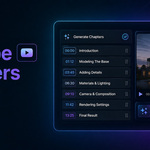
Once you click Stop & Save, your video is saved. By clicking Export PDF (HTML) & Chapters, the add-on generates two critical files:
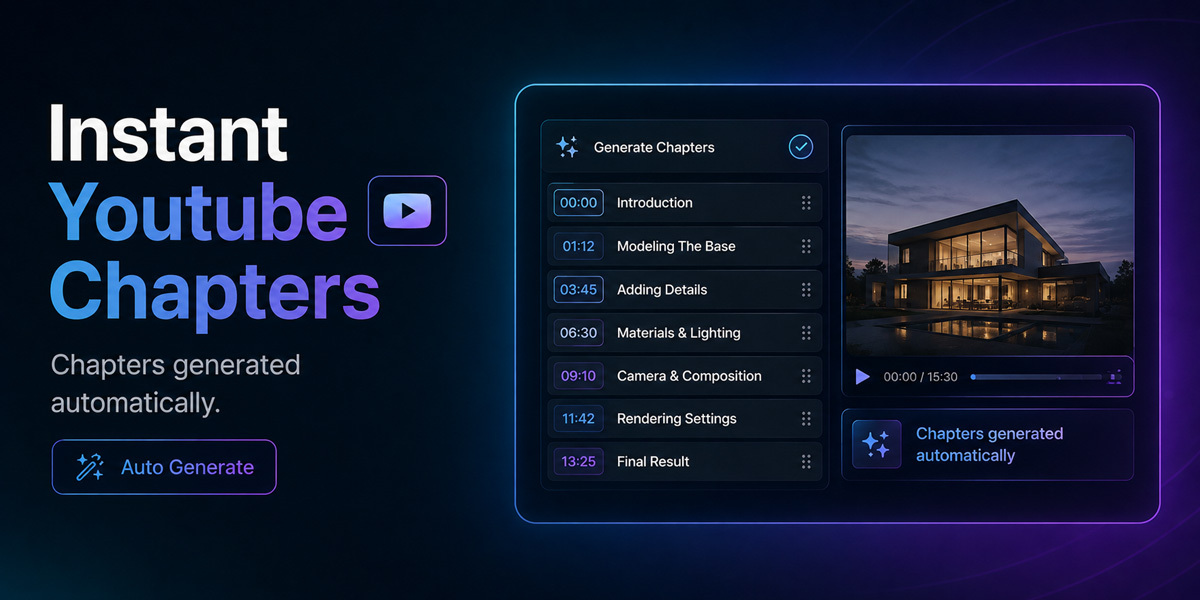
YouTube_Chapters.txt)A text file is generated containing all your steps formatted as:
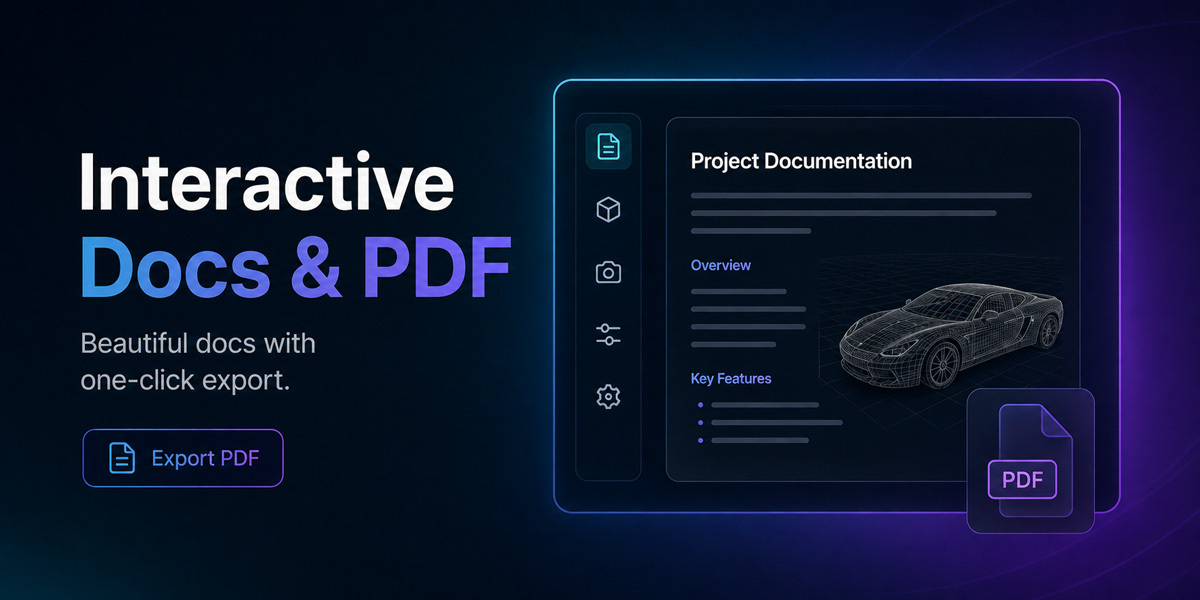
00:42 - Bevel Edges. Simply copy and paste this into your YouTube video description, and YouTube will automatically generate clickable chapters for your viewers! A beautifully formatted web page opens in your browser containing your title, every step chronologically listed with its timestamp, exact tool details, and high-quality screenshots.
✨ Magic Feature: Live Editing
The generated HTML document is fully interactive (contenteditable). Did you notice a typo? Do you want to add a warning note for your students? Just click the text directly in your web browser and start typing! Every piece of text on the page can be edited on the fly.
Once you are happy with the text, simply click the 🖨️ Save as PDF button at the top of the page. You instantly have a professional, printable tutorial manual ready to share on Patreon, Gumroad, or with your classroom.
🎬 Professional Screen Recording & Audio
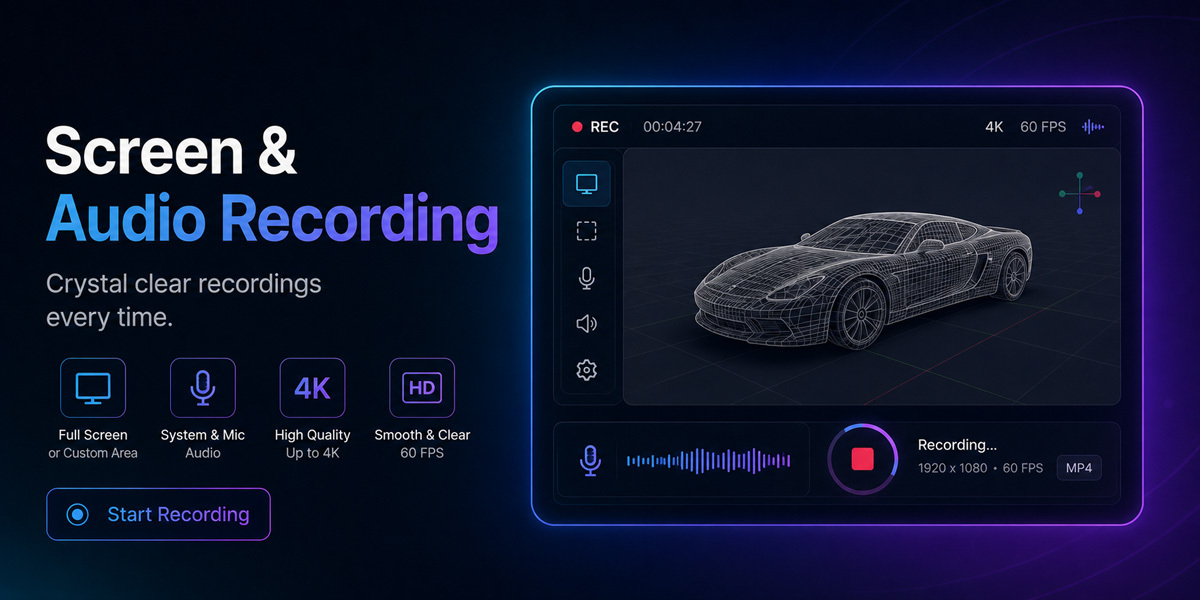
We built the recording engine to be robust, lag-free, and perfectly tailored for modern platforms:
- Native Formats: Record directly in Desktop (16:9), Shorts/Reels (9:16), or Instagram (1:1) to skip post-production cropping.
- Zero-Lag Audio: Our asynchronous hardware scanner finds your microphones (🎤) and system audio (🎥) instantly without freezing Blender.
- Pixel-Perfect Custom Regions: Draw a bounding box anywhere on your screen. The box is Panel-Aware—it intelligently hides itself when you close Blender's N-Panel so it doesn't distract you.
- On-Screen Display (OSD): Bake your keystrokes and mouse clicks directly into the MP4 file.

🚫 Auto-Track Exclusions (Ignore List)
To prevent your timeline from filling up with repetitive tools (like panning or selecting):
- Use the repetitive tool in Blender.
- Click Ignore Last Used Tool in the Auto-Track Exclusions panel.
- That tool is now permanently saved in your preferences and will never trigger a step in your future tutorials.
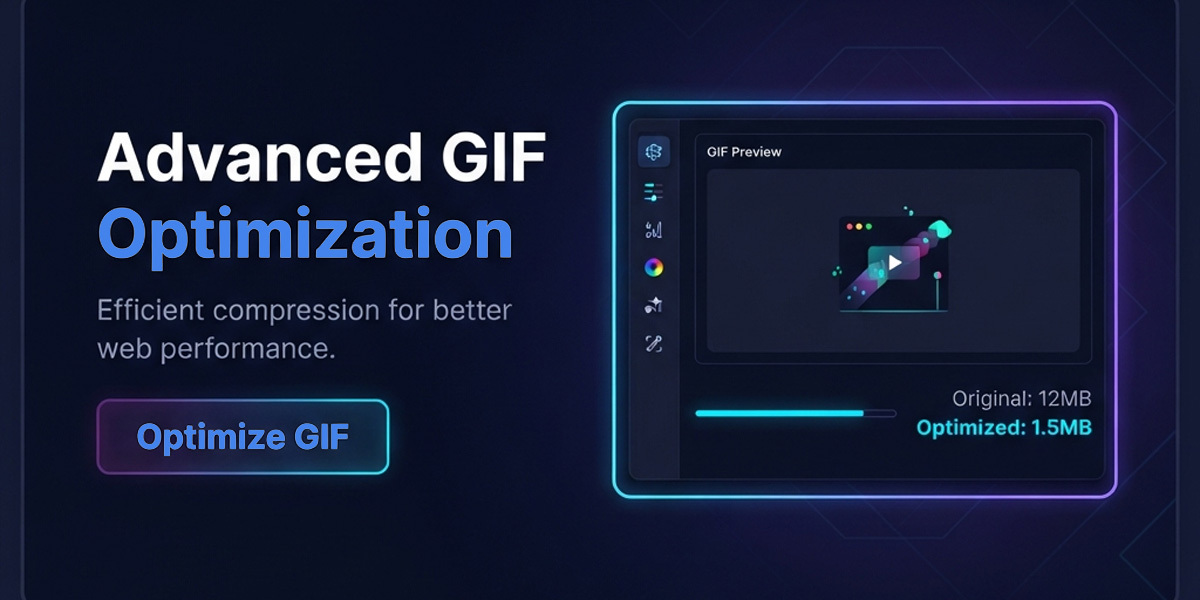
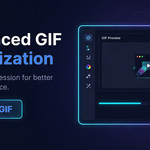
🎞️ Advanced GIF Optimization
Convert your last recorded MP4 directly into a highly compressed, web-ready GIF right inside the panel. Our custom "Compress & Optimize" engine uses a multi-pass algorithm:
- Generates a custom 128-color palette (
max_colors=128). - Calculates differences between frames (
stats_mode=diff) so only moving pixels take up file size. - Applies Bayer Dithering to prevent ugly color banding, perfect for sharing WIPs on Twitter or ArtStation.
📦 Quick Installation (Offline Ready)
Due to marketplace regulations, the add-on installs its core dependencies completely offline.
- Install the
.zipfile via Edit > Preferences > Add-ons. - Open the Sidebar (
N) and go to the Tutorial Recorder tab. - Click Install Python Libraries. (This installs bundled wheels offline). Restart Blender.
- Click Download FFmpeg to securely fetch the official engine for your OS.
- Set your Workspace Folder and you're ready to create!
