Ugamepro Qa Tools - Learn | Select | Fix
 abcg.studio

What is uGamePro?
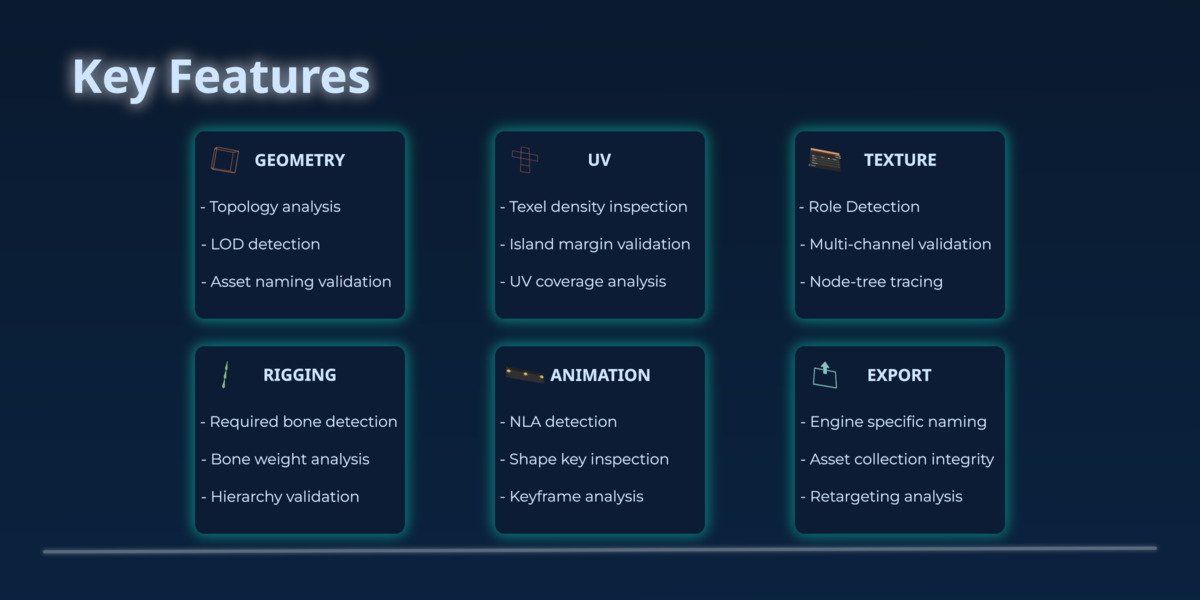
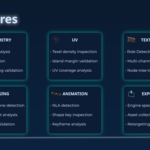
uGamePro is a unified set of QA tools that scan your Blender assets for issues that commonly cause problems in game engines. Each module focuses on a different part of the asset pipeline, Geometry, UVs, Textures, Rigging, and animation, giving you clear feedback, safe auto-fix options where applicable, and guidance for issues that require manual adjustment.
How It Works
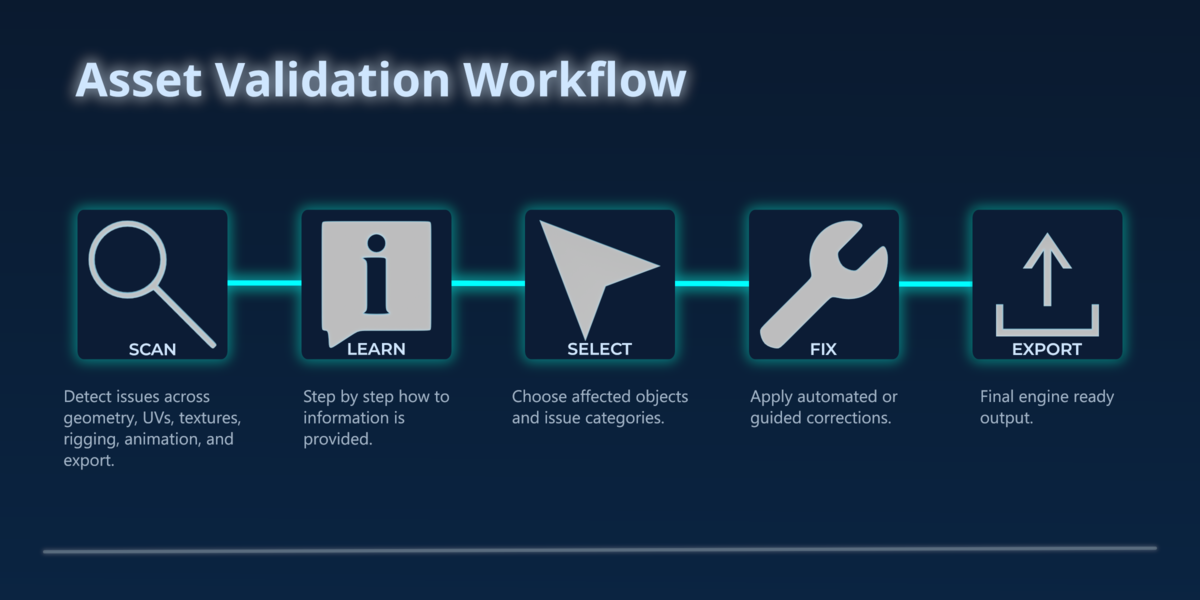
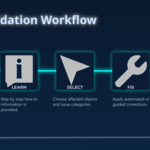
uGamePro follows a simple workflow:
- Learn - Each issue includes a clear description and "How-To" guide.
- Select - Isolate the problem directly in the viewport.
- Fix - Apply safe auto-fixes where applicable, or follow the guidance provided.
This workflow keeps your assets clean, consistent, and ready for export to Unreal, Unity, Godot, and studio pipelines.
Quick Start Guide
- Install & Enable
Install the uGamePro add-on, simply drag and drop into Blender.
- Open the uGamePro Panel
In the 3D viewport -> Sidebar (N-Panel), open the uGamePro tab.
You'll see the main tool modules you've purchased, plus the uGamePro Settings panel.
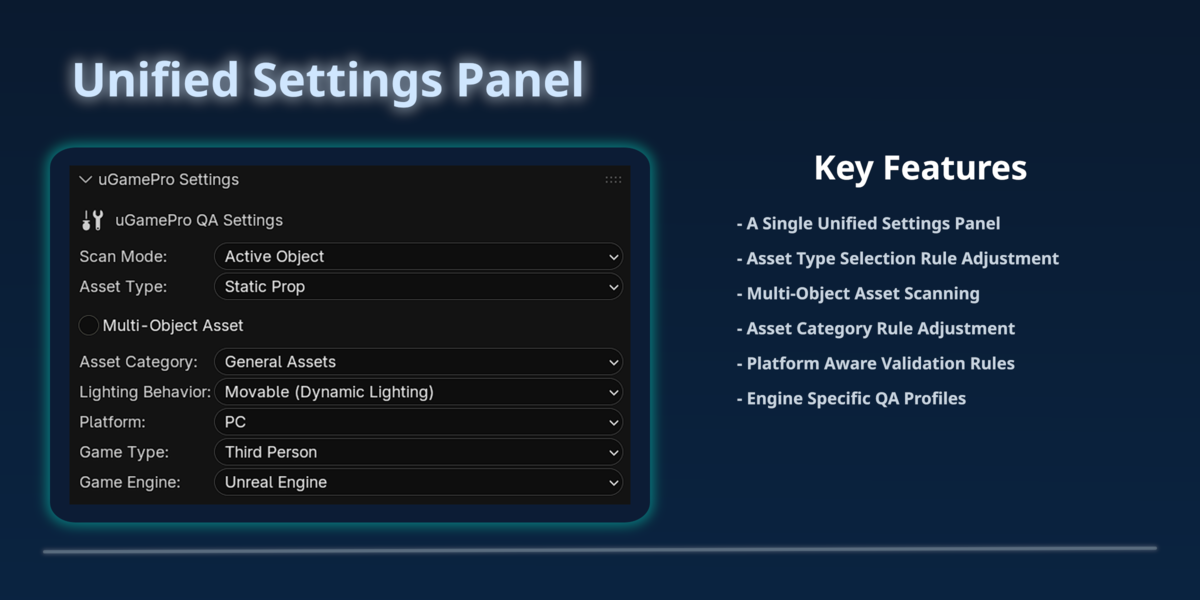
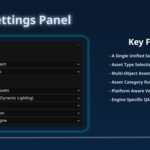
- Configure the uGamePro Settings Panel
Before scanning, set the correct context for your asset.
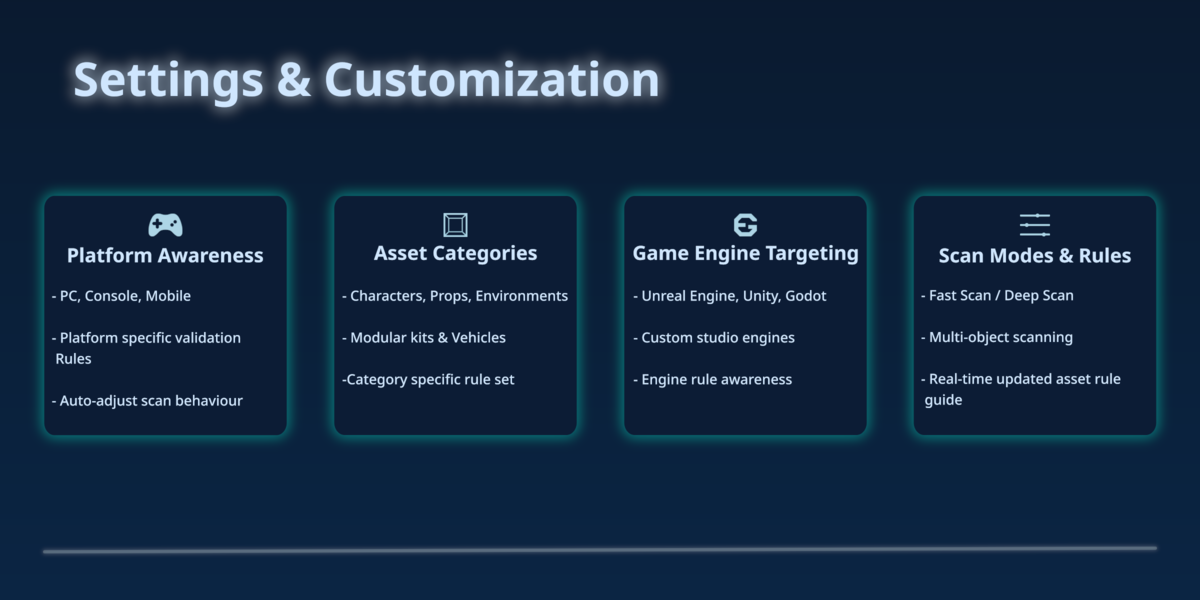
These settings ensure uGamePro applies the right rules for your workflow, asset type, and target engine.
Once these settings are configured, uGamePro will tailor its checks accordingly.
Scan Mode
Choose what uGamePro should scan:
- Active Object - ideal for quick individual object checks.
- Selected Objects - For multiple assets and multi-object assets.
- Asset Collection - For full characters, modular kits, environments, and multi-object assets.
Asset Type
Defines the nature of the asset so the correct validation rules apply.
Multi-Object Asset
Enable if your asset is composed of multiple objects (except Atlas Assets, where this is disabled automatically).
Asset Category
Sets the expected quality level for the asset.
Lighting Behaviour
Defines how the asset will be lit in the game engine and defines some rule requirements.
Platform
Target game play hardware to maintain asset efficiency in game.
Game Type
Camera/gameplay style affecting rule expectations.
Game Engine
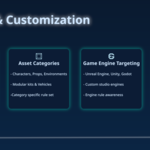
Choose the engine you're targeting to ensure your asset meets engine specific requirements.
- Run Your First Scan
Open the module for the required scan (Geometry, UV, Texture, Rigging, Animation) and click Scan.
Issues appear grouped by object for easy navigation.
- Learn | Select | Fix
Each issue includes:
- A clear description
- Severity Level
- "Select Issue" to isolate the problem
- "Fix Issue" auto-fix where safe
- A "How-To" guide explaining the issue and manual fix steps
Follow the workflow:
Learn -> Select -> Fix
- Repeat Across Modules
Run scans for all modules, Geometry, UVs, Textures, Rigging, and Animation, to ensure your asset is fully game-ready.
We recommend scanning the relevant module at each stage of asset creation (modeling, UVs, texturing, rigging, animation) so issues are caught early and never compound later in the pipeline.
- Export With Confidence
Once your asset passes all checks, it's ready for export to Unreal, Unity, Godot, or your studio pipeline.
Install the uGamePro add-on, simply drag and drop into Blender.
In the 3D viewport -> Sidebar (N-Panel), open the uGamePro tab.
You'll see the main tool modules you've purchased, plus the uGamePro Settings panel.
Before scanning, set the correct context for your asset.
These settings ensure uGamePro applies the right rules for your workflow, asset type, and target engine.
Once these settings are configured, uGamePro will tailor its checks accordingly.
Scan Mode
Choose what uGamePro should scan:
- Active Object - ideal for quick individual object checks.
- Selected Objects - For multiple assets and multi-object assets.
- Asset Collection - For full characters, modular kits, environments, and multi-object assets.
Asset Type
Defines the nature of the asset so the correct validation rules apply.
Multi-Object Asset
Enable if your asset is composed of multiple objects (except Atlas Assets, where this is disabled automatically).
Asset Category
Sets the expected quality level for the asset.
Lighting Behaviour
Defines how the asset will be lit in the game engine and defines some rule requirements.
Platform
Target game play hardware to maintain asset efficiency in game.
Game Type
Camera/gameplay style affecting rule expectations.
Game Engine
Choose the engine you're targeting to ensure your asset meets engine specific requirements.
Open the module for the required scan (Geometry, UV, Texture, Rigging, Animation) and click Scan.
Issues appear grouped by object for easy navigation.
Each issue includes:
- A clear description
- Severity Level
- "Select Issue" to isolate the problem
- "Fix Issue" auto-fix where safe
- A "How-To" guide explaining the issue and manual fix steps
Follow the workflow:
Learn -> Select -> Fix
Run scans for all modules, Geometry, UVs, Textures, Rigging, and Animation, to ensure your asset is fully game-ready.
We recommend scanning the relevant module at each stage of asset creation (modeling, UVs, texturing, rigging, animation) so issues are caught early and never compound later in the pipeline.
Once your asset passes all checks, it's ready for export to Unreal, Unity, Godot, or your studio pipeline.
-
$13.50 $18
Mesh integrity checks for game-ready geometry.
-
$13.50 $18
UV validation for clean, engine-safe layouts.
-
$13.50 $18
Texture set analysis for correct, consistent materials.
-
$13.50 $18
Rig structure checks for stable, export-ready rigs.
-
$13.50 $18
NLA, action, and curve validation for reliable animations.
-
$59.25 $79
Complete game-asset QA Pipeline inside Blender - Five QA Tools + Export coming soon.
Have questions about this product?
Login to message
| Blender Extension Compatible | Yes |
| Dev Fund Contributor | |
| Published | 1 day ago |
| Blender Version | 4.5 - 5.2 |
| Extension Type | Add-on |
| License | GPL |