 Armin
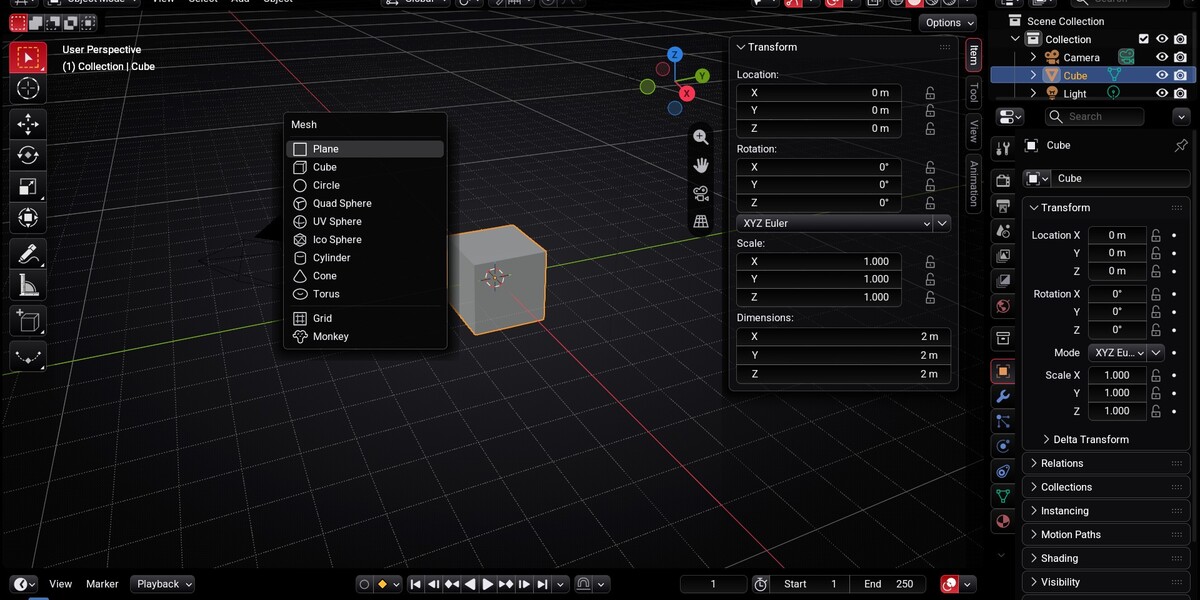
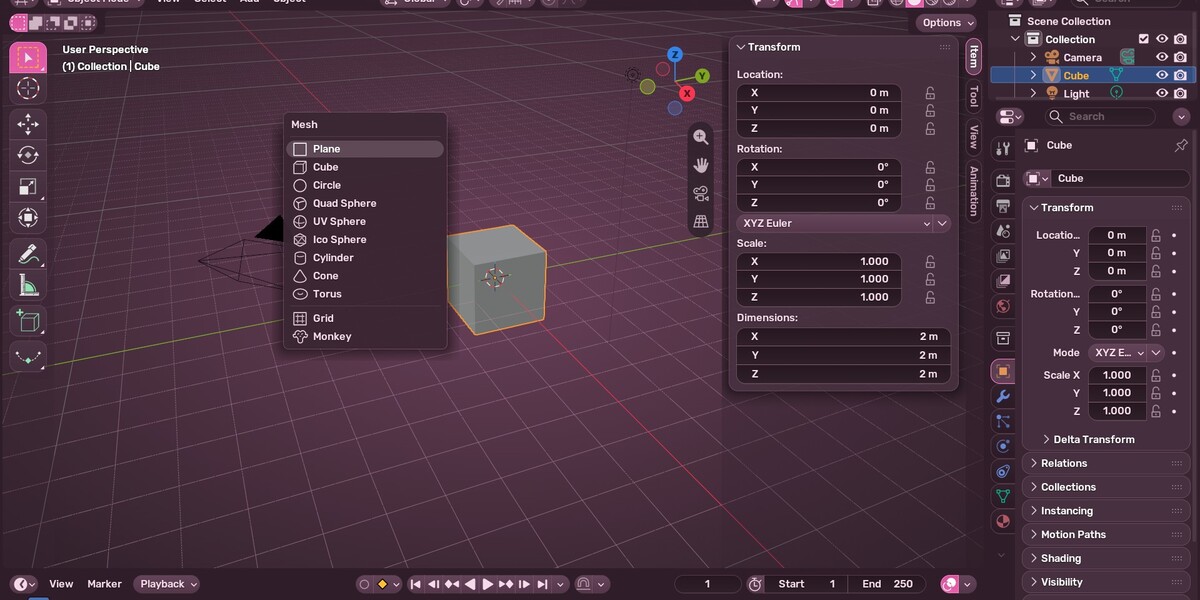
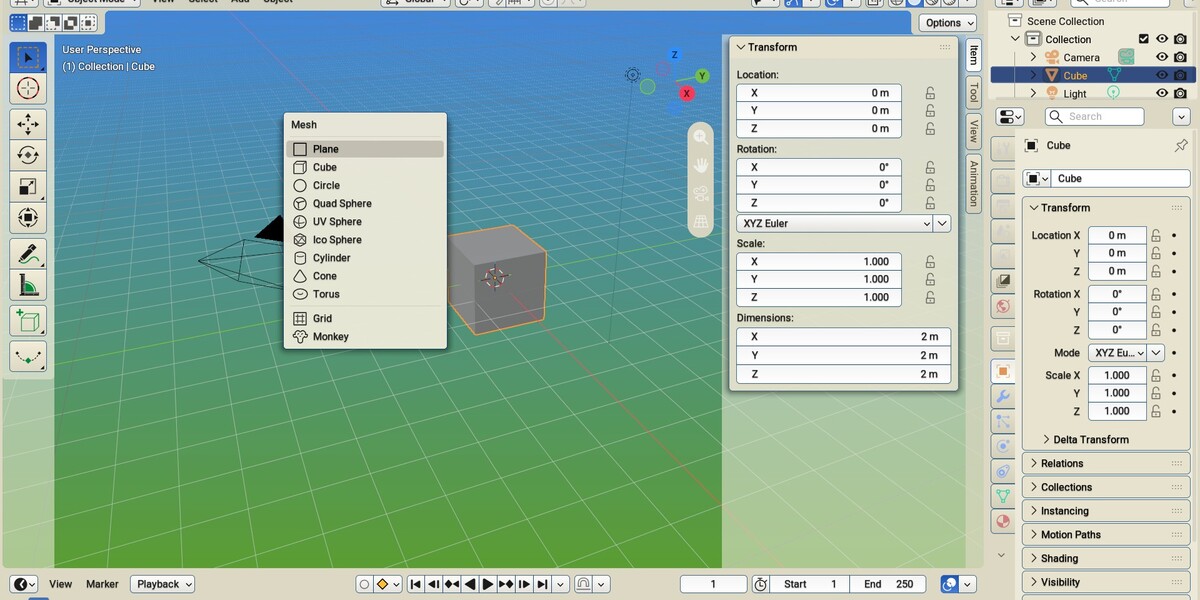
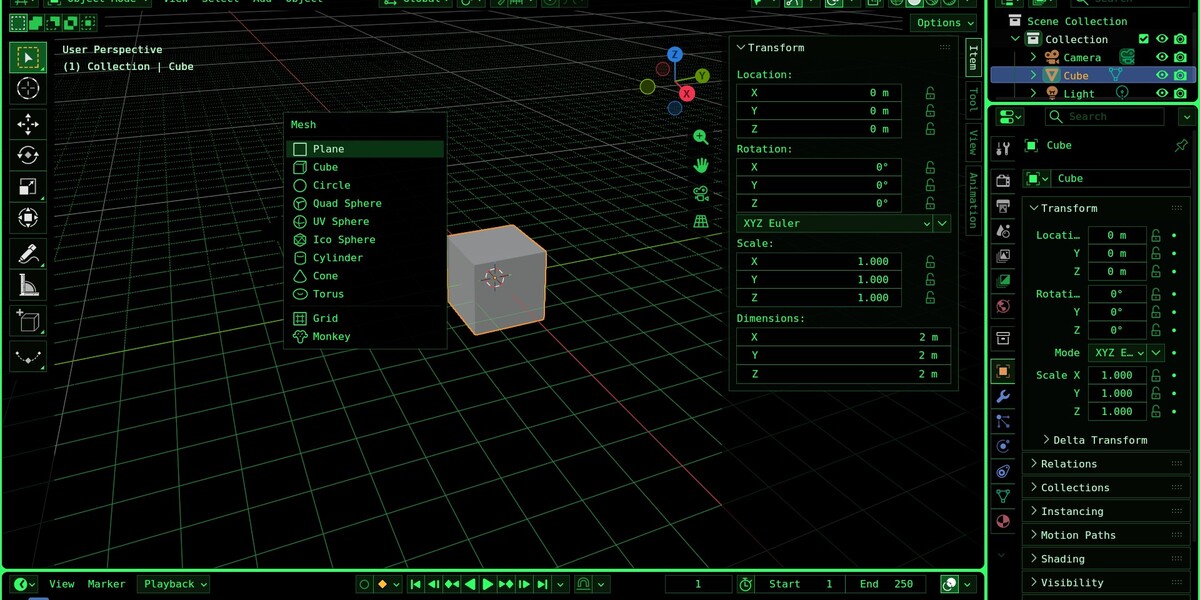
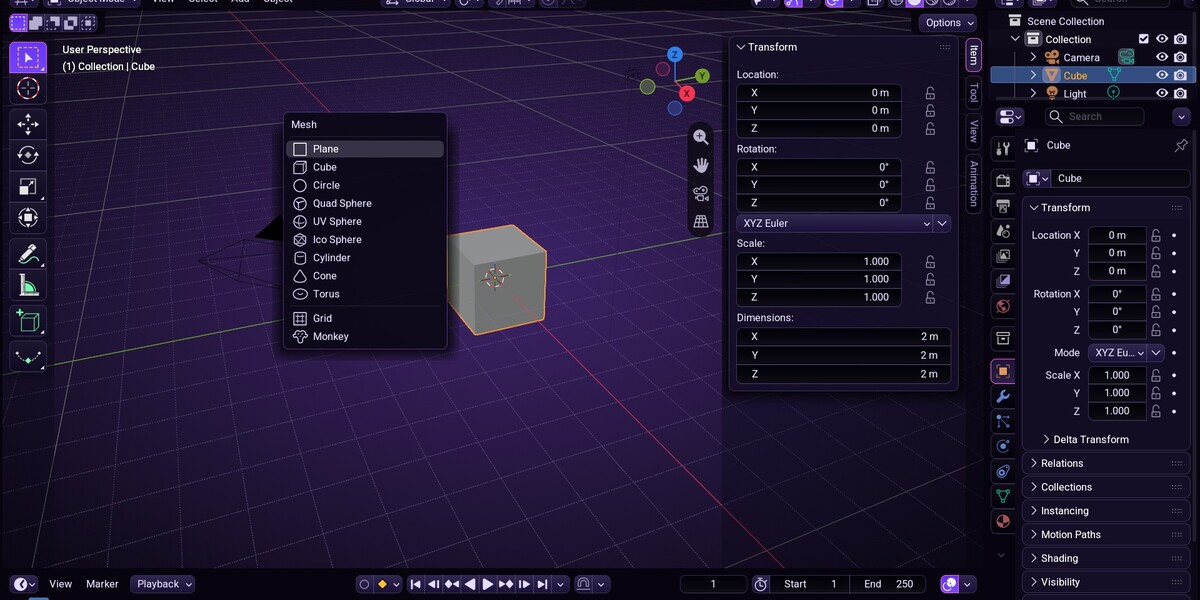
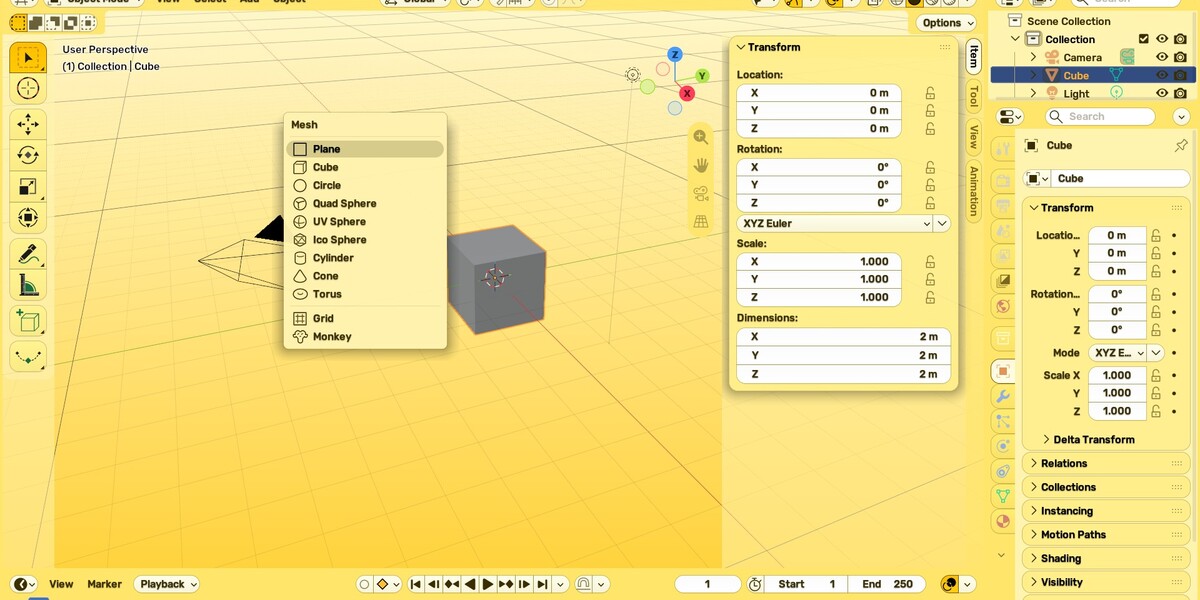

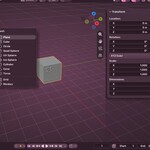
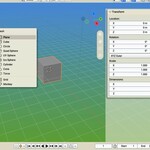
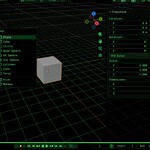
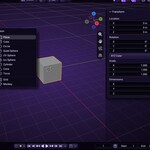
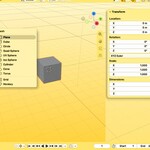
I spend all day in Blender, and one day I wanted it to feel new. Changing a theme by hand means hundreds of colours, so I built a gallery instead. UI Skins is that gallery.
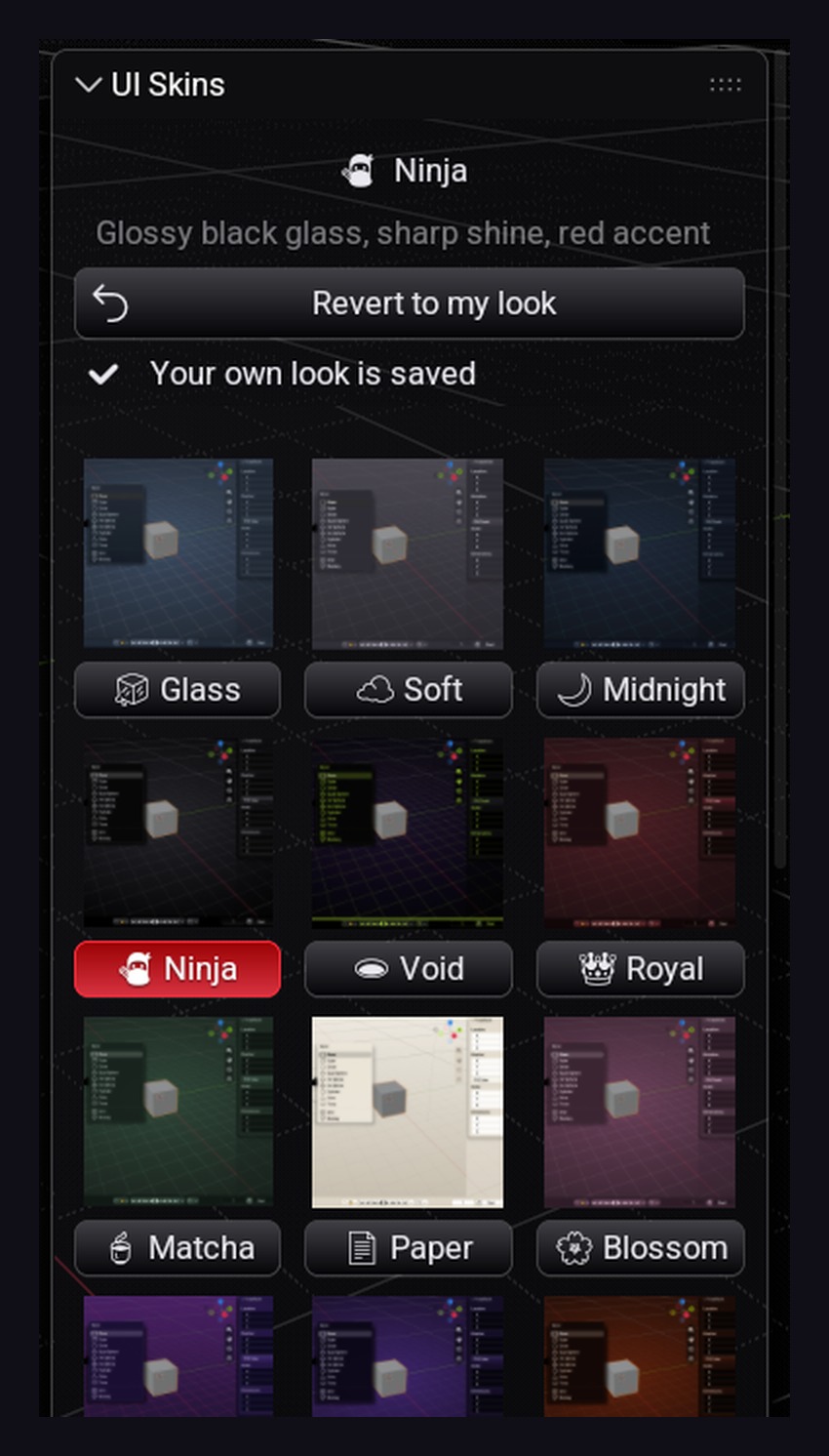
Open the UI Skins tab, click a look, and the whole interface changes at once. Click another one to compare. Revert to my look brings your own theme back exactly as it was.
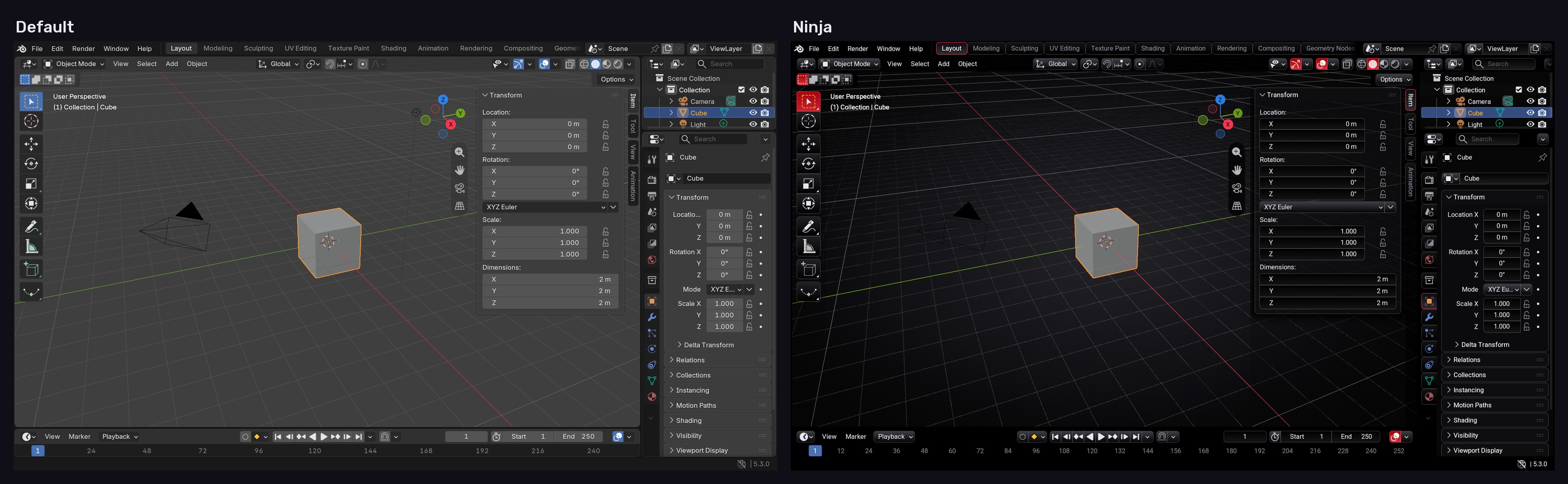
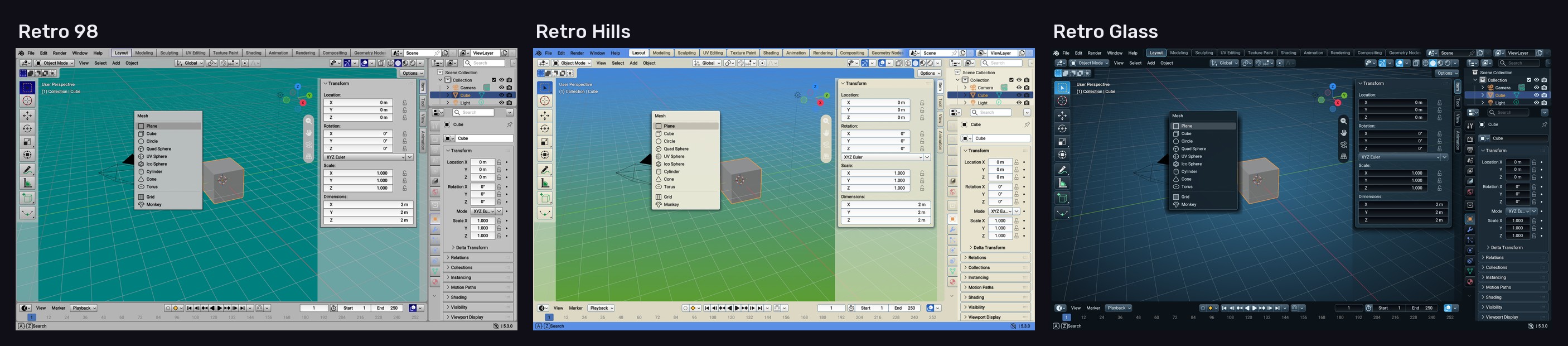
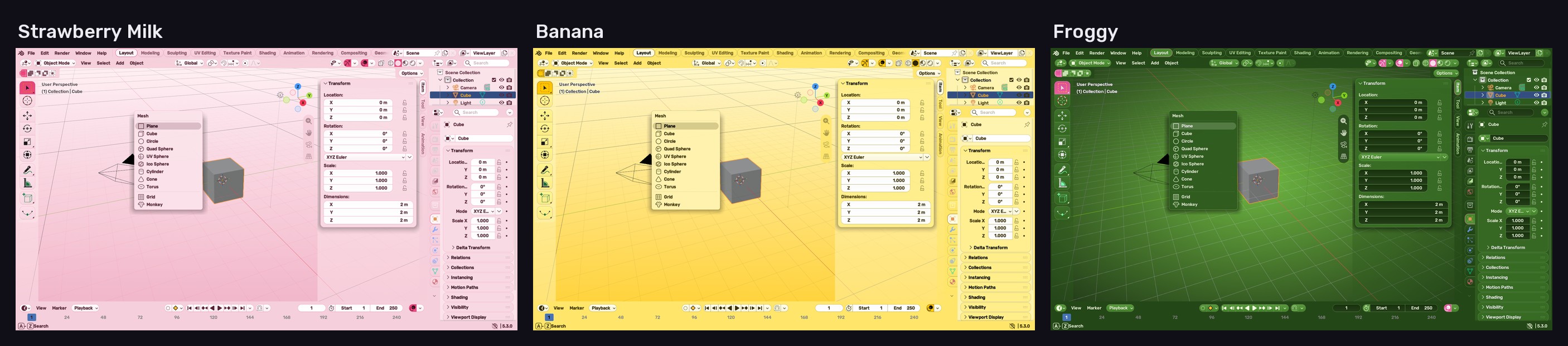
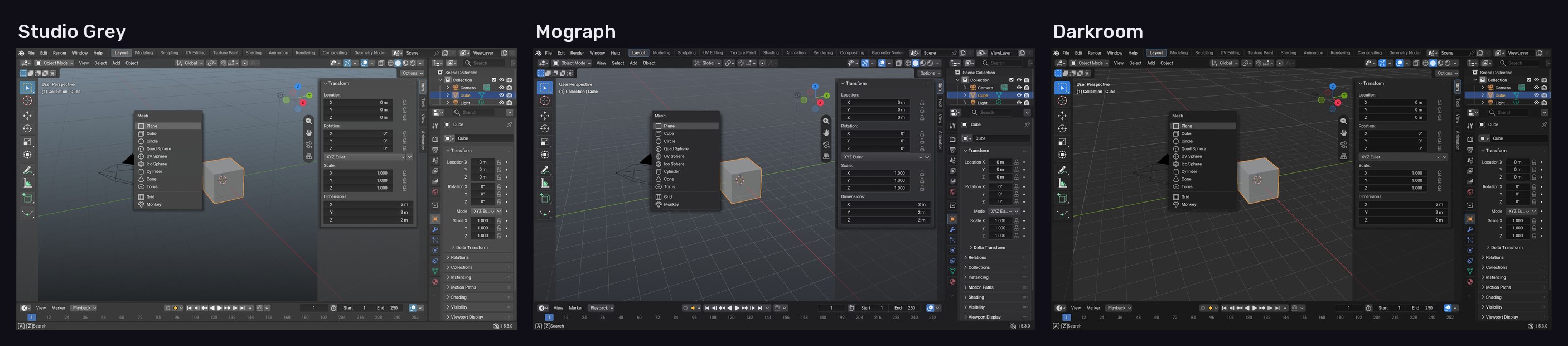
27 looks, one click each
Calm ones for long work days, dark ones, retro ones, and some very silly ones.
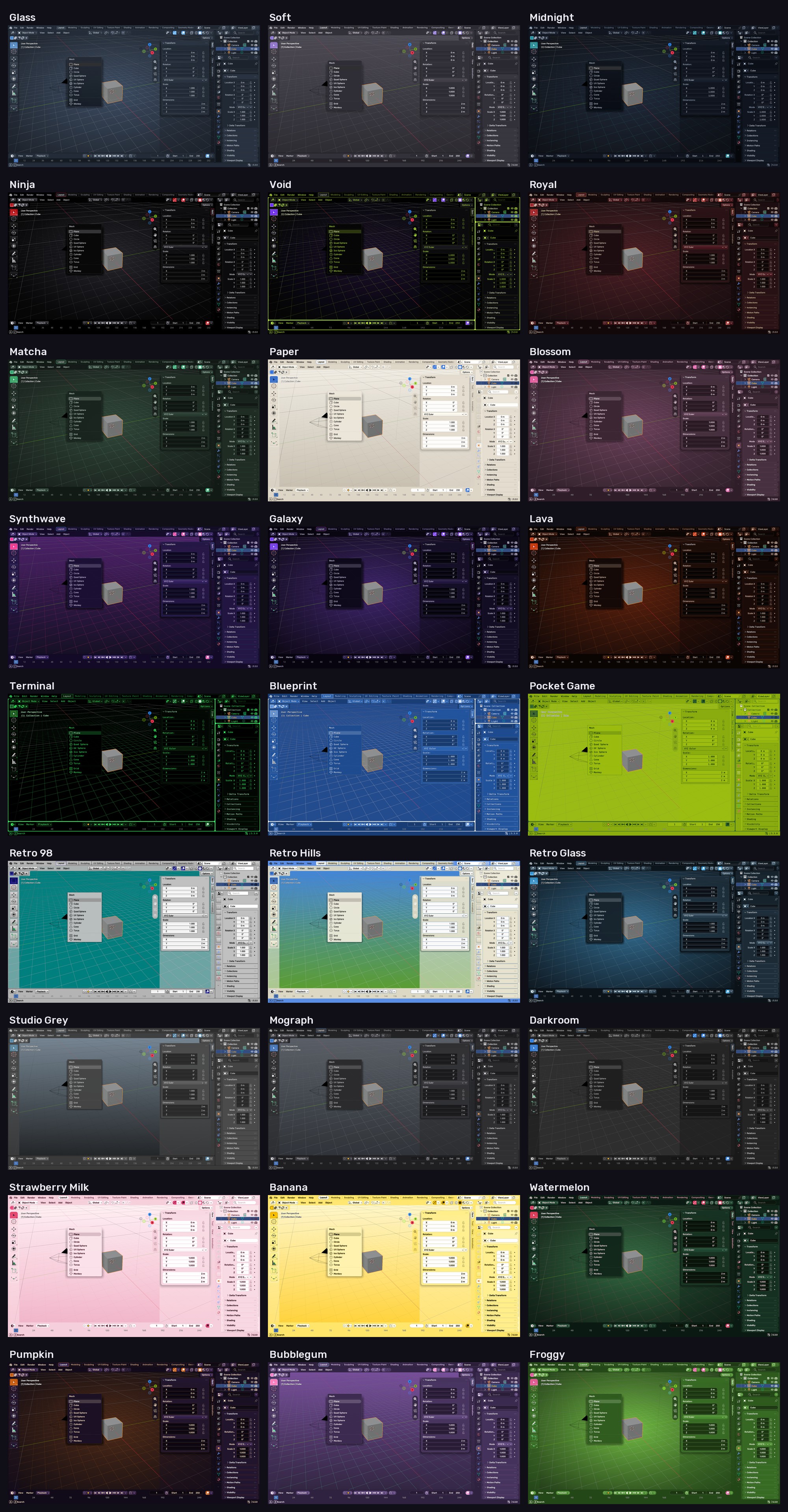
- Calm: Glass, Soft, Midnight, Matcha, Paper, Blossom
- Dark: Ninja, Void, Royal, Synthwave, Galaxy, Lava
- Weird: Terminal, Blueprint, Pocket Game
- Retro: Retro 98, Retro Hills, Retro Glass
- Pro apps: Studio Grey, Mograph, Darkroom, inspired by other 3D and design programs
- Fun: Strawberry Milk, Banana, Watermelon, Pumpkin, Bubblegum, Froggy
More than colours
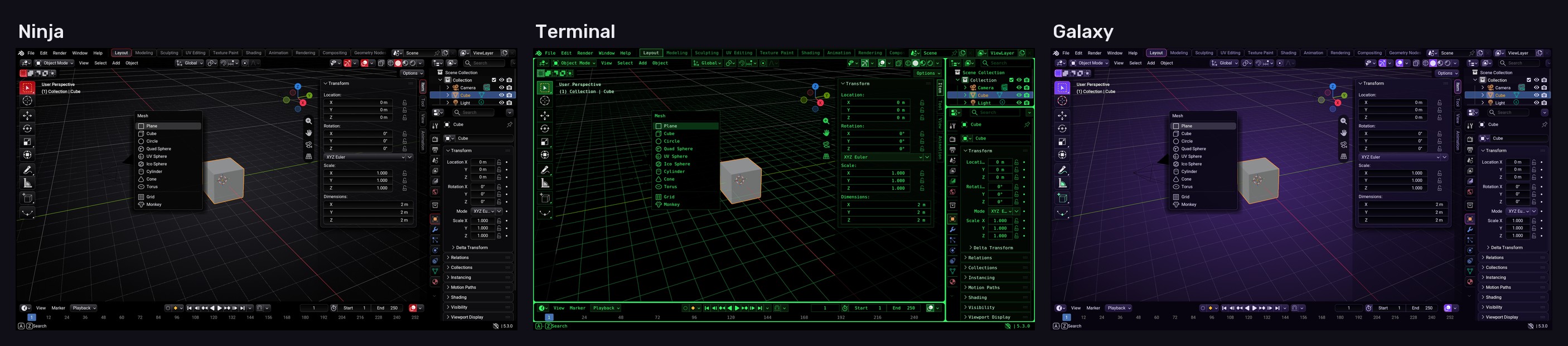
Each look is a full package, not only a colour swap.
- Every colour, in every editor
- How round the buttons, menus and panels are
- The shine on the buttons and the lines around them
- How big and soft the menu shadows are
- See-through side panels over the viewport
- The interface font (some looks bring their own free font)
- Icon colour and the viewport background
Your own look comes back exactly
The first time you click a look, UI Skins saves your current theme and settings. Revert to my look puts every one of them back, even after you close and reopen Blender. UI Skins never saves your Preferences by itself.
It stays next time
With Auto-Save Preferences on (Blender's default), Blender opens with your chosen look next time. If you turned Auto-Save off, the panel tells you, and one Save Preferences keeps it.
Requirements
- Blender 5.3 or newer
Installation
- Keep the downloaded ui_skins-1.0.1.zip zipped
- In Blender, open Edit > Preferences > Get Extensions
- Open the menu in the upper-right corner, choose Install from Disk and pick the ZIP
- In the 3D Viewport press N and open the UI Skins tab
- Click any look
Known limits
- No real blur behind panels: Blender add-ons can't blur what is behind a panel, so the glass looks use see-through panels, bright edges and soft shine
- It can't change Blender's icons, the shape of its widgets or add interface animations
- The little emoji next to each name are one colour, because Blender's emoji font has no colours
Made by Armin5D. Licensed under GPL-3.0-or-later. Fonts: Rubik and Roboto, SIL Open Font License 1.1.