UI:FX
 Heaven Studios
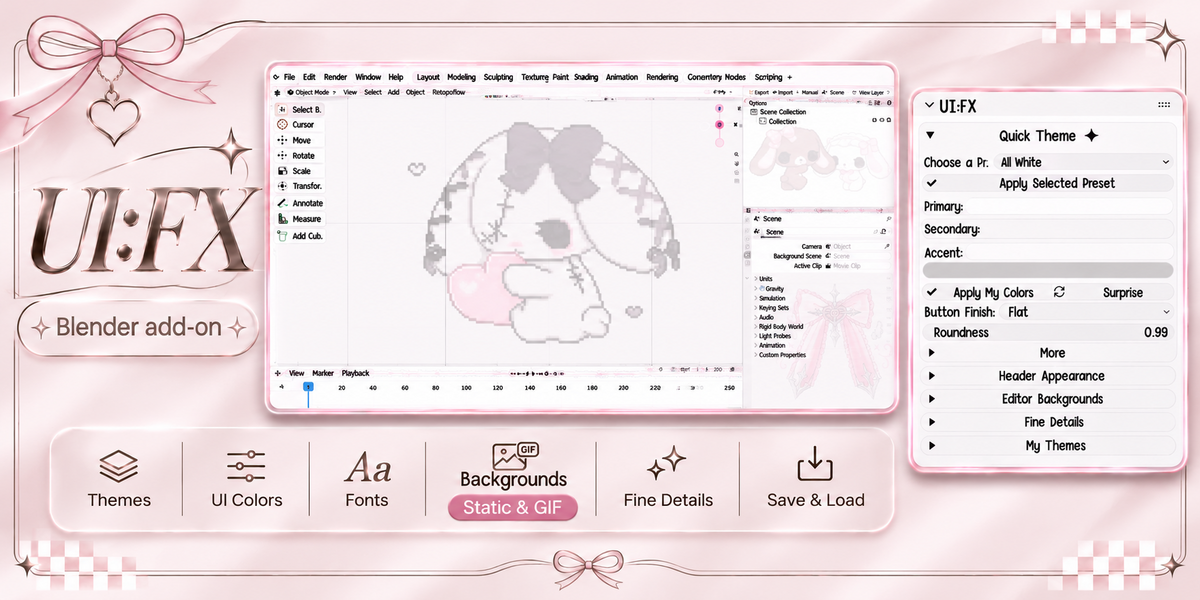
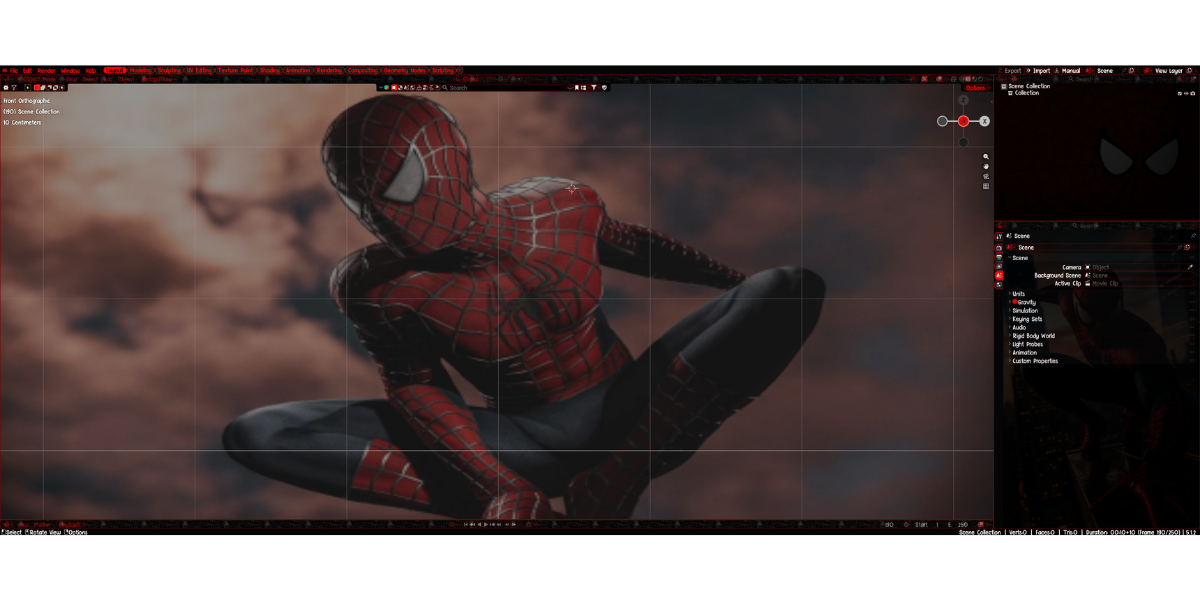
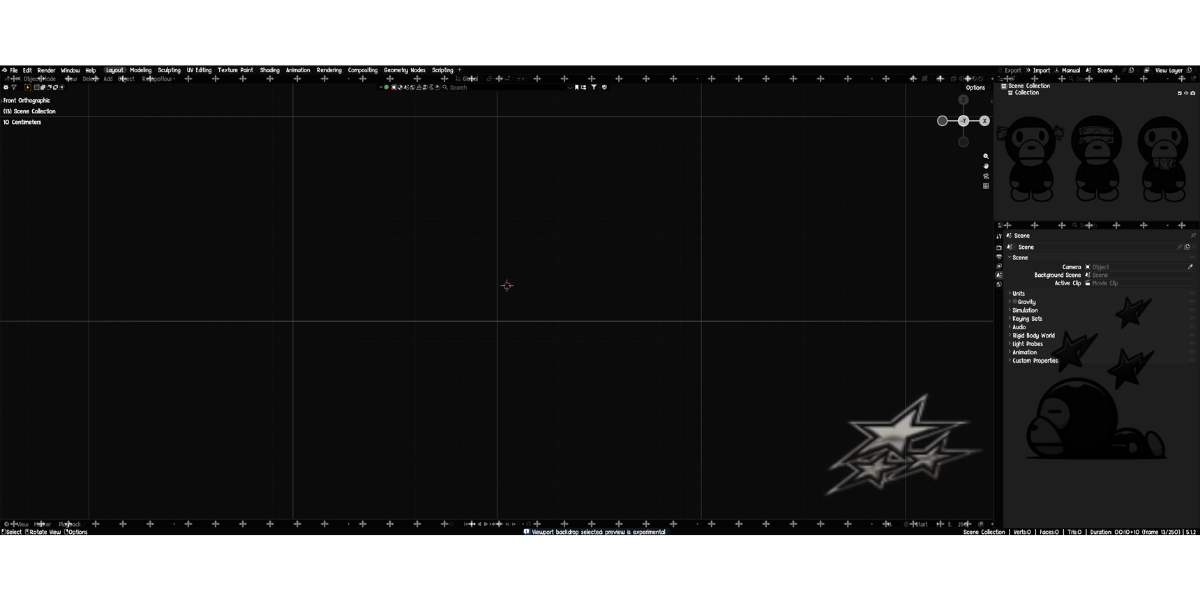
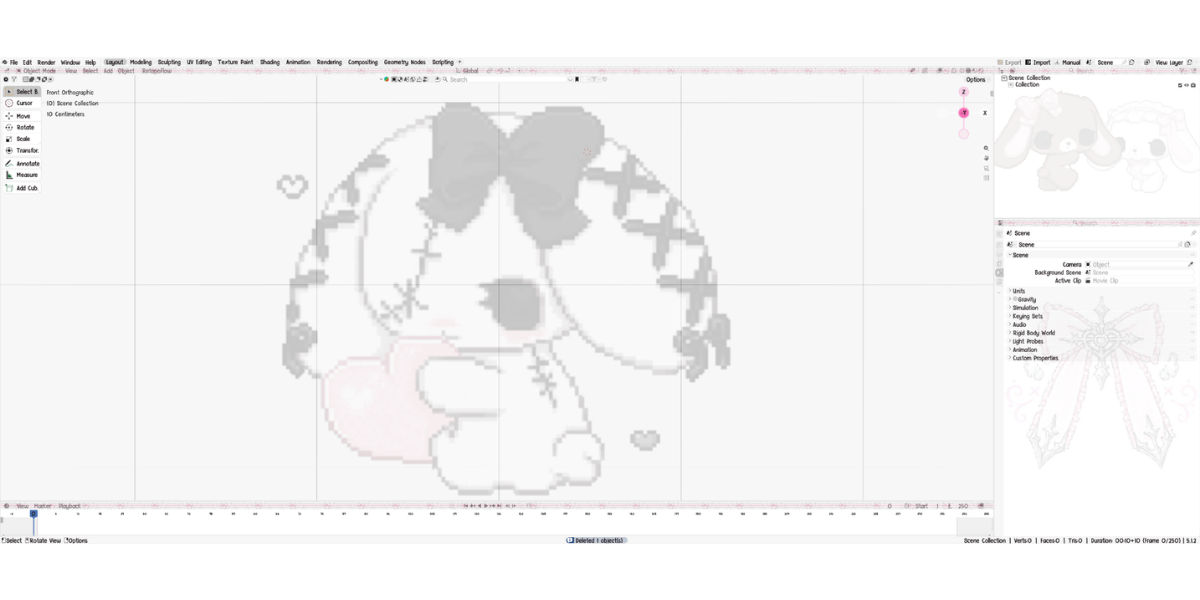
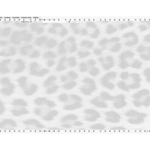
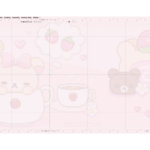
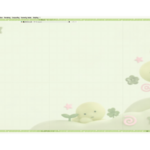
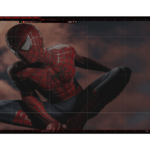
UI:FX 1.0.0 ✦ USER GUIDE
Designed by Mel Softpaw | Heaven Studios ♡
Your workspace. Your aesthetic. Your rules.
Thank you for choosing UI:FX! This Blender interface customization add-on allows you to create personalized themes, customize header appearances, add static or animated backgrounds, adjust native UI colors, and save your favorite designs.
♡ SYSTEM REQUIREMENTS
Version: UI:FX 1.0.0
Blender: 4.2 or newer (Extensions package)
Operating Systems: Windows & macOS
File Format: Blender Extension ZIP
License: GPL-2.0-or-later
Additional Requirements: Your own PNG, JPG, or GIF files when applying custom image backgrounds.
Animated background performance may vary depending on your graphics hardware, image dimensions, and GIF complexity.
♡ HOW TO INSTALL
Please do not extract the downloaded ZIP before installation.
Download
UIFX_1.0.0.zip.Open Blender.
Navigate to Edit → Preferences → Get Extensions.
Open the extensions menu and select Install from Disk.
Select the downloaded UI:FX ZIP.
Complete the installation and enable UI:FX if necessary.
Return to your 3D Viewport.
Press N to open the sidebar.
Select the UI:FX tab.
Your workspace is ready to customize!
♡ QUICK THEMES
Choose a ready-made preset or create your own color palette using the Primary, Secondary, and Accent controls.
Customize supported button finishes, roundness, text colors, and other appearance settings.
Use Match Colors for automatically coordinated colors, or adjust supported colors manually for your own unique look.
♡ HEADER APPEARANCE
Personalize supported Blender headers with custom images and patterns.
Adjust opacity, image proportions, positioning, zoom, and blending where available.
Choose matching header designs or use different images to personalize individual editors.
♡ EDITOR BACKGROUNDS
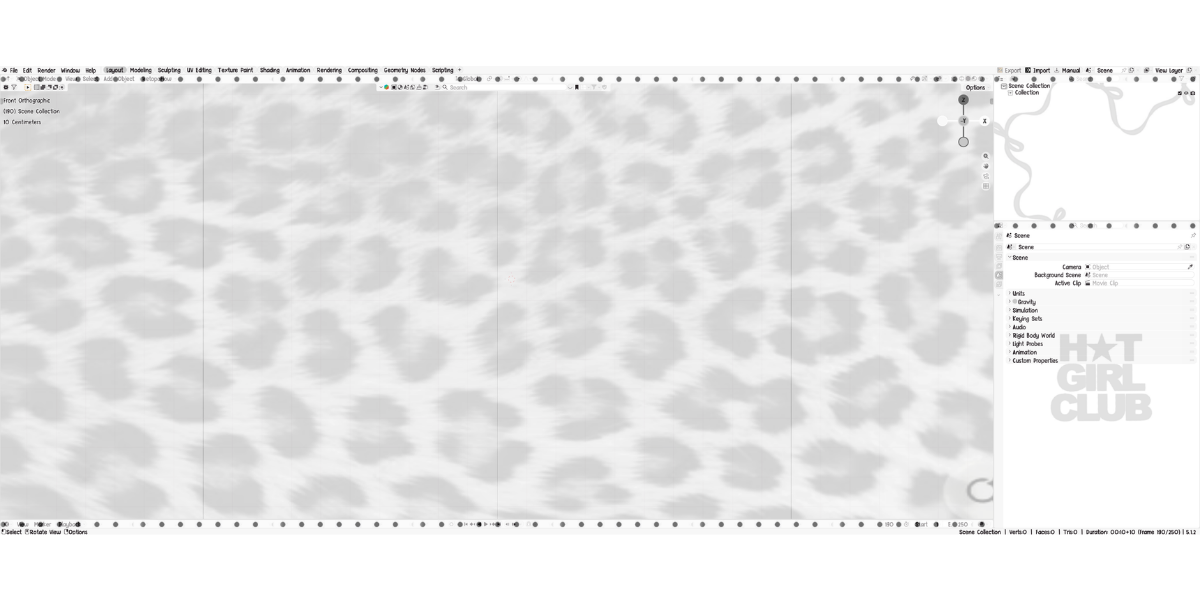
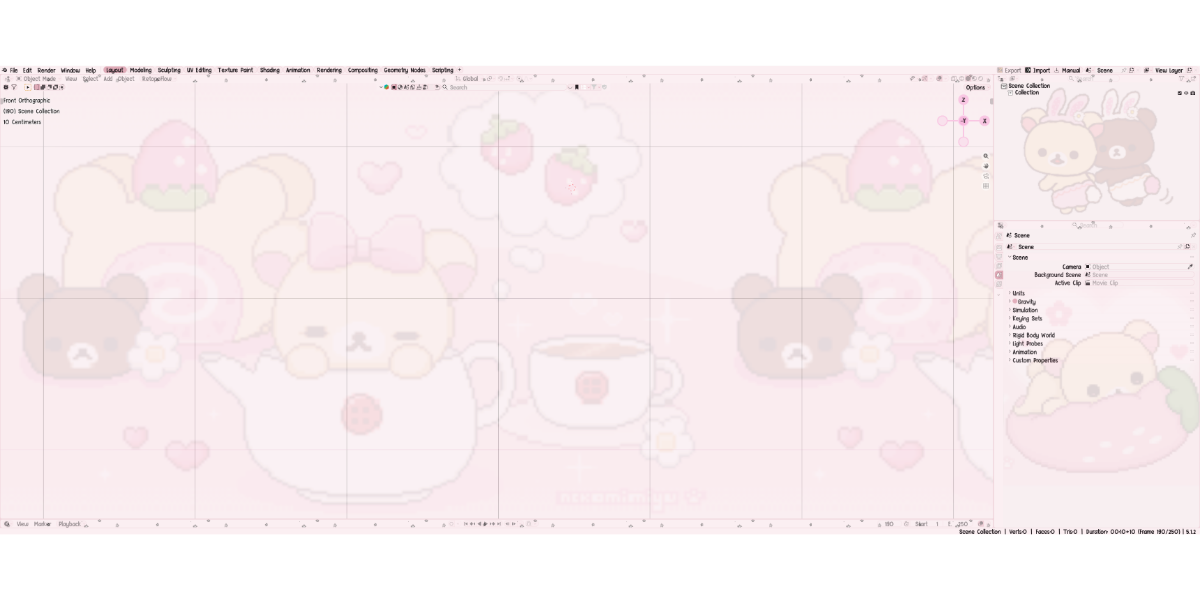
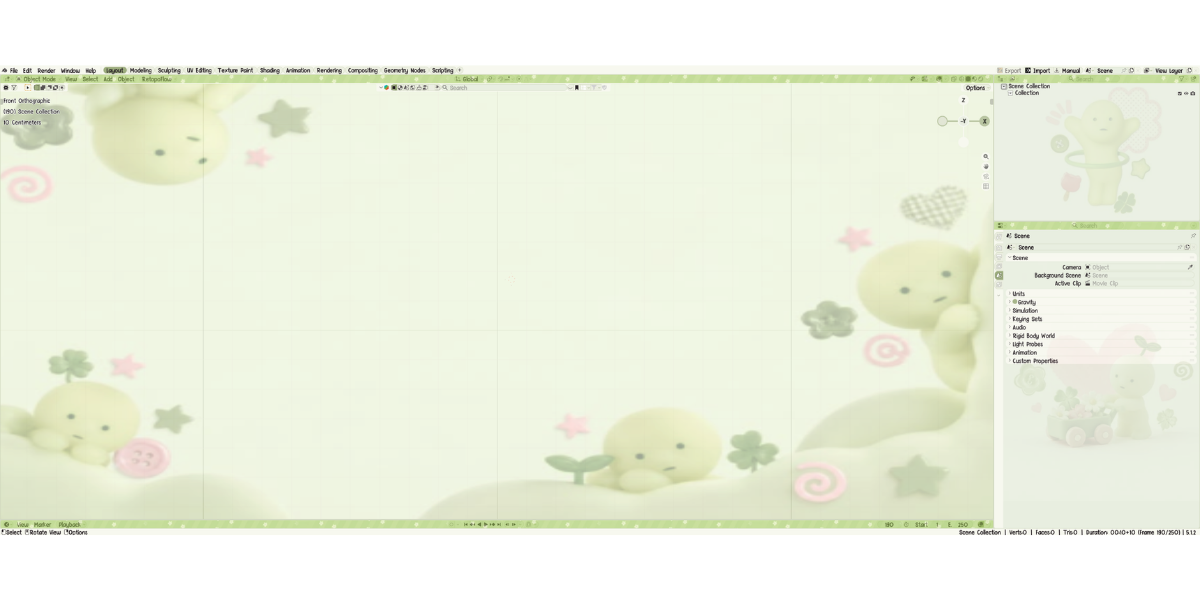
Use static images or animated GIFs to customize supported editor backgrounds.
Available adjustments include opacity, fitting, positioning, scale, zoom, and animation settings where supported.
Supported customization areas include the 3D Viewport and selected editor regions, such as Properties, Outliner, and Sidebar backgrounds.
For optimal performance, use appropriately sized image files and avoid unnecessarily large animated GIFs.
♡ FINE DETAILS
Fine Details provides organized access to Blender's supported native theme properties.
Select an editor and explore its available settings to customize text, headers, workspace tabs, selections, gizmos, animation indicators, and other interface elements.
You can fine-tune supported colors manually even after applying a preset.
Some colors are shared across Blender editors, meaning one adjustment may affect multiple interface elements.
♡ FONTS & TEXT
Customize supported interface font and text-size settings.
Certain font changes may require a Blender restart before appearing consistently throughout the interface.
♡ MY THEMES
Save and load your customized UI:FX themes so you can return to your favorite designs.
You can also share compatible theme settings with other Blender creators.
Important: Standard Blender XML theme files contain native theme settings, but do not include UI:FX-specific animated background functionality. Recipients need UI:FX and access to the referenced image files to reproduce applicable custom image and animation effects.
♡ TROUBLESHOOTING
Can't find UI:FX?
Check that the extension is enabled in Blender Preferences. Open the 3D Viewport, press N, and locate the UI:FX tab.
Your image or GIF isn't appearing?
Check that the original file still exists at its saved location and that the relevant background option is enabled.
Animated backgrounds are slowing Blender down?
Reduce GIF dimensions or complexity and adjust the available playback and display settings.
Colors aren't changing as expected?
Make sure you're editing the appropriate editor or shared native setting. Check the current preset, Match Colors, and relevant Fine Details options.
♡ VIDEO TUTORIAL
Watch the complete UI:FX walkthrough:
♡ SUPPORT & UPDATES
For assistance, installation questions, and technical support, contact Heaven Studios through the official store support channel or Heaven Studios Discord.
When reporting a technical issue, please include your Blender version, operating system, a description of the problem, and a screenshot when available.
Product updates and announcements will be provided through official Heaven Studios channels.
UI:FX 1.0.0 — Designed by Mel Softpaw
Heaven Studios ♡
© 2026 Mel Softpaw
Have questions about this product?
Login to message
| Blender Extension Compatible | Yes |
| Published | about 14 hours ago |
| Blender Version | 4.1 - 5.3 |
| Extension Type | Add-on |
| Render Engine Used | Cycles, Eevee |
| License | GPL |