Ultimate Animation Suite
 Anvil Interactive Solutions


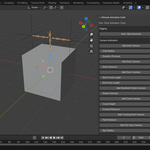
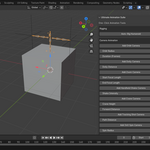
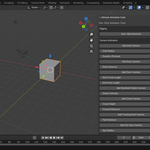
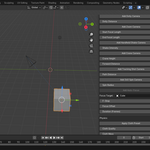
Ultimate Animation Suite - User Guide Version 1.1.0 - May 31, 2025
Overview
Ultimate Animation Suite enhances your Blender workflow with automated tools for camera animations, rigging, and physics. This guide focuses on the camera animation features, updated to ensure proper tracking and motion in Blender 3.6 and 4.4.
Setup
Install the add-on as per the README.md instructions.
Ensure you're using Blender 3.6 or 4.4 for optimal performance.
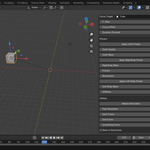
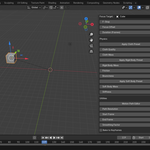
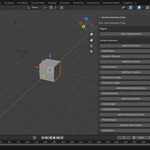
Open the UAS panel in the 3D Viewport Sidebar (press N to toggle the Sidebar, then go to the UAS tab).
Camera Animations
All camera operators create or reuse a camera named "UAS_Camera" and a target empty named "UAS_CameraTarget". The camera uses a Track To constraint to always face the target during animation. Ensure the target is in the same collection as the camera for tracking to work.
Camera Orbit
Description: Moves the camera in a circular path around the UAS_CameraTarget, completing one full revolution.
-
Parameters:
Orbit Radius: Distance from the target (default: 5.0).
Duration: Animation length in frames (default: 120).
Initial Height: Starting Z position of the camera (default: 2.0).
Usage: Adjust the radius and duration, then click "Camera Orbit". Move the UAS_CameraTarget to reposition the orbit center.
Camera 360 Spin
Description: Spins the camera around the UAS_CameraTarget, completing two full revolutions for a dynamic effect.
-
Parameters:
Spin Radius: Distance from the target (default: 5.0).
Duration: Animation length in frames (default: 120).
Initial Height: Starting Z position of the camera (default: 2.0).
Usage: Set the radius and duration, then click "Camera 360 Spin". Ideal for product showcases.
Camera Dolly
Description: Moves the camera linearly toward or away from the target.
-
Parameters:
Dolly Distance: Distance to move (default: 5.0).
Duration: Animation length in frames (default: 120).
Initial Z Position: Starting Z position (default: 2.0).
Usage: Adjust the distance and click "Camera Dolly". The camera starts at Y = -10 and moves forward.
Camera Zoom
Description: Adjusts the camera's focal length for a zoom effect while tracking the target.
-
Parameters:
Start Focal Length: Initial focal length (default: 50.0).
End Focal Length: Final focal length (default: 25.0).
Duration: Animation length in frames (default: 120).
Initial Z Position: Starting Z position (default: 2.0).
Usage: Set the focal lengths and click "Camera Zoom".
Camera Crane
Description: Elevates the camera with a sweeping motion, tracking the target.
-
Parameters:
Crane Height: Height to elevate (default: 3.0).
Forward Distance: Distance to move forward (default: 3.0).
Duration: Animation length in frames (default: 120).
Initial Z Position: Starting Z position (default: 2.0).
Usage: Adjust the height and distance, then click "Camera Crane".
Camera Tracking Shot
Description: Moves the camera along a straight path, tracking the target.
-
Parameters:
Path Distance: Distance to travel (default: 5.0).
Duration: Animation length in frames (default: 120).
Initial Z Position: Starting Z position (default: 2.0).
Usage: Set the distance and click "Camera Tracking Shot". The camera moves along the X-axis.
Camera Handheld Shake
Description: Adds a realistic shake effect to the camera using drivers.
-
Parameters:
Shake Intensity: Intensity of the shake (default: 0.1).
Duration: Animation length in frames (default: 120).
Usage: Create a camera first (e.g., via "Camera Dolly"), then click "Camera Handheld Shake".
Camera Auto-Focus
Description: Enables depth-of-field with auto-focus on the target.
-
Parameters:
F-Stop: F-Stop for depth-of-field (default: 2.8).
Duration: Animation length in frames (default: 120).
Usage: Create a camera first, then click "Camera Auto-Focus". Requires a UAS_CameraTarget.
Troubleshooting
Camera Not Tracking: Ensure the UAS_CameraTarget is in the same collection as the camera. Check the Track To constraint in the camera's Constraints panel.
Circular Motion Issues: For "Camera Orbit" or "Camera 360 Spin", verify keyframes in the Dope Sheet or Graph Editor. Set interpolation to "Linear" if the path isn't circular.
Errors: Check the System Console (Window > Toggle System Console) for detailed logs and share with support.
Support
For additional help, refer to the README.md or contact support via Superhive.
Have questions about this product?
Login to message
| Sales | 10+ |
| Published | over 1 year ago |
| Blender Version | 3.6 - 4.4 |
| Extension Type | N/A |
| Render Engine Used | Cycles, Eevee |
| License | GPL |
Discover more products like this
3d character rigging 3d animation 3D camera tools 3d-workflow-automation 3D clothing