 3D Texel


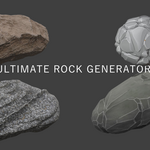
# Ultimate Rocks Generator v2 — User Guide
This guide shows you, step by step, how to use URGv2 inside Blender 4.x to create rocks, style them, unwrap UVs, bake textures, and use the brush library. Keep the Sidebar visible (press `N`) and open the `URGv2` tab in the 3D Viewport.
- Blender: 4.0+
- Panel: Viewport Sidebar → `URGv2`
- Render: Cycles is recommended (the addon can switch automatically where needed)
---
## Quick Start (5 steps)
1) Create a rock
- Open `URGv2` → "1 • Rock Shapes"
- Pick a Rock Type (preset) and click `Create Rock`
2) Add displacement detail
- In "Displacement Layers", choose a texture type → `Add`
- Use `Parameters` to tune Strength and Size
- Optional: enable `Color Ramp` to clamp/boost displacement
- Click `Apply` to bake that layer into the mesh
3) Stylize (optional)
- In `Add` choose `Stylized` → a stylized modifier stack is created
- Adjust Size A/B, Bevel Width/Segments, Smooth factor, Angle limits
4) Assign material
- For stylized look, click `Assign Stylized Material` (auto loads textures)
- For procedural look, click `Smart Assign Procedural`
- For texture-based look, click `Smart Assign Texture` and upload textures
5) UVs and Bake
- Use `UVs` tools (Robust or Island-based)
- Open "4 • Decimate & Baking" → follow the step-by-step buttons to create Low-Poly, setup baking, and bake maps
---
## Create and Shape a Rock
- Panel: `URGv2` → "1 • Rock Shapes"
- Choose a Rock Type and Subdivision Level; click `Create Rock`
- Shape Control (lattice):
- Click `Add Shape Control` → `Shape Control` to edit → move lattice points
- Click `Apply` to commit lattice edits
Tips
- Use `Show Vertex Count` to manage complexity
- Apply Subdivision before heavy operations if needed
---
## Displacement Layers (detail building)
- Add a layer: choose a texture type (e.g., Clouds, Voronoi, Musgrave, Image, Preset Image) → `Add`
- Navigate layers with ◀ ▶, and `Remove` if needed
- Set `Parameters`: Strength first, then Size and texture-specific sliders
- Optional `Color Ramp` to control contrast of the displacement
- `Texture Projection`: tweak Rotation/Location via the Empty Rotator
- When satisfied with a layer, press `Apply` to bake it to the mesh
Notes
- For `Image` or `Preset Image`, you can set image path/scale options in the layer controls
- The Empty Rotator gives you quick randomization using `Random Seed`
---
## Stylized Look (modifiers + material)
- Add stylized: in Add menu choose `Stylized`
- A stack is created: two Musgrave displacements, Decimate (Collapse & Dissolve), Smooth, Bevel, Smooth by Angle
- Adjust in the `Stylized Layer Parameters` box:
- Size A/B, Dissolve Angle, Smooth Angle/Factor, Bevel Width/Segments/Angle, Cavity toggle
- Assign stylized material: click `Assign Stylized Material`
- The addon switches to Cycles Rendered and can add a Sun
- It auto-loads the two textures from the addon’s `StylizedMaterial/` folder
- Brightness/Contrast is configured internally for the right look
- If the look doesn’t refresh instantly, click `Manual Update`
---
## Materials (three options)
1) Procedural Material
- Click `Smart Assign Procedural` → a rich procedural look with many controls
- Adjust in the URGv2 material section (colors, edges, AO, optional moss/snow/sand)
2) Texture-based Material
- Click `Smart Assign Texture`
- Use `Upload Diffuse Texture`, `Upload Normal Texture`, `Upload Roughness Texture`
3) Stylized Procedural Material (with stylized stack)
- `Assign Stylized Material` after adding the Stylized layer
- Live parameters are set from `Stylized Layer Parameters`
General tips
- The addon can switch to Cycles and to Rendered viewport for you
- If the scene is too dark, accept the Sun prompt or add a Sun manually (Energy ~5)
---
## UVs (unwrap cleanly)
You can use two robust approaches:
A) Robust Seams
- Operator: `Robust Rock Seams`
- Creates single-edge seams that are fully connected and unwrap reliably
B) Island-Based Seams
- Runs Smart UV Project, finds largest islands, and marks their outer loops as seams
After marking seams:
- In Edit Mode: `U` → `Unwrap`, then `Pack Islands`
---
## Baking (HP → LP)
Open `URGv2` → "4 • Decimate & Baking" panel. Follow the widgets from top to bottom.
Step-by-step workflow
1) `Create Low-Poly`
- Duplicates HP to `_LP`, applies smart decimation based on target faces
2) `Setup Baking`
- Creates a clean baking material on the LP with image nodes for BaseColor, Normal, Roughness
3) `Bake Textures`
- Select what to bake (Diffuse/BaseColor, Normal, Roughness)
- The addon activates the correct image node and bakes
- Images are saved to your chosen folder
Smart Baking (compact alternative)
- Panel: `Smart Baking System` → workflow steps: Select → Low-Poly → Material → Bake
Tips
- Always bake from HP to LP with LP active and HP selected
- Ensure LP has UVs and the baking material assigned
---
## Sculpt Brush Library (optional)
- `Load Rock Brushes` or `Update Rock Brushes` to bring brushes from the addon’s library into Blender
- Enter Sculpt Mode (`Enter Sculpt Mode`) and use brushes from the Asset Browser or Brush panel
- You can also generate brushes from images via `Generate Brush Library Files`
---
## Presets (procedural material looks)
- Save current look: use the Preset tools (Save as new preset)
- Load a preset from the dropdown to instantly apply saved parameters
---
## Performance Tips
- Lower Subdivision while iterating
- Temporarily hide heavy modifiers (eye icon)
- Apply layers progressively
- Decimate before UV and baking if your HP is extremely dense
- Use GPU in Preferences → System → Cycles (the addon tries to help)
---
## Troubleshooting & FAQ
- Stylized material not updating?
- Click `Manual Update` in `Stylized Layer Parameters`
- Toggle viewport shading (Material ↔ Rendered)
- No textures visible on stylized material?
- Ensure `StylizedMaterial/` contains `brushedpaint.png` and `brushedpaintdww.png`
- Re-run `Assign Stylized Material`
- Viewport looks black/noisy?
- Switch to Cycles and add a Sun (Energy ~5). The addon can prompt you to add one
- Bake failed or saved empty images?
- Make sure LP is active, HP also selected (Selected to Active)
- Confirm the baking material’s image node is active (the addon does this, but double-check)
- Ensure UVs exist and islands are packed
- Performance is slow on updates?
- Reduce Subdivision, disable modifiers temporarily, limit viewport to Solid while tweaking
---
## Where to find files
- Addon folder: `ultimate_rocks_generator/`
- Stylized textures: `ultimate_rocks_generator/StylizedMaterial/`
- Brush textures (for generator): `ultimate_rocks_generator/Textures/`
Enjoy creating rocks! If you need help, open the System Console (Window → Toggle System Console) to see addon messages and hints.
Have questions about this product?
Login to message
| Blender Extension Compatible | Yes |
| Sales | 20+ |
| Published | about 1 year ago |
| Blender Version | 4.0 - 5.2 |
| Extension Type | Add-on |
| Render Engine Used | Cycles |
| License | GPL |

Discover more products like this
stylized 3d assets for film Rock realistic 3d-game-ready procedural Generator