Ultimate Wood - 71 Real Scans + Procedural Shader
 Broomstick FX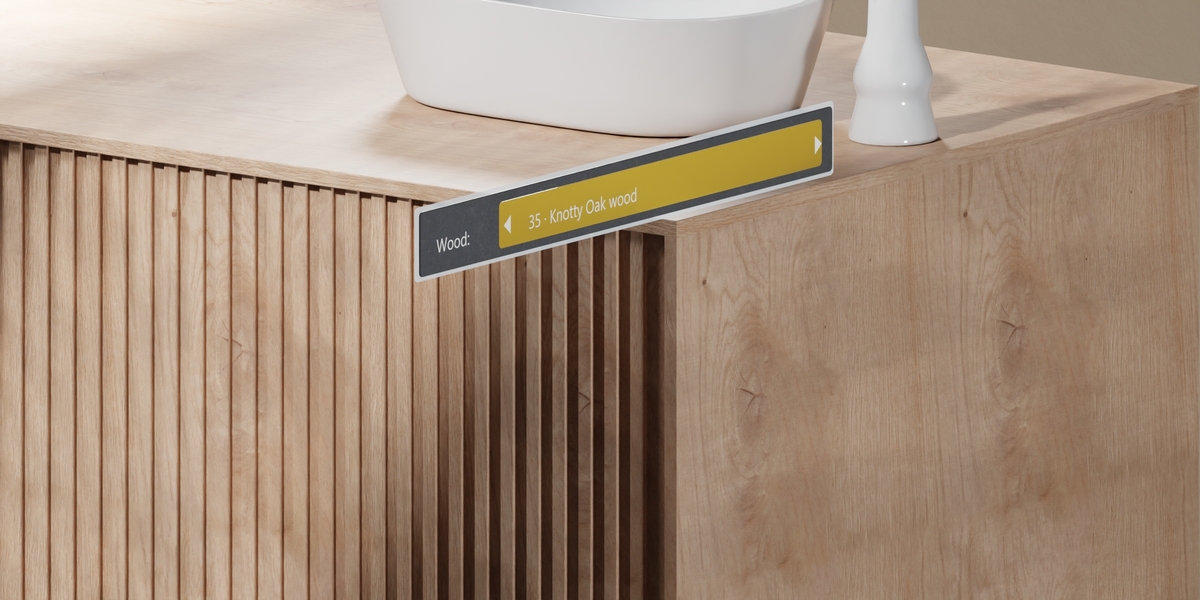

Ultimate Wood: Quick Start
Version 1.0 by ANAS KA. Tested in Blender 5.2.2 LTS with Cycles. The download includes a detailed offline guide: START_HERE.html.
1. Install and open
- Extract the complete ZIP. Keep Ultimate_Wood.blend beside the Textures and Addons folders.
- In Blender Preferences, install and enable Addons/Ultimate_Wood_Controls.zip and Addons/Cavity_Mask.zip using Install from Disk.
- Open Ultimate_Wood.blend to explore the supplied studio scene, or use File > Append > Ultimate_Wood.blend > Material to bring either material into your project.
2. Choose your wood
Select the object and its Ultimate Wood material. Open the Shader Editor sidebar (N), then Ultimate Wood. Choose from the 71 named woods. Use Ultimate Wood - Real Scans for photographed grain and close-up character; use Ultimate Wood - Procedural for adjustable generated grain and scalable texture design.
For real scans, keep the veneer folder available. If switching woods cannot find the images after appending, use Locate Scan Folder and select Textures/Wood_Veneers. UV unwrap the object, then adjust grain scale, direction and rotation. Procedural mapping also benefits from consistent object scale.
3. Bake geometry-aware wear
- Select the target mesh and open Baking - Cavity Mask.
- Use Live Mask Preview to inspect the mask. Adjust edge/cavity reach and the black point, gamma and white point controls. Exit preview to restore the material.
- Choose a resolution and sample count, then click Bake Cavity Mask. The baked map is connected to the material wear controls.
- After editing geometry, use Check Geometry and rebake when prompted. Checking is manual to keep editing responsive.
- Use Remove Baked Maps & Reset to return to the unbaked setup. Save the blend after baking.
4. Paint, peel and finish
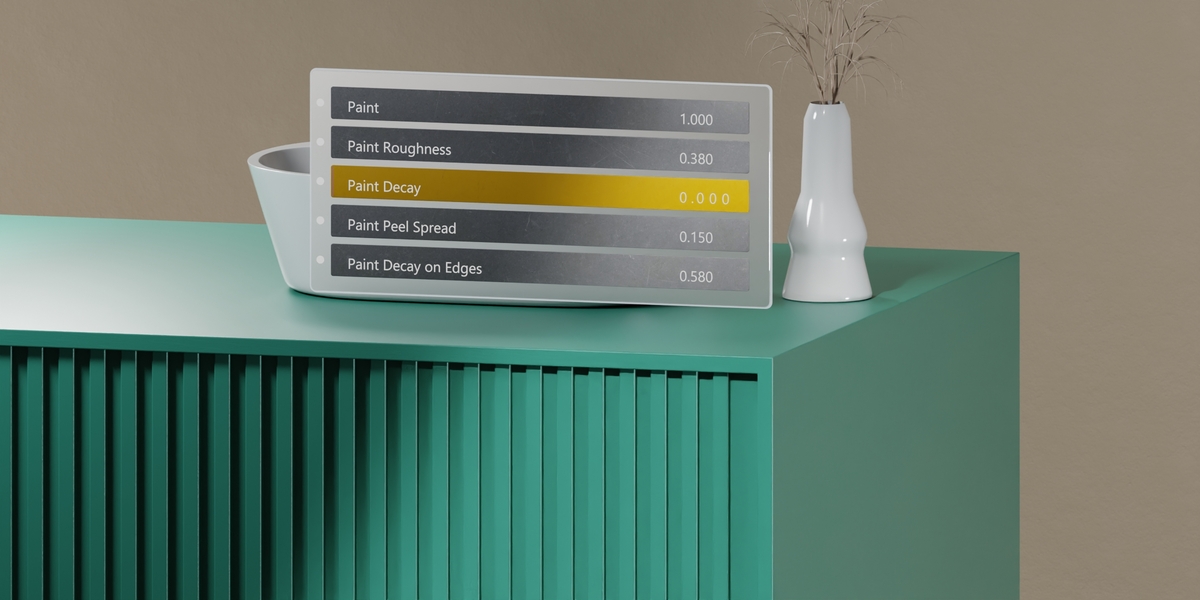
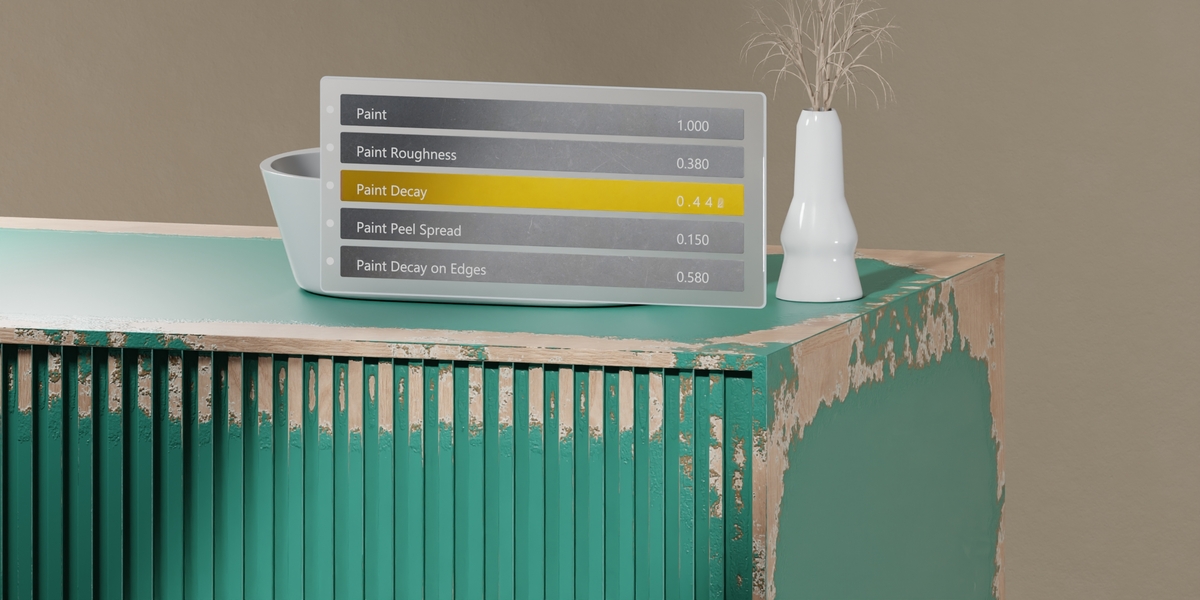
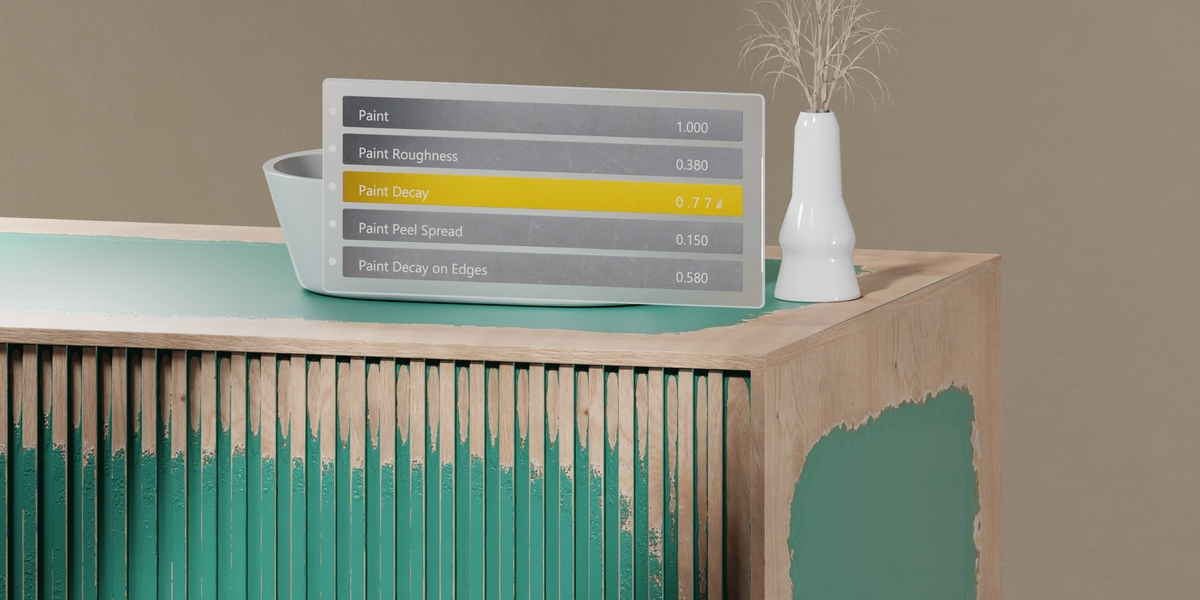
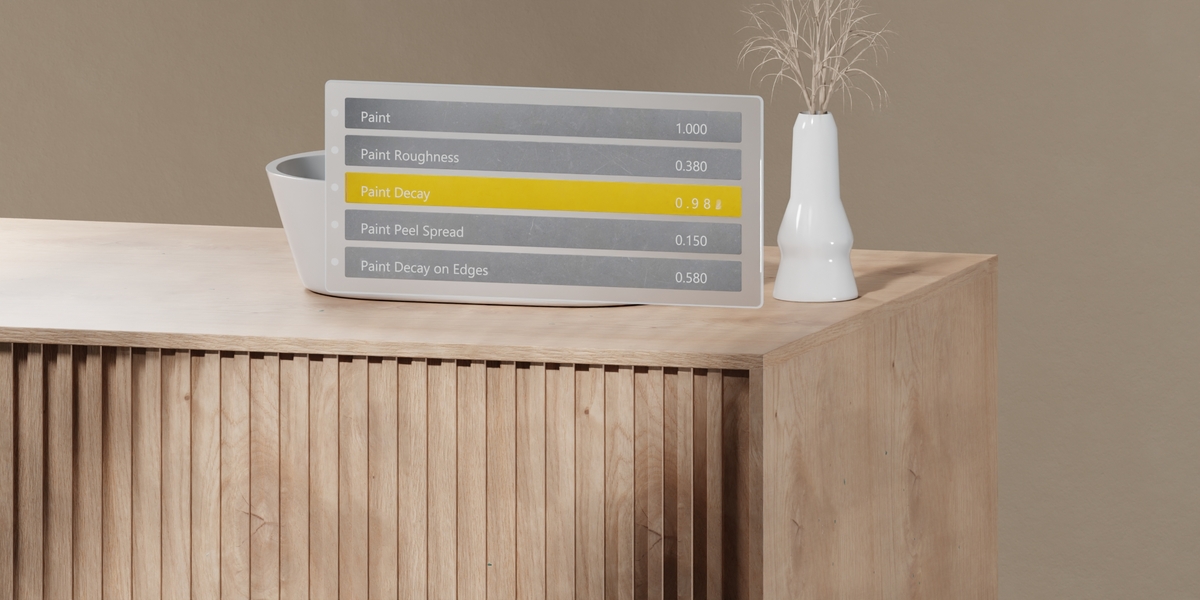
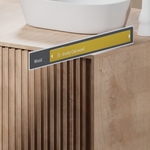
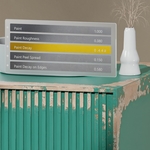
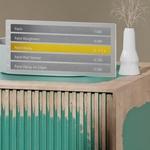
Use Paint and Peel to adjust paint coverage, decay, edge emphasis and peeling spread. Start with low peel height and increase it gradually. Fractal breakup adds irregular boundaries; a cavity bake helps wear follow the mesh. Adjust varnish and roughness separately, then add moss, mud, dust or cracks as needed. Clear weathering provides a clean starting point.
5. Troubleshooting
- Pink or missing scans: restore the Textures folder or use Locate Scan Folder.
- Stretched grain: unwrap the mesh, check scale and rotate the mapping.
- No wood selector: enable Ultimate Wood Controls and select the correct material.
- Wear follows old geometry: run Check Geometry and rebake.
- Rendering: use Cycles. First compilation and cavity baking can take longer than an already compiled viewport.
Important details
Scan relief is estimated from photographed color; the scans are not measured displacement or normal-map sets. Peeling uses shading/bump relief, not detached geometric flakes. Scan textures have finite coverage and may require UV seam and repetition adjustments. Earlier Blender versions and other render engines are not verified for this release.
Updates
Your purchase includes free lifetime updates to this product. Updated files will be provided through your Superhive purchase downloads.
Have questions about this product?
Login to message
| Published | about 16 hours ago |
| Blender Version | 5.2 |
| Render Engine Used | Cycles |
| License | Royalty Free |
Discover more products like this
Cycles wood shader wood scans wood veneer weathering Material varnish wood grain cavity mask procedural wood Peeling Paint