Uniforge
 Fleitec


UniForge - Blender to Unity asset bridge
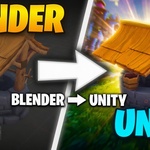
UniForge exports your Blender meshes, materials and shader setups into a
single .unif file and imports them into Unity as ready-to-use prefabs,
meshes and materials. It has two parts and you install both.
INSTALLATION
Blender add-on:
1. Drag and drop Zip into Blender or
In Blender: Edit > Preferences > Add-ons > Install from Disk
2. Select blender_addon/UniForge-1.1.0.zip from the download
3. Enable "UniForge" in the list.
Unity plugin:
1. In Unity: Window > Package Manager > "+" > Add package from disk
2. Select unity_plugin/com.fleitec.uniforge/package.json from the download
(or copy that folder into your project's Packages folder)
3. Requires Unity 2021.3 LTS or newer using URP.
EXPORTING (Blender)
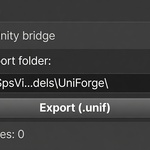
Select your object(s), open the "UniForge" tab in the 3D viewport sidebar
(press N) or use File > Export > UniForge Asset (.unif). Keep "Embed
Textures" on so the file is self-contained. Click Export.
IMPORTING (Unity)
Drag the .unif file into your project's Assets folder. UniForge imports it
automatically into a prefab with meshes and materials. Drag the prefab into
your scene.
MATERIAL BROWSER
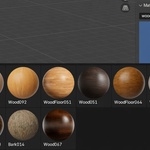
In the UniForge sidebar, open "Material Browser (CC0)", type a search term
(e.g. metal), press Search, pick a material and click Download & Apply.
All materials are CC0 from ambientcg.com.
MATERIAL TILING
With an object selected, open "Material Tiling" to adjust scale/tiling,
offset and rotation of its material.
UPDATES
UniForge checks for new versions on startup; update with one click from the
add-on preferences.
REQUIREMENTS
- Blender 3.6 or newer (4.x recommended)
- Unity 2021.3 LTS or newer (incl. Unity 6), Universal Render Pipeline (URP)
SUPPORT
Questions or problems? Email [email protected]
UniForge exports your Blender meshes, materials and shader setups into a
single .unif file and imports them into Unity as ready-to-use prefabs,
meshes and materials. It has two parts and you install both.
INSTALLATION
Blender add-on:
1. Drag and drop Zip into Blender or
In Blender: Edit > Preferences > Add-ons > Install from Disk
2. Select blender_addon/UniForge-1.1.0.zip from the download
3. Enable "UniForge" in the list.
Unity plugin:
1. In Unity: Window > Package Manager > "+" > Add package from disk
2. Select unity_plugin/com.fleitec.uniforge/package.json from the download
(or copy that folder into your project's Packages folder)
3. Requires Unity 2021.3 LTS or newer using URP.
EXPORTING (Blender)
Select your object(s), open the "UniForge" tab in the 3D viewport sidebar
(press N) or use File > Export > UniForge Asset (.unif). Keep "Embed
Textures" on so the file is self-contained. Click Export.
IMPORTING (Unity)
Drag the .unif file into your project's Assets folder. UniForge imports it
automatically into a prefab with meshes and materials. Drag the prefab into
your scene.
MATERIAL BROWSER
In the UniForge sidebar, open "Material Browser (CC0)", type a search term
(e.g. metal), press Search, pick a material and click Download & Apply.
All materials are CC0 from ambientcg.com.
MATERIAL TILING
With an object selected, open "Material Tiling" to adjust scale/tiling,
offset and rotation of its material.
UPDATES
UniForge checks for new versions on startup; update with one click from the
add-on preferences.
REQUIREMENTS
- Blender 3.6 or newer (4.x recommended)
- Unity 2021.3 LTS or newer (incl. Unity 6), Universal Render Pipeline (URP)
SUPPORT
Questions or problems? Email [email protected]
$14.99
Have questions about this product?
Login to message
| Published | 3 months ago |
| Blender Version | 3.6 - 5.2 |
| Extension Type | N/A |
| Render Engine Used | Cycles, Eevee |
| License | GPL |
Discover more products like this
Material PBR Exporter addon texture-baking 3d asset export unity Workflow 3D asset for Unity Blender-to-Unity pipeline game-dev