Unit & Scale Doctor – Fix Mis-Scaled Blender Scenes Before Export Or Render
 Anvil Interactive Solutions


AIS Unit & Scale Doctor — Full Documentation
Stop “looks right in Blender, wrong in engine.”
Detect, fix, visualize, validate, and guard your exports so assets land at the correct size and orientation in Unity, Unreal, and glTF—every time.
Contents
Overview
AIS Unit & Scale Doctor eliminates cross-DCC/engine scale chaos. It:
-
Detects unit/scale hazards: unapplied, non-uniform, negative scales; parent scaling; scene unit mismatch.
-
Fixes safely: align scene units, apply mesh scale, recalc normals for mirrored parts.
-
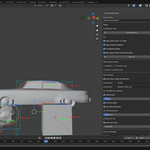
Visualizes true dimensions: AABB/OBB cages, axis lines, and profile-aware labels (Unity/Unreal/glTF/CAD).
-
Guards exports: FBX/glTF are blocked when rules fail; prints a human-readable + JSON-style console report.
-
Automates validation: headless CLI with exit codes for CI gates.
Compatibility: Blender 3.0–4.4 (tested on 3.6 LTS, 4.4). No external dependencies.
Key Concepts
-
Scene Units vs Target Profile
Blender’sScene Units(scale_length) can diverge from what your engine expects. The add-on compares your scene to a Target Profile (Unity/Unreal/glTF/CAD) and tells you what’s off. -
Unapplied Scale
Objects with scale ≠ (1,1,1) frequently break physics/collisions. Applying scale pushes transforms into vertex data. -
Negative Scale
Mirroring with negatives flips normals. The tool detects and optionally recalculates normals after applying scale. -
AABB vs OBB
AABB: axis-aligned to world axes (quick, cheap).
OBB: aligned to object local axes (true extents, rotation-aware). -
Axis Remap
Engines don’t agree on up/forward. The overlay re-labels and draws axes as your target profile understands them, not just Blender’s Z-up world.
Installation
-
Download the ZIP (e.g.,
ais-unit-scale-doctor-0.4.0.zip). -
Blender → Edit → Preferences → Add-ons → Install…
-
Select the ZIP and Enable “AIS Unit & Scale Doctor”.
-
Open 3D View > N-Panel > AIS Tools.
Uninstall/Update: disable the add-on, remove it, then re-install the new ZIP.
Quickstart
-
Open AIS Tools panel.
-
Pick a Target Profile (Unity/Unreal/glTF/CAD).
-
Click Run Detection (optionally “Selection Only”).
-
Click Run Fix (choose Align Scene Units, Apply Scale, Fix Negative Scales).
-
Toggle Ruler Overlay → see labels/axis/cage adapt to your profile.
-
Export (Guarded) FBX/glTF—if violations exist, export is blocked with an actionable report.
UI Tour
Section: Target Profile
-
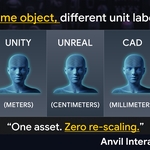
Target — Unity (m), Unreal (cm), glTF (m), CAD (mm).
Drives detection thresholds, overlay axis remap, and exporter axis settings.
Section: Detect
-
Selection Only — restricts scan to the current selection.
-
Run Detection — reports counts and prints a per-object list to the console.
Section: Fix
-
Align Scene Units To Target — update
scene.unit_settingsto match profile (no vertex rescale). -
Apply Scale On Meshes — apply transforms to mesh data (safe for static meshes).
-
Fix Negative Scales — after apply, recalculate normals on mirrored meshes.
-
Skip Objects With Armature Modifier — preserve rigged meshes.
Section: Ruler Overlay
-
Show Ruler Labels On Selection — enable/disable overlay.
-
Unit Source — Profile (Unity/Unreal/glTF/CAD) or Scene (Blender units).
-
Conversion — Baseline (1BU=1m) or Scene Physical (uses
scale_length). -
Use OBB (true extents) — OBB instead of AABB.
-
Label Inside + Inset % — control label positions.
-
Colorize Axis Labels — X red, Y green, Z blue.
-
Show Bounding Box / Fill (translucent) / Fill Alpha / Draw On Top
-
Draw Axis Lines
-
Decimals — numeric precision of labels.
Section: Export (Guarded)
-
Fail-On Rules — comma-separated list of violations that block exports
(negative,nonuniform,parentScaled,unapplied,sceneMismatch). -
Buttons: FBX… glTF…
Detection
Click Run Detection to flag hazards:
-
unapplied — object scale ≠ (1,1,1)
-
nonuniform — scale components not equal in magnitude
-
negative — any scale < 0 (mirroring)
-
parentScaled — parent object has unapplied scale
-
sceneMismatch — scene unit scale doesn’t match profile
Output
-
A concise UI info line (counts).
-
Console: one line per object with reasons and transform details.
Tip: Use Selection Only to isolate problem collections during triage.
Fixes
-
Align Scene Units To Target
SetsScene Unitsto the profile (e.g., Unity=meters, Unreal=centimeters). Does not rescale vertices. -
Apply Scale On Meshes
Applies object scale, baking transforms to vertices—safe for static meshes. Skips non-meshes. If “Fix Negative Scales” is on, runs Normals → Recalculate Outside. -
Skip Armature Children
Keeps rigged meshes intact (avoid breaking skinning).
Workflow: detect → align units → apply (and fix negatives) → validate → export.
Ruler Overlay (Labels, Lines, Cages)
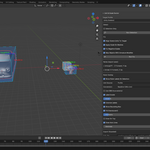
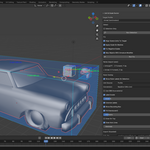
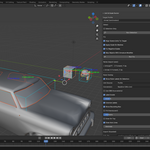
Turn on Show Ruler Labels On Selection to visualize dimensions in-viewport.
-
AABB / OBB
-
AABB: fast, world-aligned.
-
OBB: true extents, aligned to object’s local basis (rotation-aware).
-
-
Axis Lines
Draws axis segments within the bounds, remapped to the active profile. -
Labels
Per-axis dimension with unit & precision. Choose Profile or Scene units, and whether to compute using baseline (1 BU = 1 m) or physical (scale_length). -
Colors & Clarity
-
Colorize Axis Labels: X=red, Y=green, Z=blue.
-
Draw On Top: see cages in dense scenes.
-
Fill Alpha: translucency of cage faces.
-
Label Inside & Inset %: keep values readable.
-
Axis Remap per Profile
The overlay and labels show axes as your target engine expects, while drawing in Blender’s Z-up world:
| Profile | Conceptual → Blender mapping |
|---|---|
| Unity (Y-up) | X→X, Y→Z, Z→Y |
| glTF (Y-up on export) | X→X, Y→Z, Z→Y |
| Unreal (Z-up) | X→Y, Y→X, Z→Z |
So when you select Unity, the Y dimension/label maps to Blender’s Z axis, reflecting Y-up semantics.
Guarded Export (FBX/glTF)
Exports are blocked when fail-on rules are present.
-
Fail-On Rules (comma-separated):
negative, nonuniform, parentScaled, unapplied, sceneMismatch -
Per-profile axes (FBX)
-
Unity/glTF: Forward -Z, Up Y
-
Unreal: Forward X, Up Z
(glTF operator also sets Y-up export option)
-
-
What you see on failure
-
Toast: “Export blocked. Violations: …”
-
Console: JSON-style report with profile, scene scales, counts, and per-object reasons.
-
Fix the violations → run detection → re-export.
CLI / CI Integration
Run Blender headless to validate scenes in pipelines:
blender -b --python-expr "
import bpy
bpy.ops.preferences.addon_enable(module='ais_unit_scale_doctor')
" -- --v4-validate --profile UNITY \
--fail-on negative,nonuniform,sceneMismatch \
--out report.json
-
Exit codes:
0= pass; non-zero = violations present. -
--selection-only: validate only selected objects (useful in scripted contexts). -
--out: writes JSON report (profile, scene/target scale, counts, issues[]).
GitHub Actions (example step)
- name: Validate units/scale
  run: |
    blender -b --python-expr "import bpy; bpy.ops.preferences.addon_enable(module='ais_unit_scale_doctor')" \
    -- --v4-validate --profile UNITY --fail-on negative,nonuniform,sceneMismatch --out unit_report.json
Profiles & Units Reference
| Profile | Unit system | scale_length |
Notes |
|---|---|---|---|
| Unity | Metric | 1.0 | meters; FBX -Z forward / Y up |
| Unreal | Metric | 0.01 | centimeters; FBX X forward / Z up |
| glTF | Metric | 1.0 | meters; exporter sets Y-up |
| CAD (mm) | Metric | 0.001 | millimeters; matches typical CAD handoff |
Align Scene Units updates
scene.unit_settingsto match the profile; it does not rescale vertices.
Troubleshooting
Export blocked: sceneMismatch
-
Your scene’s
scale_lengthdoesn’t match the profile. In Fix, enable Align Scene Units To Target and re-run.
Mirrored mesh looks inside-out
-
You had negative scale. In Fix, enable Apply Scale On Meshes + Fix Negative Scales to recalc normals.
Rig breaks after apply
-
You applied scale on a skinned mesh. Enable Skip Objects With Armature Modifier (default), or freeze transforms in your DCC pipeline instead.
Ruler labels don’t show
-
Ensure Show Ruler Labels On Selection is on, and at least one mesh is selected.
-
Some GPU environments require the on-top option for visibility in dense scenes.
Viewport draw errors (shaders/fonts)
-
The add-on auto-selects compatible GPU shader built-ins (
UNIFORM_COLORor fallback). -
If label text is tiny, adjust Decimals and zoom level; BLF font size is set conservatively for 3D UI.
Rulers show wrong axis
-
That’s the profile remap doing its job (Unity Y-up maps to Blender Z). Switch profile to Scene units if you want raw Blender axes.
Limitations & Best Practices
-
Non-mesh objects are skipped for scale fixes (empties, cameras, lights).
-
Armatured meshes are skipped by default—avoid breaking skinning.
-
Apply Scale is destructive (to transforms), as intended; keep a versioned source if needed.
-
For CAD: validate units early—mm vs cm vs m mixups are common in vendor assets.
-
Use OBB for rotated assets; AABB is fine for axis-aligned blocks and quick checks.
-
In teams, run the CLI validator in CI to stop bad assets before merge.
Privacy & Telemetry
-
Runs entirely locally inside Blender.
-
No data collection, no network calls, no telemetry—period.
Support & Issue Template
-
Issues: replace with your tracker URL
-
Email: replace with your support email
Please include:
-
Blender version (e.g., 4.4) and OS
-
Add-on version (0.4.0)
-
Console output (copy/paste)
-
Minimal .blend or steps to reproduce
-
Whether the problem occurs with a single mesh or a specific exporter
License
MIT (per LICENSE.txt). Use freely in personal and commercial projects. Contributions welcome.
Appendix A — Example Console Report (trimmed)
{
  "profile": "UNITY",
  "scene_scale_length": 0.01,
  "target_scale_length": 1.0,
  "sceneMismatch": true,
  "counts": {
    "total": 12,
    "unapplied": 3,
    "negative": 1,
    "nonuniform": 2,
    "parent_scaled": 1
  },
  "issues": [
    {"name":"Door_L","reasons":"unapplied,nonuniform","info":{"scale":[1.0,1.2,1.0]}},
    {"name":"Panel_A","reasons":"negative","info":{"scale":[-1.0,1.0,1.0]}}
  ]
}
-
$10
Solo Seat (1 User)
-
$25
Indie Team (3 Seats)
-
$40
Studio Pack (5 Seats)
-
$80
Studio Plus (10 Seats)
-
$40
Single-user license. Install on two personal devices.
-
$100
Three-user license for small teams.
-
$150
Five-user studio license.
-
$300
Ten-user studio license.
Have questions about this product?
Login to message
| Sales | 10+ |
| Dev Fund Contributor | |
| Published | 11 months ago |
| Blender Version | 3.6 - 5.0 |
| Extension Type | N/A |
| Render Engine Used | Cycles |
| License | Mit |
Discover more products like this
Asset Pipeline CI validator centimeters Blender units Blender 4.4 AABB Blender scale Blender 3.6 axis remap CAD to game bounding box Blender Add-on