 Kapusta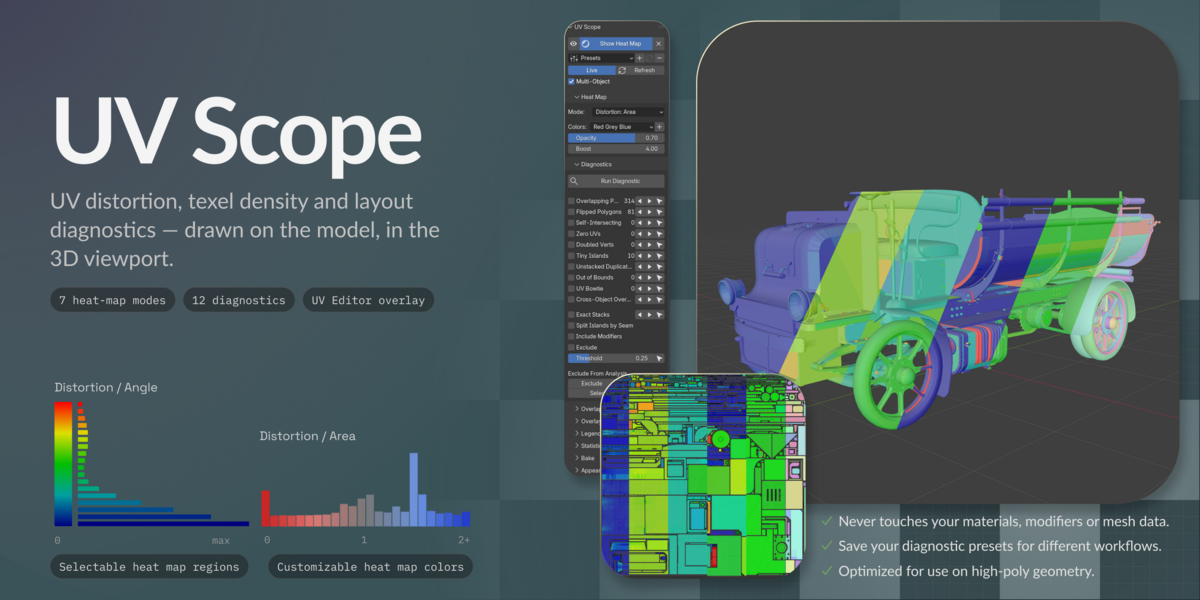
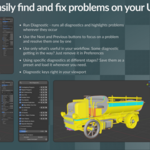
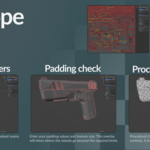
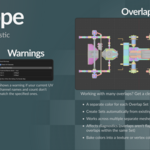
See the UV problem where it actually affects the model.
UV Scope turns UV data into a visual overlay, then lets you frame and select the exact faces or vertices that need attention.
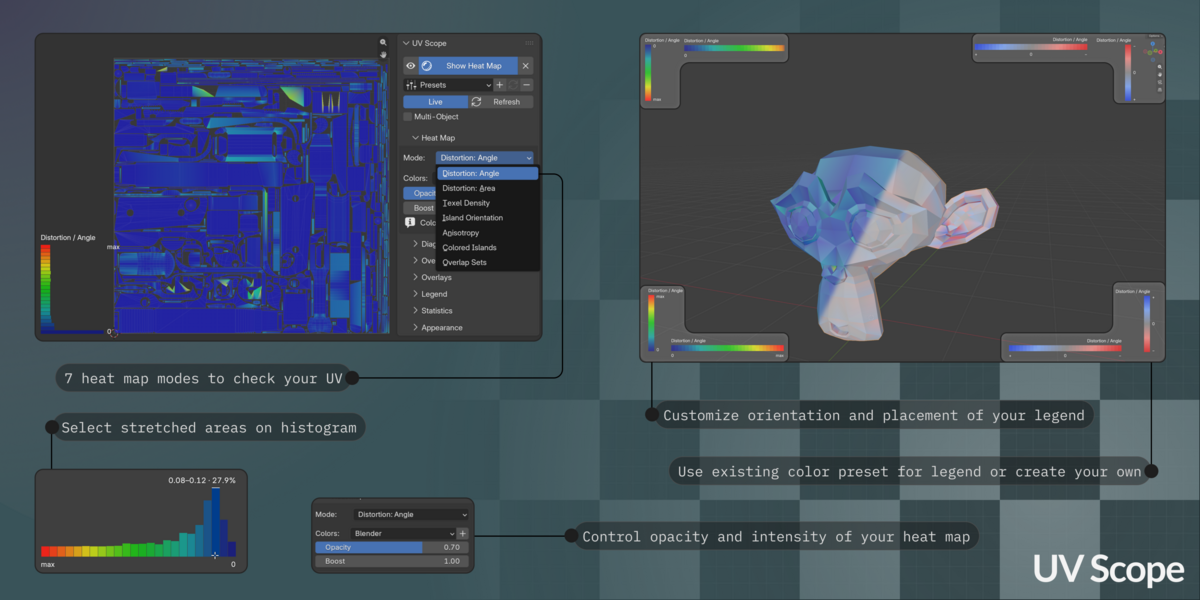

Angle, Area, Texel Density, Anisotropy, Island Orientation, Colored Islands and Overlap Sets.
Overlaps, flipped UVs, self-intersections, bowties, tiny islands, bounds, padding and geometry-side warning signals.
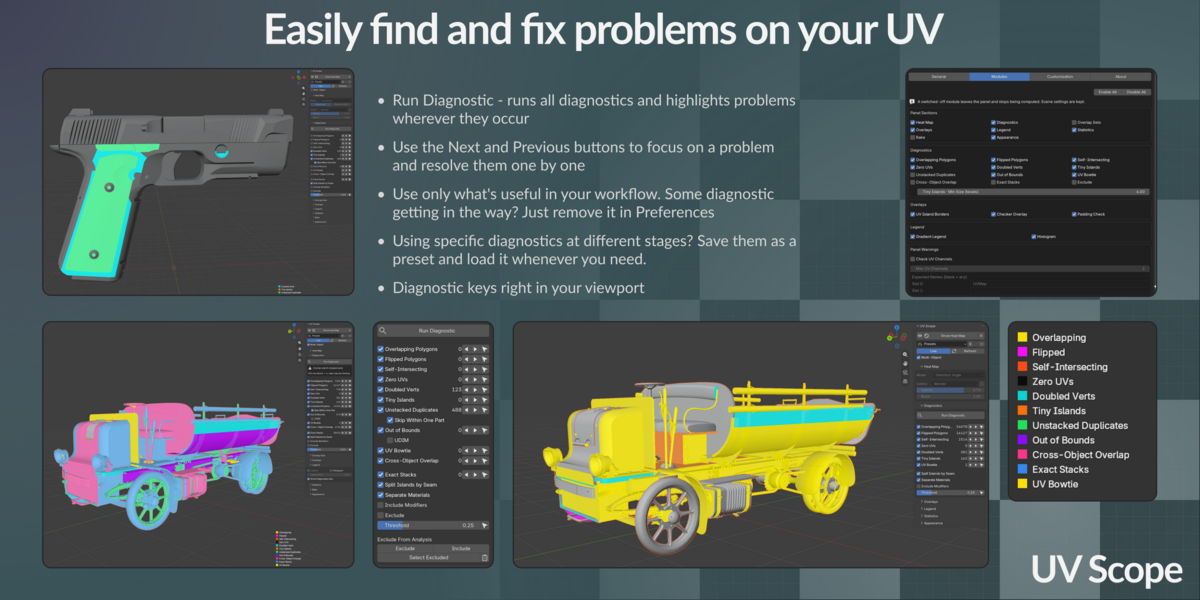
Use Prev, Next or All to frame a result in the 3D Viewport and UV Editor, even with the heat map hidden.
Inspect stretch, density and orientation in context.
Angle and Area match Blender's UV Editor stretch logic. Additional modes show target texel density, directional stretch, island rotation and layout groups.
- Target texel density in px/cm or px/m at a chosen texture size
- Anisotropy catches non-square texels that Angle and Area can miss
- Stable island and Set colours make layout structure readable
Move from a live count to the exact result.
Each enabled diagnostic has its own colour and count. Prev, Next and All frame results in both editors; the heat map can stay off.
- Doubled Verts marks unwelded duplicate vertex locations
- Exact Stacks is informational; Ignore Exact Stacks excludes intentional stacks from overlap results
- Disable checks you do not need to reduce clutter and feature-specific work

Analysis, evidence and selection without replacing your UV tools.
UV Scope finds and explains problems. It does not unwrap UVs or automatically repair the errors it detects.
See how much surface sits in each range and click a bar to select those faces.
Coverage measures tile usage; UV Area reports raw UV-space area. They answer different questions.
Live overlays leave materials, modifiers, mesh geometry and UV coordinates unchanged. Explicit actions write data only when chosen.
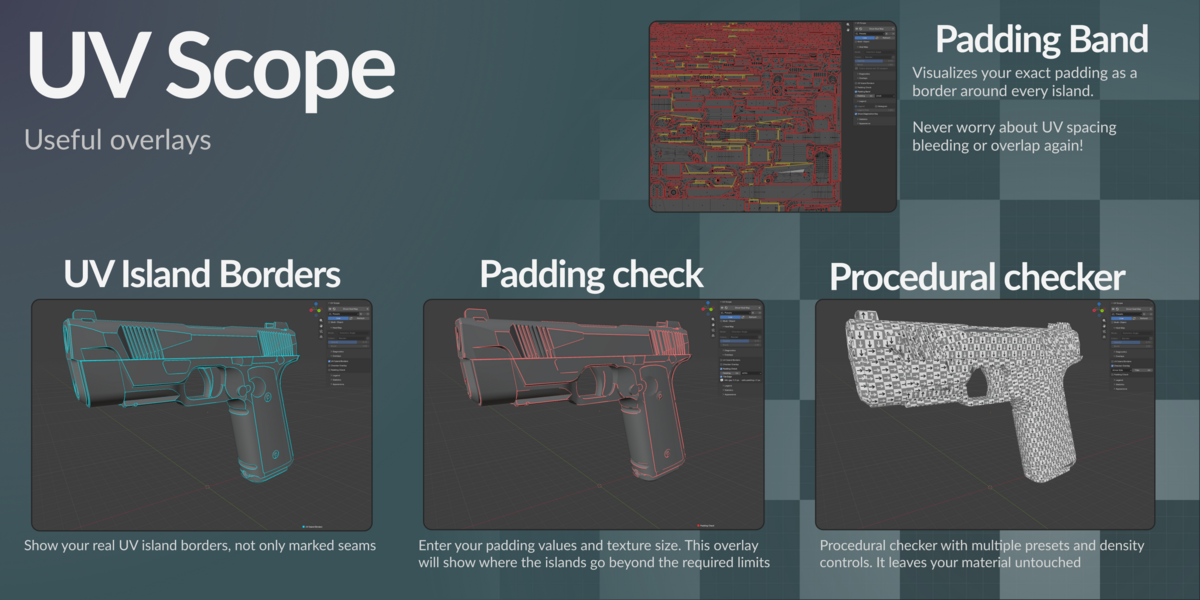
Island borders, procedural checker, padding check and padding bands add context on demand.
Select by severity, histogram range or individual diagnostic results in both editors.
Snapshot a heat map to a colour attribute or texture when live analysis is not the right fit.
7 Heat map modes
Choose the metric that answers the current question. Every mode is available as an overlay in the 3D Viewport and UV Editor.

Angle
Angle-based stretch. It uses the same calculation and colour response as Blender's UV Editor stretching overlay.

Area
Area-based stretch using the same underlying behaviour and colours as the UV Editor.

Texel Density
Compare against the object average or a real target in px/cm or px/m. The calculation uses the chosen texture size and accounts for object scale.

Anisotropy
Find non-square texels. Magnitude shows how much U and V differ; Direction distinguishes stretch along U from stretch along V.

Island Orientation
Show how each island is rotated in UV space by its own longest side, or relative to a chosen local or world X, Y or Z axis.

Colored Islands
Assign every UV island a stable colour to make boundaries and the total island structure visible at a glance.

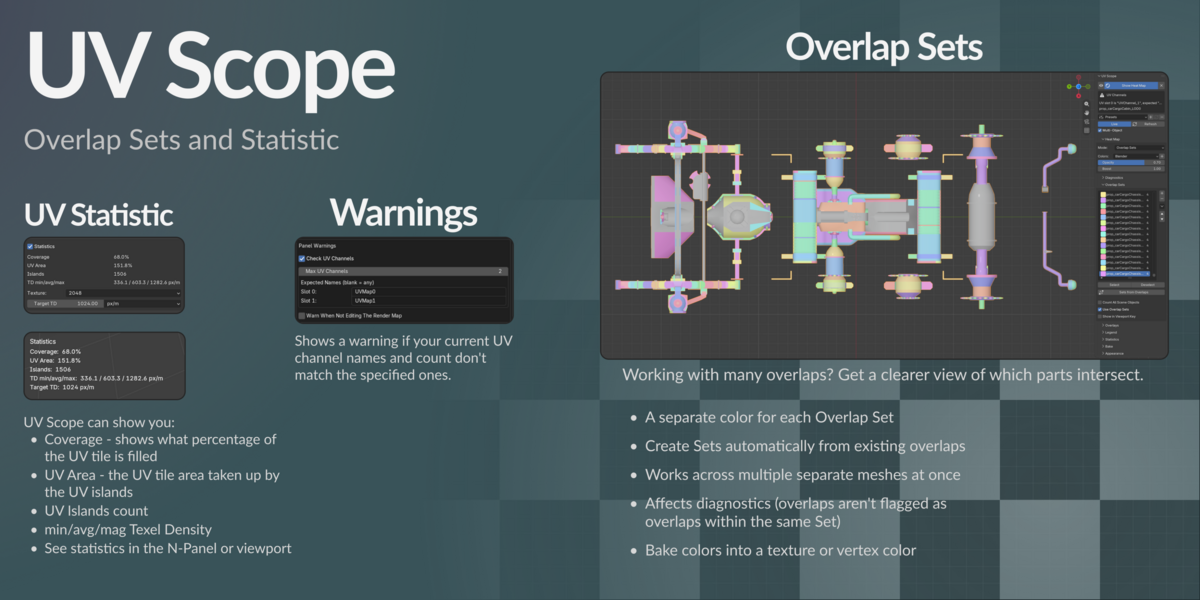
Overlap Sets
Group UV islands into Sets and display each Set in its own colour. Overlap and padding checks can run between Sets, excluding intentional conflicts within the same Set. Sets from Overlaps can build groups from existing overlap relationships.
12 UV Diagnostics
Diagnostics are independent of the active heat map. Enable only the checks relevant to the current asset and keep the rest out of the view.
Overlapping
Faces whose UVs overlap a different island.
Flipped
UV-mirrored faces.
Self-Intersecting
Islands or polygons folded across themselves in UV space.
Zero UVs
Degenerate, zero-area UV triangles, including hidden faces.
Out of Bounds / UDIM
UVs outside the tile; in UDIM mode, faces that straddle a tile boundary.
Doubled Verts
Point markers at unwelded duplicate vertex locations. Step between the locations and select the actual vertices for repair.
Tiny Islands
Islands below the size threshold for the current texture resolution. Unlike Zero UVs, their shape can still be valid.
Unstacked Duplicates
Duplicated geometry that does not share the same UV space.
Cross-Object Overlap
Faces colliding with a different object in a shared atlas — a conflict a per-object check cannot see.
Exact Stacks
Highlights islands with identical UV placement, including mirrored stacks. Informational by itself.
UV Bowtie
Pinch points where UV wedges share a geometric vertex without a valid UV connection.
Excluded
Faces tagged to skip analysis, displayed in their own colour.
Inspect every result
Each diagnostic has a live count and Prev, Next and All controls. Navigation frames the result in the 3D Viewport and UV Editor and turns the 3D view toward it.
Respect texture sets
With Separate Materials enabled, Overlapping, Cross-Object Overlap and Padding ignore conflicts between different materials. Disable it when the materials share one atlas or trim sheet.
Useful Overlays
These overlays work alongside any heat map mode or on their own.

UV island borders
See where UV islands split without marking a single seam.

Checker overlay
A procedural checker drawn by the overlay shader. It does not create or modify material nodes.

Padding check
Enter the required full gap in pixels. Borders that sit too close to another island are highlighted before baking.

UV island padding borders
The UV Editor band extends half the chosen padding from each island. Two bands touching use the full gap; overlap means the islands are too close.
Legend, histogram and statistics
The visual summary uses the same values and colours as the active overlay.
Interactive histogram
Bar length shows how much surface falls into each range. Click to select faces, Shift-click to add and Ctrl-click to select whole islands.
Edge alignment histogram
In the UV Editor, compare edges along U, along V or diagonal, optionally limited to island borders, then select an angle range.
Texel density statistics
View island count and minimum, average and maximum texel density in the panel or viewport HUD.
UV Area and Coverage
UV Area sums every face, including overlaps, so it may exceed 100%. Coverage counts overlapping regions once and stays within 100%.

Turn measurements into a Blender selection.
By measured value
- Select by Threshold for distortion, texel density deviation or island misalignment
- Histogram bar selection for a specific value range
- Ctrl-click a histogram bar to select complete islands
By diagnostic result
- Prev, Next and All on every diagnostic row
- Frame results in both the 3D Viewport and UV Editor
- Exclude selected faces or islands from analysis when needed

Save a heat map when live analysis is too heavy.
Baking is an explicit action. Unlike the live overlay, it stores a result in the file.
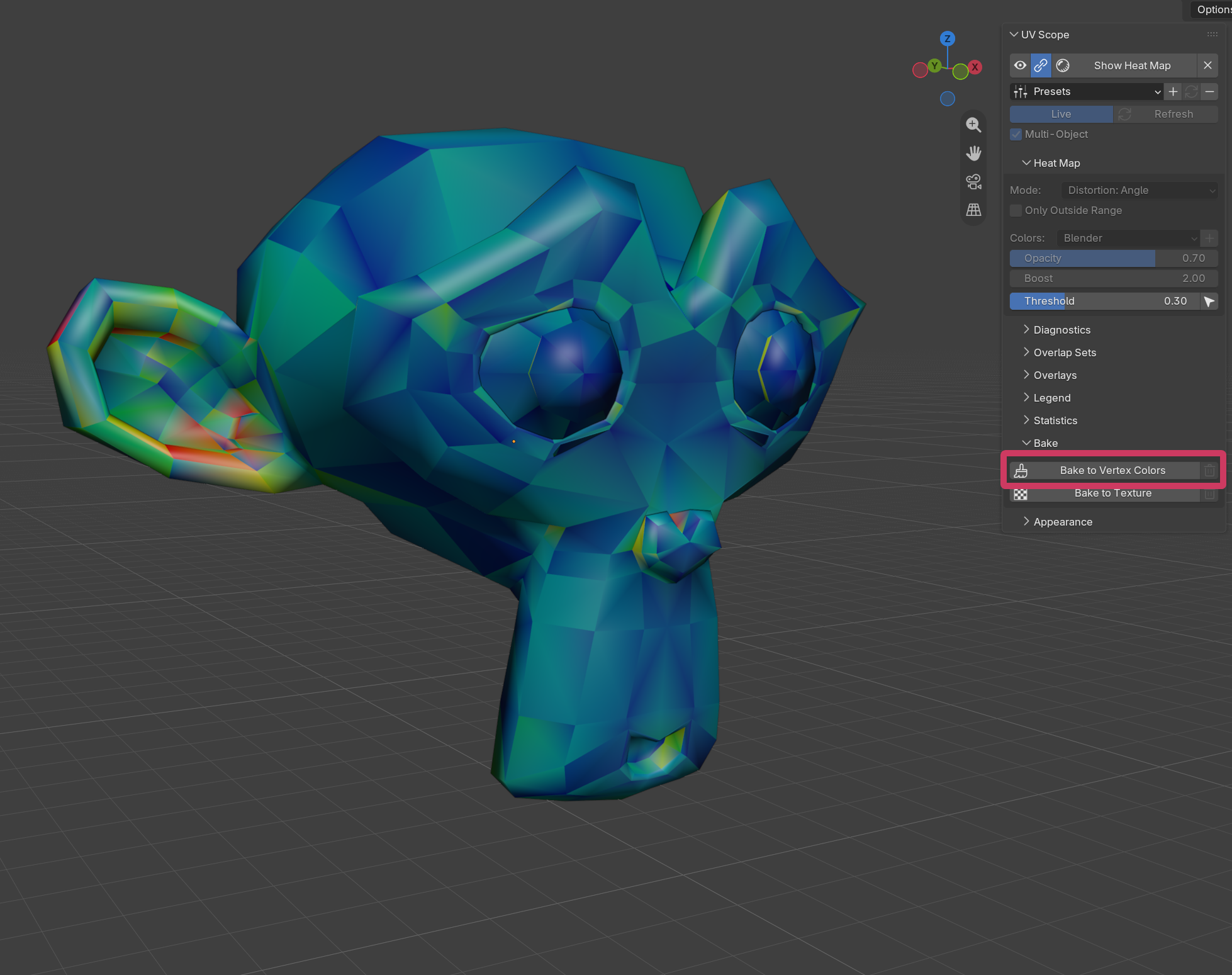
Bake to Vertex Colors
Snapshot the heat map into the dedicated UVScope colour attribute for native display. Remove it at any time.
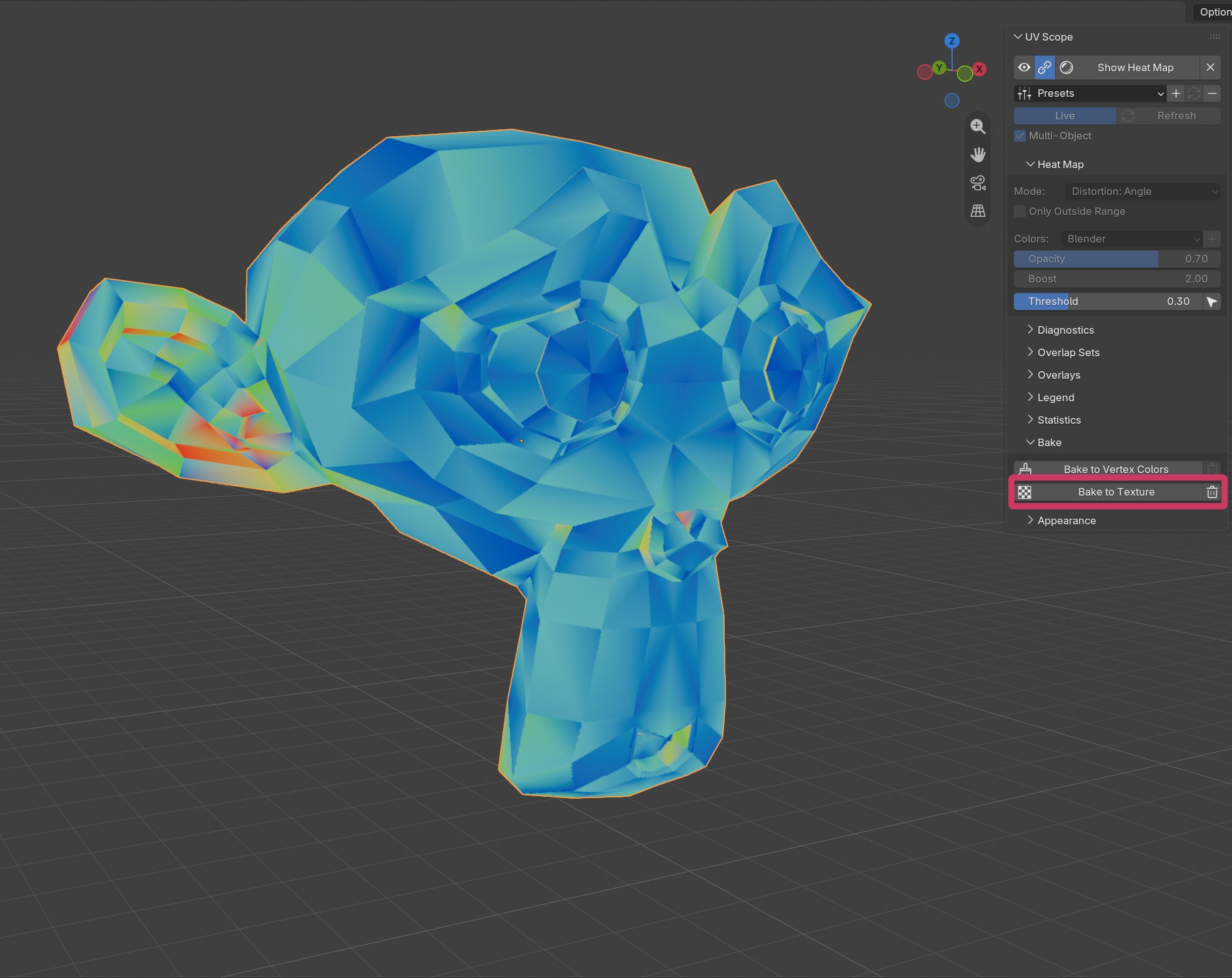
Bake to Texture
Rasterize the heat map into a UV image. Resolution follows Texel Density, island edges bleed by the chosen Padding value, and the original materials can be restored with one click.
Control placement, colour and visible work.
Save different arrangements as named presets and choose one as the startup default.
| Legend & histogram | Choose any corner, vertical or horizontal orientation and a pixel offset independently for the 3D Viewport and UV Editor. |
|---|---|
| Statistics | Follow the legend to avoid overlap or use a separate corner. |
| Visible tools | Switch individual diagnostics and overlays on only when they are needed. |
| Colour scales | Use one of three built-in scales or save a custom low, mid and high colour ramp under its own name. |
| Diagnostic appearance | Edit diagnostic colours and line widths. |
| Presets | Save the complete configuration for different kinds of work and set a preset as the default for new files. |
Find and inspect — not unwrap or auto-fix.
Live overlays do not modify materials, modifiers, mesh geometry or UV coordinates. Exclude and Overlap Sets save analysis tags; baking creates a colour attribute or texture, and texture preview temporarily swaps the material until you restore it.
