Uvexport
 MarkoPetrush


UV Exporter - Documentation
Welcome! This guide provides detailed instructions on how to install and use the UV Exporter add-on.
1. Add-on Installation
To install the add-on, follow these steps:
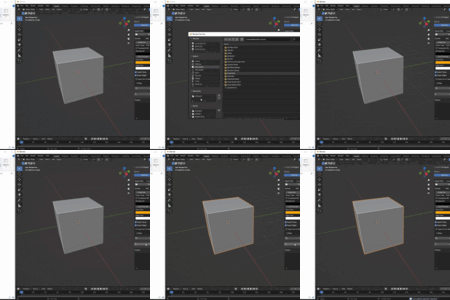
- Go to `Edit` > `Preferences` > `Add-ons`.
- Click the **Install...** button.
- Find and select the **UV_Exporter.zip** file.
- Enable the add-on by ticking the checkbox.
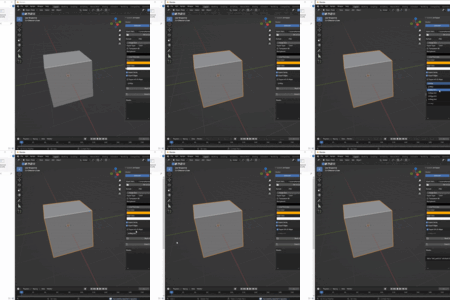
The add-on panel is located in the 3D Viewport's sidebar. Press the `N` key and find the **"UV Export"** tab.
2. Features and UI Explained
Export Source
This defines which objects will be processed.
- Selected: Exports UVs only from the objects you have actively selected.
- Collection: Exports UVs from every mesh object within the chosen collection. This is perfect for batch processing large scenes.
Export Settings
Here you can customize the output of your UV layouts.
- Export Path: The folder where your exported files will be saved.
- Format: Choose between raster (PNG, JPEG, etc.) and vector (SVG, DXF) formats.
- Image Size: Sets the resolution for raster image formats (e.g., 1024x1024).
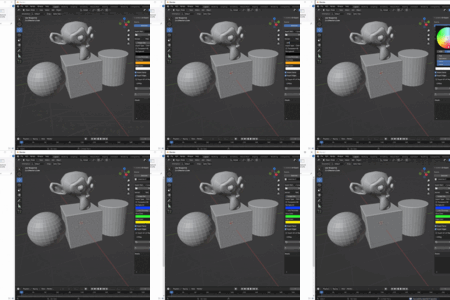
- Colors (Face, Edge, Background): Gives you full control over the colors of the exported layout.
- Transparent BG: When checked for compatible formats (PNG, WEBP, etc.), this will export the UV layout with a transparent background.
- Line Thickness / Stroke Width: Adjust the thickness of the lines for pixel-perfect results in raster and vector formats.
UV Map Selection
You have full control over which UV maps are exported.
- Dropdown Menu: If 'Export All UV Maps' is off, you can select a specific UV map from this list to export.
- Export All UV Maps: When enabled, the add-on will ignore the dropdown and export every UV map found on each object as a separate file.
Preset System
Save your favorite combinations of settings for quick reuse.
- Add Preset (+): Saves the current settings as a new preset.
- Remove Preset (-): Deletes the currently selected preset.
- Update Preset (Refresh Icon): Overwrites the selected preset with the current settings.
3. Troubleshooting & FAQ
-
Q: I clicked "Export" but no files were created.
A: First, ensure you have set a valid `Export Path`. Second, make sure you have selected an object or a collection with mesh objects in it. The add-on will report an error if there's nothing to export. -
Q: Can I change the default settings?
A: Yes! Set up your preferred settings in the panel, then go to `Edit > Preferences > Add-ons`, find "UV Exporter", and click "Save Preferences". Note that this is a Blender feature and might not always work as expected depending on your configuration. Using the preset system is the most reliable method.
4. Contact & Support
If you find a bug, have a feature request, or need assistance, please contact us through the platform where you purchased the add-on. We are here to help!
Thank you for your support!
$7
Have questions about this product?
Login to message
| Published | over 1 year ago |
| Blender Version | 3.4 - 5.0 |
| Extension Type | N/A |
| License | GPL |