 Skava
Skava


Vehicle Rig Ultimate - Documentation
Overview
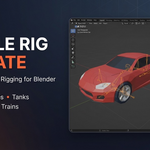
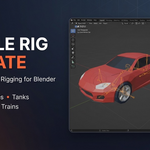
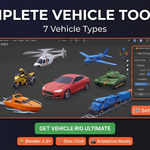
Vehicle Rig Ultimate is a professional Blender addon for rigging any type of vehicle with one click. Create production-ready vehicle rigs for cars, motorcycles, tanks, helicopters, aircraft, boats, and trains.
Installation
1. Download the vehicle_rig_ultimate.zip file
2. Open Blender → Edit → Preferences → Add-ons
3. Click "Install..." and select the downloaded ZIP file
4. Enable "Vehicle Rig Ultimate" checkbox
5. Find the addon panel in 3D View → Sidebar (N) → Vehicle Rig tab
Requirements: Blender 4.0 or higher
Quick Start
1. Select your vehicle mesh object
2. Open the Vehicle Rig panel (N → Vehicle Rig)
3. Choose vehicle type (Car, Motorcycle, Tank, etc.)
4. Configure wheel count and settings
5. Click "Generate Rig"
6. Done! Your vehicle is rigged and ready to animate
Supported Vehicle Types
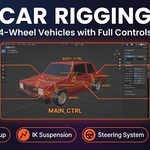
Cars (4-Wheel Vehicles)
- Automatic wheel detection
- IK suspension system
- Steering with Ackermann geometry
- Body roll and pitch dynamics
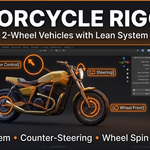
Motorcycles (2-Wheel)
- Lean/banking system
- Counter-steering controls
- Front fork suspension
- Handlebar steering
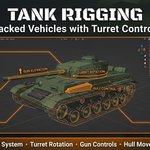
Tanks (Tracked Vehicles)
- Track animation system
- Turret 360° rotation
- Gun elevation control
- Independent track steering
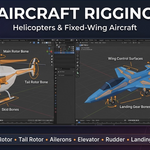
Helicopters
- Main rotor controls
- Tail rotor system
- Collective & cyclic controls
- Skid/wheel landing gear
Aircraft (Fixed-Wing)
- Aileron, elevator, rudder controls
- Flaps and control surfaces
- Retractable landing gear
- Propeller/jet engine rotation
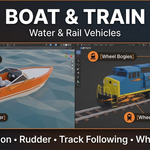
Boats
- Hull control for wave motion
- Rudder steering
- Propeller rotation
- Tilt/roll dynamics
Trains
- Wheel bogie system
- Multi-car coupling
- Track following
- Automatic wheel rotation
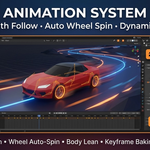
Animation Features
Path Following
1. Create a Bezier curve path
2. Select the curve
3. Click "Setup Path Follow"
4. Adjust speed and offset in the panel
Auto Wheel Rotation
- Wheels rotate automatically based on vehicle movement
- Speed calculated from distance traveled
- Works with path following and manual animation
Animation Baking
- Bake all animations to keyframes
- Export-ready for game engines
- Supports FBX, glTF, and USD formats
Panel Sections
Vehicle Settings
- Vehicle Type selector
- Wheel configuration
- Suspension settings
- Custom naming
Controls
- Reset all controls to default
- Select rig / Select mesh
- Keyframe current pose
Animation
- Path follow setup
- Bake animation
- Export options
Tips & Best Practices
1. Mesh Preparation: Ensure your mesh has proper origin point (center bottom of vehicle)
2. Wheel Naming: For best results, name wheel objects with "wheel", "tire", or "FL/FR/RL/RR"
3. Scale: Apply scale (Ctrl+A) before generating rig
4. Hierarchy: The addon automatically parents mesh to armature
5. Editing: Use Pose Mode to animate, Edit Mode to adjust bone positions
Keyboard Shortcuts
- G - Move selected control
- R - Rotate selected control
- Alt+G - Reset location
- Alt+R - Reset rotation
- I - Insert keyframe
Troubleshooting
Rig not generating?
- Ensure a mesh object is selected
- Check that mesh has geometry
Wheels not rotating?
- Verify wheel bones are properly linked
- Check driver expressions in Graph Editor
Path follow not working?
- Select a curve object first
- Ensure curve has enough points
Support
For questions, bug reports, or feature requests, please contact through the marketplace messaging system.
Version: 1.0.0
Compatibility: Blender 4.0, 4.1, 4.2, 4.3, 4.4, 4.5+
License: Royalty Free - Use in unlimited projects
Have questions about this product?
Login to message
| Sales | 10+ |
| Published | 9 months ago |
| Blender Version | 4.0 - 4.5 |
| Extension Type | N/A |
| Render Engine Used | Cycles, Eevee |
| License | Mit |
Discover more products like this
armature blender addon aircraft animation motorcycle vehicle rig helicopter tank automotive rigging auto-rig car rig