Vertex Skin Weights
 Melowilo Animation LTD
Why can't I see the Vertex Skin Weights tab in the sidebar?
The Vertex Skin Weights tab only appears when you have an active mesh object that has at least one vertex group. If you don't see it, ensure you have:
1. Selected a mesh object.
2. The mesh has at least one vertex group.
How do I start using the addon?
1. Select a mesh object that has vertex groups.
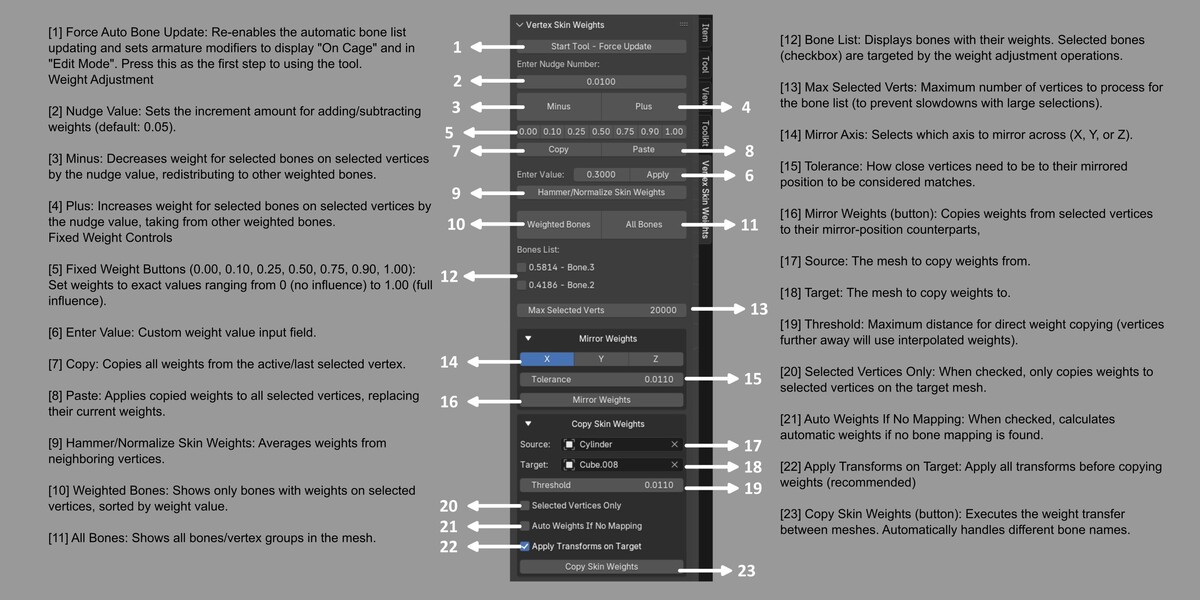
2. Click the "Start Tool - Force Update" button at the top of the panel.
3. Select vertices on your mesh in Edit mode.
4. Use the various weight editing tools in the panel.
How does the Mirror Weights function work?
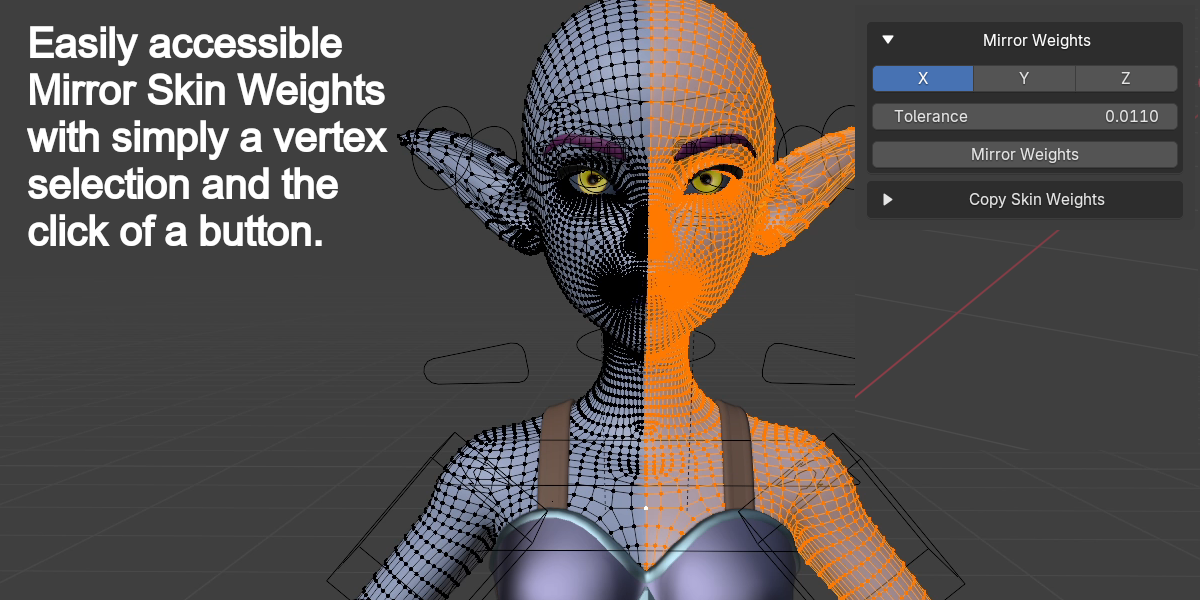
The Mirror Weights function copies weights from selected vertices to vertices on the opposite side of the specified axis:
1. Expand the "Mirror Weights" section.
2. Choose the mirror axis (X, Y, or Z).
3. Set the tolerance (how precisely vertices need to match across the axis).
4. Click "Mirror Weights".
The addon will automatically handle bone name mirroring (e.g., "arm.L" to "arm.R").
What is the Copy Skin Weights feature for?
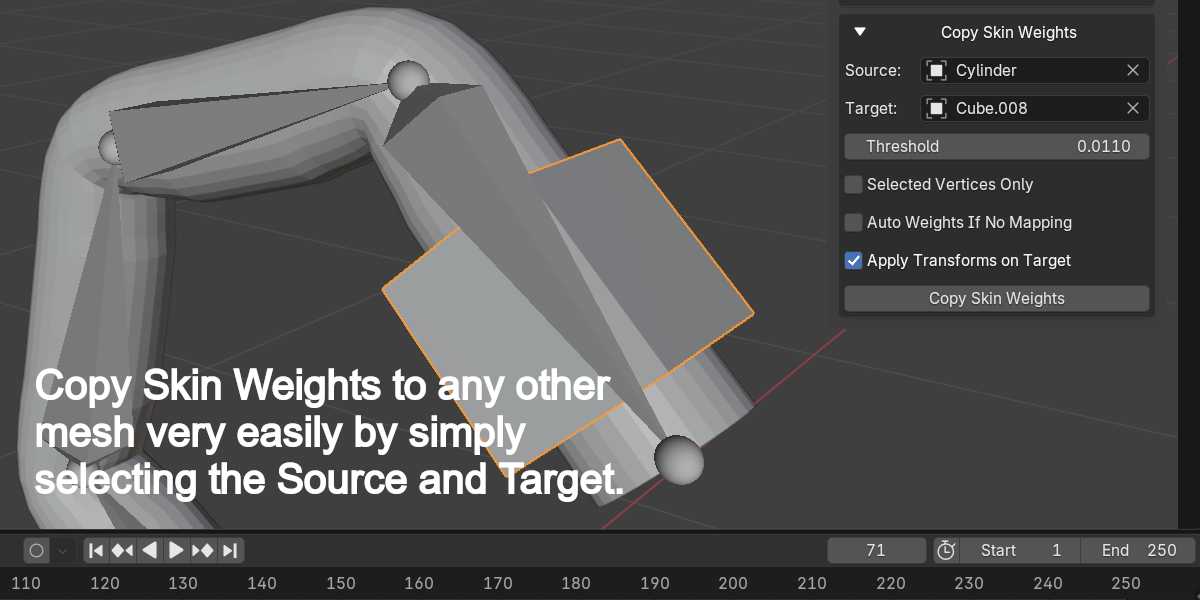
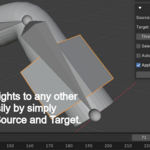
This feature allows you to transfer weights from one mesh to another:
1. Expand the "Copy Skin Weights" section.
2. Select a source mesh (the one with good weights).
3. Select a target mesh (the one to receive weights).
4. Adjust other settings as needed.
5. Click "Copy Skin Weights".
What are the transfer modes in Copy Skin Weights?
When you click "Copy Skin Weights", you'll be asked to choose between:
- Advanced: Uses a more precise vertex interpolation method (slower but more accurate).
- Fast: Uses Blender's built-in data transfer (faster but less precise).
Why are my weights not updating properly?
If the weights aren't updating as expected:
1. Try clicking "Start Tool - Force Update".
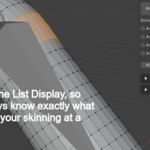
2. Make sure you have the correct bones selected in the Bones List.
3. Check if your mesh has an armature modifier properly set up.
4. Ensure your mesh is not in a deformed state when editing weights.
Why can't I see the bones list?
1. You have vertices selected.
2. The number of selected vertices is below the "Max Selected Verts" value.
3. The auto update is working (try clicking "Start Tool - Force Update").
Why aren't weights mirroring correctly?
Weight mirroring depends on:
1. Symmetrical mesh geometry (vertices should have matching positions across the mirror axis).
2. Consistent bone naming conventions (e.g., .L/.R, _L/_R, etc.).
3. Appropriate tolerance value (try increasing it if vertices aren't being matched).
Can I use this addon alongside Blender's built-in weight painting?
Yes! This addon complements Blender's weight painting tools. You can:
1. Use weight painting for broad strokes and overall distribution.
2. Switch to this addon for precise numerical adjustments.
3. Use both in combination for the best results.
During Copy Skin Weights, why aren't all weights transferring?
This could be due to:
1. Bone mapping issues (bones in source and target don't match well enough).
2. Distance threshold too low (try increasing it).
3. Mesh topology differences (very different meshes may need manual weight adjustments).
What does "Apply Transforms on Target" do?
When enabled, this option applies all transformations (location, rotation, scale) to the target mesh before copying weights. This is recommended for the Advanced transfer mode to ensure proper spatial alignment.
How do I copy and paste weights?
1. Select a source vertex (or vertices).
2. Click "Copy" to store its weights.
3. Select target vertices.
4. Click "Paste" to apply the copied weights to all selected vertices.
What does the "Hammer/Normalize Skin Weights" button do?
This applies an averaging operation similar to Maya's "Hammer Weights" tool. It averages the weights of selected vertices based on their neighboring vertices, which can help smooth out weight transitions. It also ensures weights are normalized.
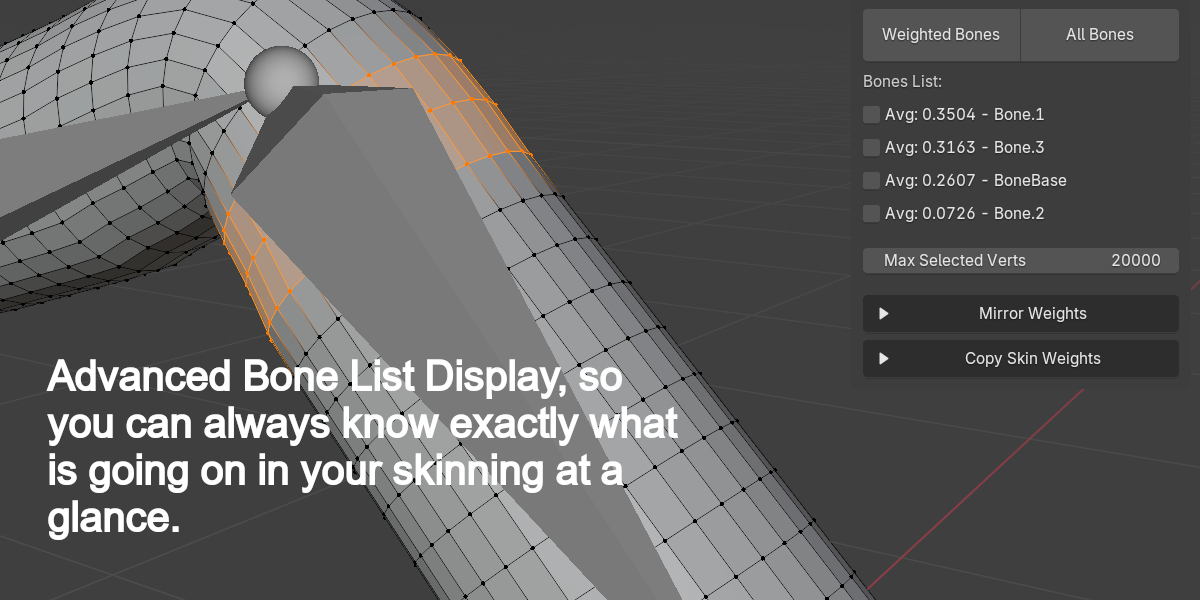
What's the difference between "Weighted Bones" and "All Bones"?
"Weighted Bones" shows only the bones that influence your selected vertices, sorted by weight
"All Bones" shows all vertex groups (bones) in the mesh, with weighted bones listed first
What happens when I increase weight for one bone?
When you increase weight for one bone, the addon automatically decreases weights for other bones to maintain the total weight of 1.0, which is necessary for proper deformation.
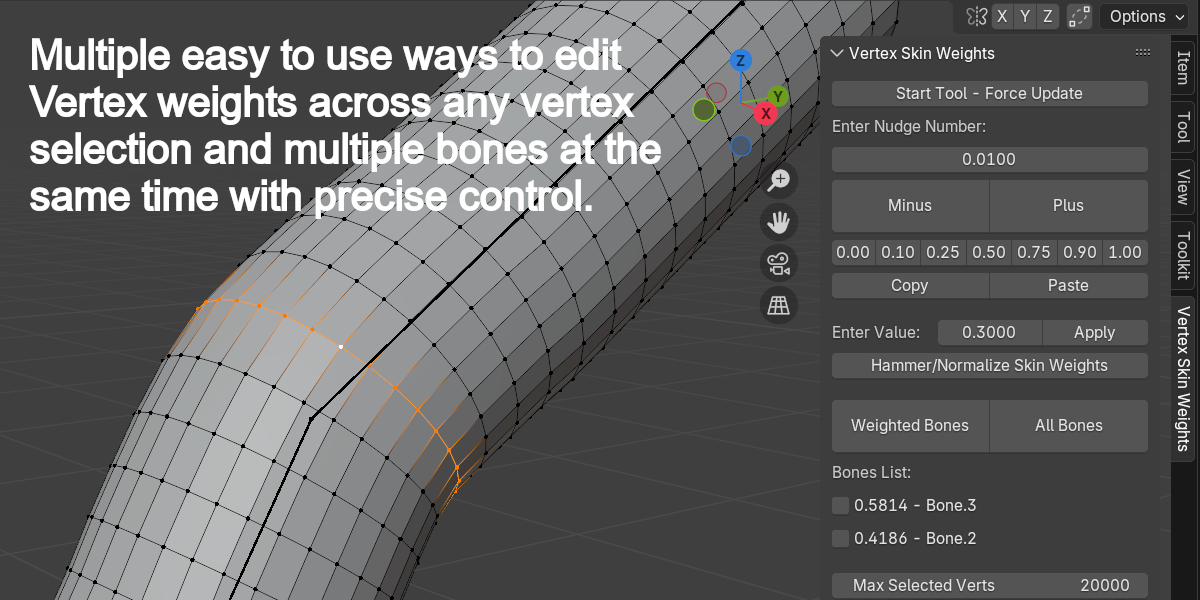
What is the "Nudge Value" for?
The Nudge Value (default: 0.05) determines how much weight is added or subtracted when you click the "Plus" or "Minus" buttons. You can adjust this value to make finer or larger weight adjustments.
How do I adjust weight values?
1. Select the vertices you want to edit.
2. In the "Bones List" section, select the bone(s) you want to adjust weights for.
3. Use the "Plus" or "Minus" buttons to nudge the weight values.
4. OR use the numbered buttons (0.00, 0.10, etc.) to set specific weight values.
5. OR enter a custom value and click "Apply".
How many vertices can I edit at once?
By default, the addon can process up to 20,000 selected vertices at a time. You can change this limit with the "Max Selected Verts" setting at the bottom of the panel.
What does the "Start Tool - Force Update" button do?
This button ensures the addon's automatic update functionality is working correctly. It:
1. Enables the auto bone update timer (which updates the bones list when you select different vertices).
2. Turns on "On Cage" and "Edit Mode" settings for armature modifiers, which helps visualize weight changes.
Where do I find the addon's tools after installation?
The addon's tools appear in the 3D View's Sidebar. Press N to open the sidebar, and look for the "Vertex Skin Weights" tab.
What is the Vertex Skin Weights UI addon?
The Vertex Skin Weights UI addon is an advanced tool for precise control over vertex weight skinning in Blender. It provides enhanced tools for rigging workflows, allowing you to make fine adjustments to how vertices are weighted to bones in an armature.