 3D Mage


Installation Instructions
You will see two zip files:
- Vertex_Volumes.zip
DO NOT UNZIP THE FILE!
Follow the installation instructions according to your version of Blender:
Blender 4.5 +
- Go to Edit > Preferences.
- Click the Add-ons tab.
- Click the Add-ons Settings button on the top right corner of the window.
- Click Install from Disk
- Select Vertex_Volumes.zip and then click Install from Disk.
- Click Install from Disk
- Save your preferences.
Quick Start Guide
- In Object Mode, open the Vertex Volumes Side Panel menu by clicking the Vertex Volumes tab.
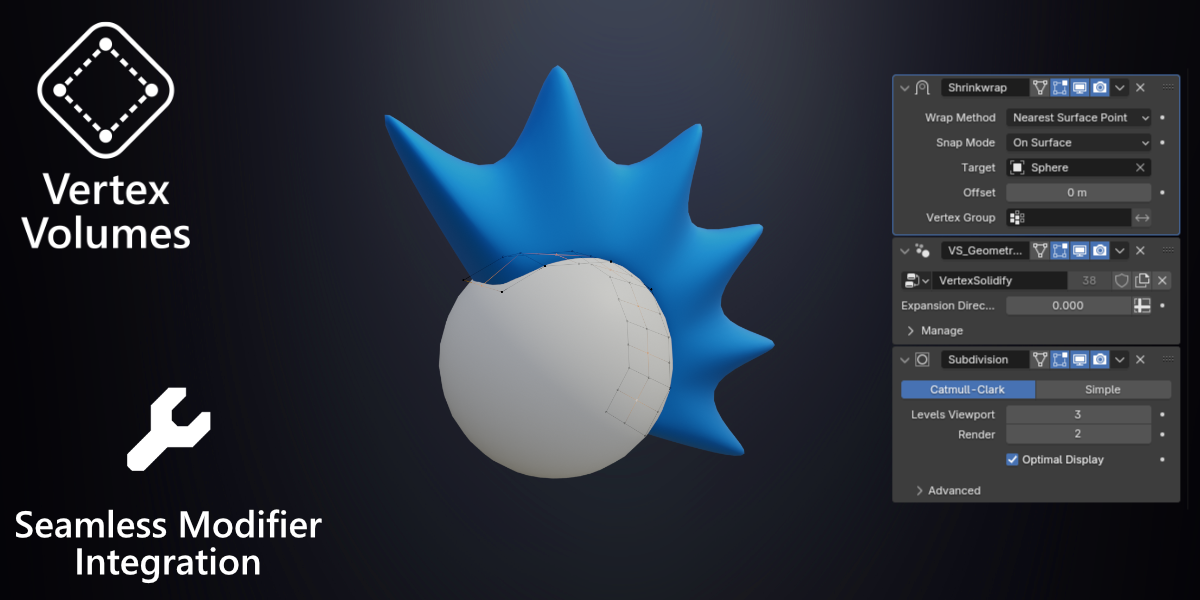
- Click Create Vertex Volumes Object to create a new object with the Vertex Volumes Geometry modifier. Alternatively, you can select an existing object and add the the Vertex Volumes Geometry Modifier to its modifier stack. Make sure it is selected
(TIP: Make sure the object is planar. Solid objects don't do well with this add-on). - Go to Edit Mode:
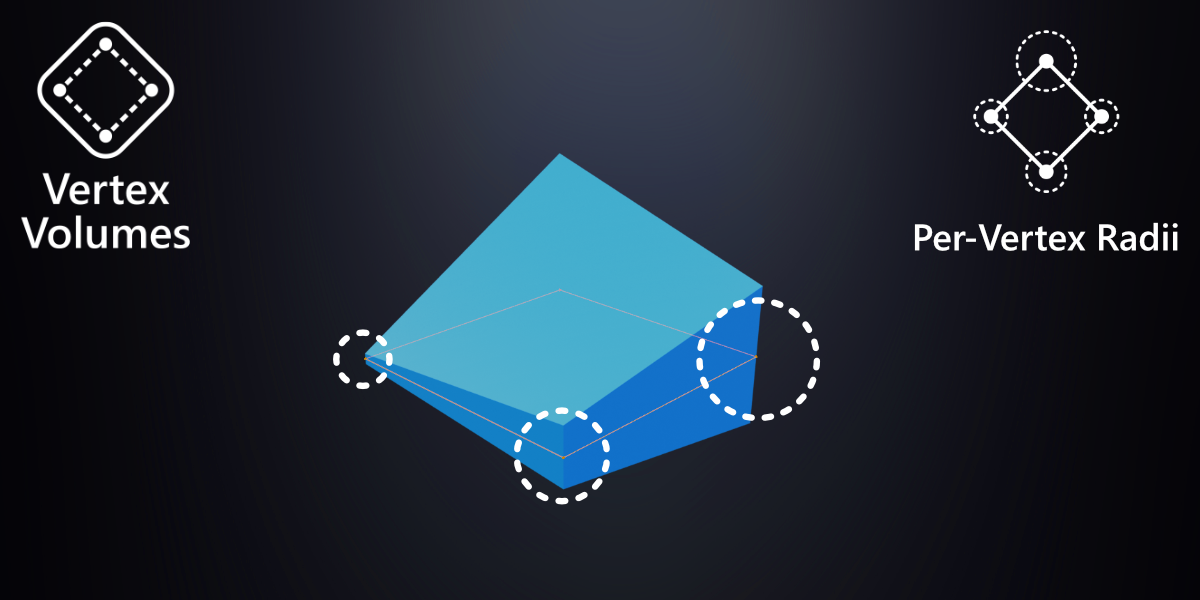
- Press Shift + R on selected vertices to enter Radius Mode:
- Move mouse right to increase radius.
- Move mouse left to decrease radius.
- Left-click or press Enter to confirm.
- Right-click or press Esc to cancel.
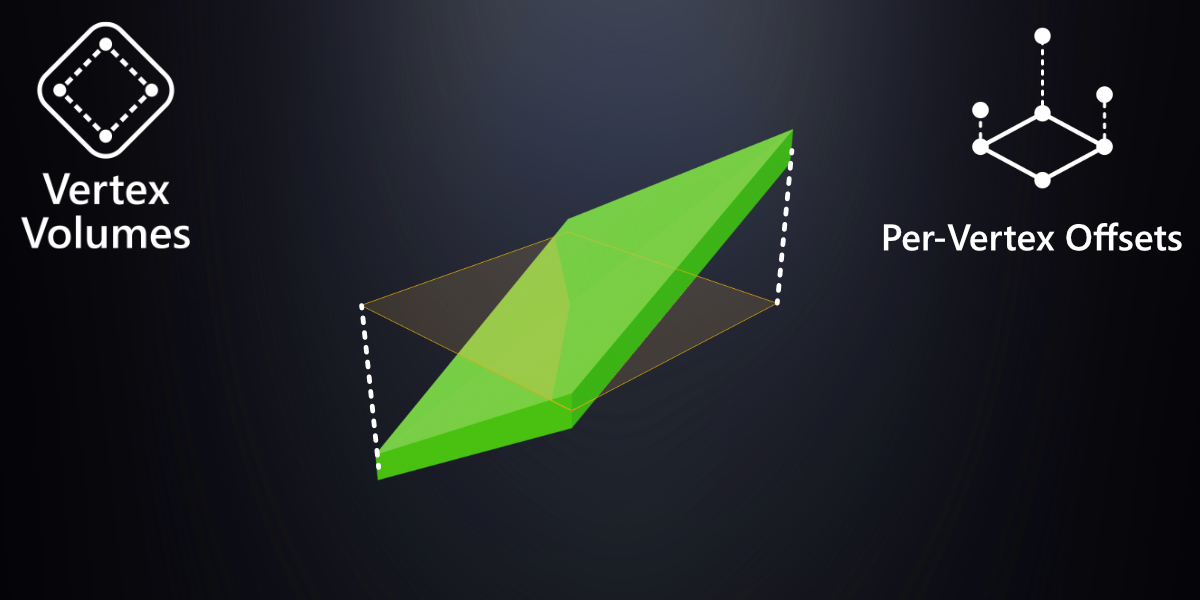
- Press Shift + T on selected vertices to enter Offset Mode:
- Move mouse right to increase offset.
- Move mouse left to decrease offset.
- Left-click or press Enter to confirm.
- Right-click or press Esc to cancel.
- Move mouse right to increase offset.
- Press Shift + R on selected vertices to enter Radius Mode:
Have questions about this product?
Login to message
| Blender Extension Compatible | Yes |
| Sales | 100+ |
| Dev Fund Contributor | |
| Published | over 1 year ago |
| Blender Version | 4.5 - 5.2 |
| Extension Type | Add-on |
| License | GPL |
Discover more products like this
geometry-modifier solidify-modifier per-vertex-volumes blender modifier detailing Solidify vertex 3D model detailing volumes modifier vertex-volumes