 Mahrkeenerh



Straightforward Vertex Color Workflow for Blender - Direct access to powerful vertex painting tools
Welcome!
VertX Artist is a fully-featured addon with a dedicated workflow. If you're new, some features might take a moment to learn, but it is well worth the effort!
Questions? Issues? Feature Ideas? → GitHub Issues
Installation
Standard Blender addon installation:
- Download the addon .zip file
- In Blender: Edit > Preferences > Add-ons > Install from Disk
- Select the downloaded .zip file
- Enable "VertX Artist" in the addon list
Core Features
Channel-Based Color Layers
Perfect for game engines where RGB stores color and Alpha stores data (roughness, metallic, AO, etc.)
- Separate RGBA into individual channels (R, G, B, A, RGB, RG, RB, GB, RGBA)
- Paint directly on specific channels
- Extract and bake alpha layers independently

- Gamma correction - Blender gamma color transformation, from Raw to Standard
- Inverse correction - Inverse correction, from Standard to Raw
Object Color Adjustment & Refresh
Quickly recolor entire objects or adjust color-coded parts
- Refresh to detect all colors
- Click any color to select all geometry with that color
- Adjust colors directly - changes propagate to all instances of that color
- Checkpoint system creates manual undo-steps for color adjustments
Important: VertX Artist automatically updates when you work within the addon. If you make changes outside VertX Artist (native Blender tools, other addons, etc.), hit Refresh to update. Refresh is manual for external changes because it's computationally expensive on large models.
HSV Adjustment Tools
Recolor objects without manual repainting - shift entire color schemes
- Shift Hue, Saturation and Value on selected geometry
- Incremental adjustments with +/- buttons
- Perfect for quick recoloring and color variations
Selection by Color
Select all geometry with a specific color
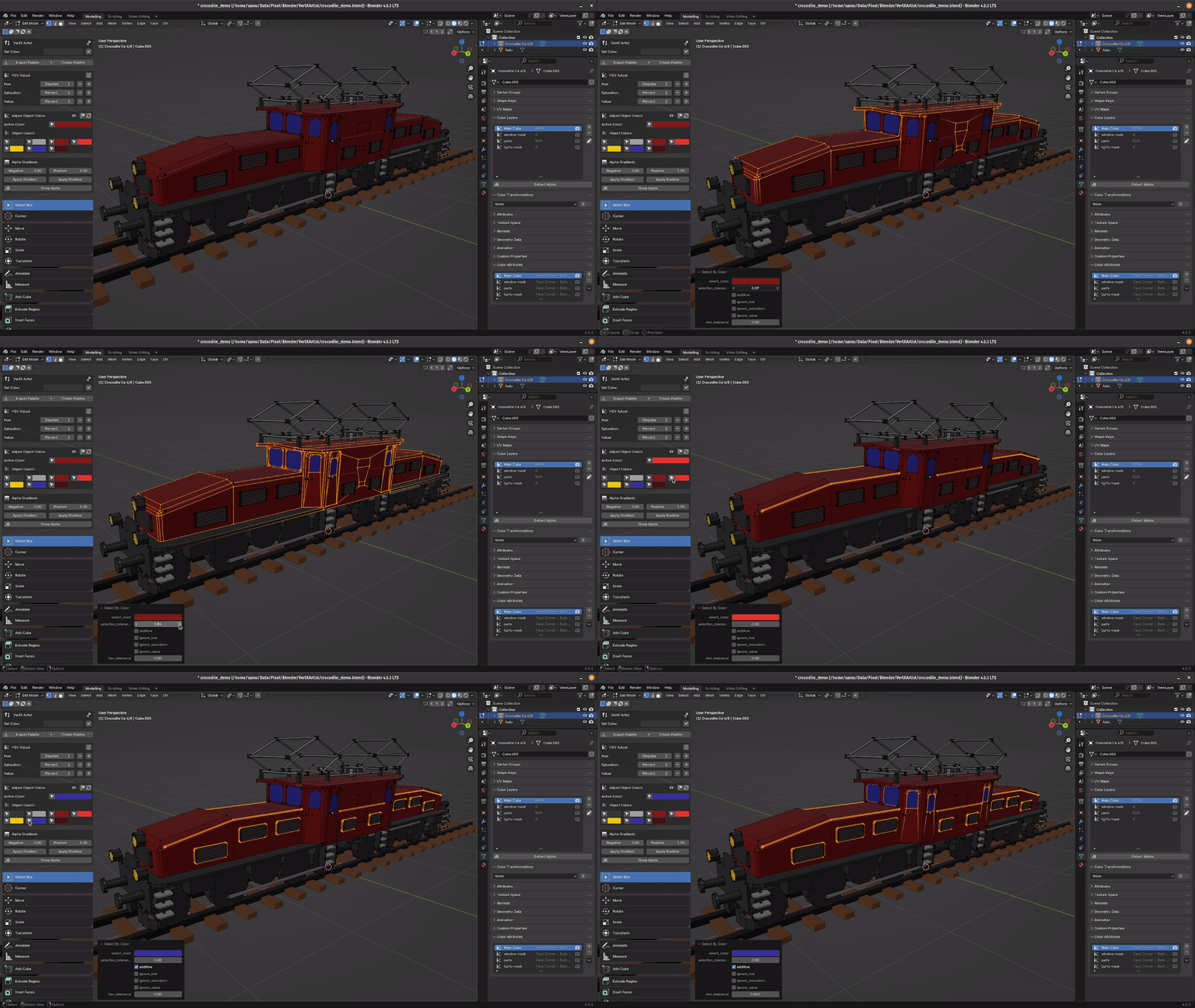
- Select vertices/faces by color with tolerance control
-
HSV Ignore: Select similar colors by ignoring specific channels
- Example: Ignore Saturation & Value to select all "red" vertices
- Tolerance: How much of a vertex's corners must match the color (vertices can have multiple colors per corner)
- Additive selection mode for complex selections
Photoshop-Like Color Transformations
Non-destructive color adjustments with preview
- Layer-based transformation stack (similar to Photoshop adjustment layers)
- Preview changes with material system before applying
- Blend modes: Mix, Multiply, Screen, Overlay, Add, and more
- Apply stack to create new permanent color layer
Note: Transformations are preview-only until you apply the stack.
Alpha Gradients
Create fade effects, useful for asset shading
- Create alpha gradients
- Set Negative/Positive axis values for gradient range
- Works in Edit mode on multiple objects simultaneously
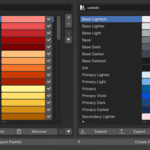
Color Palettes
Maintain consistent color schemes across projects or different software
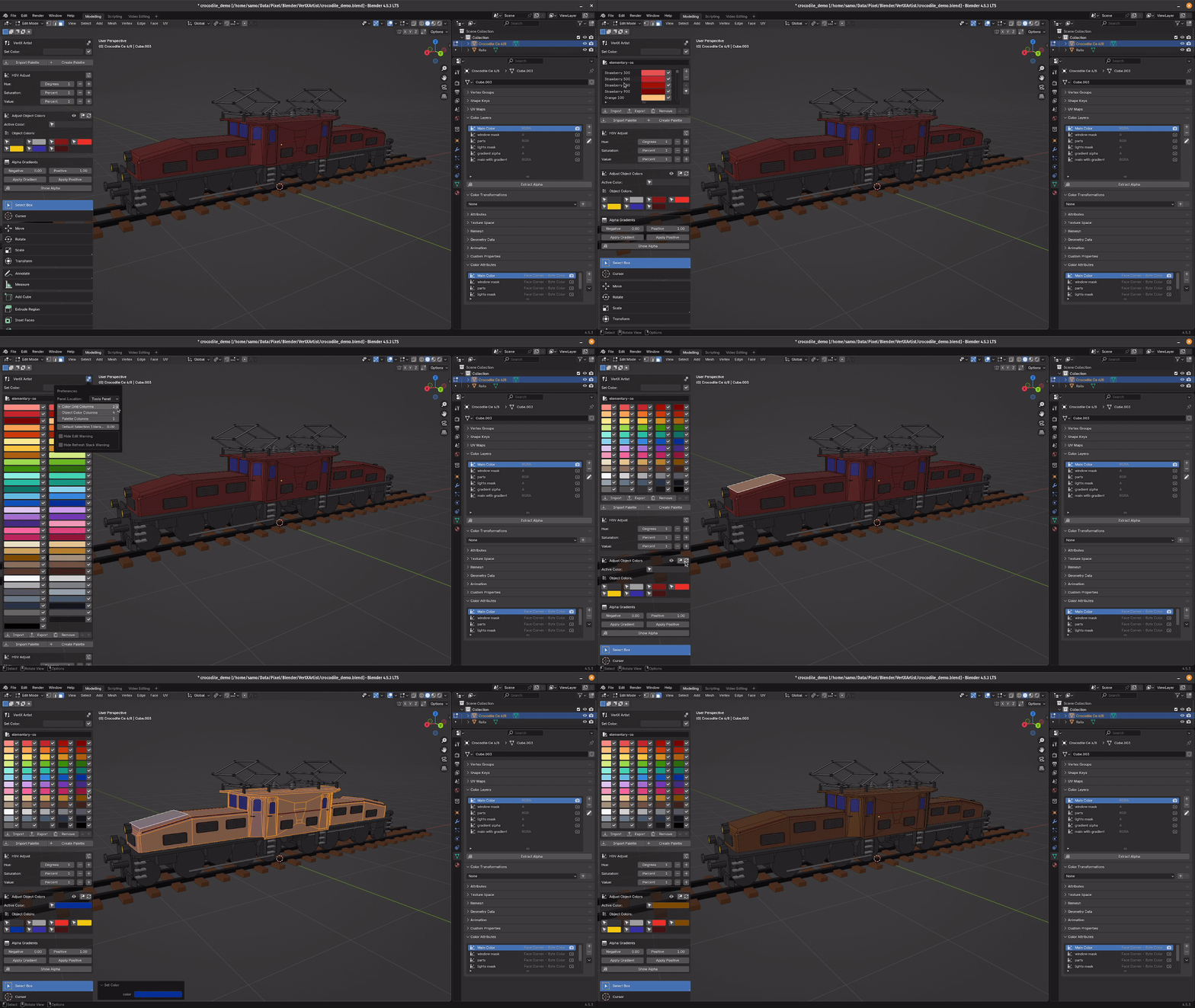
- Import: .ccb (ColorCombo), .gpl (GIMP), .colors (Unity)
- Export palettes to share across projects or software
- Create and manage custom palettes directly in Blender
Enhanced Eyedropper
Sample colors from anywhere in your Blender viewport
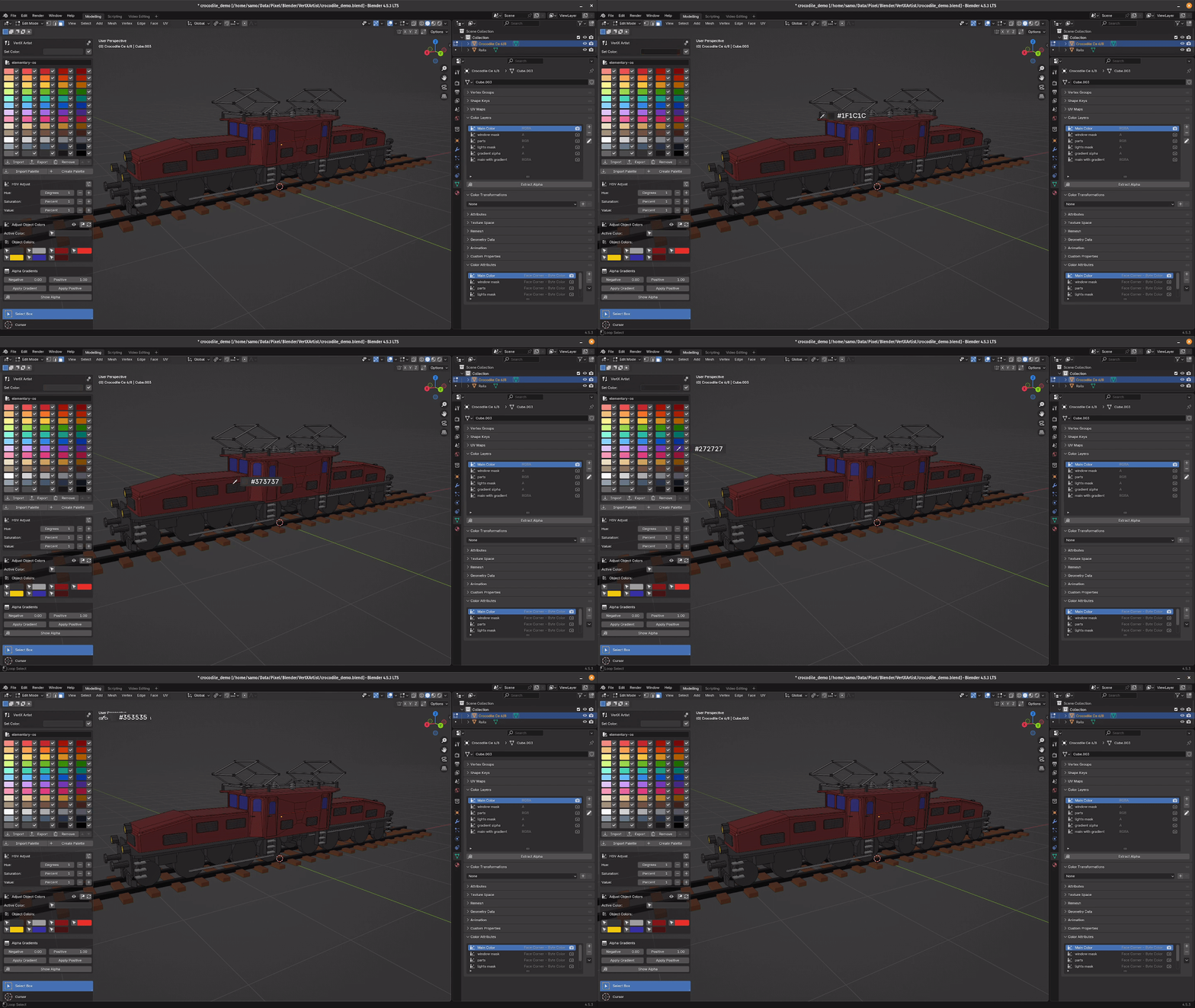
- Sample colors from anywhere in Blender viewport (not just painted geometry)
- Automatically copies hex code to clipboard (Windows/MacOS)
- Click while sampling to select all geometry with that color
- Shortcut: Alt+Shift+S (customizable in preferences)
Important Workflow Notes
- Refresh Colors: Always hit Refresh if you see unexpected behavior or after making changes outside VertX Artist. Operations within VertX Artist auto-update, but external changes require manual Refresh.
- Checkpoint: Creates manual undo-steps for color adjustments. Takes some getting used to, but very useful for saving color states during your workflow, since regular color changes are not tracked by Blender's undo system.
- Layer Override: Available to manually edit channel assignments if needed (use with caution).

Community & Support
Questions? Issues? Feature Ideas? → GitHub Issues
