 maxvfx


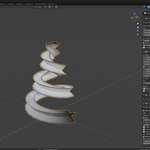
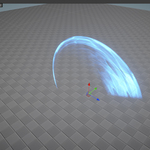
VFX Mesh Generator Pro Documentation
Thank you for using VFX Mesh Generator Pro.
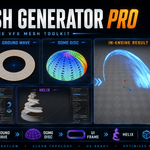
This add-on is designed to help game VFX artists quickly create optimized mesh assets for real-time effects in Blender. It is especially useful for creating slash arcs, shockwave rings, beams, trails, dome shields, disks, helix meshes, and other common game VFX shapes.
Installation
1. Download the add-on ZIP file.
2. Open Blender.
3. Go to Edit > Preferences > Add-ons.
4. Click Install.
5. Select the downloaded ZIP file.
6. Enable VFX Mesh Generator Pro from the add-on list.
7. The tool panel will appear in the Blender interface.
Basic Workflow
1. Open Blender and create or open a scene.
2. Open the VFX Mesh Generator Pro panel.
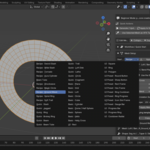
3. Choose the mesh type you want to create.
4. Adjust the available settings such as width, height, radius, segment count, UV flow, or shape options.
5. Generate the mesh.
6. Use preview helpers to check the shape, UV direction, and vertex alpha flow.
7. Export the mesh for use in Unity, Unreal Engine, or another real-time engine.
Main Mesh Types
Slash Mesh
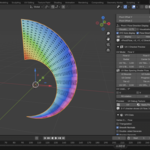
Used for sword slashes, magic arcs, crescent attacks, stylized trails, and fast motion effects.
Shockwave / Ring Mesh
Used for ground impacts, circular shockwaves, aura rings, spell circles, and expanding radial effects.
Beam / Trail Mesh
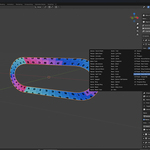
Used for laser beams, energy trails, projectile trails, motion streaks, and stretched FX shapes.
Dome / Shield Mesh
Used for shield effects, barrier effects, magical domes, protective fields, and spherical impact visuals.
Disk Mesh
Used for flat impact decals, circular ground effects, UI-style FX meshes, and radial texture animation.
Helix Mesh
Used for tornado effects, spiral magic effects, energy coils, and twisting motion-based VFX.
UV and Flow Controls
Many VFX effects rely on animated textures. This add-on provides UV and flow-related controls to help prepare meshes for shader-based animation.
Use UV direction and flow options to control how textures move across the mesh. You can use these settings with scrolling textures, dissolve shaders, distortion maps, gradient masks, and other real-time VFX materials.
Vertex Alpha
Vertex alpha can be used for fade, dissolve, masking, edge softness, flow control, and shader-driven effects.
When using vertex alpha, make sure your engine shader or material reads vertex color alpha properly. The final appearance depends on your shader setup in Unity, Unreal Engine, or your target engine.
Preview Helpers
Preview helpers are included to make the mesh easier to inspect while working in Blender.
Depending on the tool settings, you can check mesh direction, UV flow, alpha gradients, and general production readability before exporting.
Export Notes
This add-on creates mesh assets inside Blender. After generating a mesh, you can export it using Blender’s standard export options such as FBX, OBJ, or other formats supported by your workflow.
For Unity and Unreal Engine workflows, always check:
- Object scale
- Mesh orientation
- Pivot position
- UV layout
- Vertex color data
- Material setup in the engine
- Import scale settings
Recommended Use Cases
- Magic slash effects
- Sword trails
- Shockwave rings
- Ground impact effects
- Shield and dome effects
- Beam and laser meshes
- Tornado and helix effects
- Stylized UI FX meshes
- Mobile-friendly game VFX meshes
- Real-time VFX prototyping
Compatibility
This product is designed for Blender 4.x workflows.
Recommended tested version:
Blender 4.2 or later.
If you are using a different Blender version, please test the add-on in your environment before using it in production.
Important Notes
VFX Mesh Generator Pro generates mesh assets inside Blender. It does not automatically create final Unity or Unreal Engine materials, shaders, particle systems, or complete engine-side VFX projects unless those files are specifically included in the product package.
The final visual result depends on your material, shader, texture, particle system, lighting, and engine setup.
License Notes
You may use the meshes and assets created with this add-on in personal and commercial projects, including games, trailers, videos, cinematics, and client work.
You may not redistribute, resell, upload, share, repackage, or modify and resell the add-on files, source code, or any modified version of the add-on.
Support
If you experience an issue, please include the following information when contacting support:
- Blender version
- Operating system
- Add-on version
- Steps to reproduce the issue
- Screenshot or error message if available
This helps identify and fix problems faster.
Quick Start Recommendation
For first-time users, start with a simple Slash Mesh or Shockwave Ring. Adjust the segment count, UV direction, and vertex alpha settings, then export the result to your game engine and test it with a scrolling texture or dissolve shader.
Have questions about this product?
Login to message

Discover more products like this
Unreal Engine blender addon realtime uv mapping game vfx vertex color VFX mesh-generator visual effects technical-art game development unity