Video HDRI Fast
 Creation Station Imagination




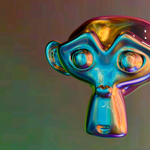
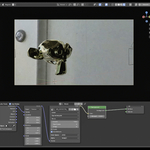
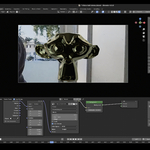
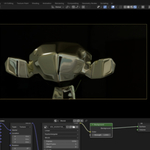
Video HDRI Pro Minimal: Quick Start Guide
1) Install the Add-on:
- Download 'video_hdri_pro.zip'.
- In Blender: Edit → Preferences → Add-ons → Install…
- Select the ZIP, enable 'Video HDRI Minimal'.
- 'Video HDRI' tab appears in N-panel.
2) Prepare Your 360° Video:
- Use an equirectangular HDRI video (.mp4, .mov).
- 4K max recommended for smooth playback.
3) Set Up the HDRI Environment:
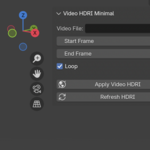
- Open 3D Viewport, press 'N' for side panel.
- Go to 'Video HDRI' tab.
- Controls: Video File, Start Frame, End Frame, Loop, Apply, Refresh.
4) Load the Video HDRI:
- Click folder icon → select video file.
- Set Start/End frame to match video length.
- Toggle Loop if needed.
- Click 'Apply Video HDRI.
5) Adjust & Refresh:
- Change Start/End/Loop → auto-refresh applies changes.
- Change Video File → click 'Refresh HDRI' manually.
6) Viewing & Rendering:
- Viewport: Switch to Rendered View in Cycles.
- Render normally — HDRI animates with scene.
Pro Tips:
- Lower video resolution for faster scrubbing.
- Cycles gives best lighting quality.
- Save different .blend scenes for multiple HDRIs.
$12
Have questions about this product?
Login to message
| Published | about 1 year ago |
| Blender Version | 4.3 - 4.5 |
| Extension Type | N/A |
| Render Engine Used | Cycles |
| License | GPL |

Discover more products like this
BlenderHDRI dynamic lighting video hdri 3D Environment HDRi 3d vfx Fast 360 degree lighting reflections Render VFX 3DWorldBuilding blender cinematic light