View Beacon
 Captain Pixel
Install and start
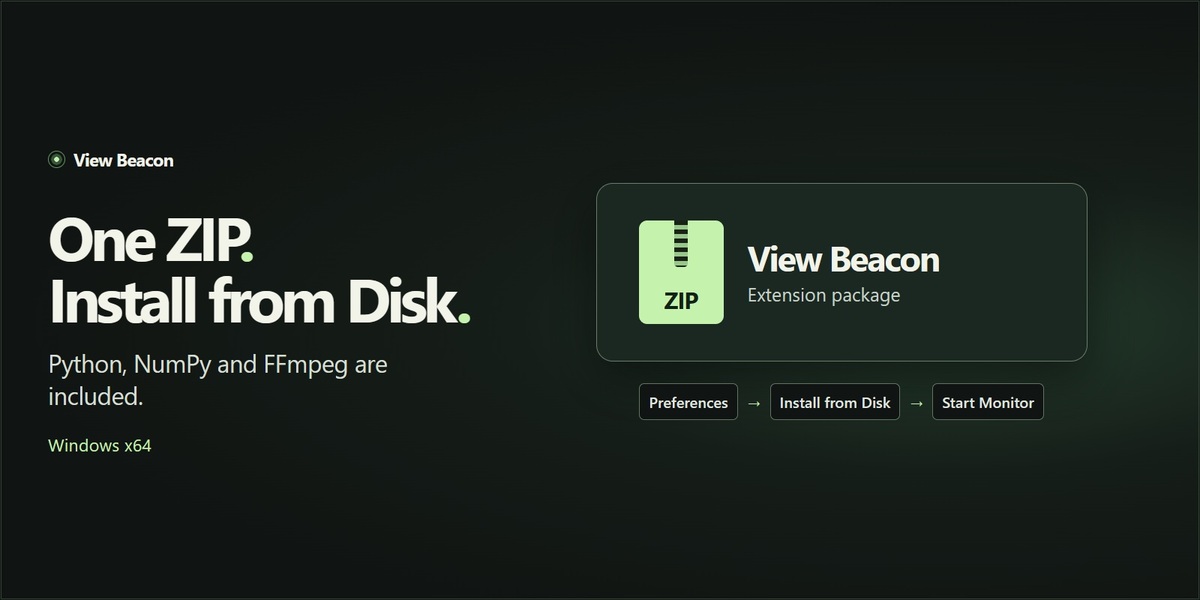
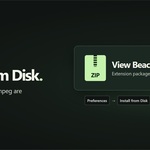
- In Blender, open Edit → Preferences → Get Extensions. From the upper-right menu, choose Install from Disk and select the downloaded View Beacon Windows x64 ZIP. Confirm the add-on is enabled.
- In the native Compositor, connect your result to a Viewer, make it active and enable Backdrop.
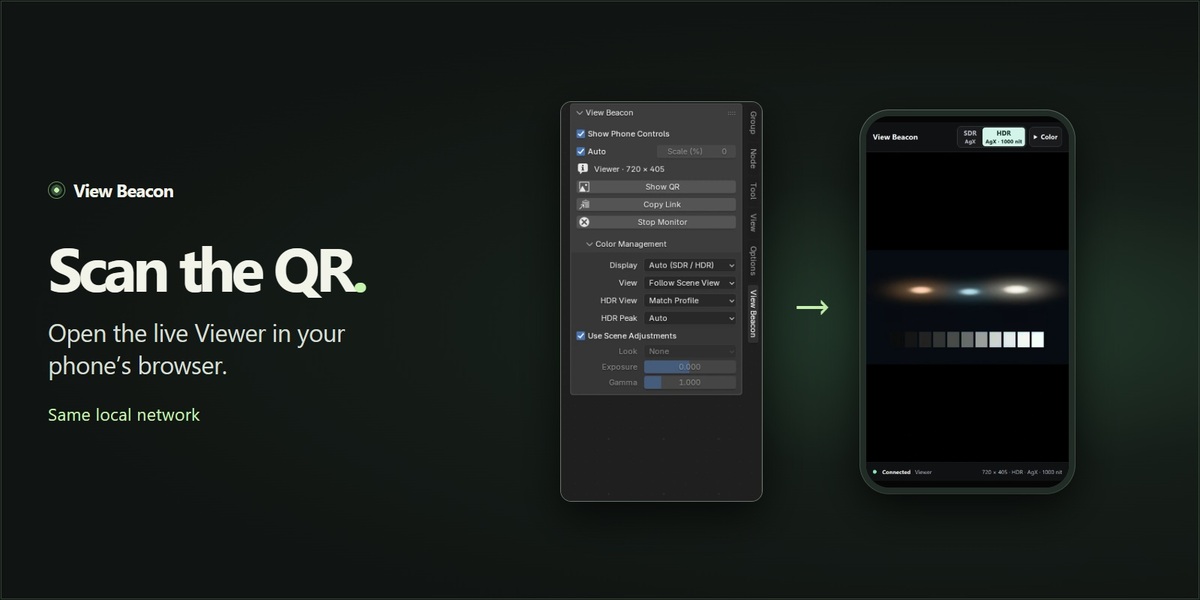
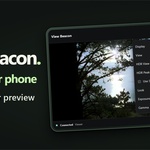
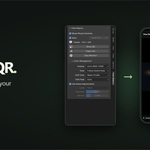
- Press N, open View Beacon and click Start Monitor → Show QR. Connect the phone to the same local network, scan the code and open the link in its browser. Copy Link also works.
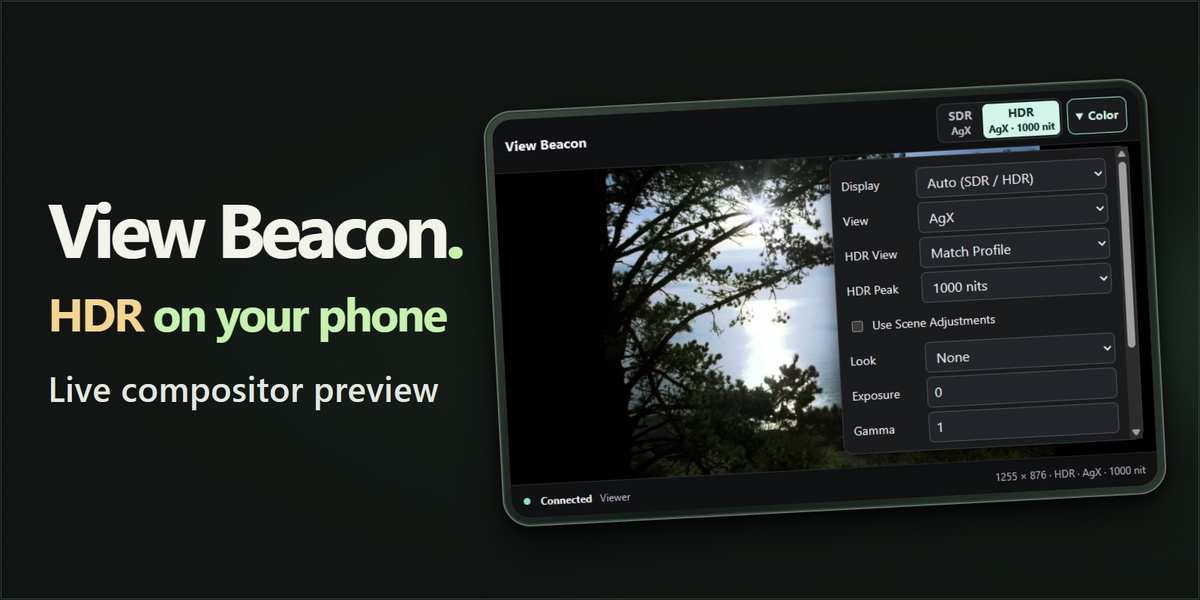
- In View Beacon’s Color Management, start with Display → Auto, View → AgX and HDR View → Match Profile. Tap HDR or SDR on the phone. Change a node feeding the Viewer to see the frame update. Click Stop Monitor when finished.
Adjust the preview
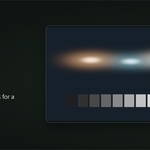
Change the View, Look, Exposure, Gamma, HDR Peak or frame scale from Blender. Browser color edits apply when you choose Apply. Turn off Show Phone Controls in Blender for an image-only view.
Connect on your local network
If Windows Firewall asks, allow the bundled Python companion on Private networks. With multiple network adapters, stop the monitor, set LAN IPv4 to an address the phone can reach, and start again. Pair using the new QR code or link.
Full setup guide and troubleshooting · Interactive SDR/HDR examples
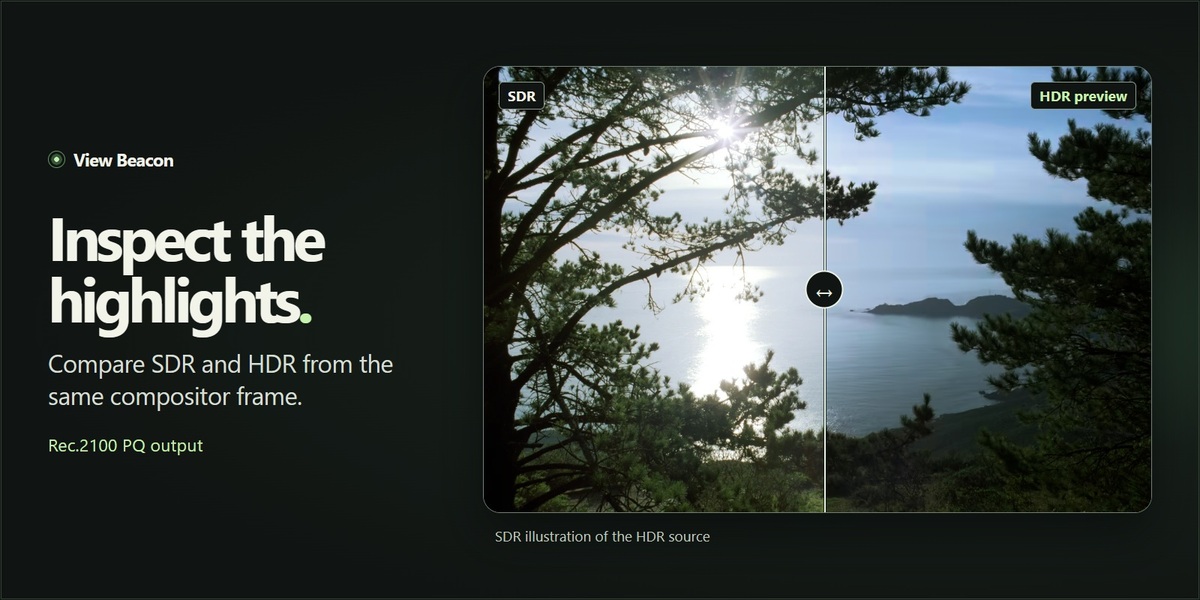
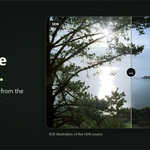
Gallery image credit: Ocean © 2004 Industrial Light & Magic, from the OpenEXR image collection. Image source and license notice.
Have questions about this product?
Login to message
| Blender Extension Compatible | Yes |
| Published | about 3 hours ago |
| Blender Version | 5.0 - 5.3 |
| Extension Type | Add-on |
| License | GPL |
Discover more products like this
hdr Compositing compositor render-preview mobile preview color management