 Darksteady. Studio
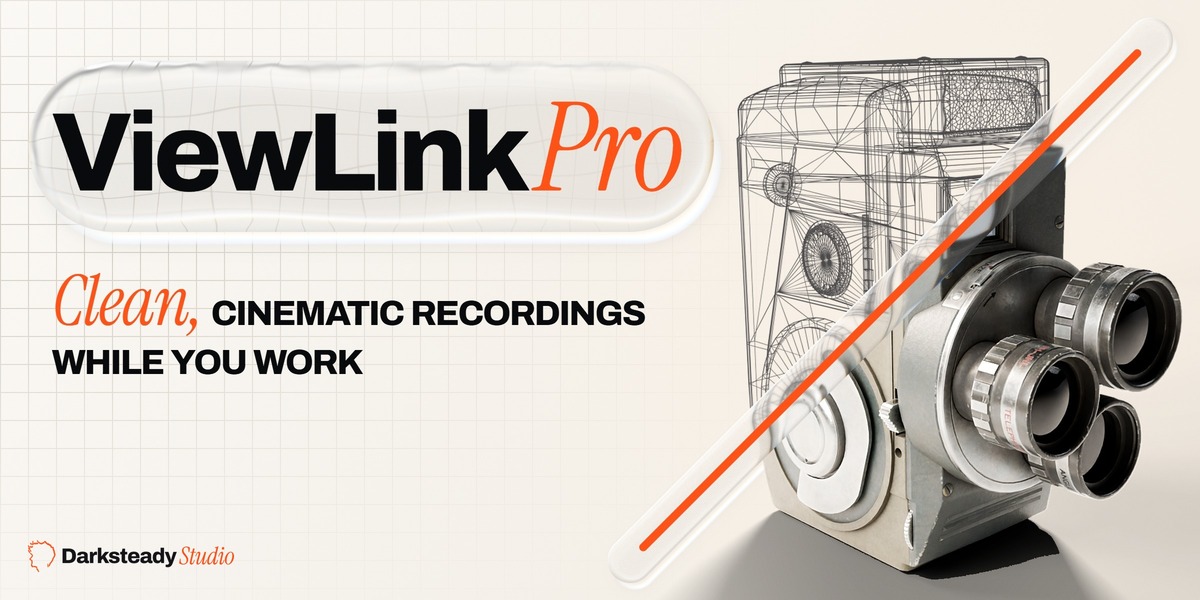

Work as messy as you like. Your recording stays calm.
A second, clean view of your model that follows the viewport you work in. Made for timelapses, tutorials and streams.
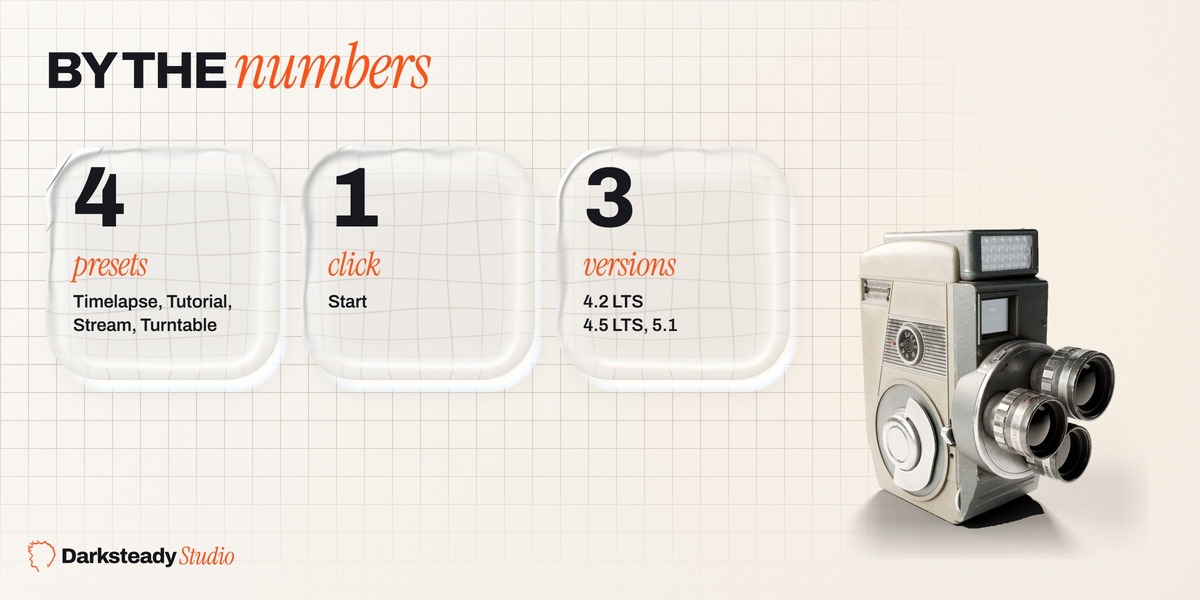
4
presets
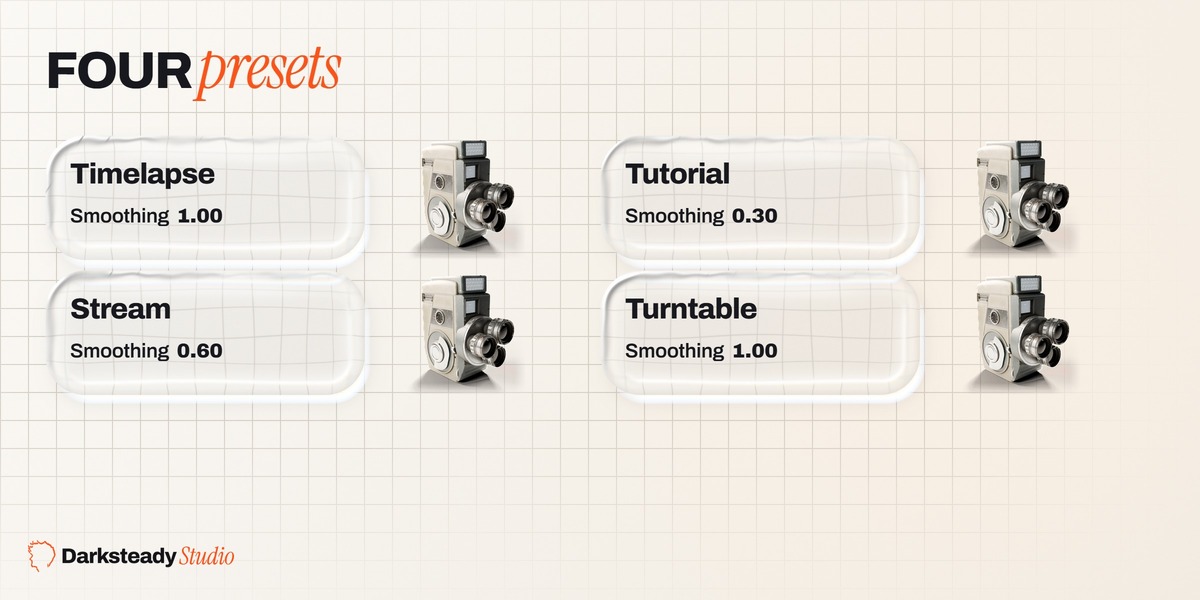
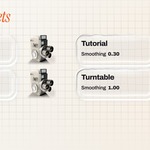
Timelapse, Tutorial, Stream, Turntable
3
formats
Landscape, Vertical, Square
1
click
Open Recording Window, ready for OBS
3
versions
Blender 4.2 LTS, 4.5 LTS, 5.1

1
Open the window
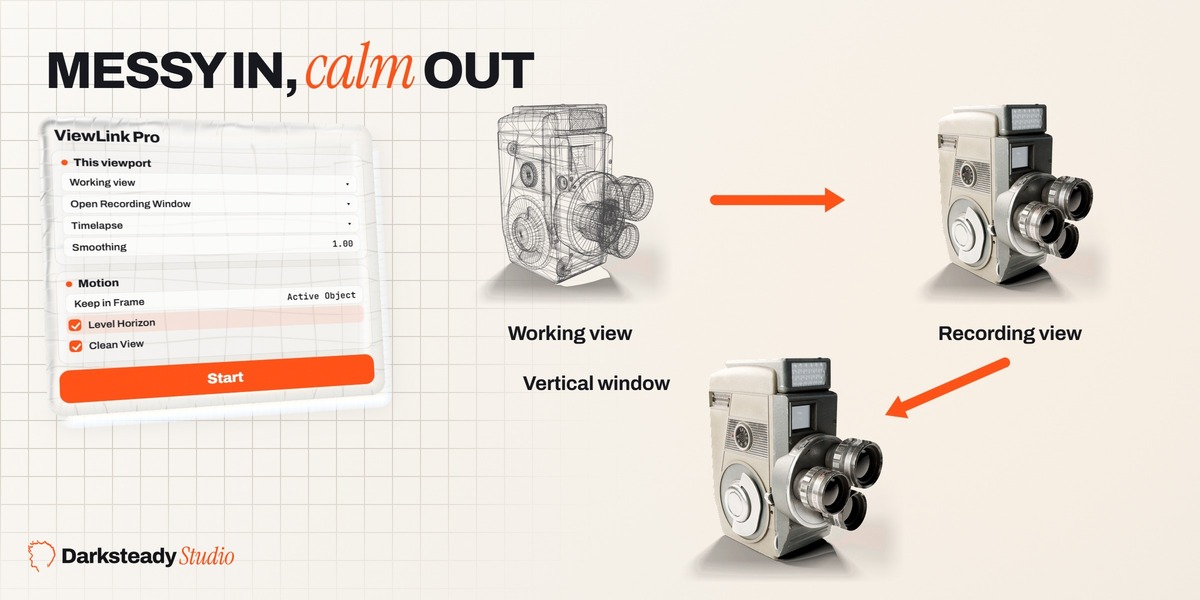
Press N, open ViewLink, click Open Recording Window.
2
Capture it in OBS
Window Capture, then record. No bars.
3
Work as usual
The recording follows with smooth, cinematic motion.
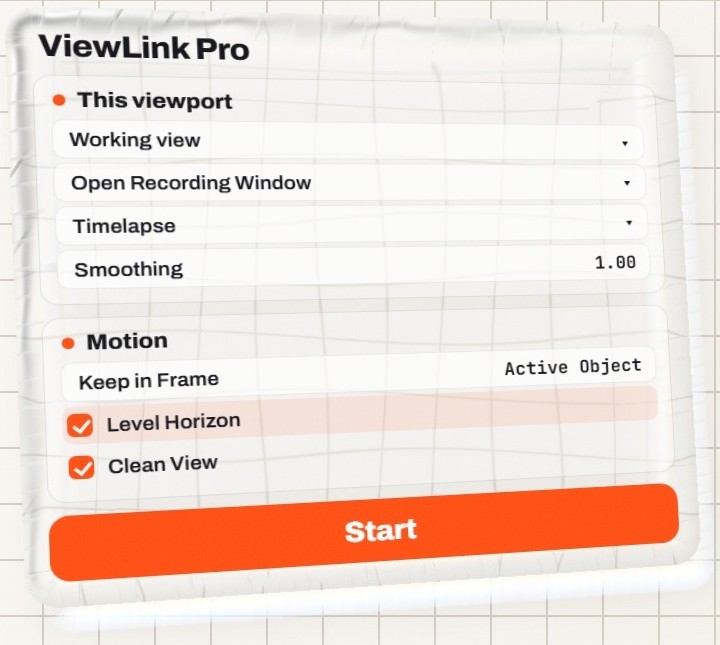
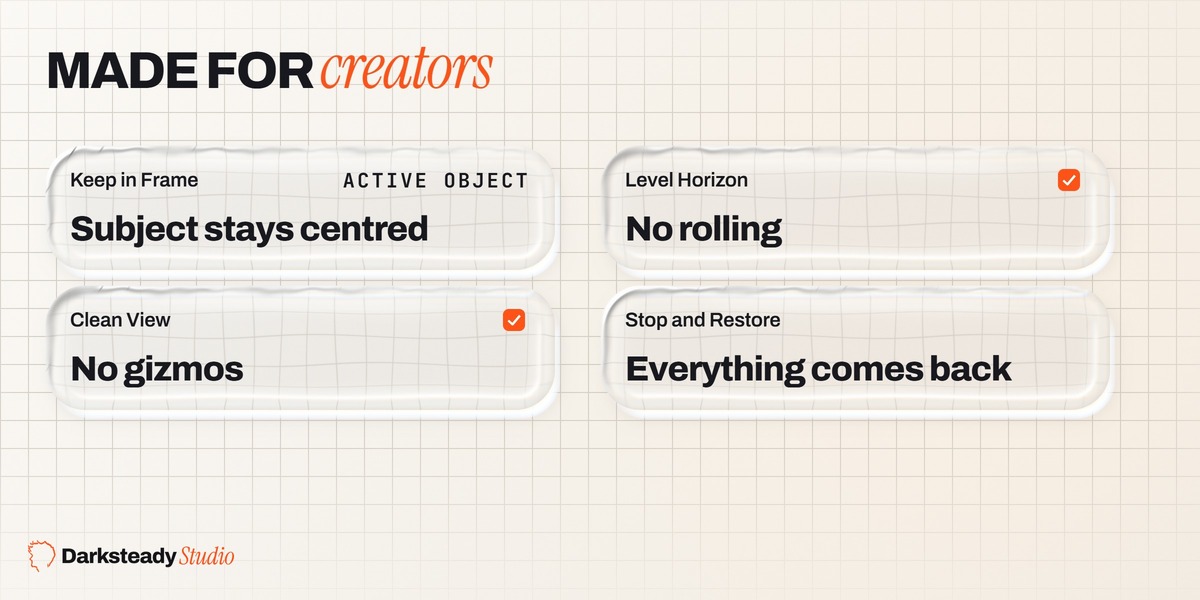
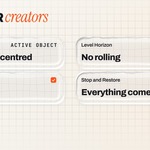
Keep in Frame
Holds your active object centred, even when you pan away.
Level Horizon
The recording never rolls.
Clean View
No overlays, grid or gizmos in the recording.

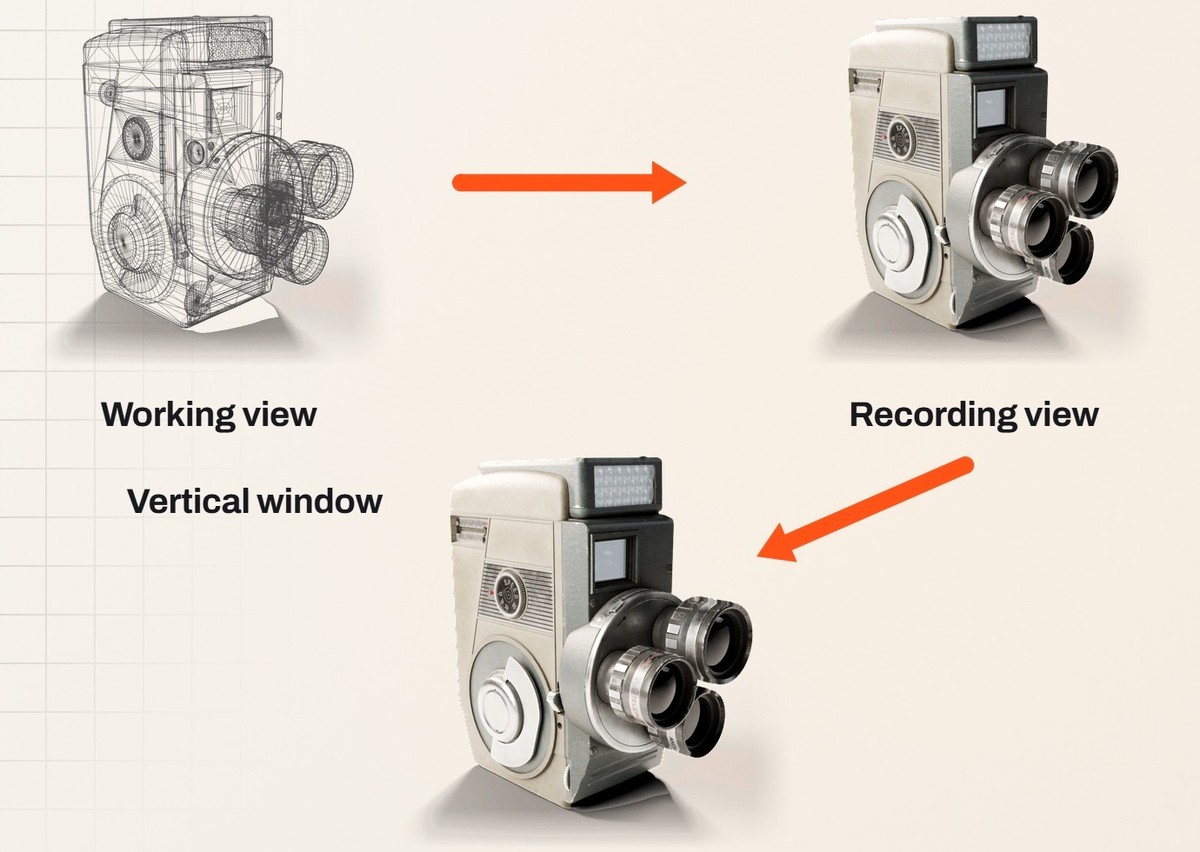
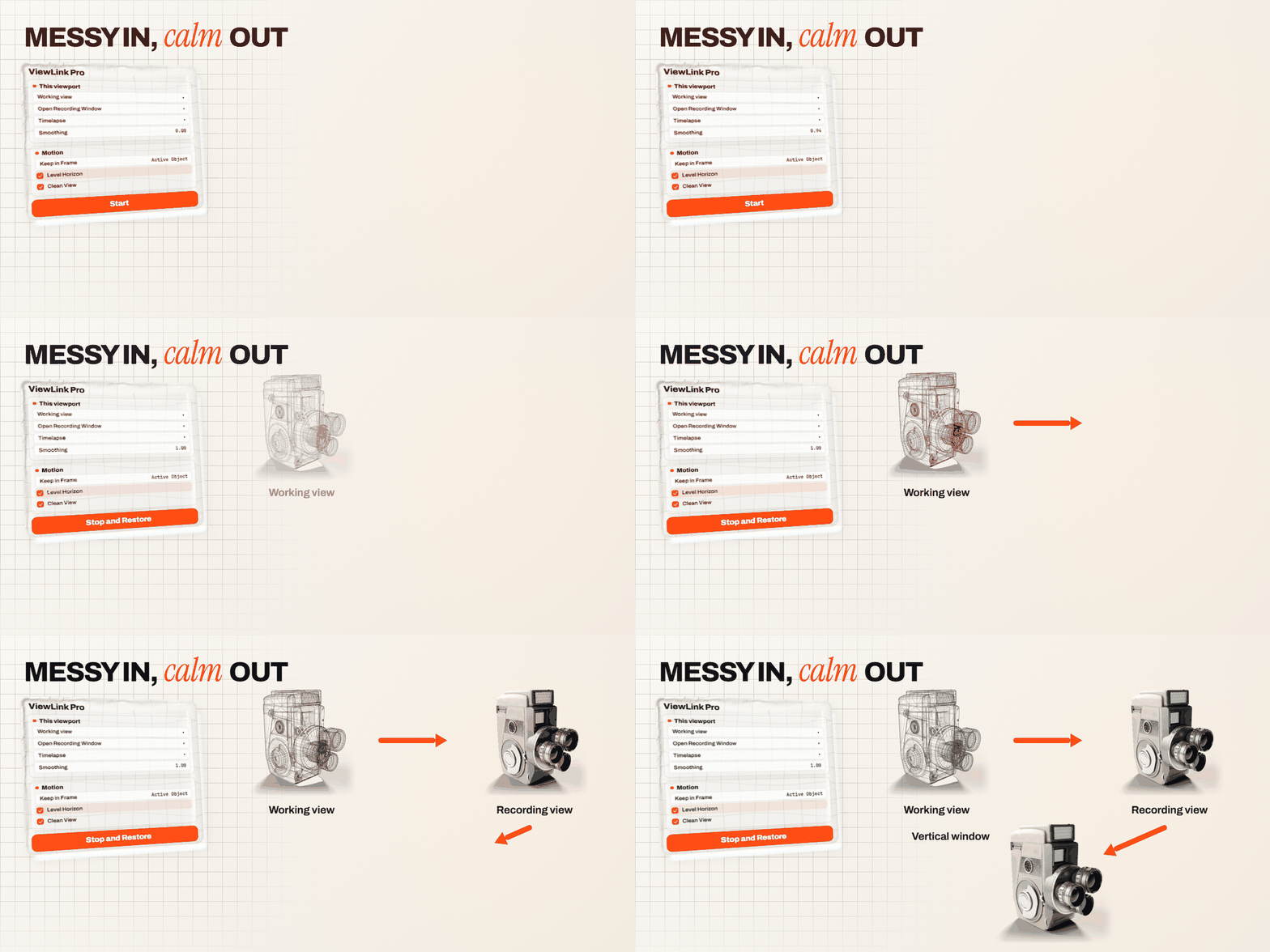
Messy in, calm out
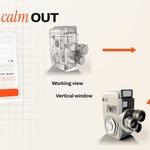
The Working view stays yours. The Recording view shows no wireframe, gizmos or sudden jumps.

Timelapse
Smoothing 1.00
Heavy, cinematic smoothing. Keeps the object in frame.
Tutorial
Smoothing 0.30
Close to your view, so viewers see what you do.
Stream
Smoothing 0.60
Smooth but responsive, in Material Preview.
Turntable
Smoothing 1.00
The recording orbits your model on its own.

Vertical for Shorts
A 1080 x 1920 window next to the landscape one. One session feeds both formats.
Work in wireframe
The recording keeps Solid or Material Preview. No flicker.
Stop and Restore
Every view gets its overlays, gizmos and shading back.
Your scene stays yours
Never touches your scene, camera or render settings.
Same at any frame rate
Motion looks the same at 30 or 144 fps.
Saved with the file
Roles stay put, Ctrl+Z never changes which view records.
Questions? Ask on this page, we answer within 72 hours. Made by Darksteady Studio.
