ViewStack – One-Click Orthographic Views
 Strates Digitales Labs
Installation
- Download viewstack-1.0.0.zip (do not unzip it).
- In Blender 5.2 or newer: Edit > Preferences > Get Extensions, open the menu at the top right, choose Install from Disk and pick the zip.
- Open the 3D Viewport sidebar (press N) and click the ViewStack tab.
Getting started
- Select the object (or objects) you want to show.
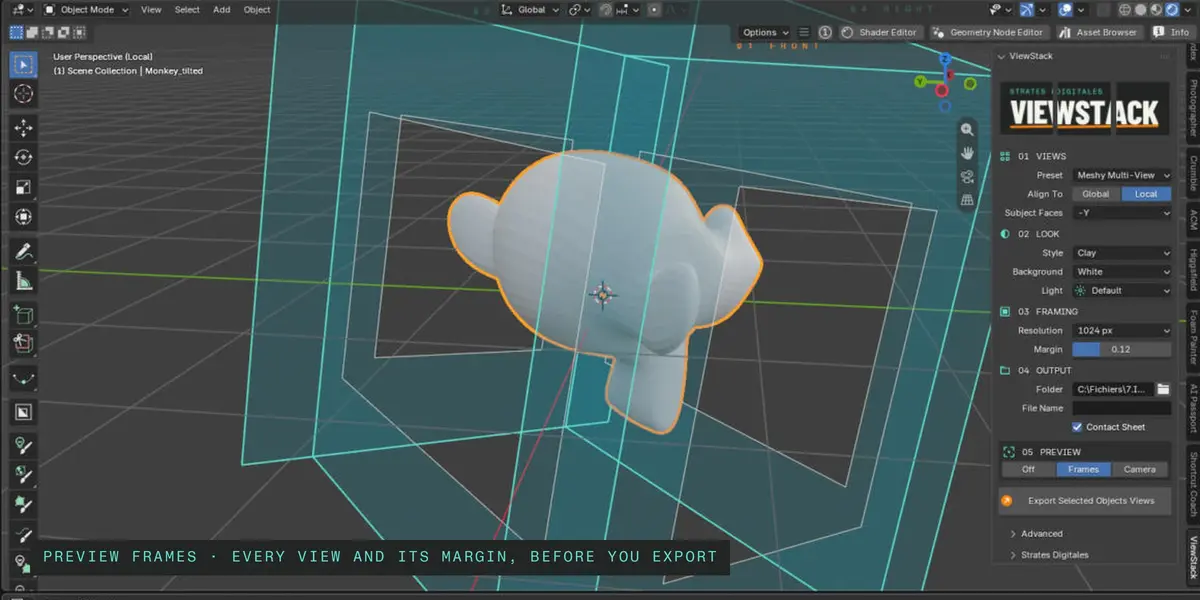
- Optional: in 05 Preview, click Frames to see every view and its margin, or Camera to look through each view.
- Click Export Selected Objects Views. The images are saved in the folder set in 04 Output (by default a viewstack folder next to your .blend). The progress shows in the status bar; Open Folder takes you to the files.
01 Views
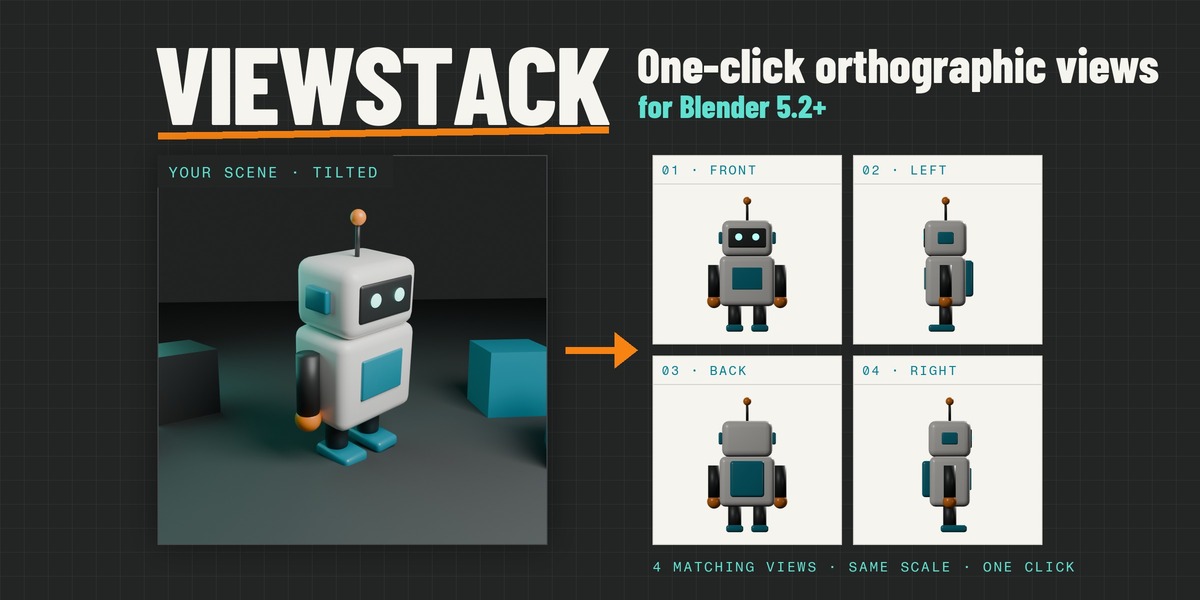
- Preset: Meshy Multi-View (front, left, back, right), Tripo Multiview (front 0°, left 90°, back 180°, right 270°), Generic 4 Views, Generic 6 Views (adds top and bottom) or Custom (any mix of front, back, left, right, top, bottom and a raised three-quarter view).
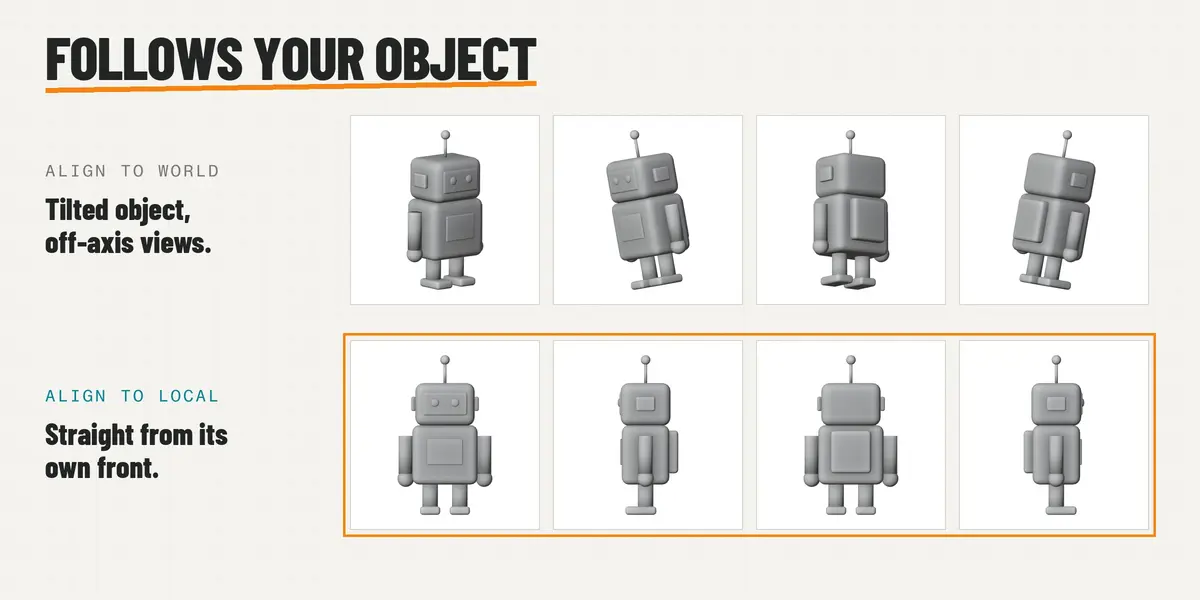
- Align To: Global uses the scene's axes, like Blender's numpad views. Local uses the active object's own axes, so an object rotated in your scene is still shot straight from its own front.
- Subject Faces: the axis your subject looks along (−Y is Blender's front convention; +Y, −X and +X are available). Left and right are always the subject's own left and right, the convention image-to-3D tools use.
02 Look
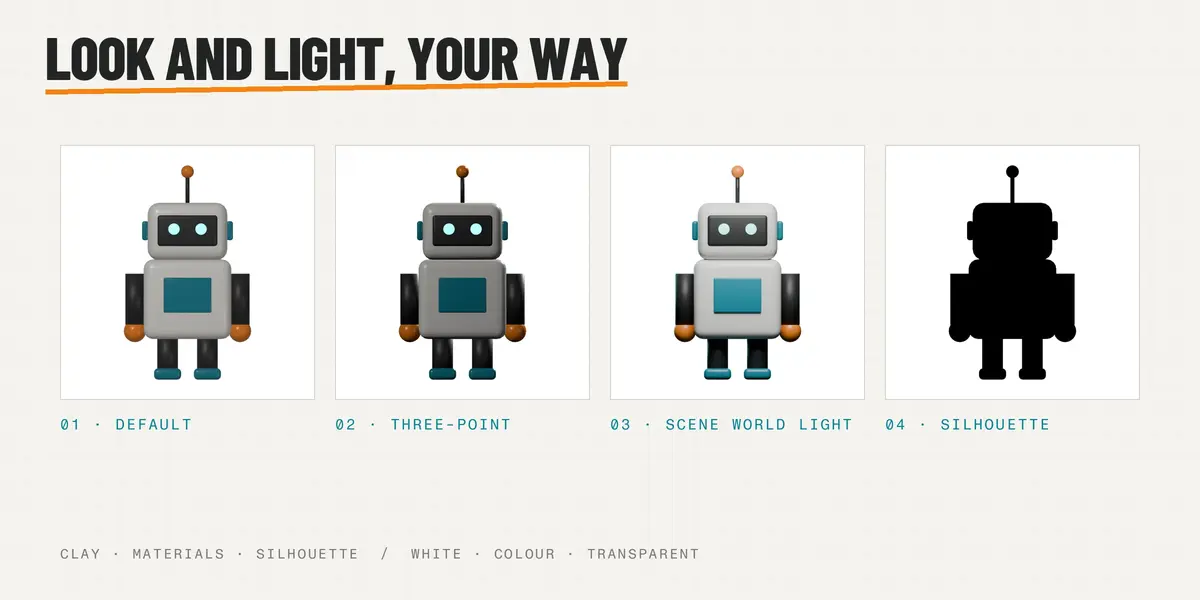
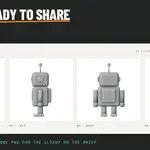
- Style: Clay (neutral grey, easy to read), Materials (your own materials) or Silhouette (flat black shape).
- Background: White, Custom Color (exactly the colour you pick) or Transparent (alpha).
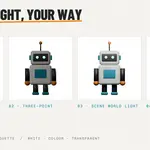
- Light: Default (soft light that follows the camera, every view lit the same), Three-Point (key, fill and rim), Scene World Light (your world, lamps, light probes and emissive objects, with your engine and quality settings; only the selection is visible) or Viewport Shading (the studio light, MatCap or HDRI you see in the viewport).
03 Framing
- Resolution: square images at 512, 1024 or 2048 px.
- Margin: empty space around the subject, identical in every view. All views share one scale, so proportions line up from one image to the next.
04 Output
- Folder and File Name (empty = the active object's name). Files are named name_front.png, name_left.png… in the preset's order.
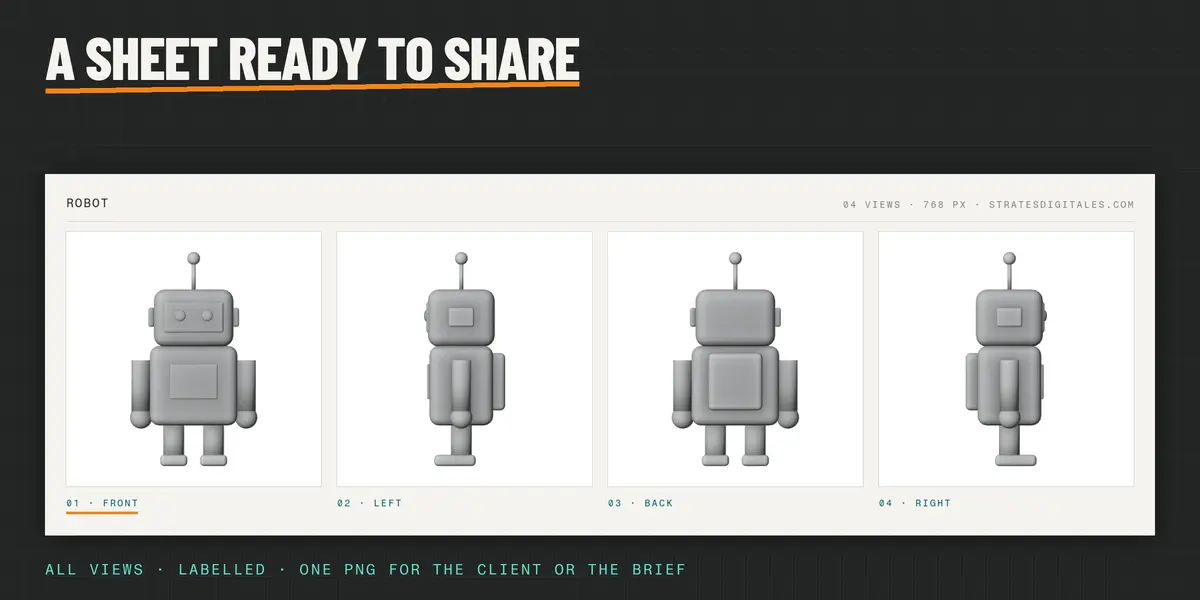
- Contact Sheet: one extra labelled image with every view.
Advanced
- Include Children: export the children of the selected objects with them.
- Render Engine: Automatic (picks a fast engine that suits your settings), Workbench, EEVEE or Cycles.
Good to know
- Your scene is not modified: cameras, lights and settings are created for the export and removed afterwards, even if a render fails.
- Only the selected objects appear in the images, even in a full scene.
- Works offline. ViewStack does not connect to any AI service: you upload the images to the tool of your choice.
Support
Questions or a bug? Use Contact the creator on this page. Full feature tour: stratesdigitales.com/viewstack.html
Have questions about this product?
Login to message
| Blender Extension Compatible | Yes |
| Published | about 1 hour ago |
| Blender Version | 5.2 |
| Extension Type | Add-on |
| Render Engine Used | Cycles, Eevee |
| License | GPL |
Discover more products like this
contact sheet multi-view tripo Render turnaround orthographic blueprint front view Image-to-3D meshy reference sheet ai