 Mesh Online



Recommend
Swift Rigify - One click to match Rigify humanoid meta-rig to a realistic 3D Human model
This amazing Blender extension was created by my son, he develops various AI products.
Support Period
Since the maintenance work is very minor, this add-on doesn't take part in the 'Support Period' plan.
What's New in Version 5.1.0
A new 'Auto Fusion Skinning' module was added into the product package.
The new module is a combination of the 'Iterative Bone Heat Skinning' algorithm and the 'Adaptive Voxel Heat Diffuse Skinning' algorithm, you don't need to merge two-pass vertex weights manually like before, instead, the algorithm will detect face vertices, fingers vertices, and toes vertices from preset mask bones, and merge two-pass vertex weights automatically.
The new module is actually a one-click skinning module, it supports 'Rigify' and 'Auto-Rig Pro', and it also supports other custom rigs by modifying the preset mask bones.
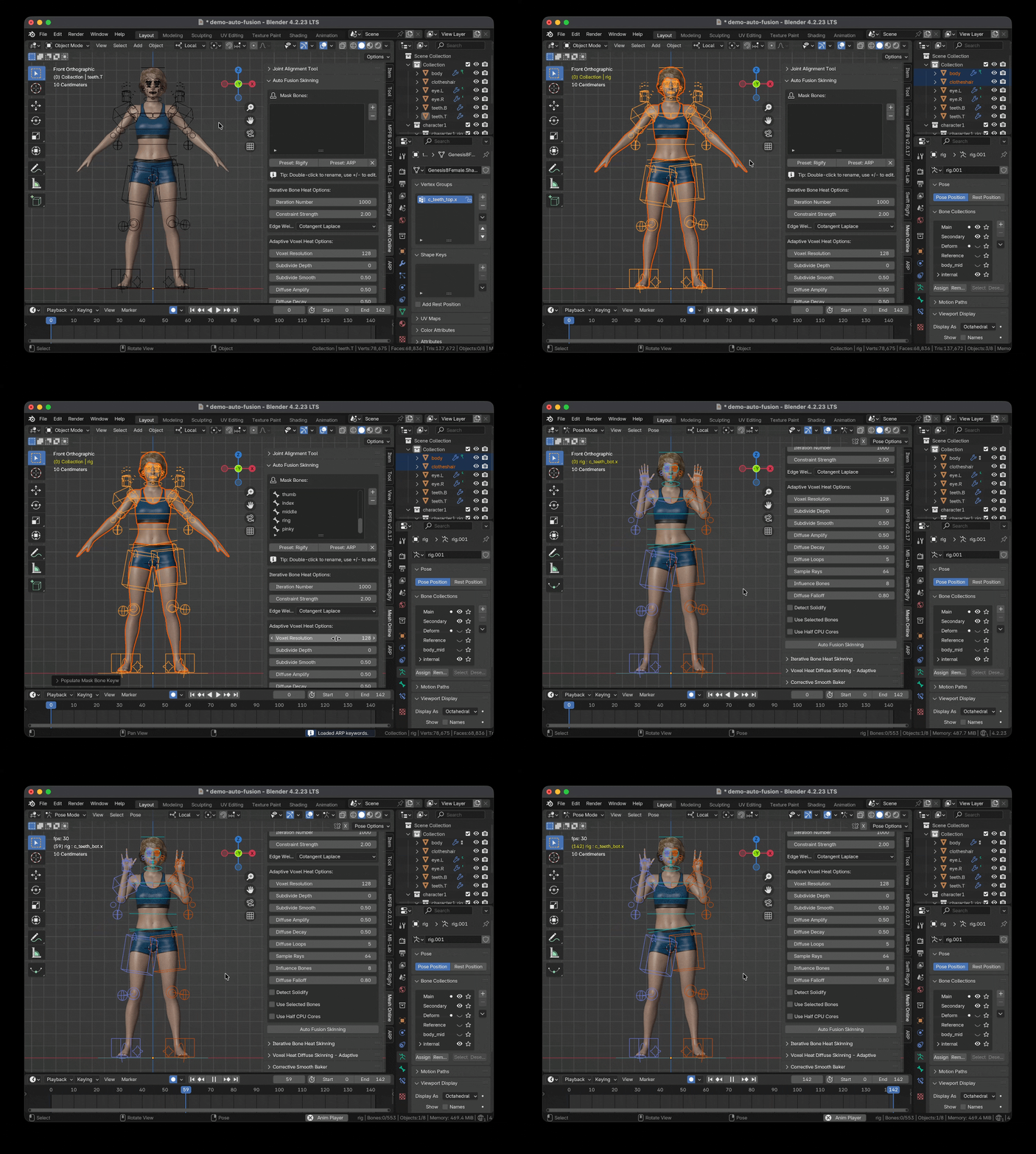
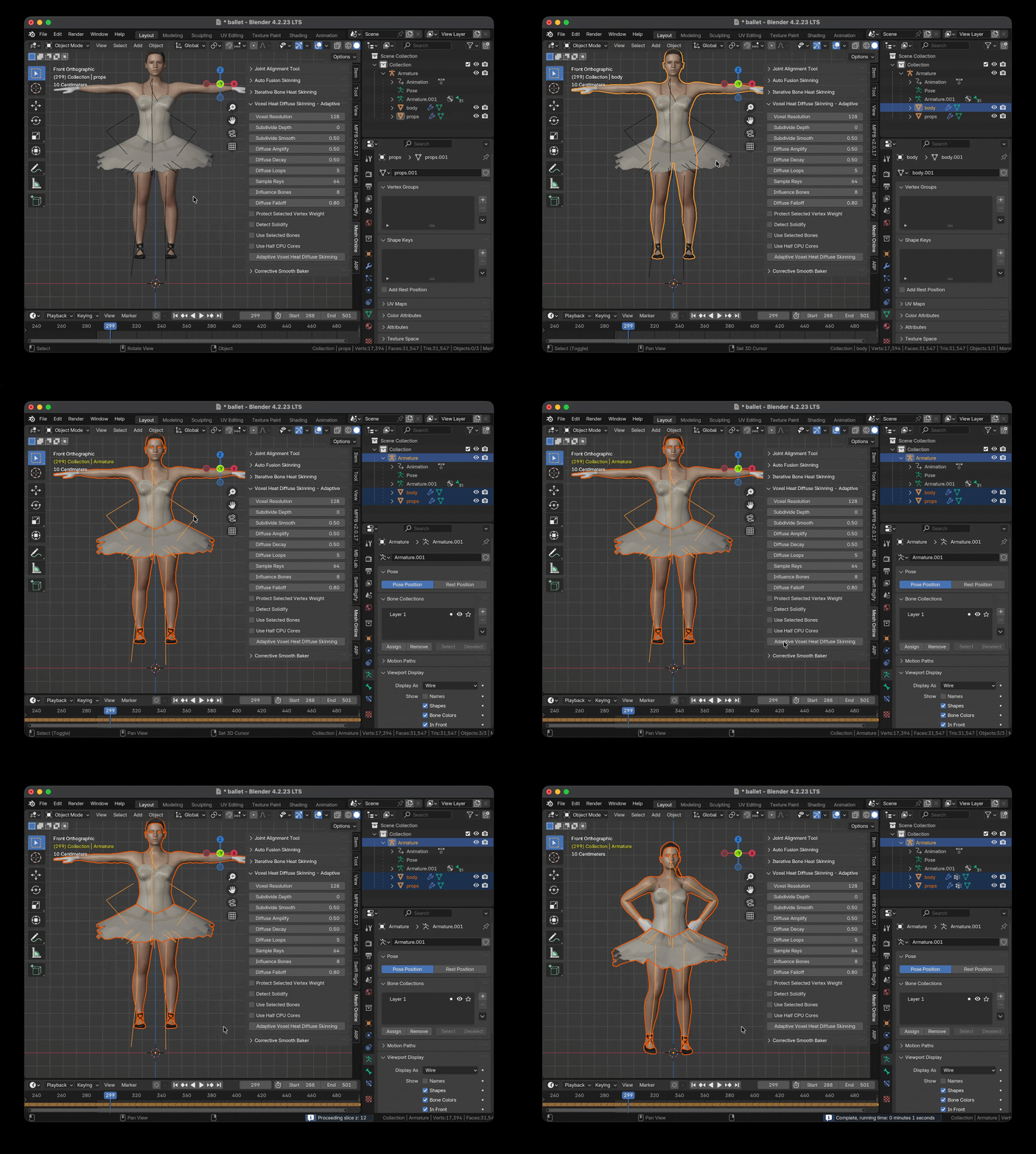
The above picture illustrates how to use the 'Auto Fusion Skinning' module, I selected both the meshes and the Auto-Rig Pro rig, clicked the 'Preset: ARP' button to load preset for Auto-Rig Pro, the preset defines face bones, fingers bones and toes bones, you can modify the mask bones manually to match other rigs, then I clicked the 'Auto Fusion Skinning' button, it finished skinning in a few seconds, this is the raw result, no manual adjustment, then I switched to 'POSE' mode and played the animation. Actually, the face, fingers and toes were skinning by 'Iterative Bone Heat Skinning' algorithm, while the body was skinning by 'Adaptive Voxel Heat Diffuse Skinning' algorithm, the two-pass vertex weights were merged automatically.
The above live 3d illustrates the same 3d character, you can zoom in and out with the mouse wheel, rotate the camera with the left mouse button, and span the camera with the middle/right mouse button.
How does Auto Fusion Skinning Work?
The key is the mask bones, first, the algorithm runs skinning with the 'Iterative Bone Heat Skinning' algorithm, then it detects vertices belong to the mask bones, the facial vertices, finger vertices and toes vertices will be masked automatically, finally, it runs skinning with 'Adaptive Voxel Heat Diffuse Skinning' algorithm in a second pass, and merges two-pass vertex weights together automatically.
What's New in Version 5.0.0
A new 'Iterative Bone Heat Skinning' module was added into the product package.
I have implemented the same feature of Blender's built-in 'Armature Deform->With Automatic Weights', but it doesn't solve large linear system, instead, it approaches the result with iterations, so it always generates a result, it never fails.
You can use the 'Iterative Bone Heat Skinning' module to generate vertex weights for face, fingers, and toes, in my test, it can generate very good vertex weights for these areas.
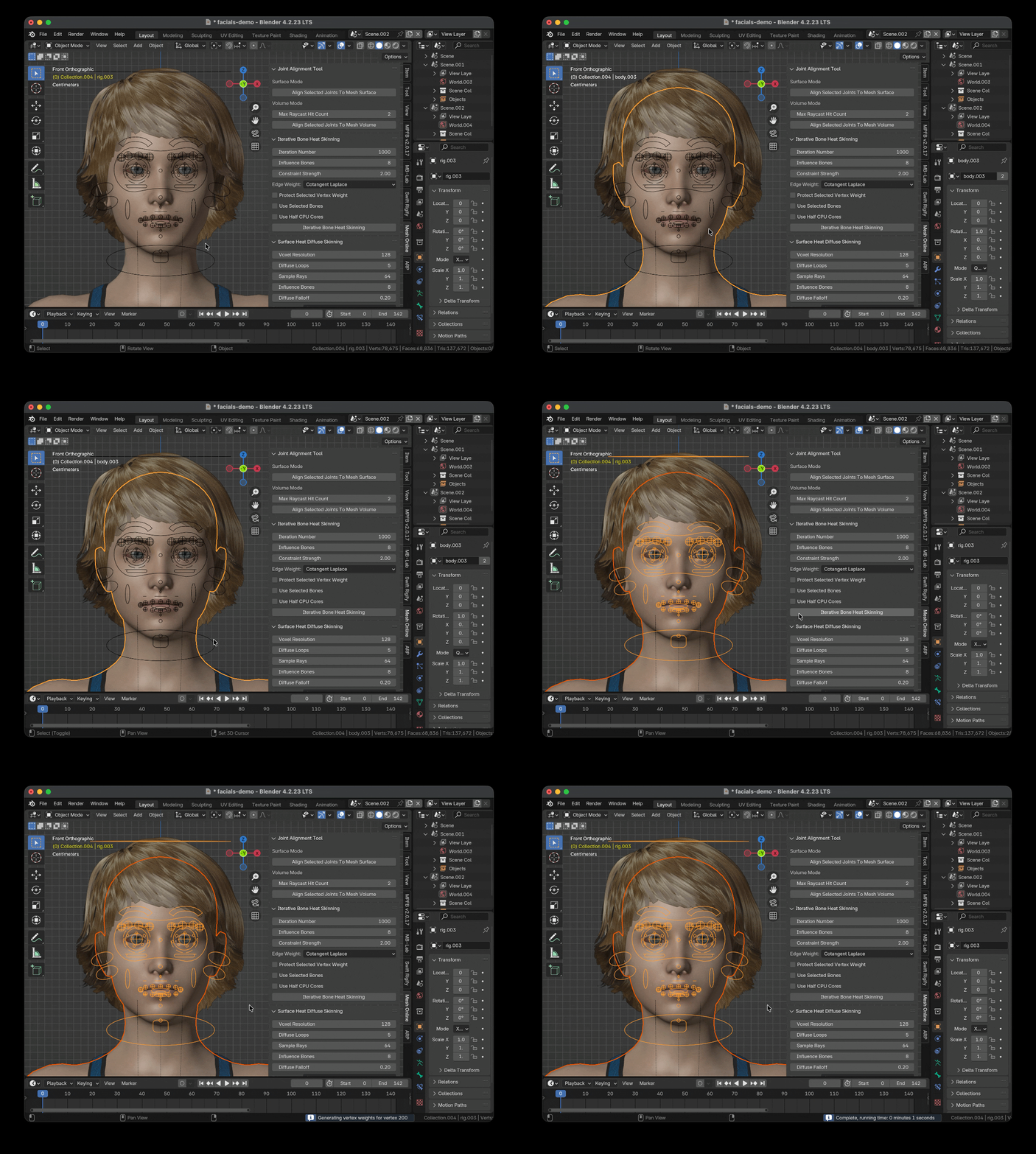
The above picture illustrates how to use the 'Iterative Bone Heat Skinning' module, I selected both the mesh and the Auto-Rig Pro rig, clicked the 'Iterative Bone Heat Skinning' button, it finished skinning in one second.
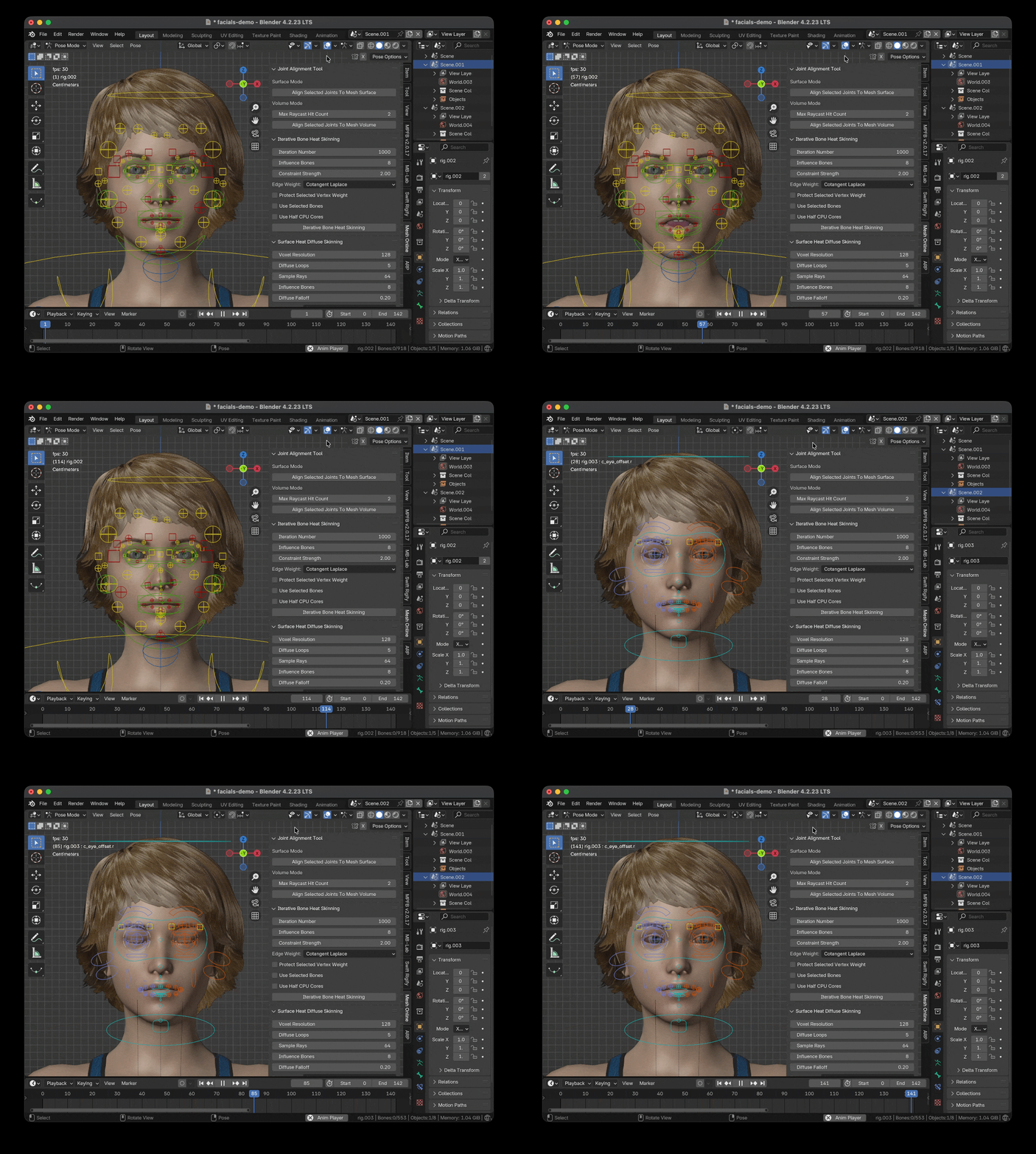
The above picture illustrates facial animation of both Rigify and Auto-Rig Pro, I generated vertex weights for the two scenes with the 'Iterative Bone Heat Skinning' module, setting 'Constraint Strength' to 2.0, 'Edge Weight' to 'Cotangent Laplace', which is the default setting, this is the raw result, no manual adjustment, both two facial animations look quite good.
What's New in Version 4.0.0
A new 'Adaptive Voxel Heat Diffuse Skinning' module was added into the product package.
You can setup 'Subdivide Depth' to a non-zero number to subdivide the voxels on detailed areas of the surface, while other voxels keep rough to boost the voxel skinning speed.
This new module can balance speed and quality, the speed is much faster, especially in case of high resolutions.
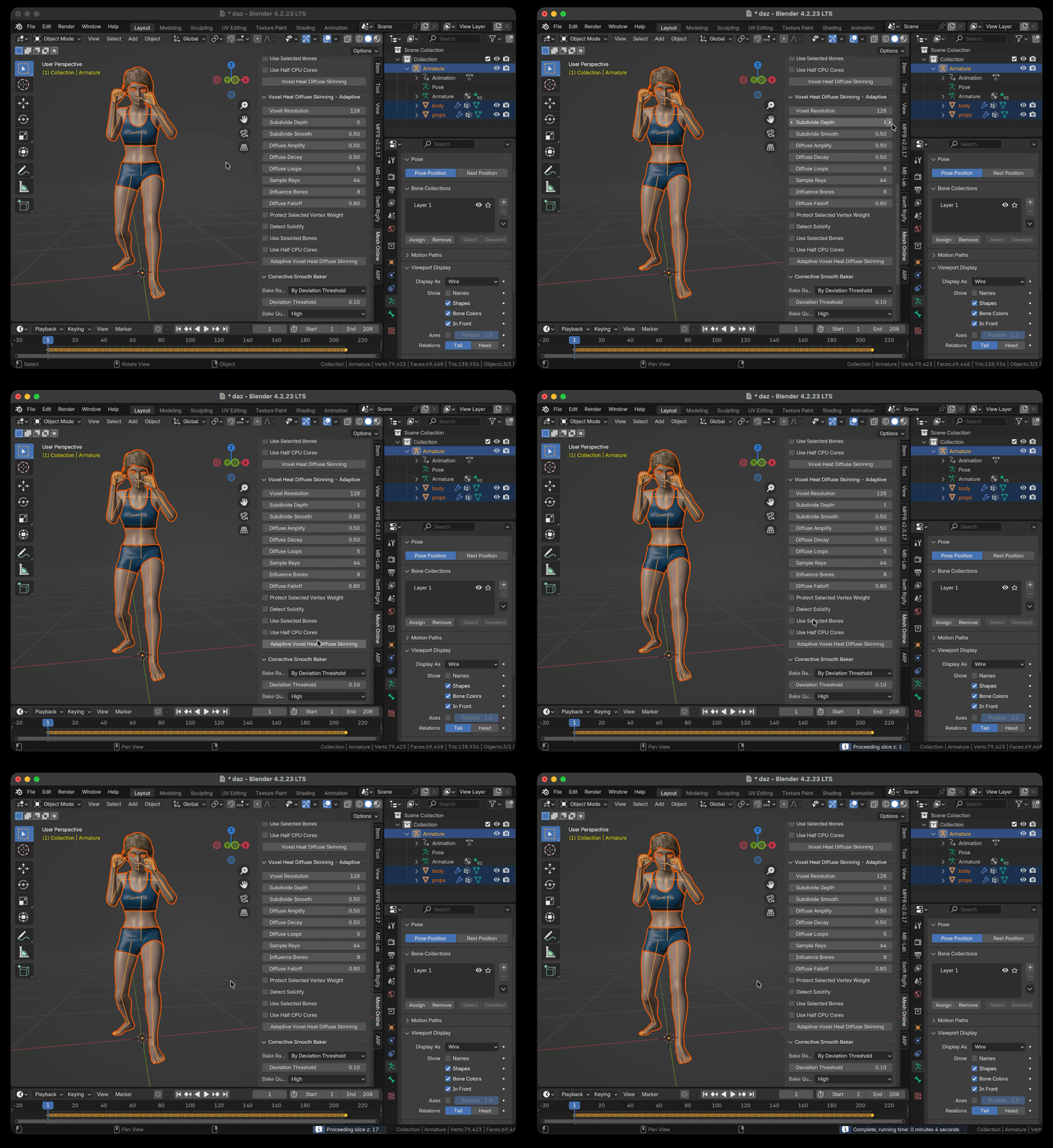
The above picture illustrates that when I setup 'Subdivide Depth' to 1, the actual voxel resolution on surface will double, it becomes 128 x 2 = 256, and the adaptive voxel heat diffuse skinning finished in 4 seconds on my Mac mini M4 Pro.
How Fast does Adaptive Voxel Heat Diffuse Skinning Run?
To generate good vertex weights for fingers, the standard voxel resolution (setting 'Voxel Resolution' to 600, 'Subdivide Depth' to 0, 'Diffuse Falloff' to 0.8, and other parameters kept default) finished in 1 minute and 57 seconds, while the adaptive voxel resolution (setting 'Voxel Resolution' to 150, 'Subdivide Depth' to 2, 'Diffuse Falloff' to 0.8, and other parameters kept default) finished in 5 seconds, 23 times faster on my Mac min M4 Pro.
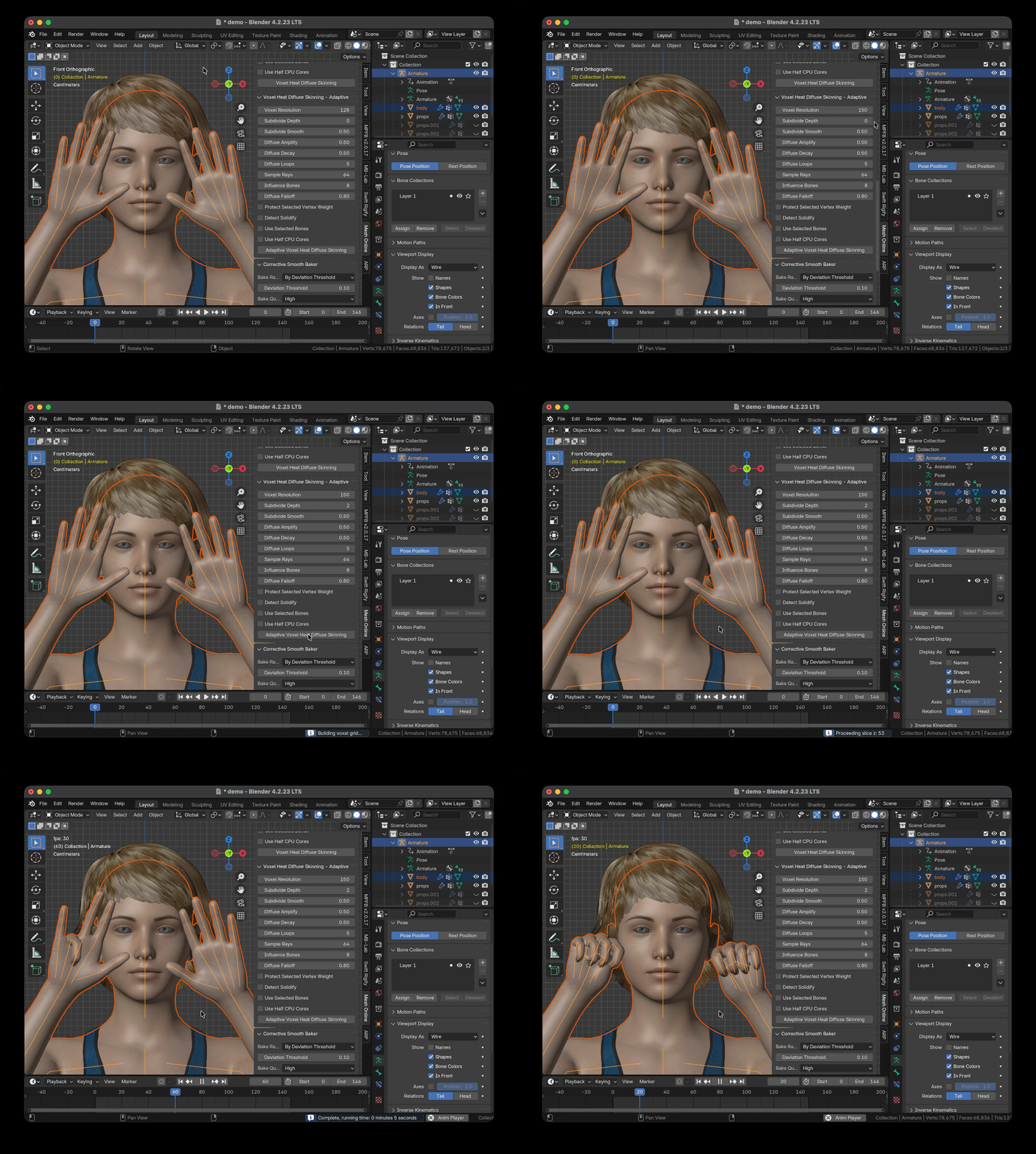
The above picture illustrates fingers animation test with adaptive voxel resolution, setting 'Voxel Resolution' to 150, 'Subdivide Depth' to 2, 'Diffuse Falloff' to 0.8, and other parameters kept default, and the adaptive skinning finished in 5 seconds.
How does Adaptive Voxel Heat Diffuse Skinning Work?
The standard voxel resolution usually contains too many inner voxels, but we only calculate vertex weights from voxels on the surface, so a natural idea is using rough voxels inside the surface, while using fine voxels on detailed areas of the surface when necessary to boost the skinning speed.
Since there are discontinuous seams between rough voxels and fine voxels, the results might not be as good as using standard uniform voxel grid, we apply an extra smoothing post-processing step to remove jagged edges.
The adaptive voxel resolution works well in most cases, it balances the speed and the quality.
If you want to get best result, you can use the standard voxel resolution, setup 'Subdivide Depth' to zero, and increase 'Voxel Resolution', but it will need more time to wait for the finish of the skinning process, and occupy more memory of your computer.
Though the adaptive voxel resolution works on CPU, the speed is much faster than standard voxel resolution, it usually finishes in a few seconds; and the most benefit is, you can fully use the huge memory of your computer, and you never worry about the 'Out of Memory' issue.
How Can This Add-On Help Me?
The add-on can help you to resolve three skinning problems:
1. Blender throws a message: 'bone heat weighting: failed to find solution for one or more bones'.
2. Some body-parts or accessories are ignored, you have to fix vertex weights manually.
3. You have spent a long time to fix vertex weights, but you are still not satisfied with the result.
Features
-
Built-in 'Auto Fusion Skinning' add-on.
- Built-in 'Iterative Bone Heat Skinning' add-on.
-
Built-in 'Adaptive Voxel Surface Heat Diffuse' add-on.
- Built-in 'Joint Alignment Tool' add-on.
- Built-in 'Corrective Smooth Baker' add-on.
-
Physically based energy diffusion algorithm.
- Complete skinning tools portfolio.
Quick Start

The soldier has a lot of equipments, even if you are a skilled artist, it will take a long time to skin the character.
You can use this add-on to generate perfect vertex weights for the soldier in less than five minutes.
What the artists say:
"Outstanding! You saved me a ton of work!"
"I think you may have saved my life with this add on. Of all the add ons I've bought, for what I'm doing and how it's helping me, this is NUMBER ONE! thanks!"
You may find more comments in the 'Ratings' page.
Full Tutorial:
Video Package: Download the HD version of the video(Format:zip,Size:15MB,Date:Jun 17,2021).
Watch Online:
The Story
Two months ago (2017), I needed another 3d character for our educational product, so I quickly generated a character within 'MakeHuman', when I tried to bind the character to the armature in Blender, the result frustrated me - The hair broke into pieces, the eyes were drifting in the sky, and there were holes in the body.
If the character is watertight, Blender's built-in automatic armature deform will work very well, but artists work in their own way, they create various character components, then group them together, this is artists' most natural workflow.
I used to subscribe Maya LT from Stream platform several years ago, Maya LT has an amazing feature - 'Geodesic Voxel Binding', it can deal with non-watertight character, why not add the feature to Blender?
My goal is to achieve better result and better skinning solution, not a simple copy from May LT.
When the product was born, I was so proud of the add-on, it uses unique ray tracing technology to build voxel grid, which is super robust and accurate, and the add-on combines Blender's built-in heat map diffuse skinning tool and the voxel heat diffuse skinning tool to deal with all skinning issues, I can always get perfect results.
It's a milestone, Blender has the world's best armature deform portfolio today.
This is the story of this add-on.
Introduction
Traditional heat map diffuse skinning algorithm can only deal with watertight meshes, but artists create character components in their own way, then group them together to a character, usually the character is not seamless, this often cause traditional heat map diffuse skinning algorithm to fail.

Voxel heat diffuse skinning algorithm can overcome the shortcoming, it converts the non-seamless character into a solid statue, heat diffuses in the solid statue, so we can get the most natural vertex weights.
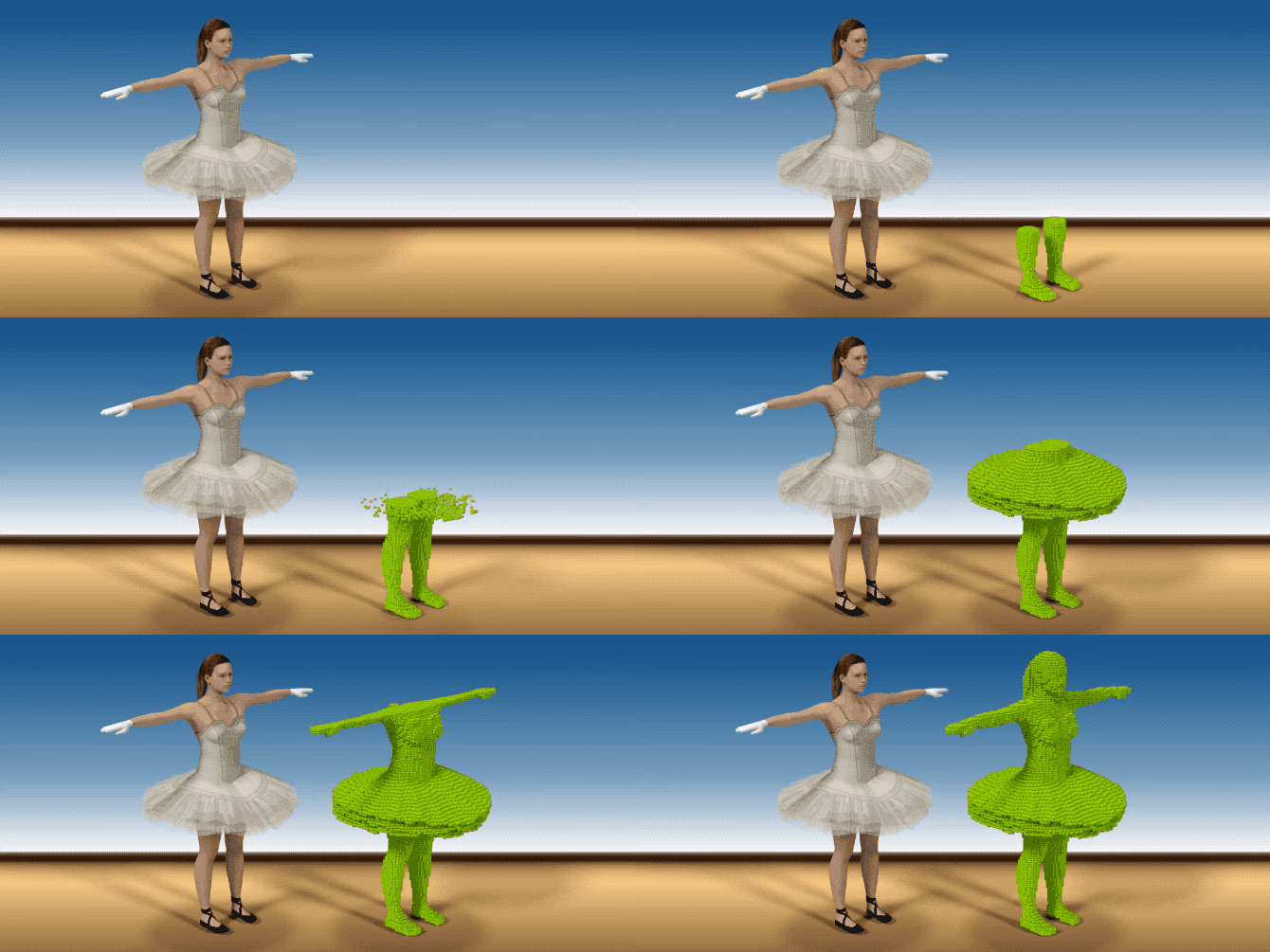

The voxel heat diffuse skinning had already been equipped in Autodesk's Maya and 3ds Max for years, but Blender users don't have an opportunity to benefit from the feature.
Traditional heat map diffuse skinning algorithm can get much better result in detailed areas such as fingers and toes than voxel heat diffuse skinning algorithm, we can combine them to get perfect result with this Blender add-on.
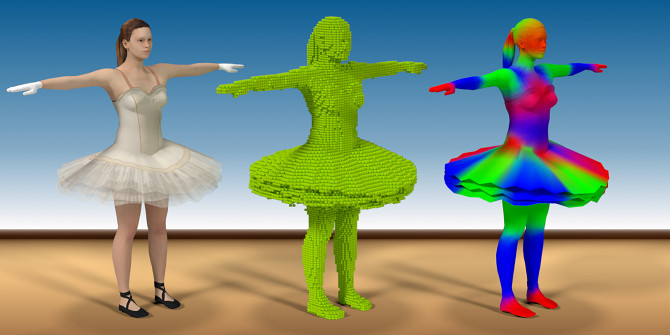

We believe that all digital artists and game teams want this feature, fortunately, you can do perfect automatic vertex weight skinning within Blender today.
Platform
Linux (x86_64/arm64)
Windows 7-11 (x86_64/x86/arm64)
macOS 10.15-27 (x86_64/arm64)
Note: The add-on supports both 64 bit and 32 bit of Windows.
CPU
The algorithm uses multiply CPU cores to boost the running speed, more CPU cores, more faster it runs.
Memory
The algorithm needs large memory to run high voxel resolution, the computer's memory is at least 8GB
How to Install
Download the new version of the product.
Launch Blender, navigate to 'Edit->User Preference...->Get Extensions', click the small triangle besides the 'Repositories' dropbox to expand the contents, click the 'Install from Disk...' button, a pop up dialog will appear, select the downloaded zip file, click the 'Install from Disk' button on the pop up dialog, the extension will be installed to Blender's 'extensions->user_default' directory.

How to Upgrade
Download the new version of the product.
Before installing the new version, you must uninstall the current version.
Launch Blender, navigate to 'Edit->User Preference...->Get Extensions', click the small triangle besides this extension to expand the contents, click the 'Uninstall' button to remove the current version of this extension.

Don't forget to restart Blender to let the new version take effect, otherwise, Blender may use the old version in the cache.
Interface
Type 'N' key in the 3D View if the sidebar is hidden, the interface will appear in 'View3D->UI->Mesh Online' tab of the sidebar.
Quick Workflow
The interface will appear in 'View3D->UI->Mesh Online' tab of the sidebar.
Because the algorithm will convert all the sub-meshes to one solid statue to obtain best result, you'd better select all the sub-meshes and one armature before you run voxel heat diffuse skinning.
You can use the 'Auto Fusion Skinning' module to achieve a one-click skinning.
First, you need to load preset mask bones for Rigify rig or Auto-Rig Pro rig by clicking the 'Preset: Rigify' button or the 'Preset: ARP' button, if you are using a different rig other than Rigify and Auto-Rig Pro, you just need to modify the keywords of mask bones to match the rig.
Then, adjust some parameters, usually the default settings works well for most cases.
Finally, click the 'Auto Fusion Skinning' button to do skinning for your 3D character.
Professional Workflow
The interface will appear in 'View3D->UI->Mesh Online' tab of the sidebar.
Because the algorithm will convert all the sub-meshes to one solid statue to obtain best result, you'd better select all the sub-meshes and one armature before you run voxel heat diffuse skinning.
If you are rigging for RPG games, the armature is usually not complicated, you can use the default parameters, select all the sub-meshes and the armature, click the 'Adaptive Voxel Heat Diffuse Skinning' button, the result will be fairly good.
Here are the steps:
1. Select all the sub-meshes and the armature, click the 'Adaptive Voxel Heat Diffuse Skinning' button.
2. Done.
If you are rigging for a movie, the armature is usually rather complicated, in this case, we combine traditional heat map diffuse skinning and voxel heat diffuse skinning to get perfect result.
Here are the steps:
1. Select all the sub-meshes and the armature, type 'Control' key + 'P' key, from the pop up menu, click 'Armature Deform->With Automatic Weight', if the built-in automatic weighting fails, please fall back to the 'Iterative Bone Heat' module instead.
2. Select the sub-mesh which vertices need to be protected, type 'Tab' key to enter 'Edit' mode, type 'Z' key to enter wireframe display mode, type 'A' key twice to select nothing, use either box select tool or circle select tool to select character's hands parts and feet parts(if the character does not wear shoes), or other very detailed areas, type 'Z' key to back to solid mode, type 'Tab' key to back to object mode.
3. In the addon's interface, check the 'Protect Selected Vertex Weight' button, all the selected vertices' weights will be merged to new weights which generated by voxel heat diffuse skinning.
4. Select all the sub-meshes and the armature, click the 'Adaptive Voxel Heat Diffuse Skinning' button.
5. Done.
Auto-Rig Pro Workflow
This add-on has been integrated into the latest version of Auto-Rig Pro, if you own Auto-Rig Pro, you can bind all the sub-meshes to the armature within Auto-Rig Pro.
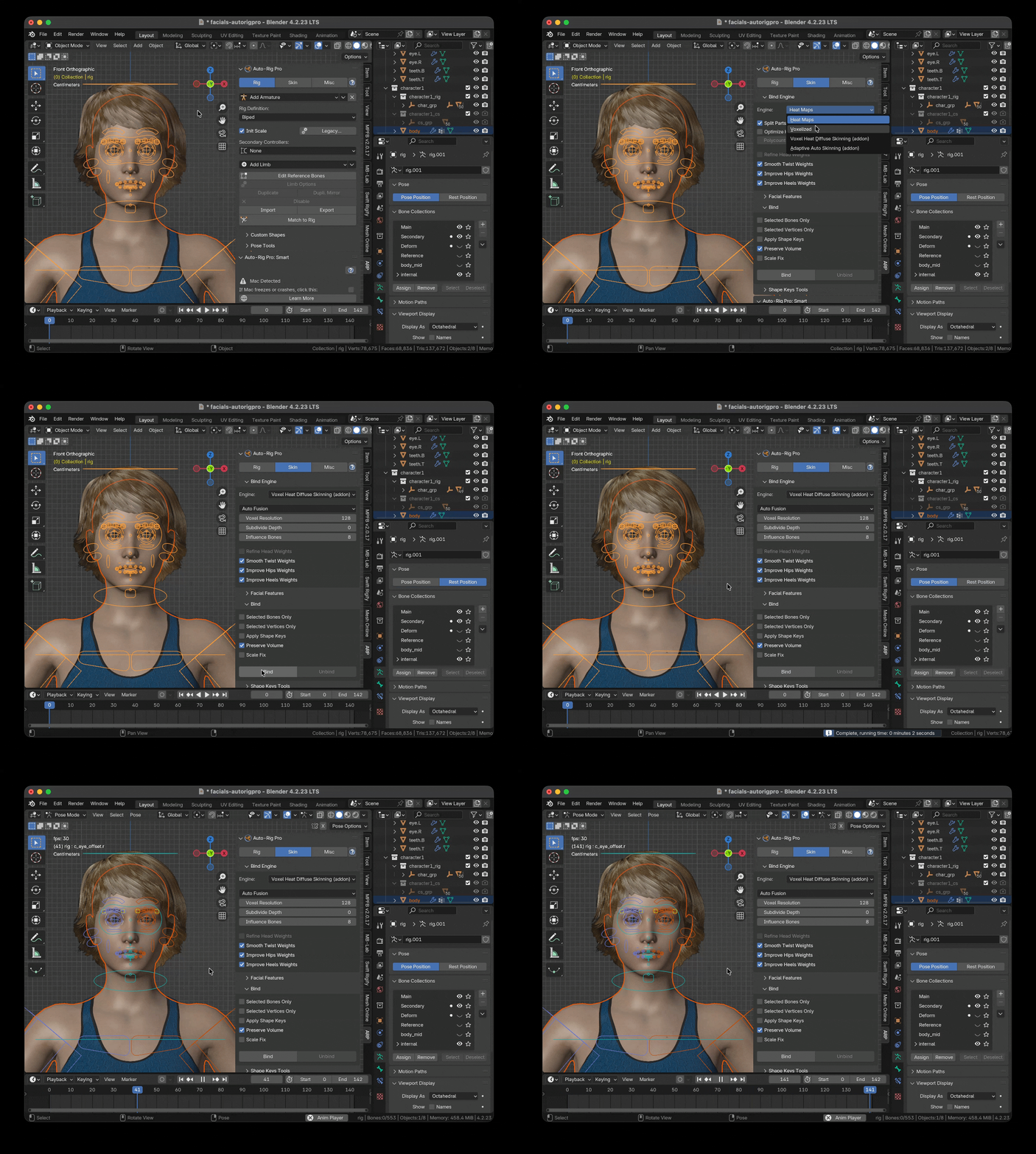
The above picture illustrates how to use the 'Auto Fusion' module within Auto-Rig Pro, I selected both the mesh and the Auto-Rig Pro rig, switched to 'Skin' tab, click the 'Engine' dropbox, select the 'Voxel Heat Diffuse Skinning (addon)' item, the default sub-engine is 'Auto Fusion', clicked the 'Bind' button, it finished skinning in two second, then I switched to 'POSE' mode and played the animation.
Built-In Auto Fusion Skinning Add-on new
This new module is actually a one-click skinning module for Rigify and Auto-Rig Pro.
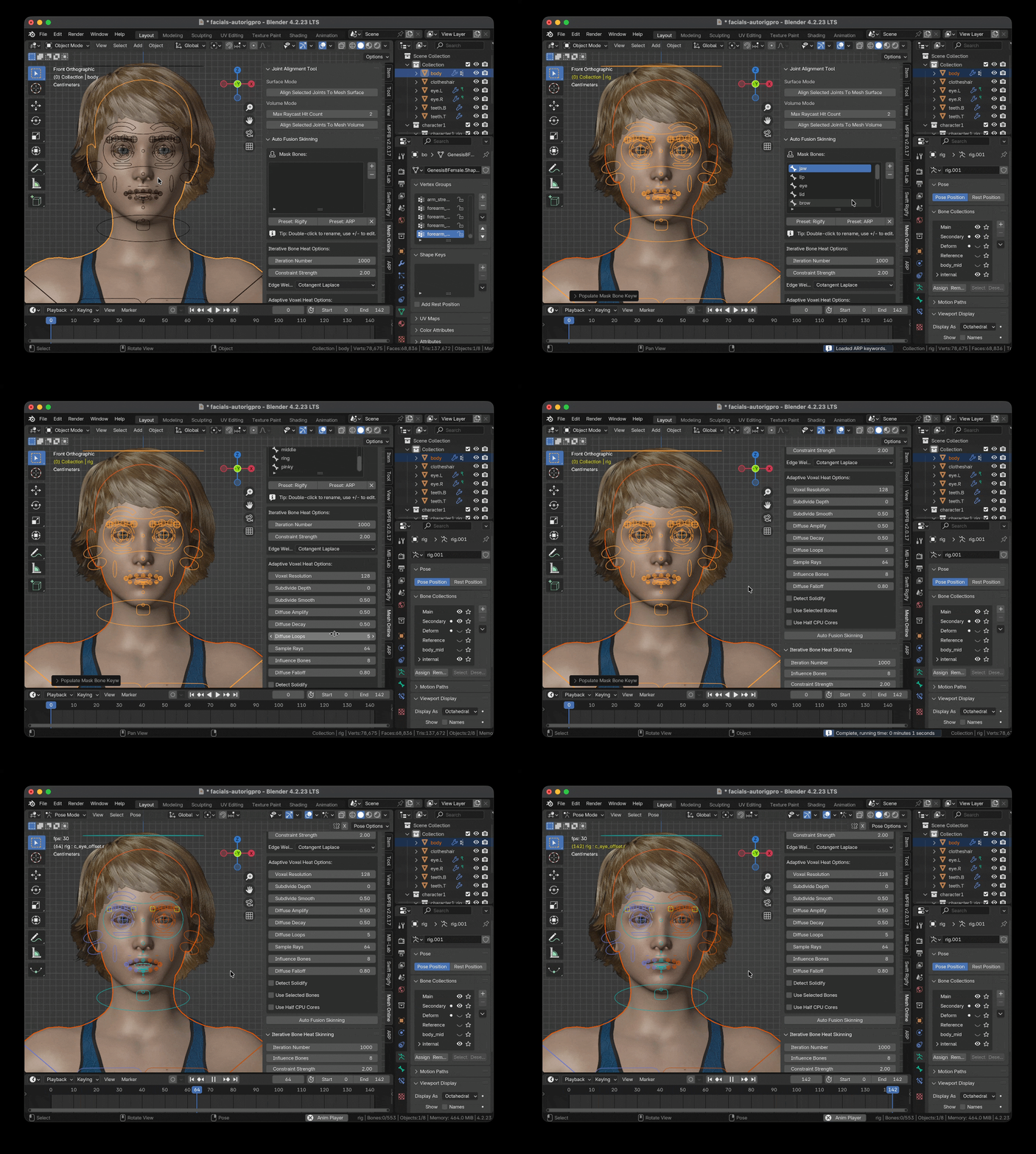
For other rigs, such as Daz rig, Mixamo rig, etc. simply modifying preset mask bones will work.
For example:
For Daz rig, the keyword of middle finger bones is 'mid', not 'middle', the keyword of palm bones is 'carpal', not 'palm', the keyword of toes is 'toe', you just need to modify the 'middle' keyword, the 'palm' keyword, and add missing 'toe' keyword, the algorithm will work properly for Daz rig.
Built-In Iterative Bone Heat Skinning Add-on new
Blender already has built-in bone heat weighting, it works well in most time, but sometimes it fails to find a solution.
To completely resolve the issue, I created another extension from scratch (October, 2026), it is similar to 'Surface Heat Diffuse Skinning', but the result is more accurate.
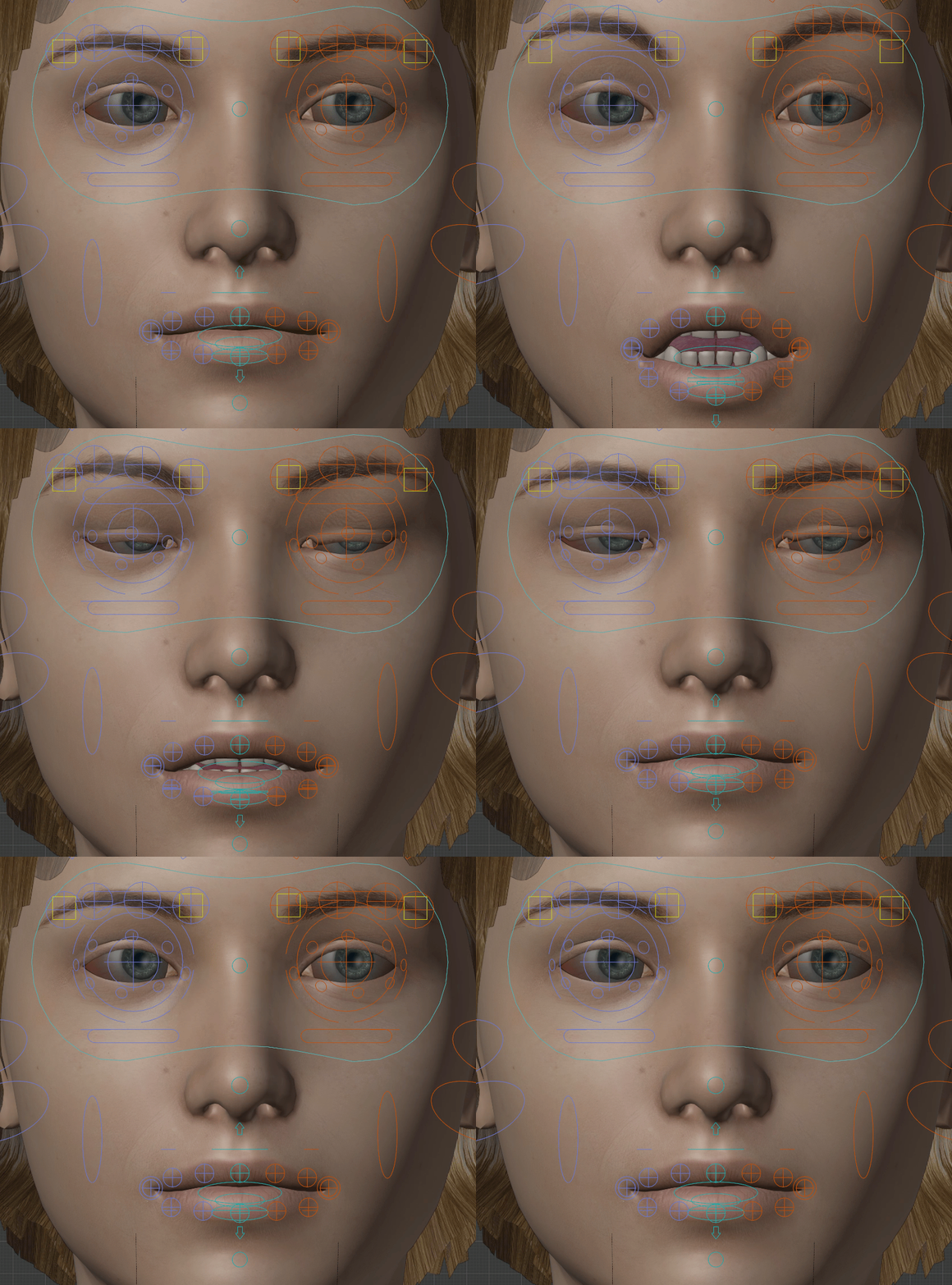
The above picture illustrates facial animation of Auto-Rig Pro, I generated vertex weights for the 3d character with the 'Iterative Bone Heat Skinning' module, setting 'Constraint Strength' to 2.0, 'Edge Weight' to 'Cotangent Laplace', which is the default setting, this is the raw result, no manual adjustment.
The extension uses the same algorithm of Blender, and I added an experimental algorithm too, you can also control the constraint strength.
It doesn't solve large linear system, instead, it approaches the result with iterations, so it always generates a result, it never fails.
Built-In Joint Alignment Tool Add-on
Note: If you are working with realistic 3D human models, I recommend this excellent Blender extension:
Swift Rigify - One click to match Rigify humanoid meta-rig to a realistic 3D Human model
From v3.5.0 the product package introduced a new built-in joint alignment tool add-on, I believe that the joint alignment tool will greatly facilitate your character binding workflow.
When we are binding the 3d character to the armature, to align the bones to the 3d character is a time-consuming task, for facial bones and finger bones are so small and there are so many such bones that it is hard to align them to corresponding mesh parts exactly in a short time.
Can we just move joints on a 2d plane? For moving joints to their proper 2d positions on the current 2d view plane is much easier than in 3d space. After we have finished aligning joints on current 2d view plane, if there is a magic tool that we can use to push all the joints to desired mesh surface or to desired mesh volume center in 3d space automatically, it will save us lots of time.
This joint alignment tool is exactly designed for this job, you just need to move joints to their proper positions on the current 2d view plane, then you can push selected joints to desired mesh surface or to desired mesh volume center with one click.
How to use the tool?
- Select the armature, enter 'EDIT' mode.
- Rotate the viewport to proper angle, switch to orthogonal view.
- Move the joints to their proper positions on the current 2d view plane.
- Select the joints, click the button to push them to mesh surface or mesh volume center.
Note:
- In surface mode, the tool always pushes the joints to the front surface of the mesh part, even if the joints are behind the front surface.
- In volume mode, the tool always pushes the joints to the volume center of the mesh part, the tool will cast a ray from every selected joint to the mesh part, and it uses the entering point and the leaving point to calculate the volume center, you might need to adjust the 'Max Raycast Hit Count' parameter, the default value is 2, which is suitable for manifold mesh part, you can imagine that a ray enters the mesh part then leaves the mesh part with only two hit points; if the mesh part is not manifold, you can imagine that a ray enters the mesh part then leaves the mesh part with more than two hit points, in this case, you need to increase this number to a proper value (such as 4) to let the ray can enter and leave the mesh part, but can't enter other mesh parts, if there are other mesh parts in front of the ray, an inappropriate number might cause interference from other mesh parts, the result might be wrong.

First, we align the facial joints on the current 2d view plane, then we push them to the head surface with one click automatically.

First, we align the ear joints on the current 2d view plane, then we push them to the head surface with one click automatically.

First, we align the forearm joints and the finger joints on the current 2d view plane, then we push them to the volume center of the forearm and the volume centers of the fingers with one click automatically.
Built-In Corrective Smooth Baker Add-on
I have integrated my Corrective Smooth Baker add-on into this add-on, you can use the add-on to fix vertex weight issues automatically, details refer to the product page.
Integrate to Your Own Workflow
There are three global properties since version 5.1.0:
- bpy.context.scene.fusion_job_finished.
- bpy.context.scene.boneheat_job_finished.
-
bpy.context.scene.voxel_job_finished.
With these properties, you can integrate the skinning job to your own workflow.
First, you need to setup some parameters, hover your mouse on the parameter you want to setup, click the right mouse button, from the popup menu, click 'Copy Full Data Path', you get the full data path of the parameter.
For example:
bpy.data.scenes["Scene"].voxel_resolution, bpy.data.scenes["Scene"].voxel_subdivide_depth, etc.
To change voxel resolution to 150 and subdivide depth to 1:
Call bpy.data.scenes["Scene"].voxel_resolution = 150 from script.
Call bpy.data.scenes["Scene"].voxel_subdivide_depth = 1 from script.
For 'Auto Fusion Skinning' module, you need to call bpy.ops.wm.afu_populate_mask_bones(preset_type = "ARP") or bpy.ops.wm.afu_populate_mask_bones(preset_type = "Rigify") from script to load preset mask bones, then call 'bpy.ops.wm.auto_fusion()' from script.
For 'Iterative Bone Heat Skinning' module, call 'bpy.ops.wm.iterative_bone_heat()' from script.
For 'Adaptive Voxel Heat Diffuse Skinning' module, call 'bpy.ops.wm.voxel_heat_diffuse_adaptive()' from script.
Then, check the property repeatedly until the value of the property becomes 'True'.
Finally, do your custom jobs.
How does Voxel Heat Diffuse Skinning Algorithm Work?
The algorithm use ray tracing technology to convert polygon mesh to solid statue, which is quite different from Maya's method, ray tracing always generate better result than multi-view voxelization methods.
Bones generate heats, heats diffuse among the solid statue, and lose a bit heat when diffused to neibour voxels, if we iterate the process, it will reach a balance status.
We use multiple CPU cores to boost the speed. For example, the CPU of my Mac mini M4 Pro has 12 cores, the algorithm can use up to 12 threads to generate solid statue and diffuse heats simultaneously.
When heat diffusing process completed, bones heats will distribute smoothly among entire solid statue, the heats values represent the influence weights of the bones.
Though the theory is simple, a good product needs to deal with lots of details.
Our goal is to generate better result and provide better skinning solution for Blender users.
Detail of The Parameters
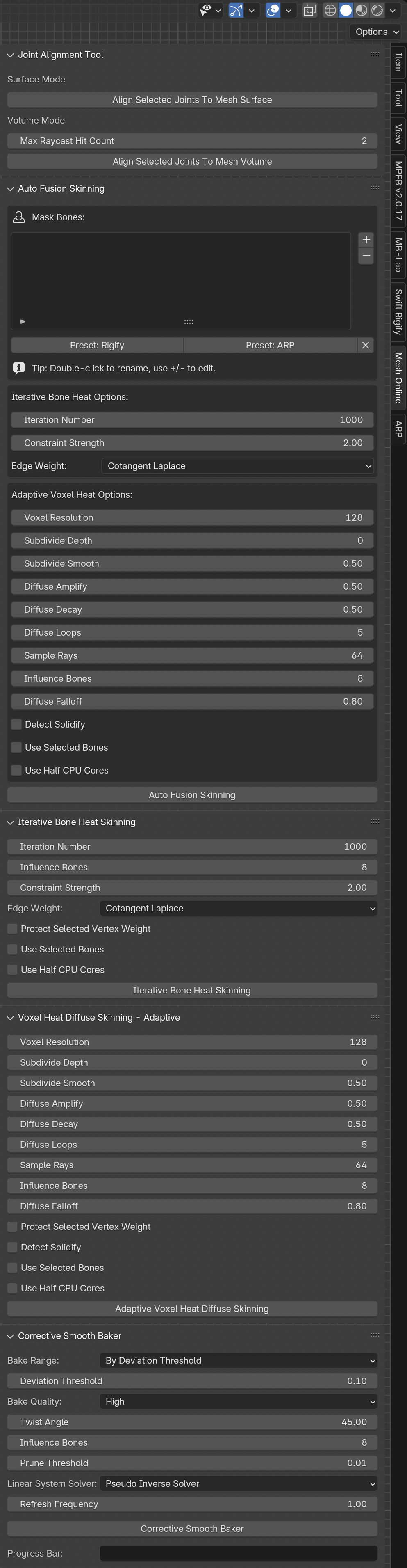
Voxel Resolution: The maximum voxel size, default value is 128, which is suitable for most characters, you may increase this value to use high resolution voxelization, usually this is not necessory.
Subdivide Depth: The subdivide depth on surface, setup a non-zero number to enable subdivision, 1 means double the voxel resolution, 2 means four times of the voxel resolution.
Subdivide Smooth: The subdivide smooth on surface, the default value is 0.5, which means a moderate smoothing will be applied, you can decrease or increase this value to custom the smoothing strength.
Diffuse Amplify: Temperature amplifier during diffusion, the default value is 0.5, the smaller the value, the smoother it is; the larger the value, the sharper it is.
Diffuse Decay: Temperature decay during diffusion, the default value is 0.5, the smaller the value, the smoother it is; the larger the value, the sharper it is.
Diffuse Loops: Heat diffuse pass equal to 'Diffuse Loops' multiply 'Voxel Resolution', default value is 5, which is enough for all cases, you don't need to change this value.
Sample Rays: Use how many random rays to detect darkness, default value is 64, more sample rays, more accurate the solid statue, but runs more slower.
Influence Bones: How many bones will influence a vertex, default value is 8, which is suitable for desktop animations in Blender.
Note: Maybe you need to use a smaller value such as 4 to run animations smoothly for mobile devices.
Diffuse Falloff: How much heat will lose when diffusing, default value is 0.8, which is suitable for most cases, more bigger the value is, more sharper the weight change will be.
Protect Selected Vertex Weight: If you want to preserve existed vertex weights for some vertices, select these vertices in 'EDIT' mode, quit 'EDIT' mode and enable this option.
Detect Solidify: Detect solidified clothes, if you enable this option, make sure that all bones are in the charecter's volume, otherwise, the result may be wrong.
Use Selected Bones: Use only selected bones, if you enable this option, unselected bones will be ignored.
Use Half CPU Cores: Use only half of the CPU cores, if your computer get stuck, please enable this option to keep your computer running smoothly.
Iteration Number: How many iterations will the algorithm use to approach the result. The default value is 1000, it should work for most cases.
Constraint Strength: The constraint formula is: 1.0 / pow(distance, constraint_length), the default value is 2.0, which is compatible with Blender, you may try a smaller value to get smoother result.
Edge Weight: What edge weight type will the algorithm use to smooth the vertex weights. The default value is 'Cotangent Laplace', which is compatible with Blender, another value is 'Inverse Length', which is one type I invented, it usually generates smoother vertex weights than the former one.
License
The add-on is under a dual-license.
The Python code of this add-on is under the GPL license.
The add-on interacts with a universal text format.
The product package also includes a command-line utility, which interacts with the universal format.
The command-line utility is written in c++, which links to c++ libraries to generate the binary file.
The add-on uses the command-line utility via a simple system call.
Note: The command-line utility is NOT under GPL license.
All Products
Better Fbx Importer & Exporter - Blender Add-on
Voxel Heat Diffuse Skinning - Blender Add-on
Corrective Smooth Baker - Blender Add-on
Blender Game Development Tutorial - Blender e-Book Free (Since Aug 6, 2025)
Mantis LOD Editor - Unity Editor Extension
Other Excellent Blender Extensions
Swift Rigify - One click to match Rigify humanoid meta-rig to a realistic 3D Human model
RigiMap - Retargeting tool for Rigify
Change Log
[2026-10-24]
Release version 5.1.0
- New 'Auto Fusion Skinning' module.
- Remove legacy 'Export Mesh Data' module.
- Remove legacy 'Export Bone Data' module.
- Remove legacy 'Import Weight Data' module.
- Remove legacy 'Surface Heat Diffuse Skinning' module.
- Remove legacy 'Voxel Heat Diffuse Skinning - Standard' module.
[2026-10-21]
Update version 5.0.0
- Fix 'Weight Sorting' bug in 'Iterative Bone Heat Skinning' module.
- Fix 'Inverse Cosine' issue in 'Iterative Bone Heat Skinning' module.
[2026-10-20]
Update version 5.0.0
- New 'Constraint Strength' option in 'Iterative Bone Heat Skinning' module.
- Fix a few bugs in 'Iterative Bone Heat Skinning' module.
[2026-10-17]
Release version 5.0.0
- New 'Iterative Bone Heat Skinning' module.
[2026-10-09]
Release version 4.3.0
- New 'Diffuse Amplify' option.
- New 'Diffuse Decay' option.
- Optimize adaptive voxel heat diffusion speed, three times faster.
[2026-10-08]
Release version 4.2.1
- New physically based heat diffusion algorithm for adaptive voxel skinning.
[2026-10-07]
Release version 4.2.0
- Improve heat diffuse algorithm for adaptive voxel skinning.
[2026-09-08]
Release version 4.1.0
- New 'Subdivide Smooth' option.
[2026-09-07]
Release version 4.0.0
- Setup 'Diffuse Falloff' to 0.8 by default.
- New 'Adaptive Voxel Heat Diffuse Skinning' module.
[2026-08-30]
Fix a rare potential bug.
[2026-08-28]
Fix missing 'shd.exe bug' on Windows platform.
[2026-08-24]
Release version 3.6.0
- New ray tracing and heat diffusion algorithms.
- Support only macOS 10.15+, drop support for macOS 10.9-10.14.
[2026-05-18]
Release version 3.5.4
- Make universal version for macOS 10.17+.
[2026-04-11]
Update version 3.5.3
- Fix 'Verify issue on macOS 10.15'.
[2024-04-08]
Release version 3.5.3
- Fix 'False Positive on macOS'.
[2024-02-18]
Release version 3.5.2
- Fix 'No Deform Bone Selected' bug.
- Add 'Try Except' block to make the add-on more stable.
[2024-01-18]
Release version 3.5.1
-
Add 'Use Half CPU Cores' option.
[2023-11-16]
Update version 3.5.0
-
Add 'Max Raycast Hit Count' option in the 'Joint Alignment Tool' add-on.
[2023-11-16]
Release version 3.5.0
-
New 'Joint Alignment Tool' add-on.
[2023-10-27]
Release version 3.4.5
-
Support Linux arm64 and Windows arm64.
[2022-04-02]
Release version 3.4.2
-
New algorithm to calculate the heat diffuse radius.
[2023-02-14]
Release version 3.4.3
-
Add 'Use Selected Bones' option.
[2022-02-22]
Release version 3.4.1
-
Improve baking result for too few bones.
[2022-02-18]
Release version 3.4.0
-
Make it always on the sidebar.
[2022-02-16]
Release version 3.3.3
- Fix 'Bone name with comma character' bug.
-
Fix 'Loose vertices & loose edges' bug.
[2022-01-19]
Release version 3.3.2
-
Change the default value of the 'Influence Bones' option to 8.
[2021-12-03]
Release version 3.3.1
- Improve ray tracing algorithm.
- The 'Voxel Resolution' can be up to 1024.
[2021-06-28]
Compatible with macOS Mavericks.
[2021-06-27]
Compatible with macOS High Sierra.
[2021-06-08]
Release version 3.3.0
- Add 'Detect Solidify' feature.
[2021-06-05]
Release version 3.2.6
- Set 'Pseudo Inverse Solver' as default linear system solver in 'Corrective Smooth Baker' add-on.
- Fix 'Endless Loop' bug in 'Voxel Heat Diffuse Skinning' add-on.
[2021-05-25]
Release version 3.2.5
- The 'Corrective Smooth Baker' add-on improves performance for Blender 2.93 and 3.0.
[2021-05-22]
Fix 'NameError: name 'ON_POSIX' is not defined' bug.
[2021-05-20]
Release version 3.2.4
- Rework some code.
[2021-04-20]
Release version 3.2.3
- Compatible with Ubuntu 2018 LTS.
[2021-04-15]
Release version 3.2.2
- Add 'bpy.context.scene.surface_job_finished' property.
- Add 'bpy.context.scene.voxel_job_finished' property.
[2021-04-09]
Release version 3.2.1
- Fix 'Divide by NoneType' bug in corrective smooth baker add-on.
[2021-04-06]
Release version 3.2.0
- Integrate 'Corrective Smooth Baker' add-on.
[2021-03-03]
Fix interface bug on Blender 2.93.
[2021-03-02]
Release version 3.1.4
- New install method.
[2020-11-27]
Release version 3.1.3
Fix vertex weights for isolated vertices in 'Surface Heat Diffuse Skinning' add-on.
[2020-10-08]
Release version 3.1.2
New light strength function in 'Surface Heat Diffuse Skinning' add-on, may have improved the result a bit.
[2020-05-31]
Portable path.
[2020-04-23]
Release version 3.1.
Faster ray marching algorithm.
[2020-03-26]
Fix sharp vertex weight edges for high resolution mesh.
[2019-07-28]
Fix type annotation warning in Blender 2.8.
Move all the scripts to their own directories.
[2019-07-26]
Change license to 'GPL'.
[2019-04-2]
Add code sign for macOS.
[2019-01-29]
Add support for 32 bit of Windows.
[2018-12-06]
Improve team workflow.
Update document.
[2018-12-04]
Add support for Blender 2.8.
[2018-04-04]
Release version 3.0.
Better surface heat diffuse skinning add-on.
Fix blocky vertex weight issue.
[2018-03-31]
Fix small bugs.
Add surface heat diffuse skinning add-on.
[2018-03-22]
Physically based energy diffusion algorithm.
[2018-03-10]
Release version 2.0.
Even faster speed.
No longer supports 32 bit of Windows.
[2018-03-08]
Optimize the core algorithm, much faster than ever.
[2018-02-26]
Update document in the package.
[2018-02-23]
Set parent of all sub-meshes to the armature automatically.
[2018-02-05]
Multiple sub-meshes can bind to one armature.
[2018-01-20]
Fix an install bug.
[2018-01-15]
Make the add-on compatible with Auto-Rig Pro.
[2017-10-16]
No longer need to apply location, rotation, and scale.
[2017-10-11]
Fix an issue of controller bones, which should be ignored.
Thanks the help from 'Artell' - Author of 'Auto-Rig Pro'.
