 ZEG
ZEG
Installation
In Blender open Edit, Preferences, Get Extensions, then use Install from Disk and pick the warehouse_generator zip.
Usage
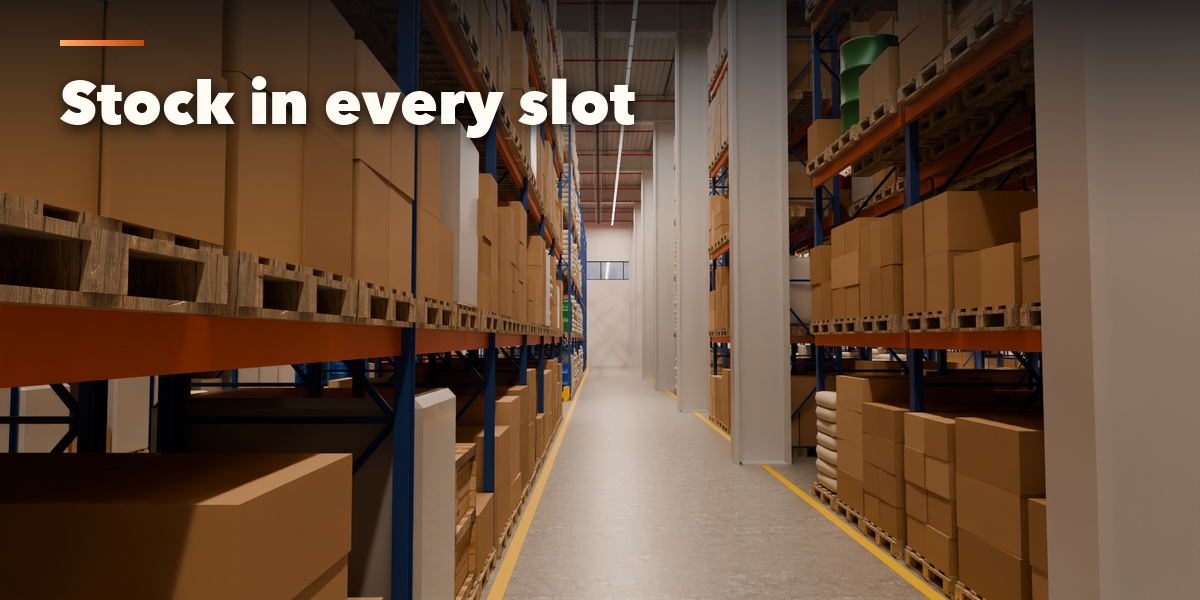
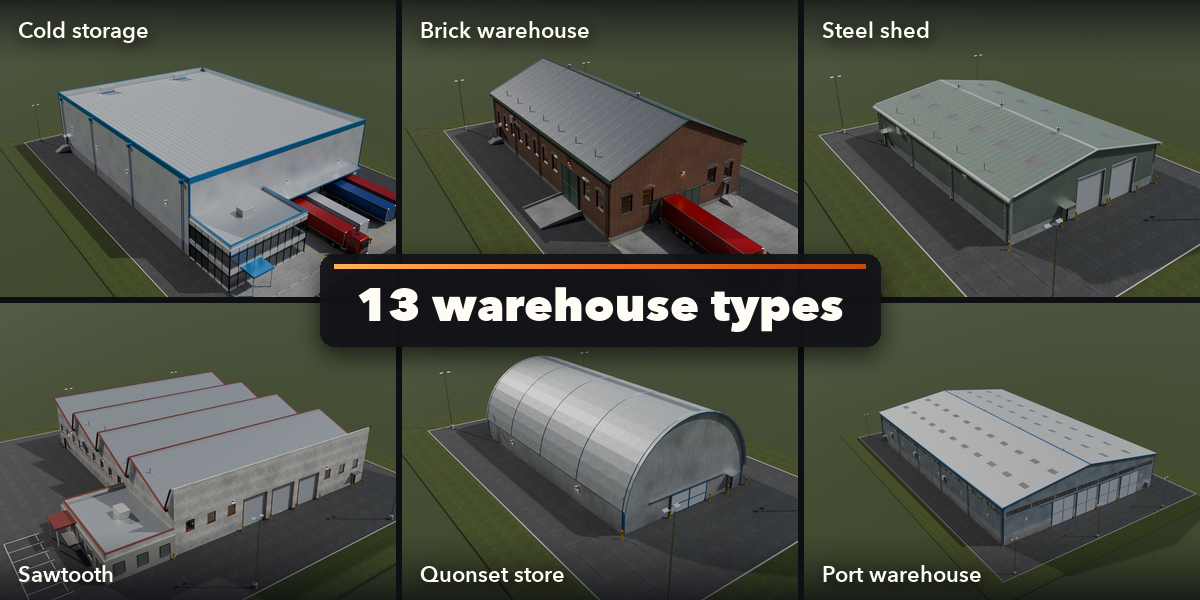
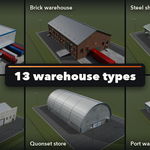
- Open the Warehouse tab in the 3D viewport sidebar (N) and click a warehouse type to add it at the 3D cursor.
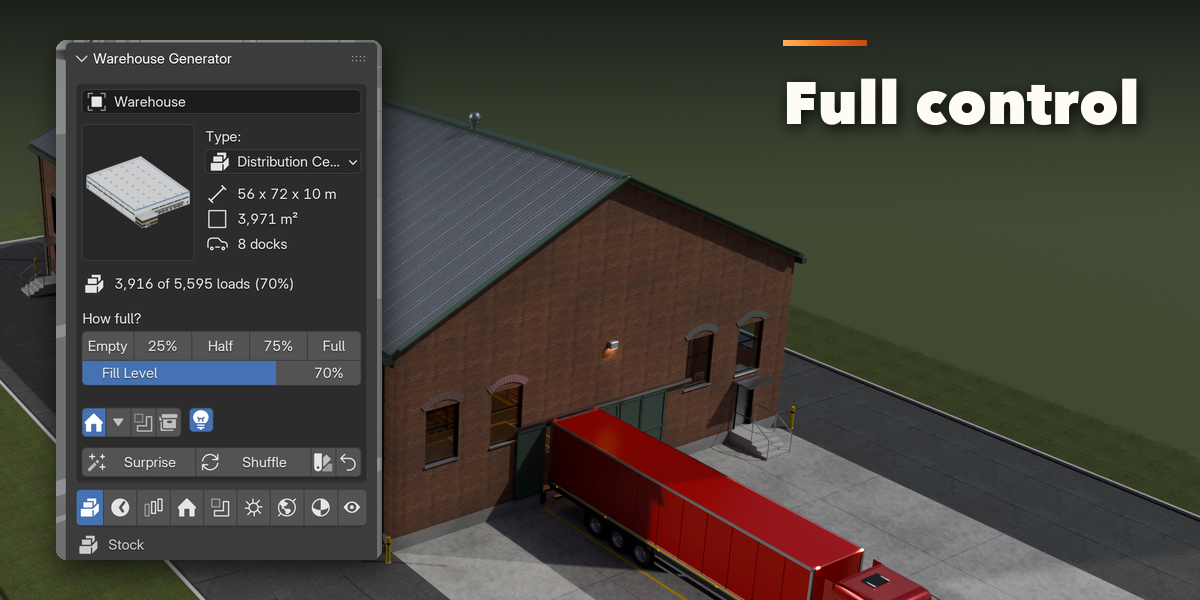
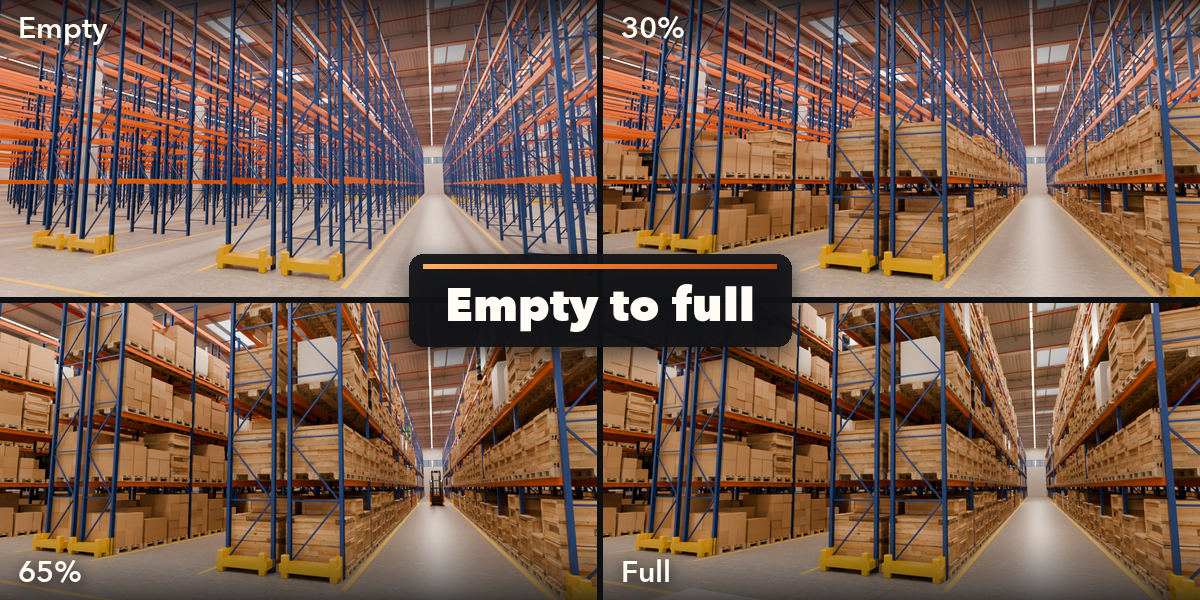
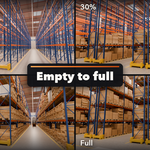
- The card at the top shows the type, its size, floor area, docks and how many loads are stored. The How full? buttons set the fill level from Empty to Full; Surprise makes a random warehouse and Shuffle reshuffles the stock.
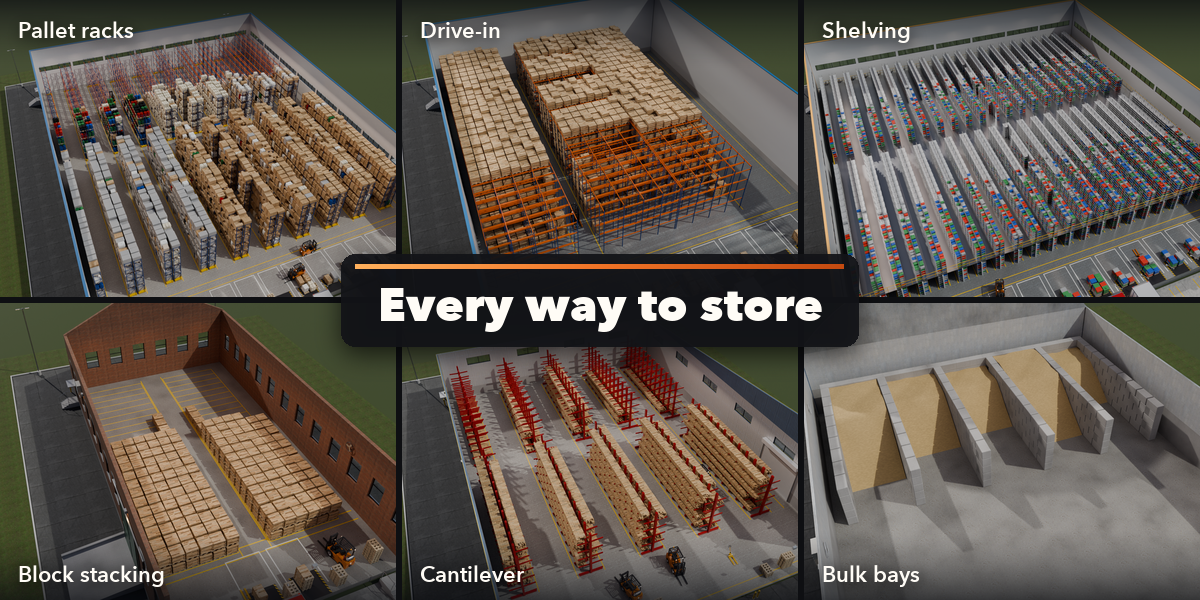
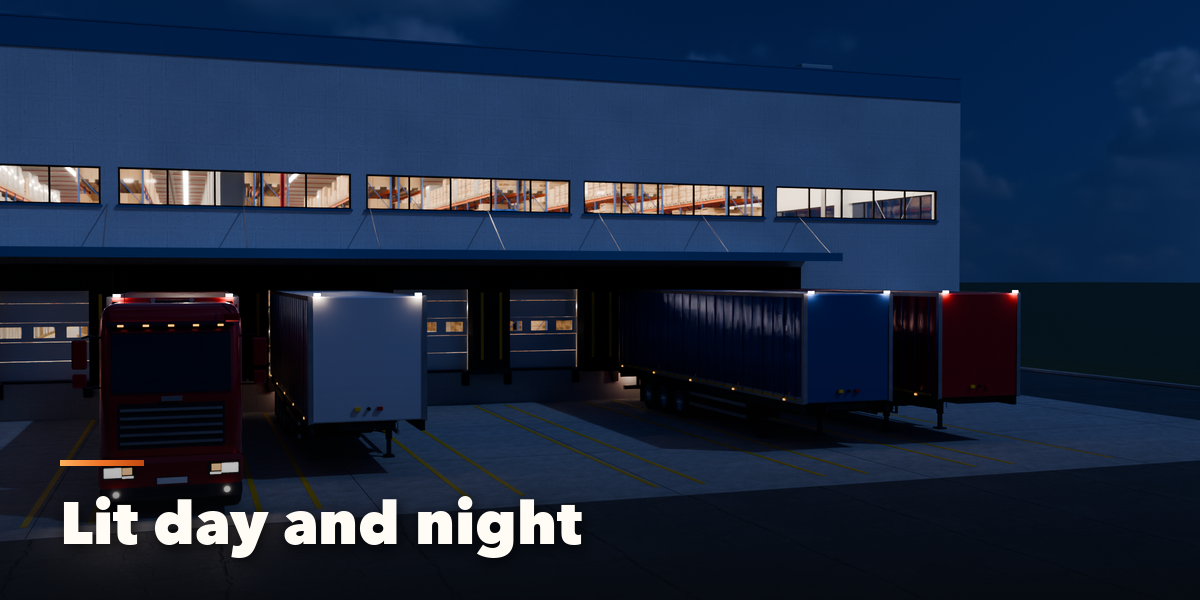
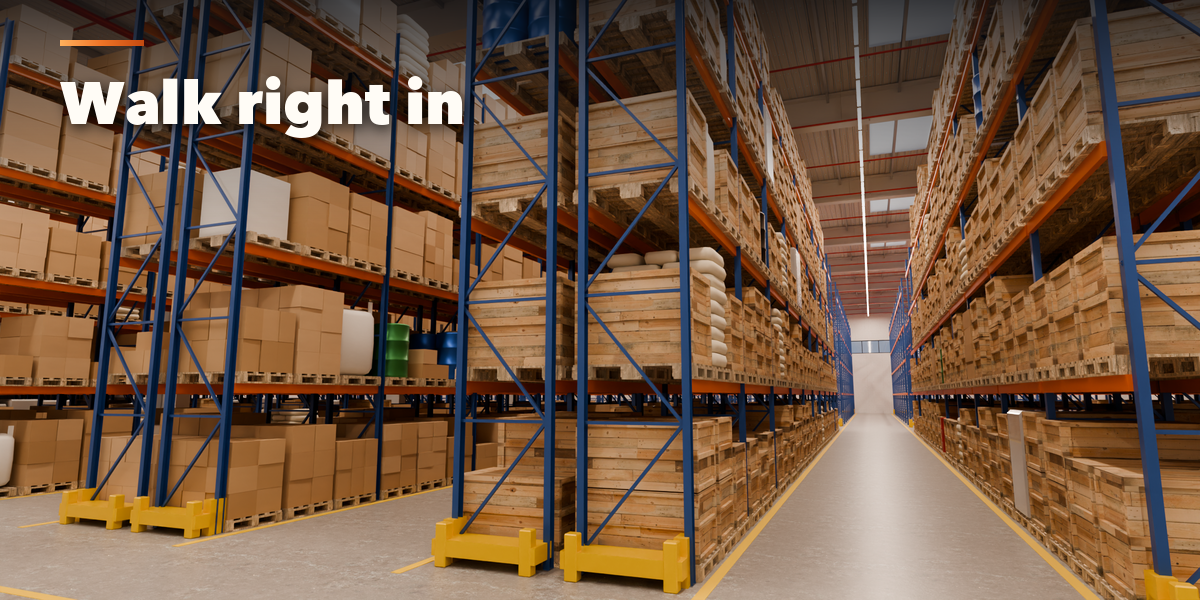
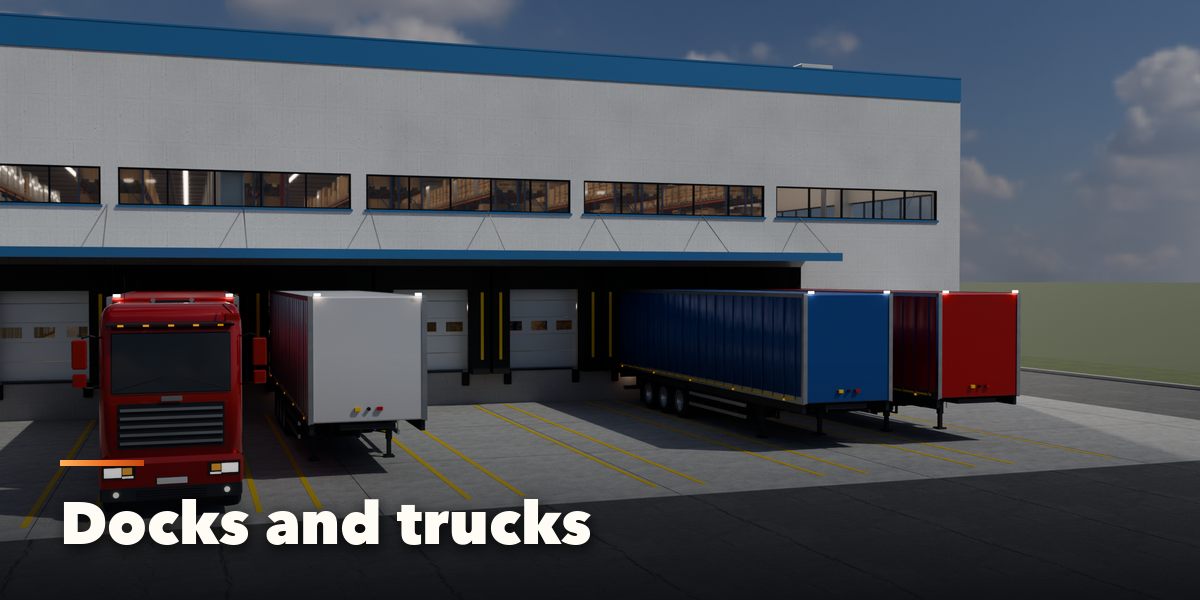
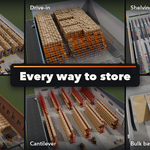
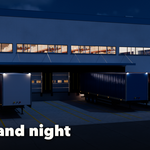
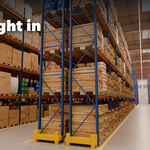
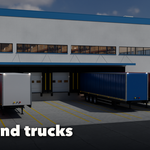
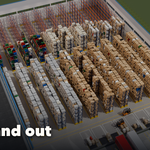
- The icon tabs hold every setting: Stock (goods, fill level, put-away order, forklifts), Flow (animated filling or emptying), Storage (racks, shelving, block stacks, bulk bays, aisles), Building (size, roof, walls, frame, office), Openings (docks, doors, windows, skylights), Services & Lights (light rows, air system, fans, sprinklers, fire safety), Site (yard, trailers, trucks, car park, fence), Finish (colors, floor, weathering) and View & Export (cutaways, part visibility, detail, Convert to Meshes).
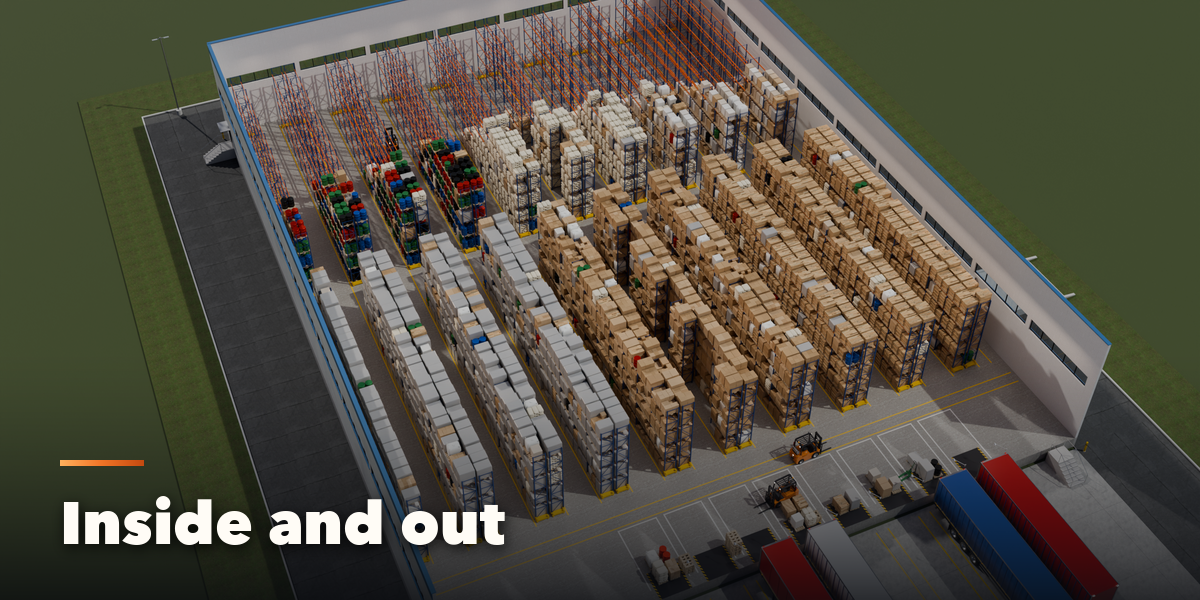
- Use the Cutaway view to look inside. Convert to Meshes keeps the warehouse as plain meshes; Delete removes it with all its parts.
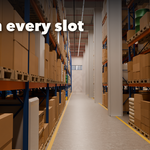
Big halls hold thousands of loads; lower the Detail setting or the fill level if the viewport gets slow.
Have questions about this product?
Login to message
| Blender Extension Compatible | Yes |
| Published | about 15 hours ago |
| Blender Version | 4.2 - 5.2 |
| Extension Type | Add-on |
| Render Engine Used | Cycles, Eevee |
| License | GPL |

Discover more products like this
Generator Interior procedural warehouse exterior architecture factory logistics pallet industrial environment building