Wearforge - Edge Wear As Real Geometry
 Tristan Muzzu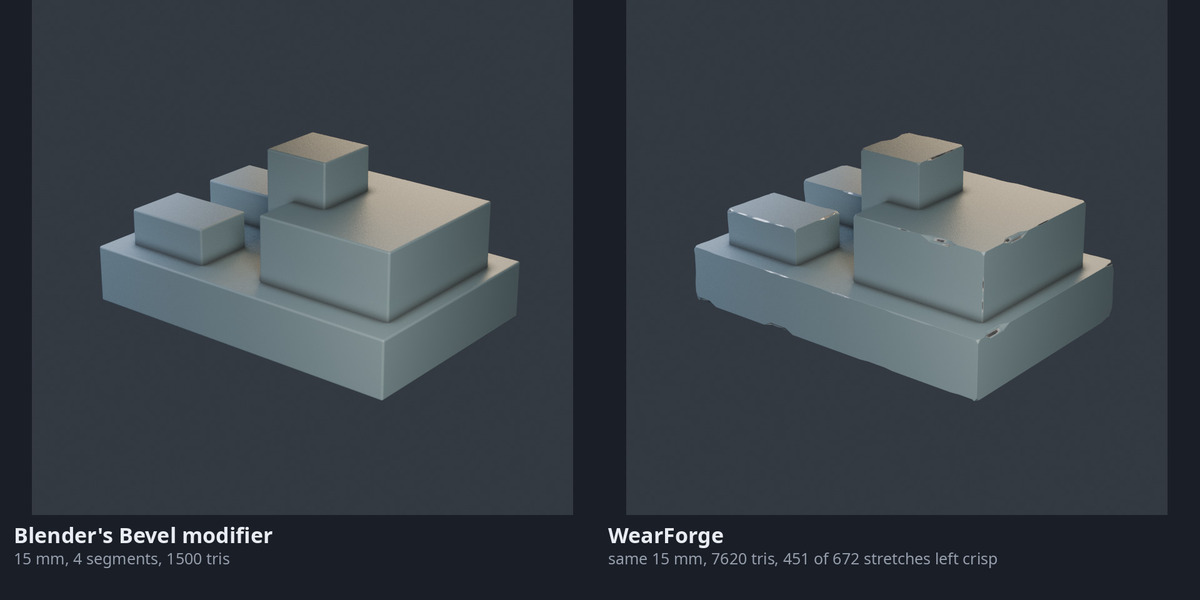
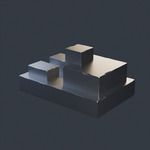
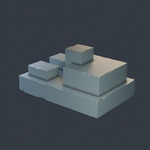
WearForge 0.4.0
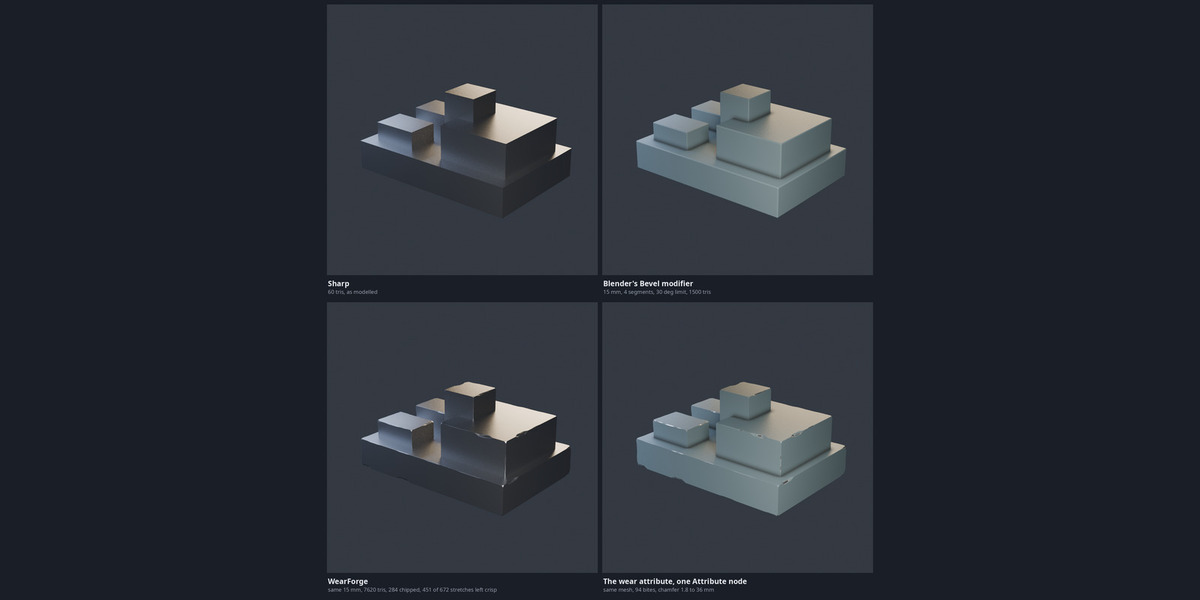
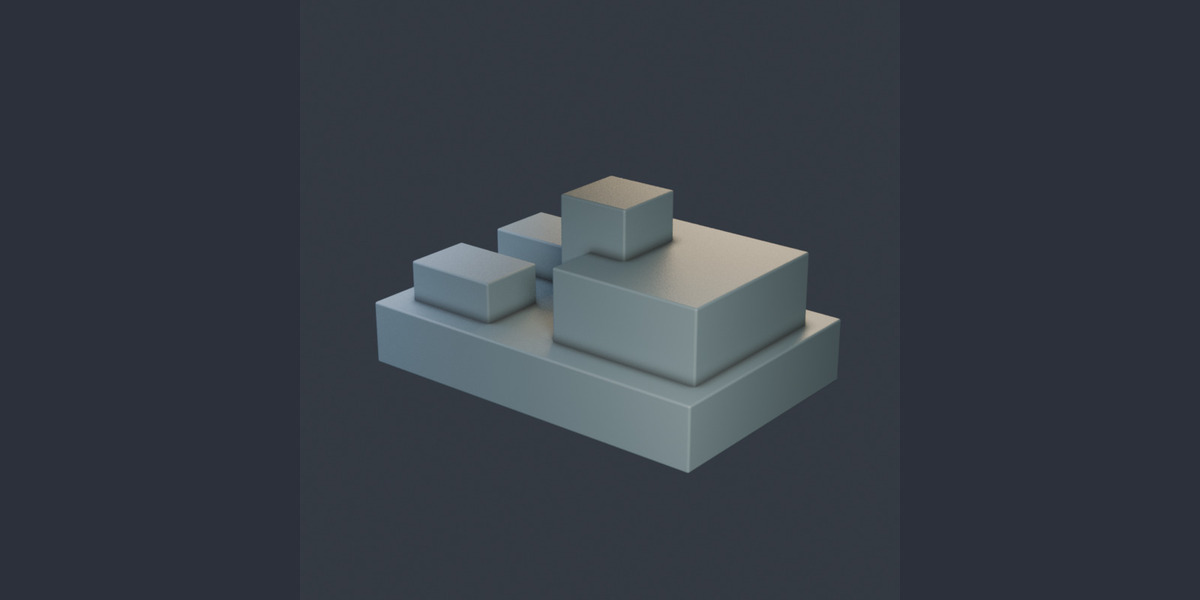
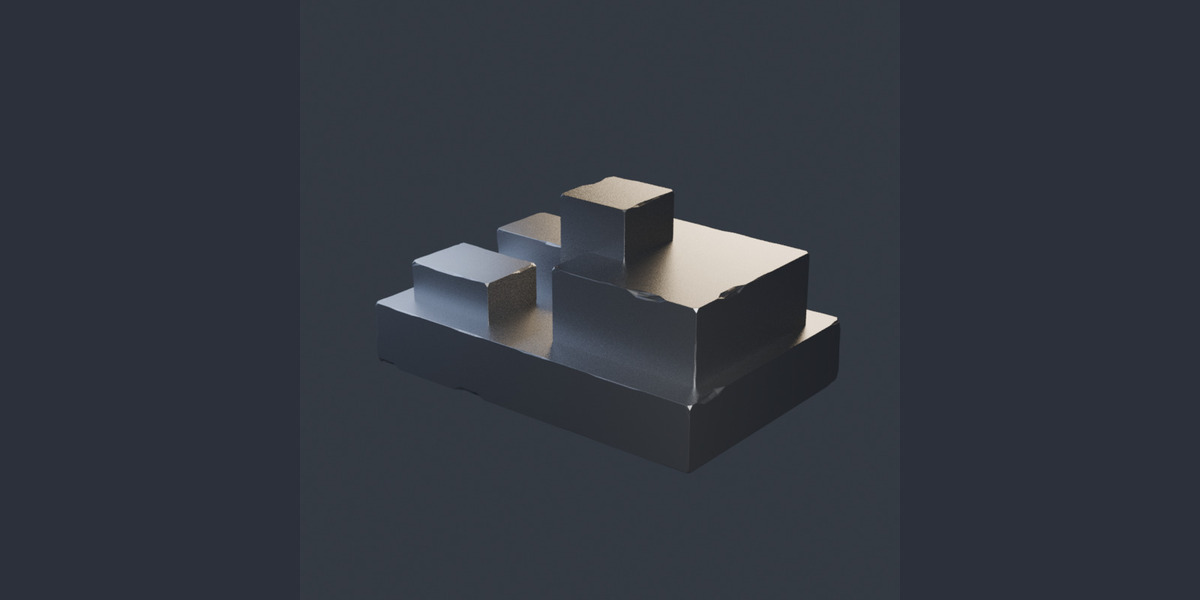
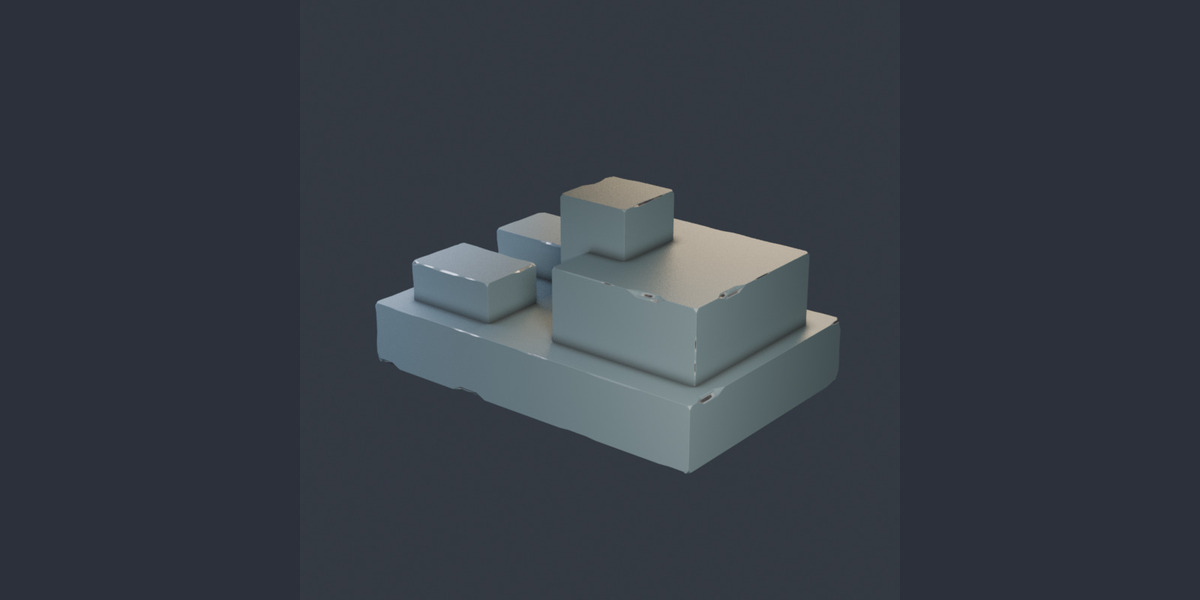
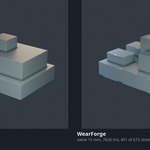
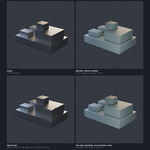
WearForge adds uneven chamfers and small chips to sharp edges. The effect is intended for close-up detail. At a distance, the result may look similar to a regular bevel.
Installation
Supports Blender 3.6 through 5.2. On Blender 4.2 and newer, drag the ZIP into the Blender window or choose Install from Disk. On older versions, use Edit > Preferences > Add-ons > Install. Enable WearForge, then press N in the 3D Viewport and open the WearForge tab.
First use
- Duplicate your mesh so you have a copy of the original.
- Apply object scale and select the objects you want to wear.
- Set Edge Angle to choose which edges are affected. The default is 30 degrees. A smooth sphere may have no suitable edges.
- Choose Chamfer and Chip Size for the scale of the object, then run the tool.
- Inspect the result close up. To try different settings, undo before running it again.
Controlling the wear
Chamfer and Chip Size are lengths in metres. Smaller objects need smaller values. If the requested damage is too large for the mesh, the operator reports a smaller value to try.
The width varies along each edge, with some sections left crisp. Damage clusters in patches. Handling favours edges facing up or outward and reduces wear underneath. Lower it for more evenly distributed wear.
Handling uses the object's orientation; it does not know how the object is used or what it is attached to. Check that the worn areas make sense for your model.
Vertices on the original flat faces are kept in their planes. The operation reports max_bow, the largest distance a vertex sits from its original face plane.
Materials and masks
On an object without materials, the optional WF_Worn material adds paint, exposed metal in the chips and dirt in the chamfers. Turn off Add Material to work with your own shader.
The wear point attribute is 1 where a chip landed and 0 elsewhere. Connect an Attribute node to a Color Ramp to use it as a material mask.
Exporting
The worn geometry stays with the mesh on export. The material mask needs separate attention: glTF can export the _wear copy of the attribute when Export Attributes is enabled, appearing as _WEAR in the exported file. FBX does not carry these custom attributes. Check the mask in the application receiving the model.
Limits and support
WearForge edits the mesh directly. It is not a modifier, so keep a backup and undo before trying new settings. The chips are small surface details rather than large breaks or missing chunks.
For help, use the contact link on the product page. Include your Blender version, settings and steps to reproduce the problem.
Have questions about this product?
Login to message
| Blender Extension Compatible | Yes |
| Published | 6 days ago |
| Blender Version | 3.6 - 5.2 |
| Extension Type | Add-on |
| Render Engine Used | Cycles, Eevee |
| License | GPL |

Discover more products like this
Damage chamfer procedural weathering modeling hard surface edge wear bevel