 Gabor Kiss


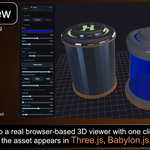
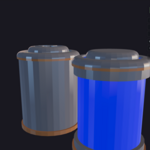
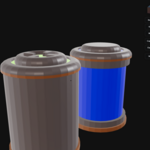
Web Preview is a local Blender add-on for checking how your selected model and materials look in a real browser viewer before you hand them off, publish screenshots, or spend time setting up a web scene.
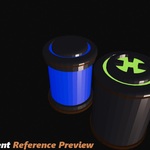
Send the asset from Blender with one click, compare it in three.js, Babylon.js, PlayCanvas, and the read-only Filament (introduced in version 1.20.0) reference preview, tune the look, and decide whether the fast Direct Preview or the baked fallback gives you the review you need.
From the same preview, you can adjust materials, tune HDR lookdev, isolate bodies, compare renderers, export a tweaked glTF for further testing, and save current-view or transparent PNGs with optional branding.
Key Features
Direct Preview
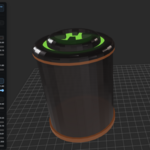
Export the selected object to a temporary glTF preview and open it in the browser viewer.
Useful for quickly checking how your model and materials translate to a web-style 3D presentation.
Material Tuning
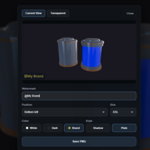
Direct Preview includes a focused material panel for reviewing one material at a time, even on assets with long body and material lists.
Adjust surface color, roughness, metalness, emission, double-sided rendering, opacity, alpha mode, clearcoat, transmission, and IOR in grouped sections built for quick visual review.
Compare Original and Tweaked with one click, reset a single material or the full session, and export the current tweaked glTF when you want to use the adjusted result outside Web Preview.
Baked Preview
Create a baked fallback preview for selected mesh materials when you want a more stable real-time preview path.
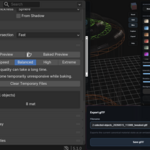
Choose Speed, Balanced, High, or Extreme bake quality depending on whether you need a faster check or more detailed fallback textures.
Renderer Comparison
Switch between three.js, Babylon.js, PlayCanvas, and the read-only Filament reference preview in the same browser viewer.
three.js and Babylon.js use the shared lookdev controls for a direct comparison, while PlayCanvas and Filament include extra tuning because their environment lighting workflows are different.
Earlier Web Review
Check material and model presentation before spending time placing the asset inside your own web project.
For asset creators, this can also help catch obvious visual issues before a customer reports that a material behaves differently in their viewer.
HDR Lookdev Controls
Choose from bundled HDR environment presets, then adjust exposure, environment intensity, environment rotation, background color, grid, and wire overlay.
PlayCanvas also includes dedicated tuning for HDR background, IBL balance, skybox strength, skybox blur, and material tonemapping. Filament includes its own reference lighting controls for ambient strength, key light strength, key direction, key height, HDR direction, and environment color.
Object and Material Review
Inspect exported bodies and material status inside the viewer.
Toggle body visibility to isolate parts of the model, then open a focused material view when you want to adjust one material at a time.
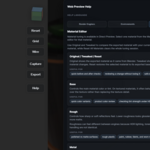
In-Viewer Help
Open the built-in Help menu from the viewer to get compact workflow notes for Render Engines, Environments, and the Material Editor.
The Help content is available in English, German, French, Spanish, and Polish, while the technical workflow terms stay aligned with Blender, glTF, and web renderer terminology.
Screenshot Capture
Save the current view as a PNG, or export a transparent PNG for use in product images, storefront layouts, compositing, and image or video workflows.
Add an optional brand watermark with position, size, color, shadow, or plate styling.
Blender-Based Preview Export
Web Preview uses Blender's glTF export path to create the temporary preview file that opens in the browser.
If you export a tweaked material result from the viewer, Web Preview saves a browser-patched copy of that Blender-exported glTF with the current material changes applied.
Baked Preview is a visual fallback created through Blender baking. Exporting the baked preview as a glTF handoff is disabled because the baked result can lose additional material quality or intent outside the preview workflow. Use Direct Preview or Blender's built-in export for handoff files.
Local Workflow
No cloud account, login, or upload step is required for the preview workflow.
Your selected asset is exported to a temporary local preview and viewed in your browser on your machine.
The preview workflow runs on your machine through a temporary local preview server using a 127.0.0.1 browser connection. The selected asset is exported to a temporary local glTF preview file and served only to your local browser: no cloud account, no login, and no asset upload step is required. The browser viewer loads the JavaScript renderer libraries for three.js, Babylon.js, PlayCanvas, and Filament from public CDN sources, so an internet connection is required for the preview viewer to start.
Temporary Files
Preview files are written to Blender's temporary folder when available, otherwise to the system temporary folder, inside a folder whose name starts with wmp_preview_.
These generated preview files are cleaned up when the local preview server is stopped or the add-on is disabled, and the Blender panel includes a Clear Temporary Files button for manual cleanup.
Why Web Preview
• Preview selected Blender assets in a browser viewer
• Compare three.js, Babylon.js, PlayCanvas, and the read-only Filament reference preview without setting up a web project
• Use a local 127.0.0.1 preview connection with no cloud upload step
• Renderer libraries load from public CDN sources, so the browser preview may require internet access
• Use shared controls for three.js and Babylon.js, with extra PlayCanvas and Filament tuning where the engine needs it
• Find visual differences earlier, before a long project integration or customer handoff
• Use Direct Preview for fast checks, material tuning, and renderer review
• Use Baked Preview with selectable bake quality for more stable fallback visuals
• Clear generated temporary preview files from the Blender panel
• Tune HDR environment presets, lighting, background, grid, wireframe, material values, and renderer-specific settings
• Use the localized Help menu for Render Engines, Environments, and Material Editor guidance in English, German, French, Spanish, or Polish
• Capture consistent storefront images with optional transparent background and brand watermark controls
• Work locally without a cloud account, login, or upload step
• Keep export behavior aligned with Blender's own glTF pipeline
Direct Preview (Quick Workflow)
-
Select the object you want to preview
in Blender. - Open the Web Preview panel.
- Click Direct Preview.
- The browser viewer opens with the exported glTF preview.
- Optional: switch renderer, adjust environment settings, tune a material, hide bodies, or capture a PNG.
Direct Preview is the fastest way to inspect your selected asset in a web-style viewer before deeper project integration.
Baked Preview (Fallback Workflow)
- Select the mesh object and materials you want to check.
- Open the Web Preview panel.
- Choose a bake quality preset when needed.
- Click Baked Preview.
- Web Preview bakes a temporary fallback preview and opens it in the browser viewer.
- Optional: compare renderers, adjust lookdev settings, and save a branded or transparent PNG.
Baked Preview is the fallback path for complex node-based materials that benefit from a baked real-time representation.
