Web Preview
 Gabor Kiss


How does the local browser preview work?
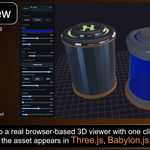
Web Preview starts a temporary local preview server on your machine and opens the viewer through a 127.0.0.1 browser connection.
The selected Blender objects are exported to a temporary local glTF preview file and served only to your local browser. The preview workflow does not upload your asset to a cloud service.
Does the browser preview need an internet connection?
An internet connection may be required for the browser preview viewer to load the JavaScript renderer libraries for three.js, Babylon.js, and PlayCanvas and Filament from their public CDN sources.
Your selected asset is still served locally through the temporary 127.0.0.1 preview connection and is not uploaded by Web Preview.
How can I test in multiple browsers?
Web Preview opens in your default browser, but the preview is served from a local address on your machine, for example:
http://localhost:61118/index.html
The port number is chosen automatically and can change between sessions.
While Blender and the Web Preview server are running, you can copy the current preview URL and open it in any other installed browser on the same machine.
This lets you check the same local preview in multiple browsers before publishing, integrating, or delivering the asset to a customer.
While Blender and the Web Preview server are running, you can copy the current preview URL and open it in any other installed browser on the same machine.
This lets you check the same local preview in multiple browsers before publishing, integrating, or delivering the asset to a customer.
Which engines are supported?
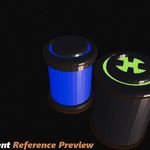
Web Preview currently includes browser preview modes for three.js, Babylon.js, PlayCanvas, and the read-only Filament reference preview.
Can there be visible differences between engines?
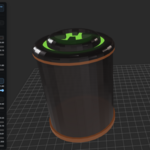
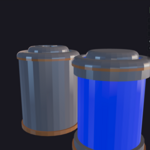
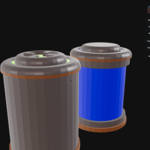
Yes. Simple materials may look very similar, but meaningful differences can appear between engines, especially with lighting, HDR environment handling, tonemapping, transparency, normal maps, texture interpretation, and complex material setups.
Web Preview is designed to make those differences easier to spot before you spend time integrating the asset into a web project or handing it off to a customer.
What can I do with the screenshot tool?
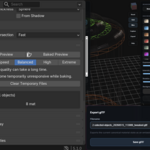
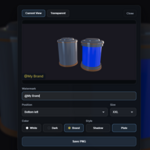
The screenshot tool can save:
- Current View PNG
- Transparent PNG
Optional watermark controls include:
- Watermark text
- Position
- Size: S / M / L / XL / XXL
- Color: White / Dark / Brand
- Style: Shadow / Plate
This is useful for consistent storefront images, branded previews, transparent cutouts, compositing, and AI-assisted image or video workflows.
Does Web Preview customize the export?
Web Preview intentionally relies on Blender's glTF export path for the temporary preview file.
The goal is to keep export behavior controlled by Blender, while Web Preview focuses on quick browser review, renderer comparison, lookdev adjustment, and screenshot capture.
How does the export work?
When you click Direct Preview, Web Preview exports the selected Blender objects to a temporary glTF preview and opens the browser viewer.
When you click Baked Preview, Web Preview first creates temporary baked preview materials for selected mesh materials, then exports the temporary preview and opens it in the same browser viewer.
What does “Filament Reference Preview” mean?
The Filament renderer was introduced experimentally in Web Preview v1.20.0 as an additional reference-style comparison renderer.
Because Filament uses a different rendering and environment lighting workflow than three.js, Babylon.js, or PlayCanvas, the current implementation focuses on renderer comparison and visual inspection rather than full feature parity.
Realtime material editing inside the Filament renderer itself is not yet supported in the current version due to the complexity of Filament’s rendering pipeline and browser integration workflow.
However, Filament can still display material changes transferred from the shared material workflow used by the other renderers.
The goal of the Filament reference preview is not to guarantee identical visual output between engines, but to help reveal renderer-specific differences earlier during lookdev, web preview, and asset validation workflows. Filament also includes its own renderer-specific lighting controls because its lighting and environment workflow differs from the other supported engines. In practice, this can sometimes produce a more dramatic, contrast-heavy, or cinematic presentation style, which can also be useful for screenshot review and presentation workflows.
Because Filament uses a different rendering and environment lighting workflow than three.js, Babylon.js, or PlayCanvas, the current implementation focuses on renderer comparison and visual inspection rather than full feature parity.
Realtime material editing inside the Filament renderer itself is not yet supported in the current version due to the complexity of Filament’s rendering pipeline and browser integration workflow.
However, Filament can still display material changes transferred from the shared material workflow used by the other renderers.
The goal of the Filament reference preview is not to guarantee identical visual output between engines, but to help reveal renderer-specific differences earlier during lookdev, web preview, and asset validation workflows. Filament also includes its own renderer-specific lighting controls because its lighting and environment workflow differs from the other supported engines. In practice, this can sometimes produce a more dramatic, contrast-heavy, or cinematic presentation style, which can also be useful for screenshot review and presentation workflows.
What kind of help does the Help menu provide?
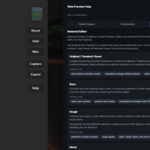
The Help menu is designed to support both beginners and more advanced users while working with realtime web previews and glTF materials. It explains the purpose of each major feature in a practical, production-focused way.
Topics include:
renderer comparison between three.js, Babylon.js, and PlayCanvas
why the same model can look different across engines
HDR environments, reflections, exposure, and lighting behavior
material tuning for roughness, metalness, transparency, clearcoat, transmission, and emissive materials
topology and wireframe inspection tools
camera framing and consistent screenshot workflows
PlayCanvas-specific lighting and skybox controls
common realtime rendering pitfalls and compatibility checks
The Help menu focuses on practical web workflows such as lookdev, asset QA, client previews, storefront presentation, and engine compatibility review, while also explaining how the individual controls affect the final result.
Where are temporary preview files stored?
Web Preview creates temporary preview files in Blender's temporary folder when available, otherwise in the system temporary folder. The folder name starts with wmp_preview_.
These generated preview files are cleaned up when the local preview server is stopped or the add-on is disabled.
On Windows, preview files are usually created inside Blender's temporary directory under the system temporary folder, for example:
C:\Users\\AppData\Local\Temp\blender_...\wmp_preview_..
On macOS, preview files are usually created inside Blender's temporary directory under the system temporary folder, for example:
/var/folders/.../T/blender_.../wmp_preview_...
Does anything get uploaded to a cloud service?
No cloud account, login, or upload step is required for the preview workflow.
Web Preview exports a temporary preview locally and opens it in your browser on your machine.
Which engine versions are used?
Current viewer versions:
- three.js 0.182.0
- Babylon.js 8.45.3
- babylonjs-loaders 8.45.3
- PlayCanvas 2.7.4 via the PlayCanvas stable runtime, Filament 1.53.4 from jsDelivr
Why can’t I see the watermark clearly in the preview image inside the Screenshot Tool?
The preview image scales with the browser window size. Check the final exported image for the actual result, or make the browser window larger while using the Screenshot Tool for a bigger preview.
What languages are available in the Help menu? Is the entire application localized?
A: Currently, localization is available for the Help menu only.
The following languages are supported: English, Deutsch, Français, Español, and Polski.

Discover more products like this
three preview web viewer Material materialeditor screenshot Shader Export playcanvas babylon gltf