WeightForge Pro 2.0 – Voxel Skinning + Clothing Weight Transfer
 Anvil Interactive Solutions
Overview
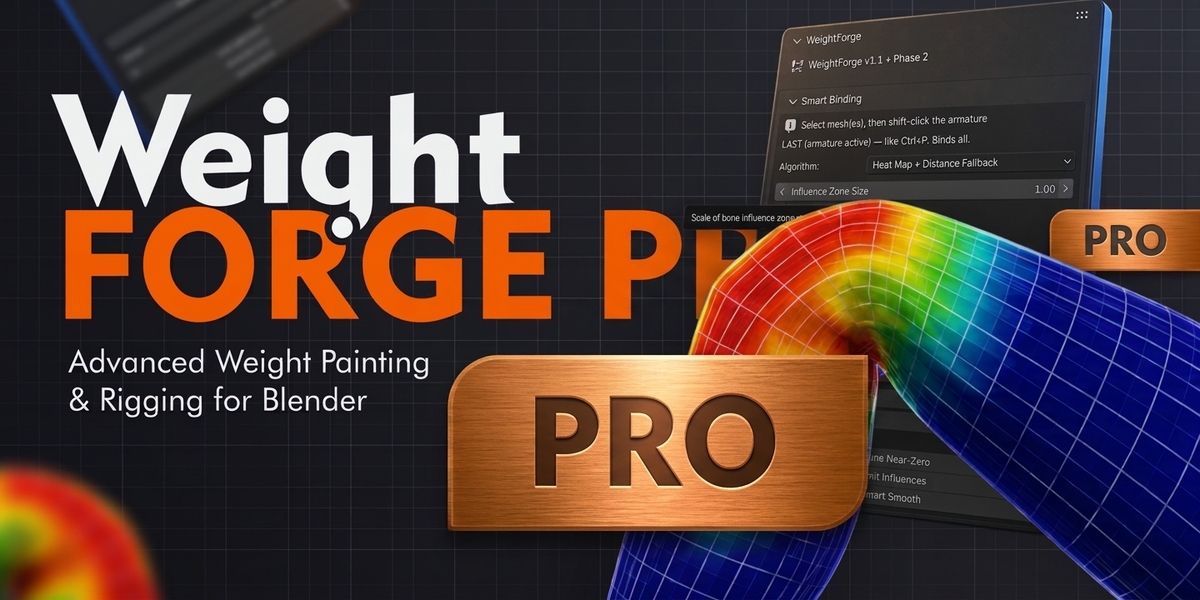
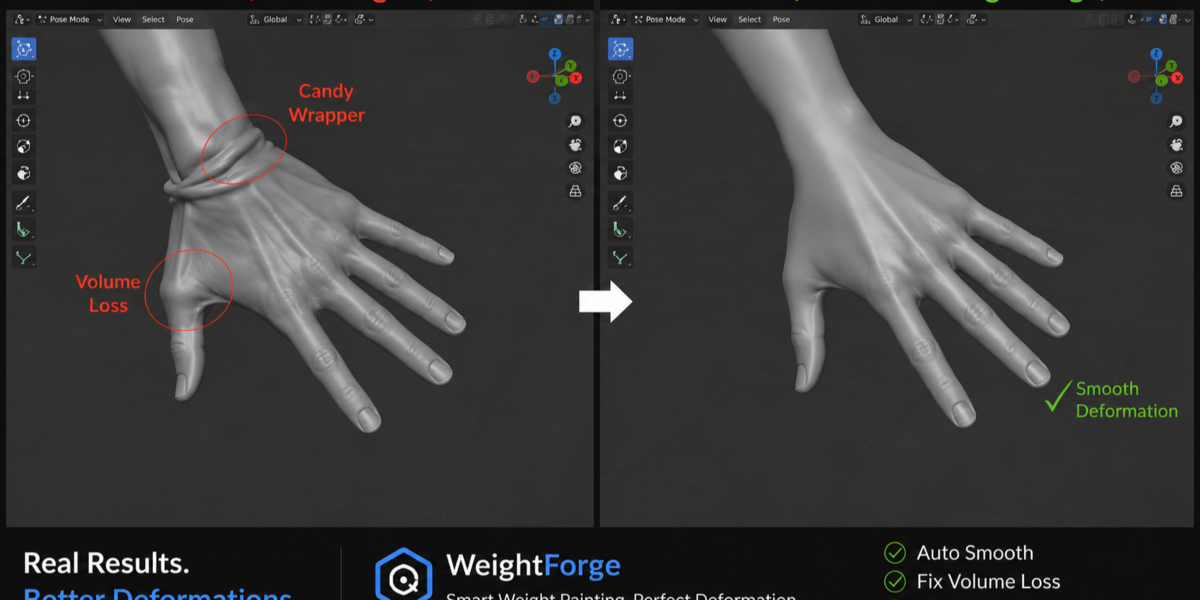
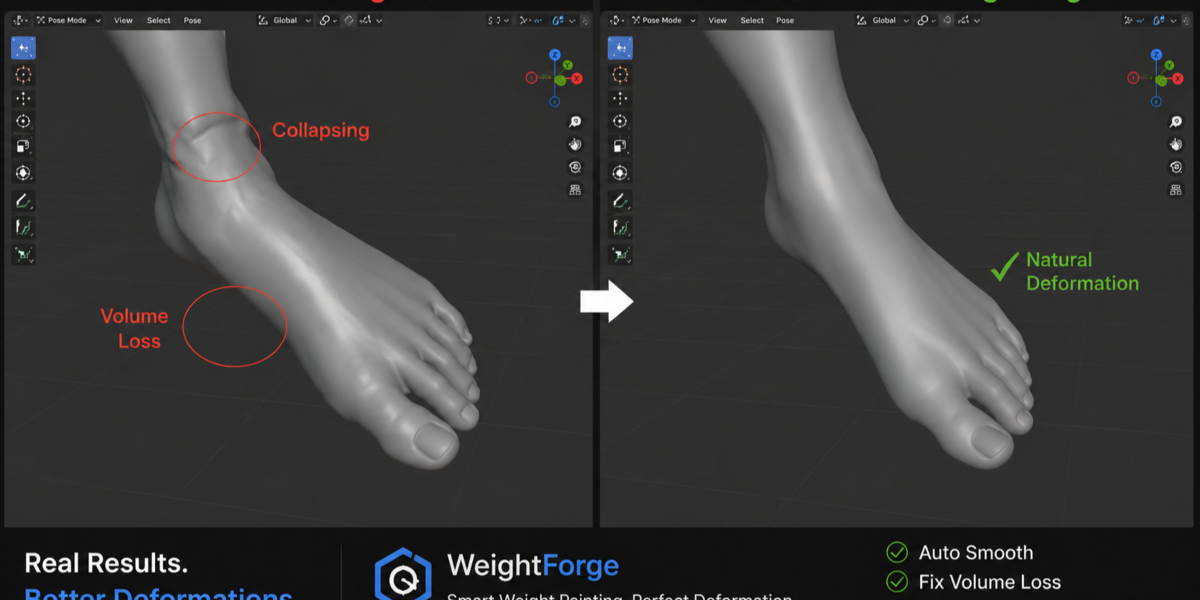
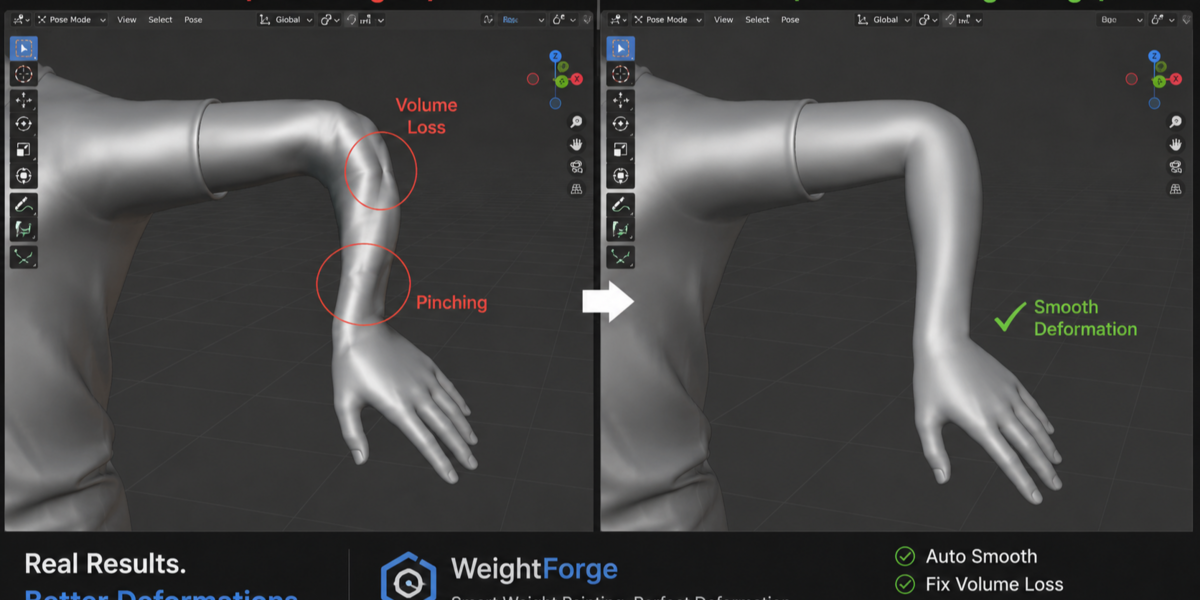
WeightForge Pro is an advanced Blender add-on for character skinning, weight transfer, weight cleanup, and deformation diagnostics. It provides a complete set of tools for binding meshes to armatures, transferring weights between objects (especially body-to-clothing), cleaning and optimizing weights, diagnosing deformation issues, and applying specialized binding methods for organic and hard-surface assets.
Key capabilities include:
- Smart binding with multiple algorithms
- Intelligent body-to-clothing weight transfer
- Advanced weight cleanup and influence control
- Live deformation heatmaps and problem detection
- Joint gradient tools
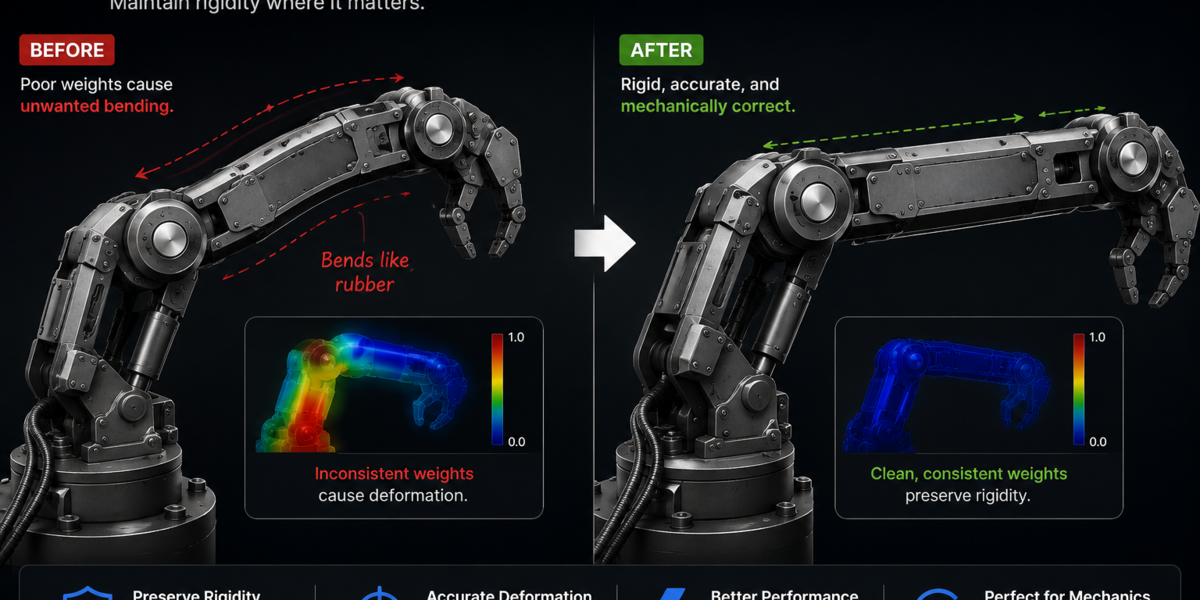
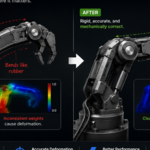
- Rigid and hierarchy binding for mechanical parts
- Voxel-based weight generation
- Export readiness reporting
Compatibility
- Minimum Blender version: 4.2.0
- Primary target: Blender 5.2
- License: GPL-3.0-or-later
Installation
- Download the WeightForge Pro ZIP file. Do not extract it.
- In Blender, go to Edit → Preferences → Add-ons.
- Click Install from Disk, select the ZIP file, and enable WeightForge Pro.
- In the 3D Viewport, press N to open the Sidebar.
- Locate the WeightForge or WF Pro tab.
Interface Overview
The add-on appears in two main locations in the Sidebar (N-panel):
- WeightForge – Main workflow panels (Bind, Cleanup, Diagnostics, Export, etc.)
- WF Pro – Advanced skinning tools including voxel weight generation
Features
1. Smart Bind
Automatically generates vertex weights from an armature using one of three algorithms:
| Algorithm | Description |
|---|---|
| Classic Heat Map | Blender’s built-in bone heat weighting |
| Distance + Normal | Custom distance-based weighting using closest point on bone with normal awareness |
| Hybrid | Runs Classic Heat Map first, then fills any remaining unweighted vertices using the Distance method |
Options:
- Bind selected bones only
- Preserve existing weights
- Influence zone visualization with adjustable size
Workflow:
- Select the mesh object(s).
- Shift-select the armature last (so it is active).
- Choose the desired algorithm and options.
- Click Smart Bind.
- Pose-test major joints and refine as needed.
2. Weight Transfer
Transfers weights from a source mesh (typically a body) to one or more target meshes (clothing, accessories, armor, etc.).
Transfer Methods:
- Proximity
- Normal-aware
- Topology
- Hybrid
Options:
- Preserve / blend existing target weights
- Maximum transfer distance
- Transfer strength
- Automatic smoothing after transfer
Workflow:
- Select the clothing/target object(s).
- Select the weighted source (body) last so it is active.
- Choose transfer method and distance settings appropriate to your scene scale.
- Click Transfer.
- Inspect garment boundaries, joints, and overlapping areas. Clean up if necessary.
3. Weight Cleanup Tools
| Tool | Description |
|---|---|
| One-Click Full Cleanup | Runs a complete cleanup sequence |
| Prune Near-Zero | Removes very small weight influences |
| Limit Influences | Caps the number of bones influencing each vertex |
| Smart Smooth | Smooths only detected problem areas (does not smooth the entire mesh when no problems are found) |
| Prune Distant Influence | Removes influence from bones that are far from the vertex |
| Mirror Vertex Groups | Mirrors left/right vertex groups |
| Clean Group Names | Standardizes vertex group naming |
| Remove Empty Groups | Deletes unused vertex groups |
Smart Smooth restores the user’s previous vertex selection, paint mask, and mode after execution.
4. Deformation Diagnostics
Live Deformation Heatmap
Displays a color-coded heatmap of deformation quality that updates while posing. Toggle it on/off directly from the panel.
Problem Detection
Identifies vertices with common weight issues (conflicting influences, poor falloff, etc.).
Snapshots & Comparison
- Save before/after weight snapshots
- Generate a comparison heatmap showing differences (including cases where total vertex weight remains the same but distribution between bones has changed)
Export Readiness Report
Generates a text report covering:
- Maximum influence count
- Normalization status
- Unweighted vertices
- Other export-critical metrics
The report opens in a Text datablock (accessible via the Text Editor).
5. Rigging Utilities
Joint Gradient
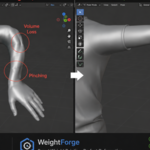
Creates smooth, natural blending between two bones (especially useful for elbows, knees, and shoulders).
Rigid Bind
Binds selected vertices or objects rigidly to a single bone (ideal for hard-surface parts, armor plates, mechanical components).
Hierarchy Bind
Binds objects according to a bone hierarchy starting from a chosen root bone.
Additional Tools:
- Align origin to bone
- Bone rotation helpers
- Rig type detection and Rigify weight redirection support
- Influence zone visualization
- Optional pie menus for faster access
6. Voxel Weight Generation (WF Pro)
Generates high-quality weights using a voxel-based surface diffusion approach:
- Creates a temporary geometry-only copy of the source mesh.
- Voxel-remeshes the temporary copy (original mesh geometry is never modified).
- Seeds deform-bone weights using world-space distance to bone segments.
- Diffuses the weights across the remeshed surface graph.
- Projects the final weights back onto the original mesh.
- Removes the temporary geometry.
Controls:
- Voxel Size (relative to character scale)
- Diffusion Iterations
- Diffusion Strength
- Maximum Influences
- Preserve existing weights option
Recommended workflow:
- Select the mesh object(s), then make the armature active.
- Open the WF Pro tab.
- Set Voxel Size according to the character’s scale (smaller = denser temporary mesh, higher quality, more memory).
- Adjust diffusion iterations, strength, and max influences.
- Run Generate Voxel Diffusion Weights.
- Pose-test shoulders, elbows, wrists, hips, knees, and any intersecting garments.
- Refine with cleanup tools if needed.
Recommended Workflows
Standard Character Binding
- Smart Bind (Hybrid recommended as starting point)
- Pose-test major joints
- Use Smart Smooth + Limit Influences
- Run Export Readiness Report
Clothing / Layered Assets
- Ensure body has clean weights
- Transfer Weights (Hybrid or Normal-aware usually works best)
- Adjust Max Transfer Distance to scene scale
- Inspect and clean boundaries
- Optional: Joint Gradient on key areas
Hard-Surface / Mechanical Parts
- Use Rigid Bind for individual plates/parts
- Or Hierarchy Bind when a logical bone chain exists
Difficult Geometry
- Use Voxel Weight Generation as the initial binding method
- Follow with cleanup and diagnostics tools
Troubleshooting
| Issue | Solution |
|---|---|
| No armature found | Select mesh(es) first, then Shift-select the armature last. Ensure the mesh has an Armature modifier. |
| Transfer misses distant vertices | Increase Max Transfer Distance or set it to 0 (unlimited). Verify source and target positioning. |
| Unexpected deformation | Check for non-deform groups, normalize weights, limit influences, and pose-test affected joints. |
| Voxel generation produces soft or inaccurate results | Adjust Voxel Size and diffusion settings. Compare against Classic Heat Map results. |
| Voxel remesh fails | Confirm the mesh has faces. Check for extreme object scales. Increase Voxel Size if the temporary mesh becomes too dense. |
| Weights look incorrect after transfer | Verify transfer method and strength. Use Preserve Details carefully. Inspect with the deformation heatmap. |
When reporting issues, include:
- Blender version
- Operating system
- WeightForge Pro version
- Exact steps to reproduce
- Full Python traceback (if any)
- A minimal .blend file when possible
Best Practices
- Always keep a backup of production scenes before major weight operations.
- Pose-test results thoroughly, especially around joints, fingers, facial areas, and layered clothing.
- Use the Export Readiness Report before exporting to game engines or other software.
- Combine tools: Voxel or Smart Bind → Cleanup → Diagnostics → Manual refinement where needed.
- For clothing, start with a well-weighted body mesh. Transfer quality depends heavily on source quality.
License
WeightForge Pro is released under the GPL-3.0-or-later license.
See the included LICENSE file for the full text.
Copyright © 2026 Anvil Interactive Solutions
Have questions about this product?
Login to message
| Blender Extension Compatible | Yes |
| Published | about 13 hours ago |
| Blender Version | 4.2 - 5.2 |
| Extension Type | Add-on |
| Render Engine Used | Cycles, Eevee |
| License | GPL |
Discover more products like this
weight transfer clothing weights voxel skinning weight painting heatmap rigify automatic weights Character rigging deformation skinning joint gradient