 JESUS
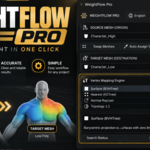
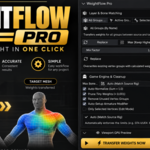
Can I transfer weights to only a specific part of a garment (e.g., only the waistband)?
Yes. Enter Edit Mode on your garment, select the vertices you want to affect, and enable the Only Selected Vertices checkbox in the Optimization section.
Does it guarantee error-free exports for GTA V / FiveM (Sollumz) and Unreal Engine?
Yes, 100%. GTA V and Unreal Engine crash or produce polygon spikes if vertices exceed 4 bone influences. WeightFlow Pro scans your source mesh and sets Auto (Max 4) by default, re-normalizing all vertex sums to 1.0000 and pruning micro-weights below 0.001.
How do I prevent weights from bleeding between fingers or thighs?
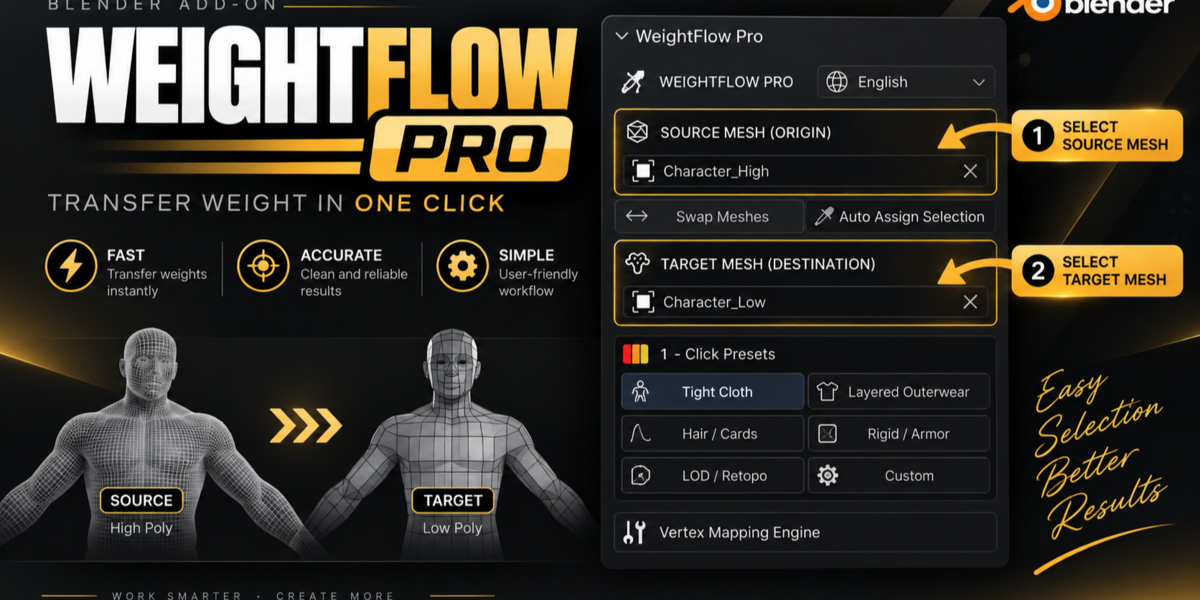
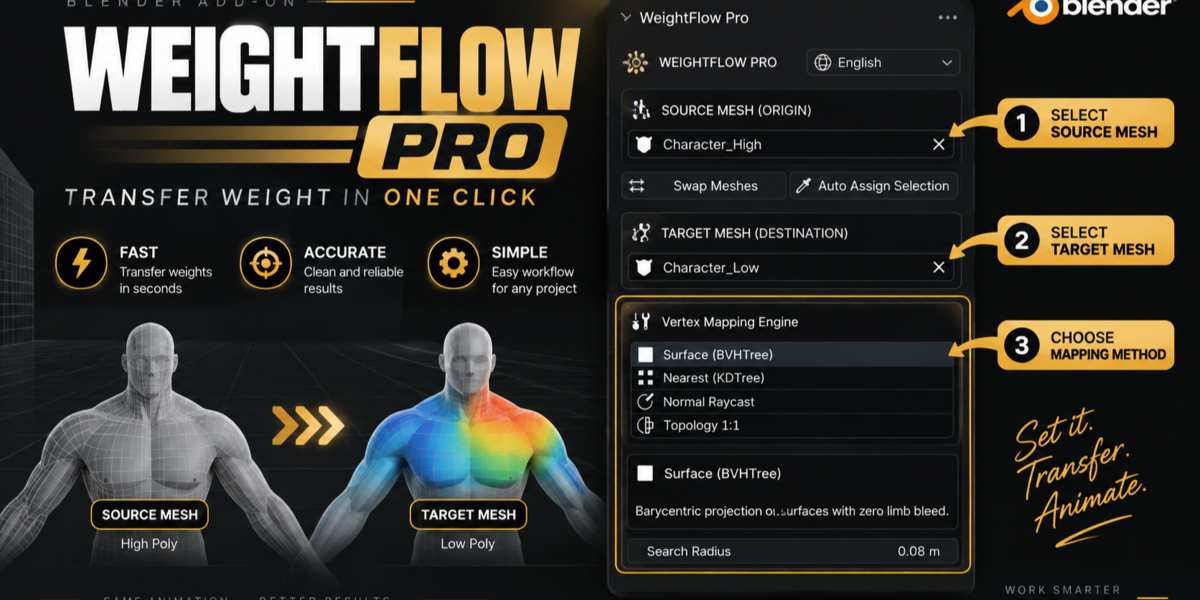
Use the Tight Cloth preset or the Surface (BVHTree) engine. Unlike traditional radial searches, it projects onto the actual polygonal faces of the source body, completely preventing cross-limb contamination.
Why use WeightFlow Pro over Blender’s default "Transfer Mesh Data
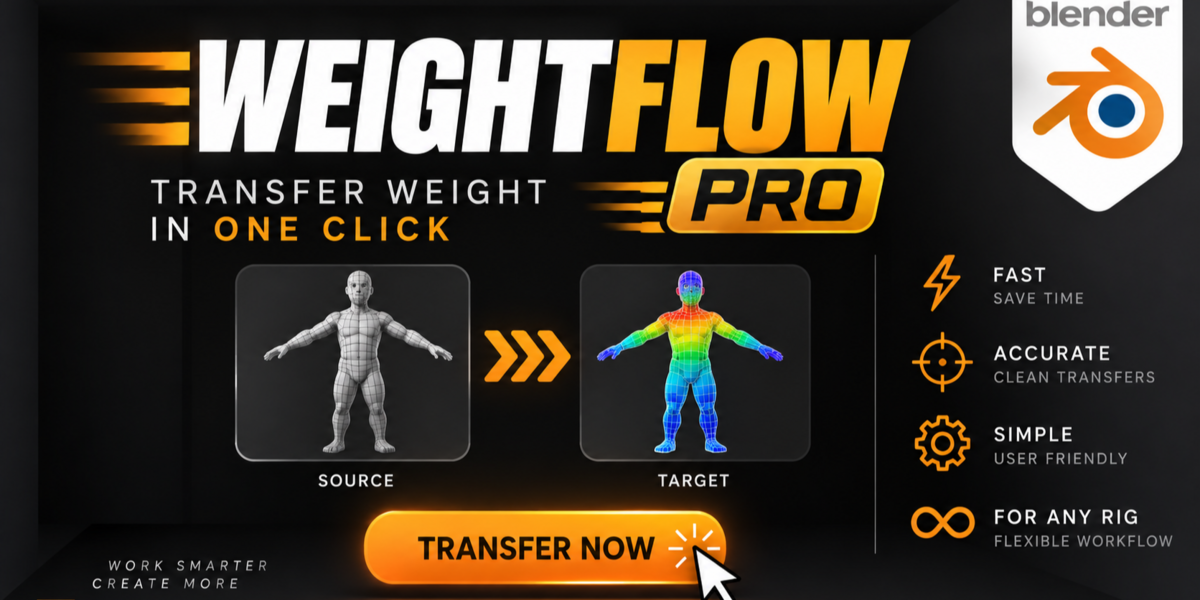
Blender’s default transfer requires entering Weight Paint mode, causes severe cross-limb bleeding (e.g., left thigh weights bleeding into the right leg), and leaves uncapped bone counts that cause polygon spikes in game engines. WeightFlow Pro transfers weights in 1 click from Object Mode in milliseconds, eliminates limb bleeding via face interpolation, and enforces game-ready bone limits automatically.
Which Blender versions are supported?
WeightFlow Pro is fully compatible with Blender 4.2 LTS, 4.3, 4.4, 5.0, and 5.1.1+. Built using Blender’s modern Extensions API and current GPU shaders, it guarantees long-term forward compatibility with upcoming 5.x releases
Have questions about this product?
Login to message
| Blender Extension Compatible | Yes |
| Sales | 10+ |
| Published | 2 months ago |
| Blender Version | 4.2 - 5.2 |
| Extension Type | Add-on |
| Render Engine Used | Blender-Internal, Blender-Game-Engine, Cycles |
| License | GPL |
Discover more products like this
weight paint rigging character game ready skinning clothing weight transfer animation weights tools