 Pino Iulio


BLENDER ADDON · 4.2 LTS → 5.0
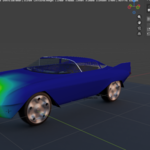
Paint. Press Enter. Reshape. Apply.
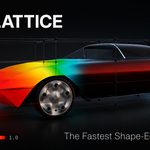
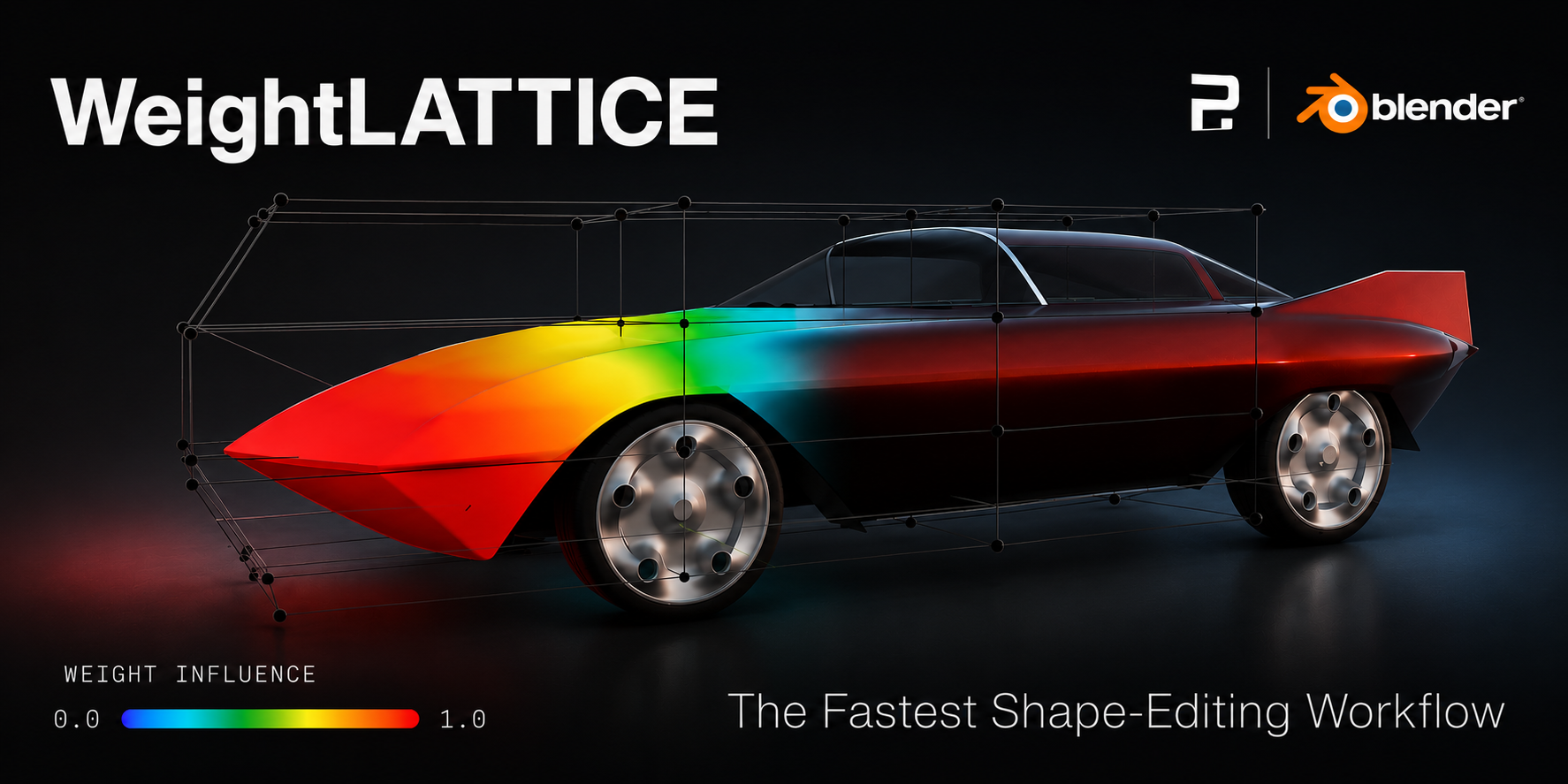
WeightLattice turns a painted vertex group into a lattice cage in one keystroke. No manual lattice setup, no modifier juggling, no vertex group naming — just paint the area you want to deform and push the shape.
Four steps, all in the viewport
|
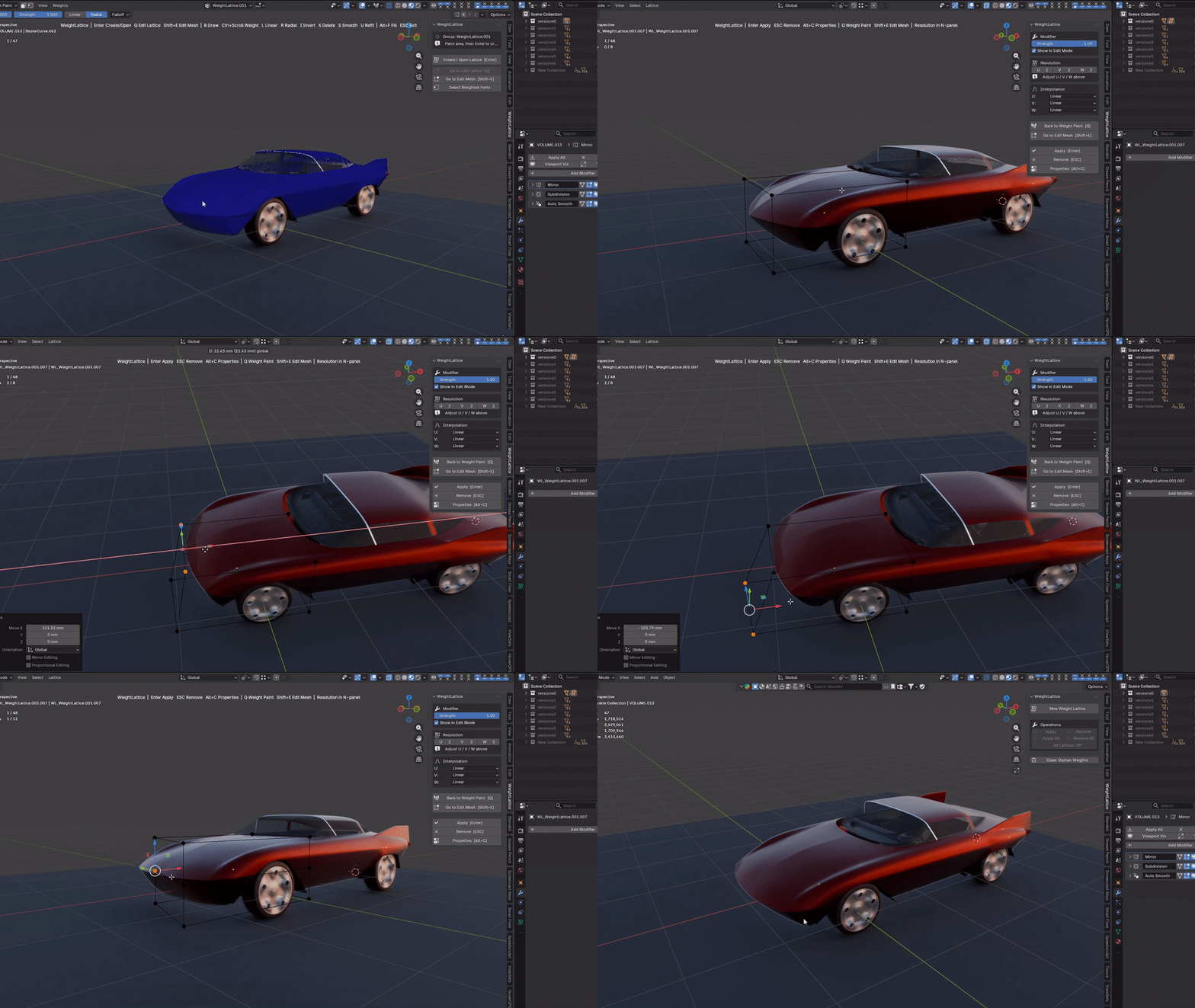
01 Paint Brush the region you want to deform in Weight Paint. |
02 Press Enter A lattice cage is generated around the weights, already linked to the mesh. |
03 Reshape Push the cage — the mesh follows in real time. |
04 Apply Enter bakes it. ESC discards it. Nothing is destructive until you say so. |
See it move
Full tutorials on the YouTube playlist.
Think in shapes, not setup steps
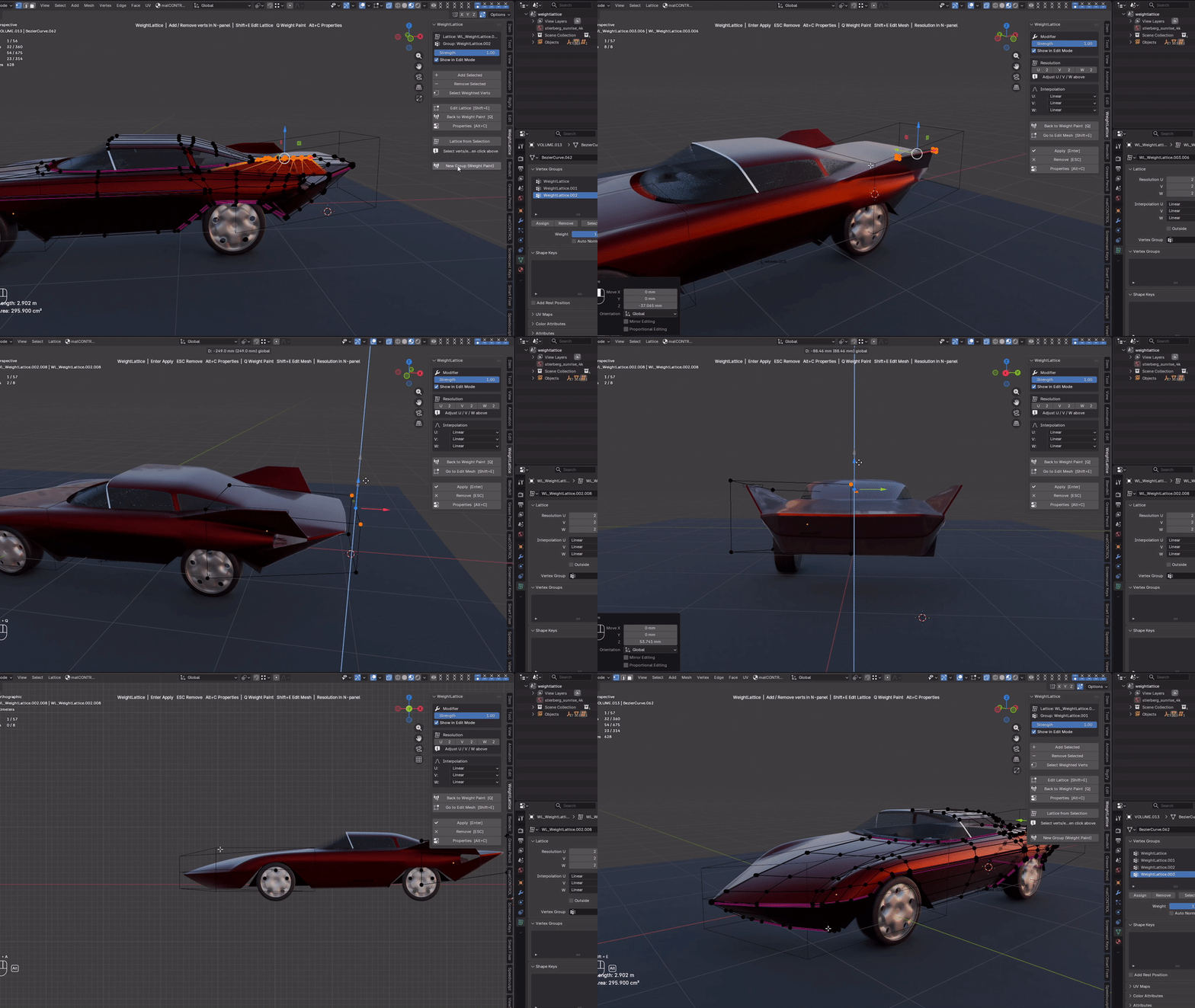 |
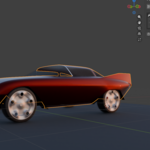
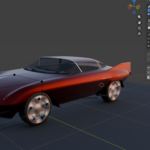
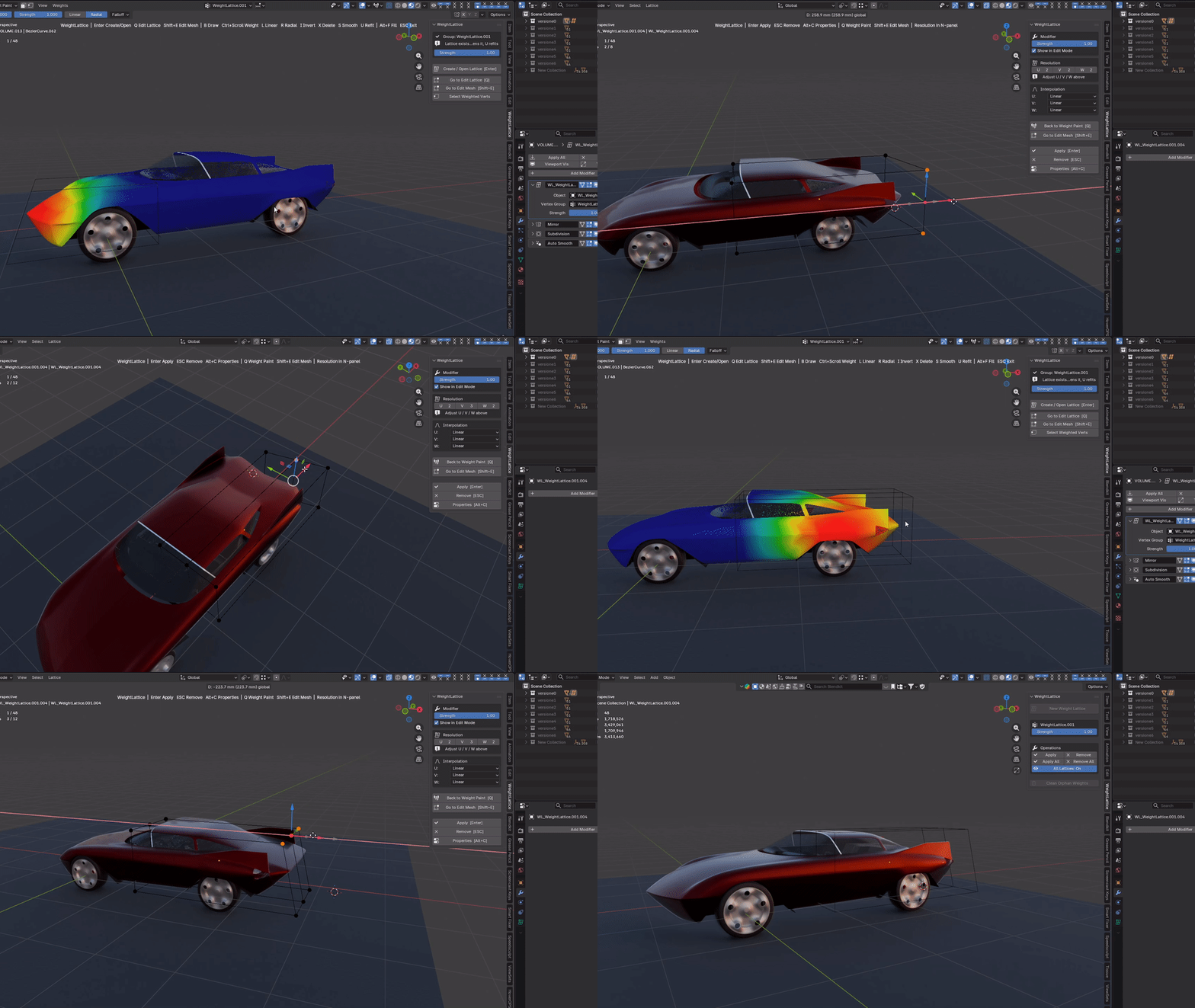
Reshape anything, at any scaleFill the whole mesh at weight 1.0 with Alt+F and transform the entire car — or paint a fender and move just that. |
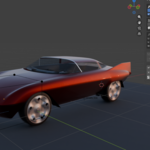
Big silhouette changes in secondsMorph a whole nose, stretch a tail, raise a deck. Low-resolution cages keep the surface smooth even on aggressive changes. |
 |
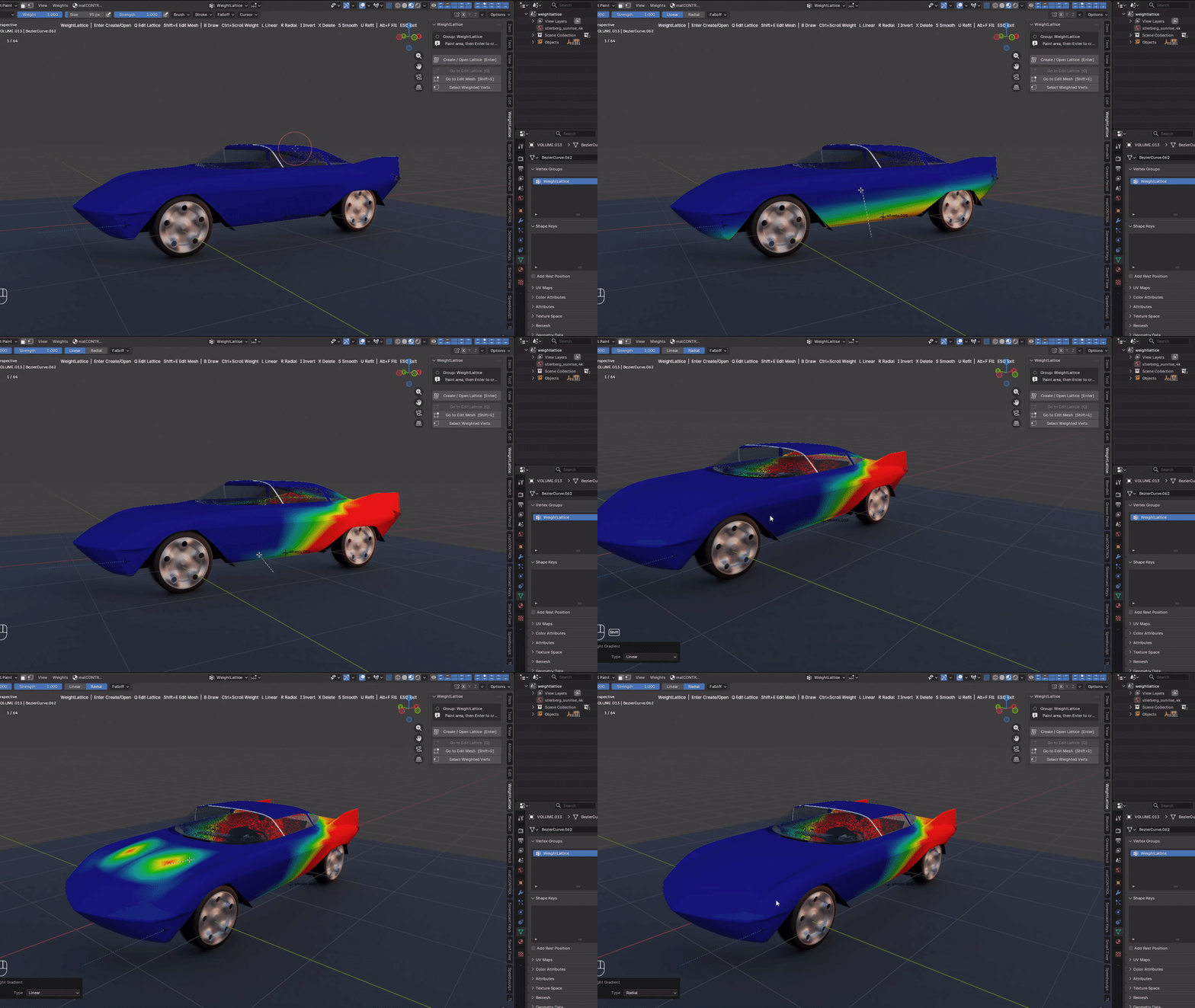 |
One key per weight toolDraw brush, linear and radial gradients, invert, delete, smooth, fill — each on a single key. |
Refit: repaint and the cage followsRepaint the region and press U — the cage rebuilds itself around the new weights. Repaint, refit, reshape. |
 |
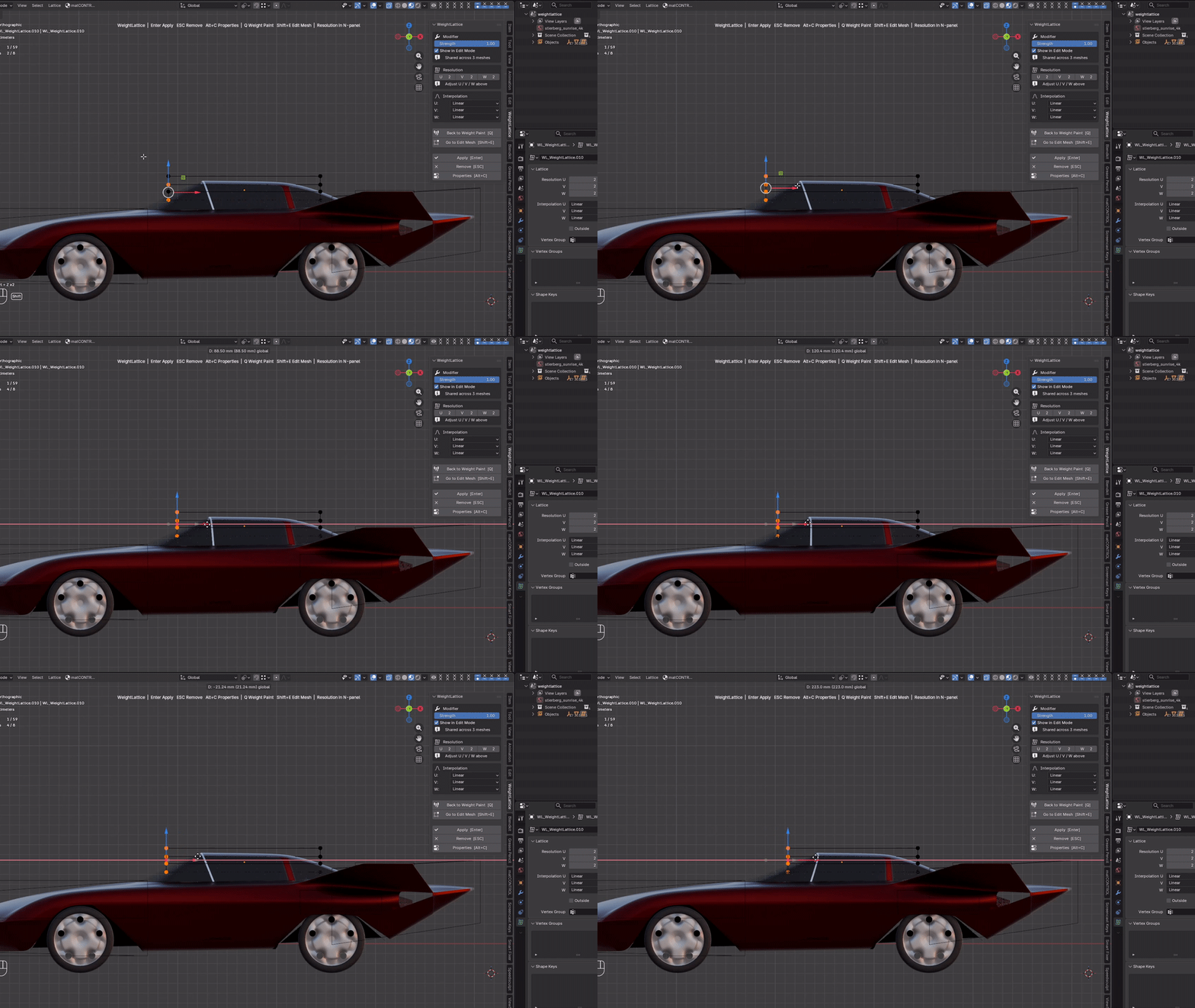 |
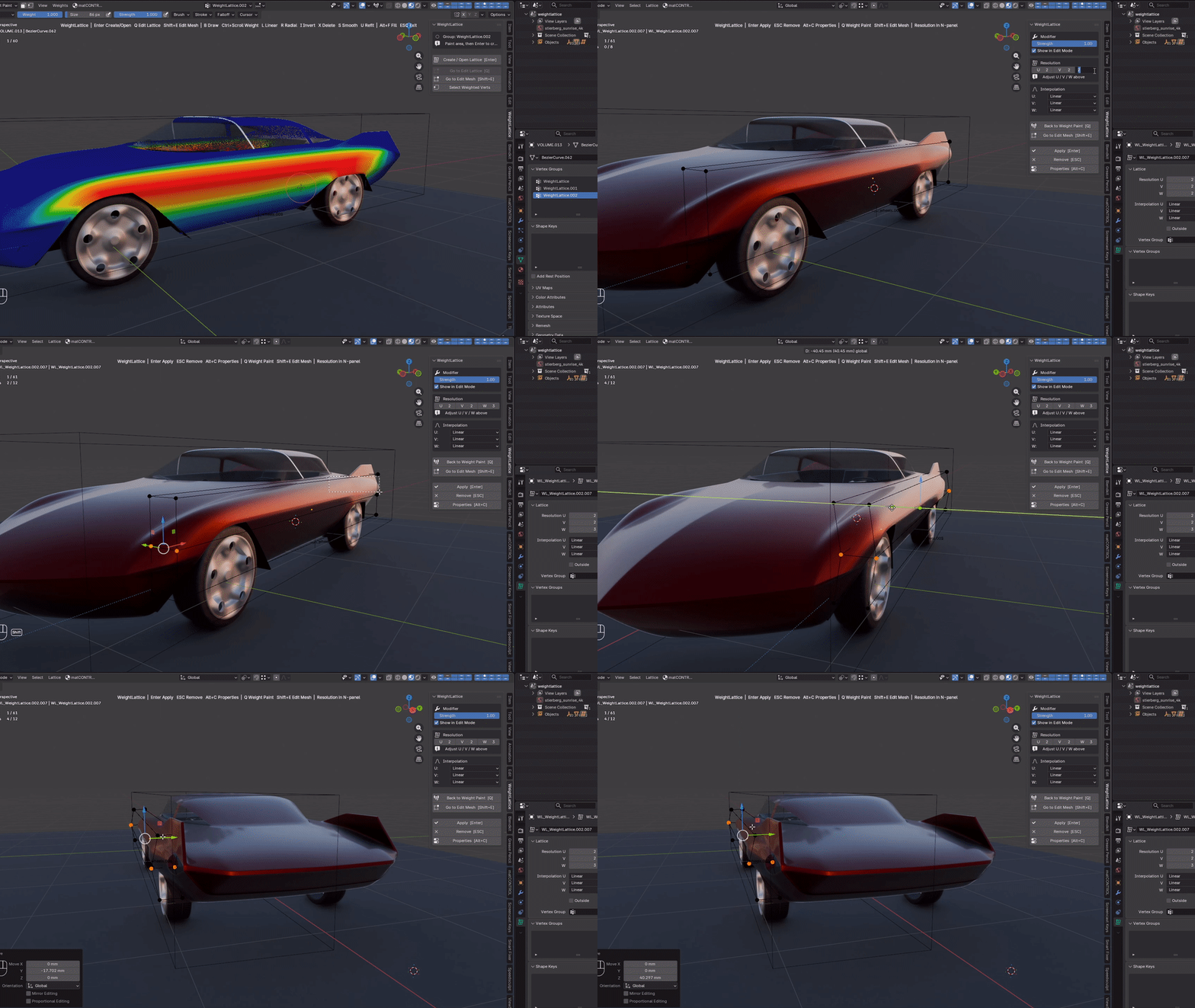
Hard-surface moves includedChop a roof, slam a ride height, widen an arch. Mirror, Subdivision and Auto Smooth keep working while you deform. |
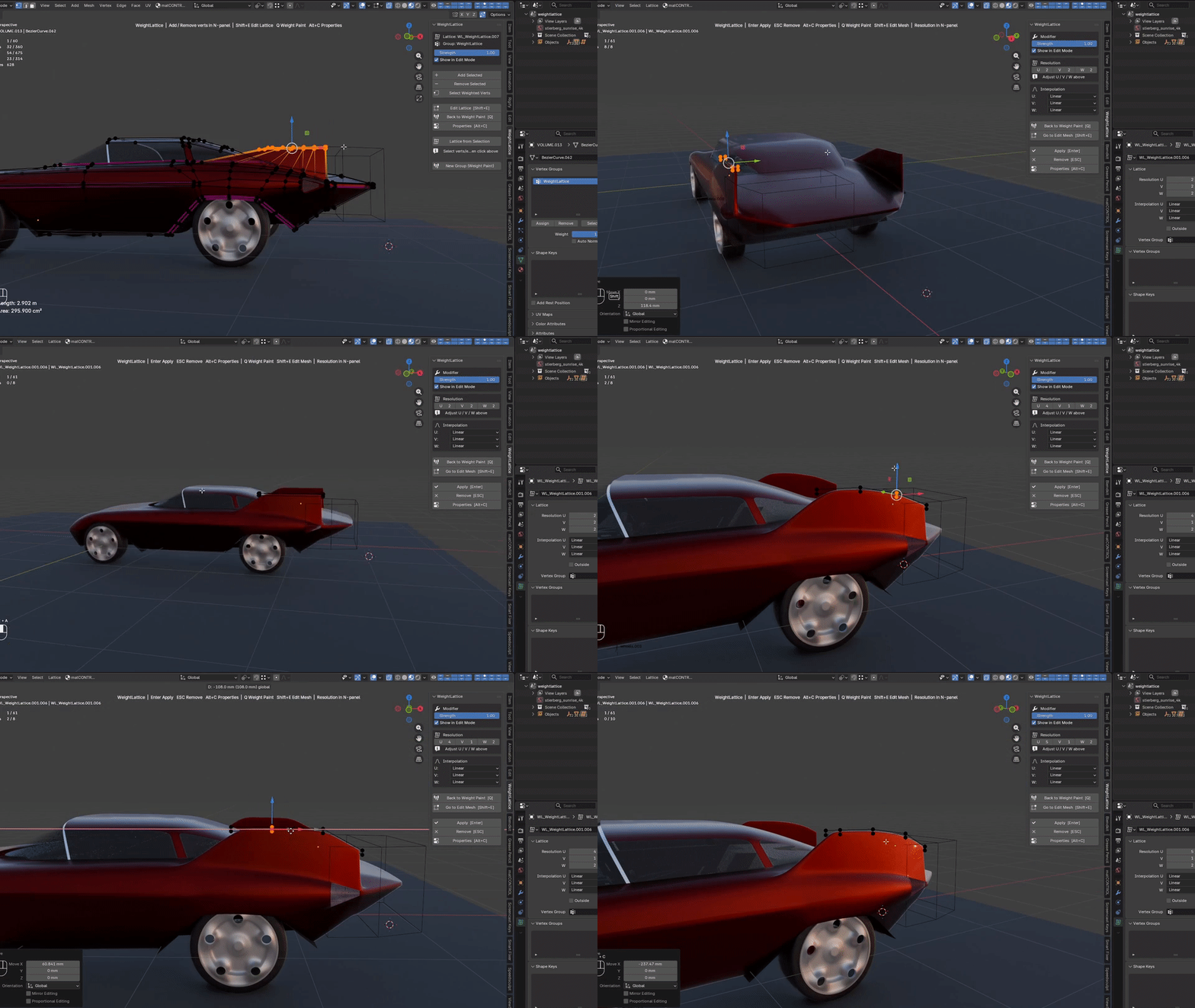
Start shapes from nothingA wing, a fin, a scoop — cage a simple base and push it into shape. Faster than box modeling, smoother than sculpting. |
 |
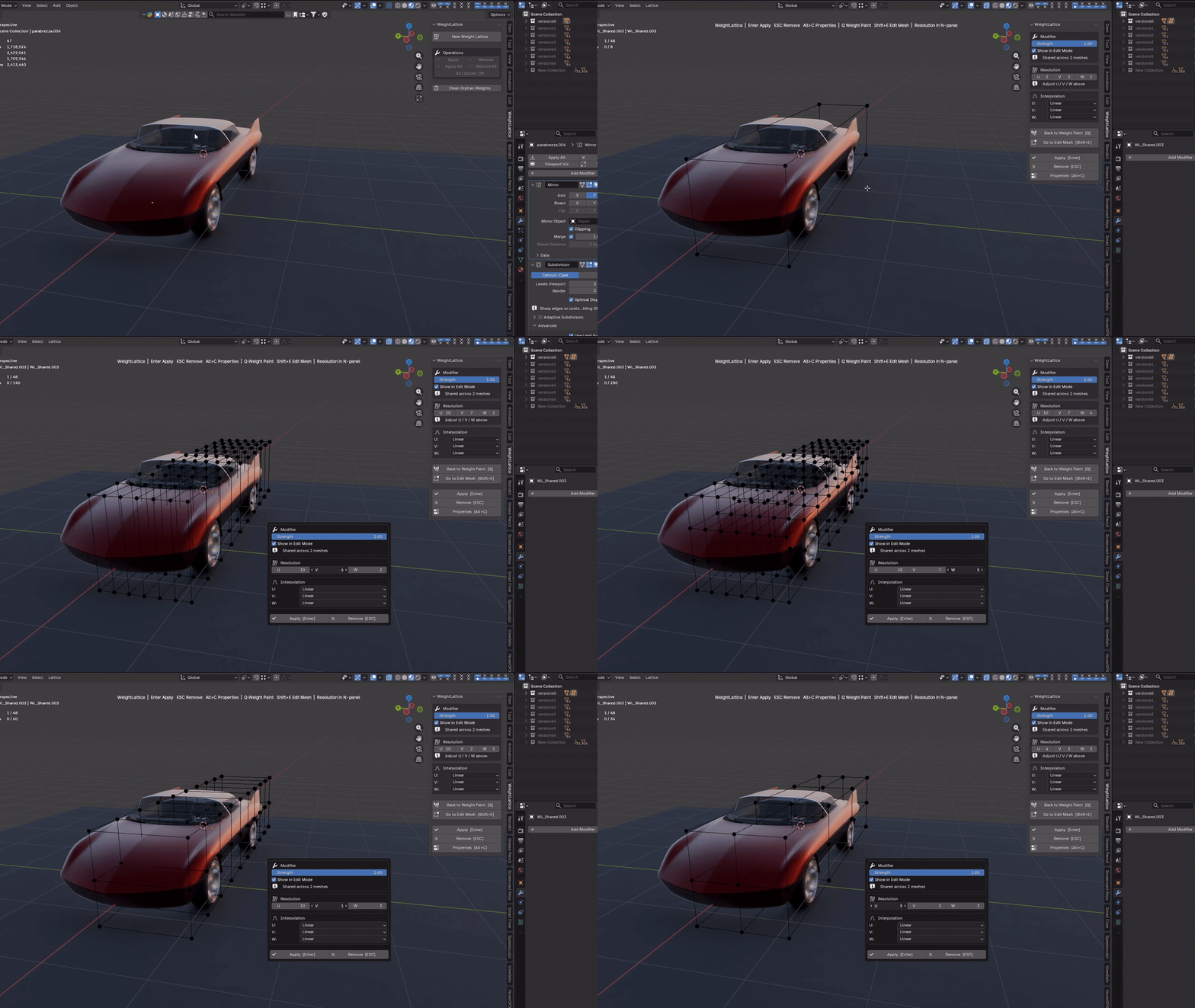 |
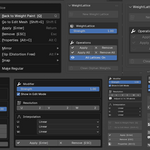
Cage resolution on a slider2×2×2 for smooth silhouette work, denser for sharp detail — change U/V/W resolution live from the N-panel. |
And more
|
Multi-mesh cages One shared cage drives several meshes — panels, glass and trim move together. |
Unlimited lattices Every painted group gets its own cage and strength slider. Apply one, all, or preview non-destructively. |
Lattice from selection No painting needed: build the cage straight from an Edit Mode selection. |
|
Zero shortcut conflicts Keys are active only during a session; everything is rebindable with live key capture. |
Non-destructive by default Nothing is baked until you apply. ESC leaves the mesh untouched. |
Plays nice with your stack The Lattice modifier is inserted where you choose; the rest is untouched. |
Shortcuts
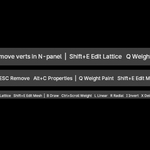
Active only while a session is running; every key can be rebound from the preferences.
| Enter | Create / open the lattice (Weight Paint) · Apply (Edit Lattice) |
| U | Refit the cage to the current weights |
| B | Draw brush (Ctrl+Scroll = weight) |
| L / R | Linear / radial gradient |
| I / X / S | Invert / delete / smooth weights |
| Alt+F | Fill at weight 1.0 |
| Q / Shift+E | Switch between Weight Paint, Edit Lattice and Edit Mesh |
| ESC | Exit / remove without applying |
FAQ
Does it work with modifiers already on the mesh?
Yes. The Lattice modifier is inserted according to your Modifier Position preference; the rest of the stack is untouched.
Can I keep the lattice instead of applying it?
Yes — leave the session and the lattice stays live on the mesh. Re-open it later with Enter, or manage it from the Object Mode panel.
Is it destructive?
Nothing is baked until you apply. ESC and Remove discard the cage and leave the mesh untouched.
Will the shortcuts conflict with my keys?
No. While no session is running every key falls through to Blender’s native shortcuts — and everything is rebindable.
One mesh, endless variations
Every car in the showcase is the same base mesh, reshaped with WeightLattice. Stop rebuilding — start reshaping.
Blender 4.2 LTS → 5.0 · Windows, macOS, Linux · GPL-3.0-or-later
Documentation · Tutorial playlist
