WheelForge — Vehicles That Drive Right in Unity: Wheels Found, Centred and Straightened, WheelColliders and Suspension Set Up, Measured
 Skava


WheelForge
v1.0.0 · Blender 4.2 LTS and later (tested on 4.2.9 and 5.2.2) · Unity 6 (tested; no render pipeline involved; earlier versions not tested) · Windows / macOS / Linux
1. What it does
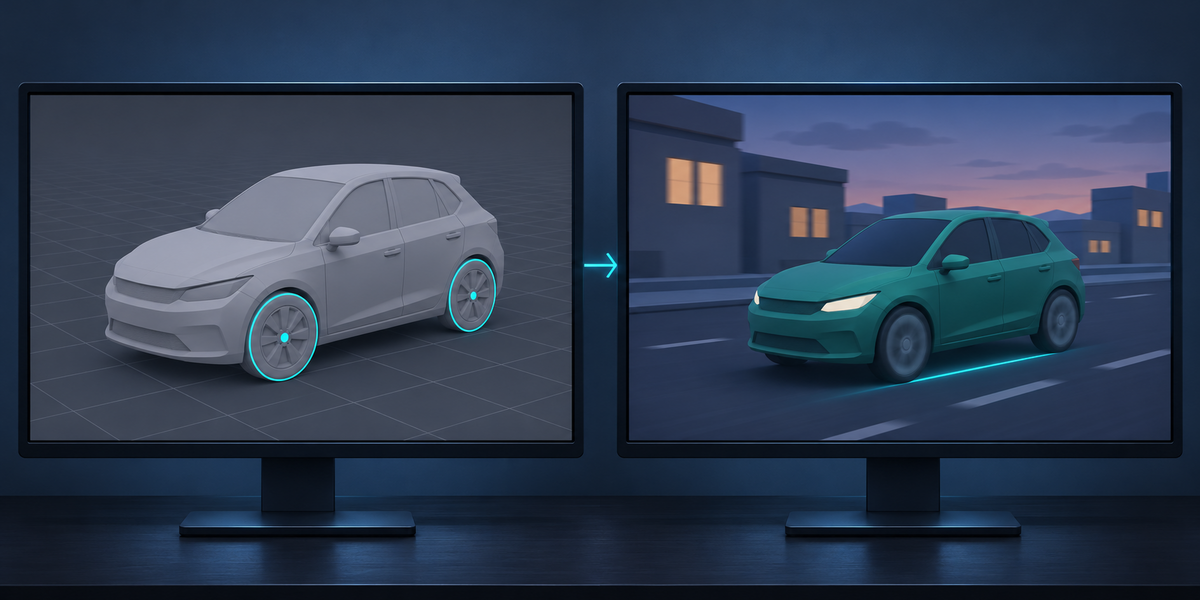
WheelForge turns a vehicle model into a car that drives in Unity with WheelColliders. In Blender it finds the road wheels, measures how each one sits, and builds a game-ready copy: every wheel's origin on its axle, every wheel straight, calipers on their own knuckles, a body collider. In Unity one menu builds the prefab with a Rigidbody, WheelColliders and suspension, and another drives the car in physics and reports, wheel by wheel, how it went, next to the same model set up the way the tutorials do it.
2. Installing
Edit, Preferences, Add-ons, the arrow in the top right corner, Install from Disk, pick the zip, tick the checkbox. The panel is in the 3D Viewport sidebar (N), tab WheelForge.
3. Quick start
- Select the vehicle: all its objects, or its root if the wheels hang under it. Object Mode. Hidden objects, objects disabled in viewports and objects in excluded collections are not part of the vehicle.
- Press Analyze. The panel lists every wheel it found: its radius, how far its origin is from the axle, how far it is turned and tilted at rest, how much it would hop if spun as it is, and which parts stay still (calipers). Parts that look like wheels but are not road wheels are listed with the reason.
- Check Forward (see 4), set the physics (see 6), choose a Folder (inside your Unity project's Assets saves a copy step) and press Build & Export for Unity.
- In Unity: select <name>.wheelforge.json (or the .fbx) in the Project window, choose Tools > WheelForge > Set Up Vehicle. A prefab <name>.prefab appears next to it.
- Choose Tools > WheelForge > Check Vehicle. The report <name>.wheelforge-check.txt is written next to the prefab and printed to the Console.
- Put the prefab in a scene and press Play: W/S or the arrow keys drive, A/D steer, Space brakes.
4. How the wheels are found
- A road wheel is a part that is round about one axis (it reaches the same distance in every direction around it), whose axis is within 25° of level, whose bottom touches the ground within 8% of its radius, which is no wider along its axle than 2.5 times its radius (a bar or a pipe lying on the ground is not a wheel) and at least a quarter of the radius of the largest wheel. The ground is where the lowest round parts stand, so a ground plane, a shadow catcher or Blender's default cube selected with the car does not hide the wheels; the panel names whatever reaches below them. Objects whose names say wheel, tire, tyre, rim, Rad, roue, rueda, ruota or the Russian word for wheel are looked at first; the shape decides.
- An object that is not round as a whole is looked at piece by piece (its loose parts, with vertices at the same spot counted as joined). That finds wheels merged into the body, both wheels of an axle in one object, and wheels made by a Mirror modifier.
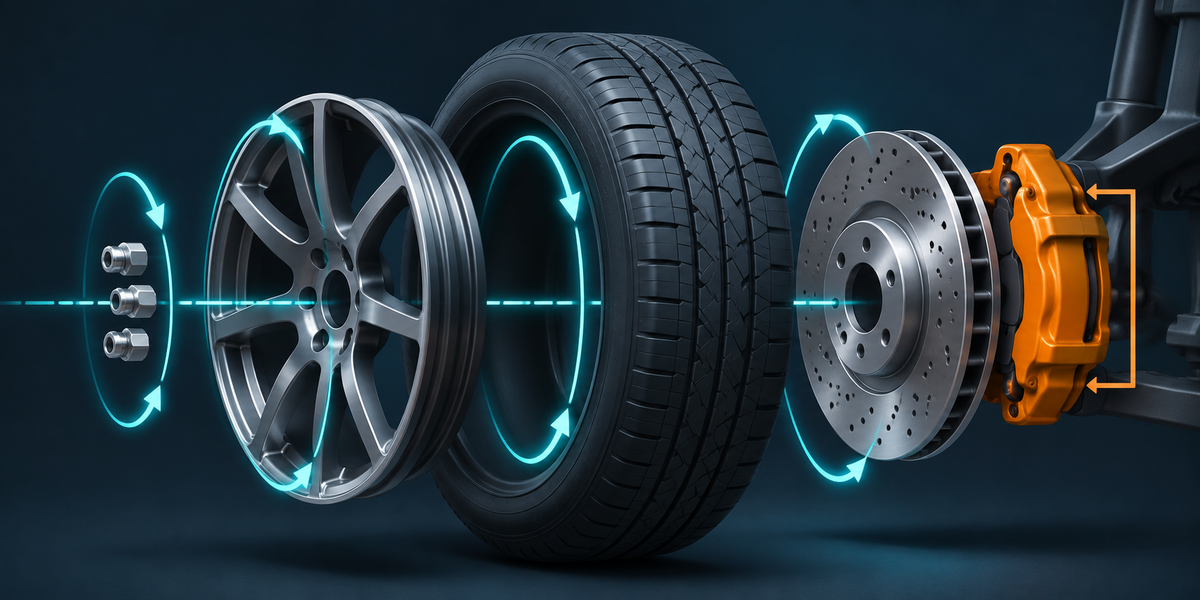
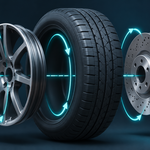
- Round parts on the same axle join the wheel: rim, brake disc, hub cap. A part inside the wheel that is balanced about the axle (a five-spoke rim, a ring of lug nuts, also as separate objects) turns with it. A small part or text parented to a spinning part (a valve stem, lettering on the tyre) spins with it; a larger one is judged by its balance like any other. A part on one side (a caliper), or named caliper, brake pad, knuckle, upright, suspension, strut, spring, shock, damper or arm, stays still: it goes on a knuckle that steers with the wheel but does not spin.
- Left out, and listed in the panel with the reason: steering wheels (by name, or round with a steep axis), spare wheels and anything round that does not reach the ground.
- Forward: across the wheels' axles. Which way is front comes from the wheel names (front/rear, FL/RR and the like), then from wheels turned at rest (the steered axle is the front), then Blender's front view (the car faces -Y). The panel says which one decided; set Forward by hand if it is wrong (a Forward along the axles is refused: the vehicle cannot face its own axle). Casters that point in different directions use the long side of the wheel layout.
- Wheels are named Wheel_FL, Wheel_FR, Wheel_RL, Wheel_RR; middle axles Wheel_M1L and so on; a wheel in the middle of the track (a trike's front) Wheel_FC; several wheels on one side of one axle get a number.
- WheelForge sets up vehicles with three or more wheels on the ground. Two-wheelers need a balance controller and are refused. Wheels under 1 cm in radius are refused: Unity reads 1 unit as 1 metre, and its WheelColliders are not stable that small. Scale the model to its real size, or set Scene, Units, Unit Scale.
- An object deformed by an armature is read in the pose it has now, and exported as a plain mesh.
5. The copy
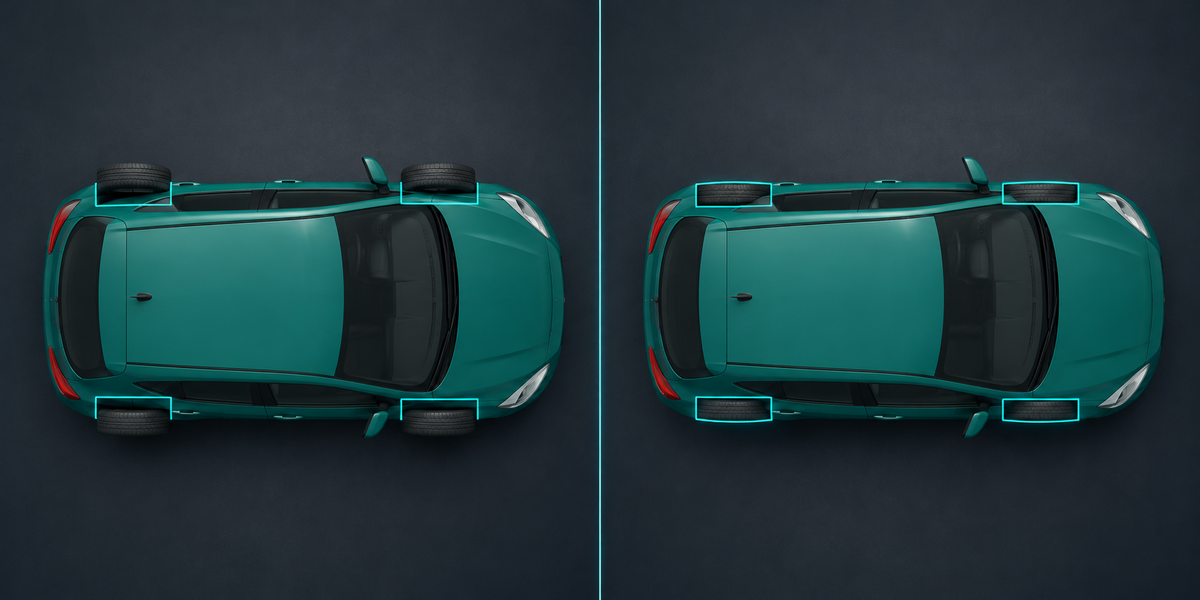
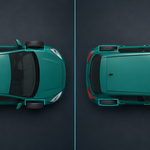
- Build & Export makes a new collection <name> (WheelForge) and leaves your objects as they are. In it: the root <name>_WF on the ground under the middle of the wheels (X right, Y forward, Z up); Body with the rest of the vehicle, its hierarchy and materials kept; a Wheel_xx empty per wheel, with its origin on the axle and the wheel's parts under it, turned straight about the wheel's own centre; a Knuckle_xx for calipers; WF_Collider, a convex hull of the body above half the smallest wheel's radius, at most 250 faces; WF_Up, a marker one metre above the root that the Unity side uses to tell up from down.
- Modifiers are applied in the copy (what you see is what is exported); curves and text become meshes; collection instances and Geometry Nodes instances become real meshes (FBX carries no instances). Pieces taken out of a merged mesh are removed from the body's copy. Objects mirrored with a negative scale keep their faces pointing out. Every copied mesh sits exactly where its source is, also under a parent scaled unevenly.
- A wheel inside a collection instance is not found: make the instance real first (Object, Apply, Make Instances Real).
- Steer and camber at rest are removed: a wheel modelled turned 30° or leaning would wobble as it spins.
6. Physics settings
- Mass in kg (a car 1000–1600, a kart 100–200, a truck 6000 and more).
- Drive: rear, front or all wheels. Front steers / Rear steers.
- Suspension travel: how far a wheel can move. Spring (Hz): how stiff (a car 1.2–2, a kart or a race car 2.5–4); the spring of each wheel is worked out from its share of the mass. Damping: 0.3–0.5 settles in a bounce or two.
- Max steer, Motor torque, Brake torque: for the built-in drive component; your own controller can ignore them.
- The centre of mass is in the middle of the wheels, a quarter of the way from the axles to the top of the body. Move it in Unity (Rigidbody, Center Of Mass) if your vehicle is front- or rear-heavy.
7. Export
- <name>.fbx: the copy, with Blender's axes (forward Y, up Z) and FBX All; Unity's Bake Axis Conversion turns it. <name>.wheelforge.json: the passport (every wheel's centre, radius, steer and drive, mass, suspension). <name>.original.fbx (with Before / after in Unity): your vehicle as it was, for the "before" column of Check. WheelForge/: the Unity scripts.
- A file of the same name that WheelForge did not write is never replaced: the export refuses, says which file, and writes nothing. An FBX counts as WheelForge's only with WheelForge's .wheelforge.json next to it. If the export fails, what it wrote and the copy in the scene are taken away again.
- Unity scripts: a Unity project needs them once. When the folder is inside a project's Assets that already has them, they are not copied again (two copies would not compile); the export says where they are.
8. In Unity
-
Set Up Vehicle sets the model's import (Bake Axis Conversion, Read/Write for the collider and Check, no cameras or lights), fits the passport onto the model (the fit must be within 2 mm, or it stops and says so), turns the model so the vehicle faces +Z with up +Y and its origin on the ground, and saves a prefab with:
- a Rigidbody with your mass and centre of mass, interpolation on, continuous collision;
- a convex MeshCollider from WF_Collider (its renderer removed);
- a WheelCollider per wheel under WheelColliders, with the tyre's radius, your travel, and a spring and damper from the wheel's share of the mass;
- the WheelForgeCar component (see 9).
-
Check Vehicle drives the prefab in a physics scene of its own (your open scene is not touched): settles it with the brakes on, drives it straight for at least 30 m (20 times the distance between its farthest wheels for long vehicles), then steers 20°. The report has:
- tyre off its wheel (mm, limit 1): distance from the tyre's centre (the middle of its tread) to its WheelCollider's;
- tyre axis off the axle (°, limit 0.5);
- tyre hops while driving (mm): how much the tyre's lowest point moves against its collider while it rolls; the limit is the tyre's own polygon (a 16-sided tyre hops by itself) plus 2 mm;
- tyre off the ground (mm) at rest, the polygon plus 3 mm;
- steering: tyre vs wheel (°, limit 0.5);
- caliper off its wheel (mm, limit 1), when there are calipers;
- drove straight: the distance driven; a car that does not cover it fails, and nothing measured on the way counts as passed;
- drives sideways (°, limit 1) and pulls aside per 50 m (cm, limit 30);
- body above the ground and at rest: how high the lowest collider is, how much the car leans, how many wheels are on the ground (every wheel must be, or the check fails).
- Batch mode: Unity -batchmode -quit -projectPath <project> -executeMethod WheelForgeSetup.Batch -wfJson Assets/…/<name>.wheelforge.json [-wfReport report.txt]; exit code 0 when every check passes, 1 when one does not, 2 on an error.
9. WheelForgeCar
- Keeps every tyre (and caliper) on its WheelCollider each frame: position, spin and steer. Call SyncVisuals() yourself after moving the car by script.
- Drive From Inputs on: Throttle, Steer and Brake (−1…1) drive the colliders; Keyboard adds W/S/A/D, the arrows and Space (works with the old Input Manager and with the Input System).
- With your own controller (or an asset that sets motorTorque, brakeTorque and steerAngle itself): turn Drive From Inputs off and keep the component for the visuals. A controller that moves the wheel transforms itself can use the Wheel_xx nodes directly: their origin is on the axle and their X along it.
10. Measured
- 31 vehicles in Unity 6: 25 of Kenney's Car Kit (cars, karts, vans, trucks, tractors), the Khronos Car Concept (calipers, brake discs, front wheels modelled turned 30°), a coffee cart with four swivel casters merged into its body, and the same cars turned 37° and moved, in centimetres under a 0.01 root, in a scene with Unit Scale 0.01, and Y-up. Every one passes every check: tyres at most 0.2 mm from their wheels, axles within 0.4°, at most 2.2 cm off line in 50 m.
- The tutorial setup of the same models: tyres 105 to 178 mm beside their wheels (every Kenney vehicle), axles off by 8.6° and the car hanging 157 mm above the road (Car Concept), 43° sideways (a tractor), 8 m off line in 50 m (a truck).
- Blender 4.2.9 and 5.2.2: 59 checks of the Blender side (wheels found and named, built straight and centred, the source untouched, merged, Mirror-modifier and negative-scale wheels, lug nuts, valve stems and calipers, hidden objects, uneven parents, instances, units, refusals, file safety, the panel).
- Check is tested against broken copies: turned wheels left unstraightened (Car Concept), tyres 5 cm off the axle, colliders 10% small: each one fails.
11. Limits
- Tracks (tanks, diggers), road-roller drums and two-wheelers are not set up; a trailer that stands on a small jockey wheel (under a quarter of the road wheels' size) counts as two-wheeled.
- Wheels deformed by bones are exported in their current pose as plain meshes; a rig that animates the wheels is not carried over.
- Camber is removed, not kept: a WheelCollider has none.
- Geometry Nodes are evaluated on a copy of the object at the current frame: a Simulation zone shows its first frame, and a tree that reads its own object (Self Object) sees the copy.
- The built-in drive is for trying the car; game handling (gears, differential, tyre friction curves) is your controller's job.
Have questions about this product?
Login to message
| Published | about 2 hours ago |
| Blender Version | 4.2 - 5.2 |
| Extension Type | N/A |
| License | GPL |
Discover more products like this
car vehicle suspension wheels unity Game Engine fbx Export rigging wheel collider game-dev physics