Wireframe Glow
 Egret Studios LLC



✨ Wireframe Glow Documentation
📦 Installation
-
Download the
wireframe_glow.zipfile -
Open Blender and go to Edit, then Preferences, then Add-ons
-
Click Install and select the downloaded zip file
-
Enable the addon by checking the box next to Wireframe Glow
📍 Location
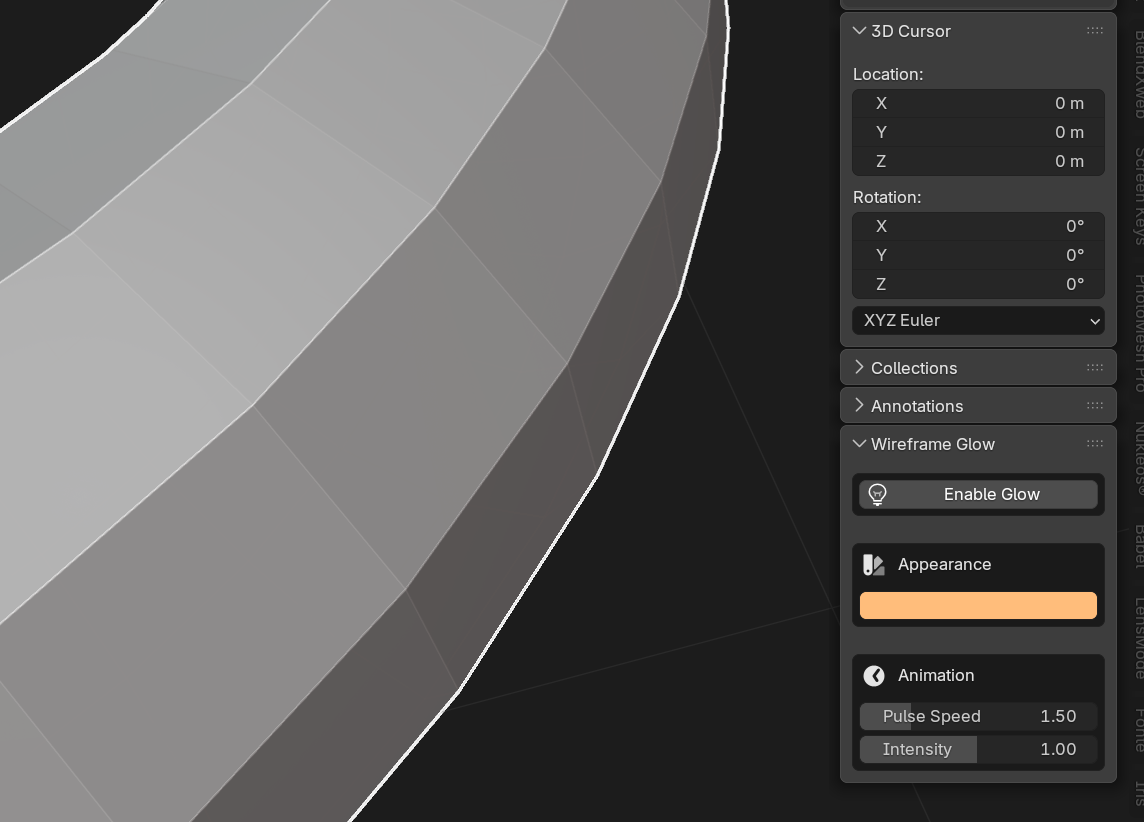
The Wireframe Glow panel is located in the 3D Viewport sidebar under the View tab.
To access it:
-
Press N in the 3D Viewport to open the sidebar
-
Click the View tab

-
Locate the Wireframe Glow panel
🎮 Usage
Enable or Disable
Use the Enable Glow checkbox to turn the wireframe glow effect on or off.
When enabled, all selected mesh objects will display a pulsing glow on their wireframe edges in real time.
🎨 Appearance Settings
Glow Color
-
Click the color picker to choose your preferred glow color
-
Default color is cyan (0.0, 0.8, 1.0)
-
Works with any RGB color value
⏱ Animation Settings
Pulse Speed
-
Range: 0.5 to 5.0
-
Default: 1.5
-
Controls how fast the glow pulses
-
Lower values create a slower, more subtle animation
-
Higher values create a faster, more energetic animation
Intensity
-
Range: 0.0 to 2.0
-
Default: 1.0
-
Controls the brightness and thickness of the glow
-
Lower values create a thinner, dimmer glow
-
Higher values create a thicker, brighter glow
⭐ Features
✔ Works in all viewport shading modes including Solid, Material Preview, and Rendered
✔ Compatible with both Cycles and Eevee
✔ Visible even when all viewport overlays are disabled
✔ Real-time updates when adjusting settings
✔ Lightweight and efficient with minimal performance impact
✔ Clean, non-intrusive user interface
💡 Tips
-
Use lower intensity values between 0.5 and 0.8 for subtle highlighting in busy scenes
-
Use higher pulse speed values between 3.0 and 5.0 for attention-grabbing presentations
-
Disable overlays using Alt + Shift + Z for a clean viewport with only the glow visible
-
Works great for screencasts and tutorials where selection clarity matters
-
Combine with camera view to frame shots while keeping selections visible
🛠 Troubleshooting
The panel is not showing
-
Make sure the addon is enabled in Preferences
-
Press N to open the sidebar if it is hidden
-
Ensure you are in the View tab of the sidebar
The glow is not visible
-
Make sure Enable Glow is checked
-
Ensure a mesh object is selected
-
Try increasing the Intensity value
-
Check that the glow color is not too similar to your background
Performance issues
Wireframe Glow is lightweight, but if you experience slowdowns:
-
Reduce the pulse speed
-
Lower the intensity value
-
Disable the effect when it is not needed
💻 System Requirements
-
Blender version 4.0.0 or higher
-
OpenGL-compatible graphics card
-
Works on Windows, macOS, and Linux
📧 Support
For bug reports, feature requests, or questions, contact
[email protected]
Version 1.0.0
© 2026 Egret Studios LLC
Have questions about this product?
Login to message
| Blender Extension Compatible | Yes |
| Sales | 10+ |
| Published | 9 months ago |
| Blender Version | 4.0 - 5.0 |
| Extension Type | Add-on |
| Render Engine Used | Cycles, Eevee |
| License | GPL |

Discover more products like this
wireframe blender addon for colored wireframes bconaustin bcon26 color-wireframe